

How to Use the Teams Tab to Understand Team Roles, Outputs, and Dependencies
1. Open the Teams tab from the organization view 0:00
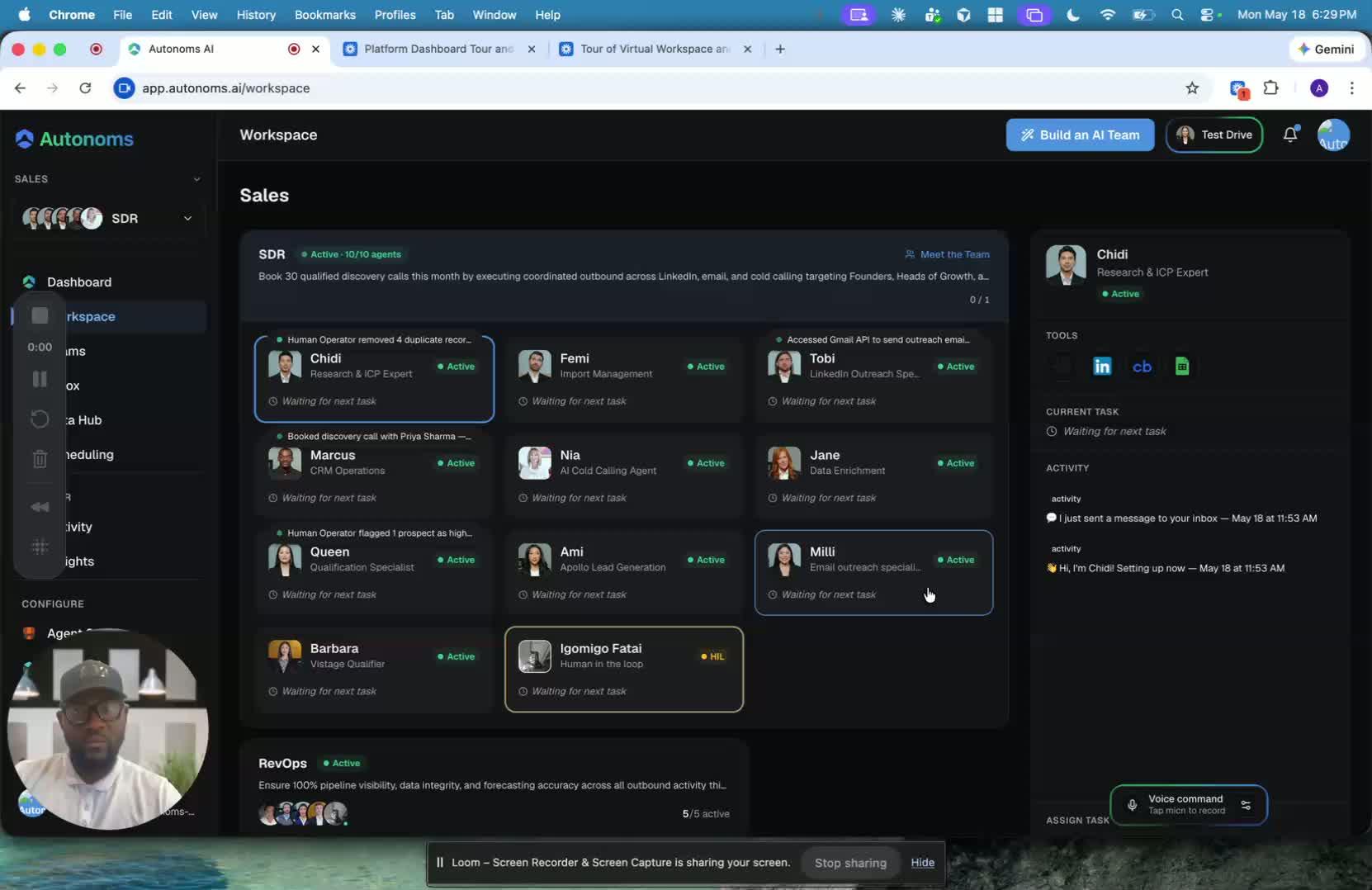
- The Loom is focused on the Teams tab.
- Use the top selector to switch between different organizations.
- Then use the Teams tab to move between teams inside the selected organization.
- This tab is meant to give you a clear view of how each team fits into the company.
2. Review each team member’s role and purpose 0:18
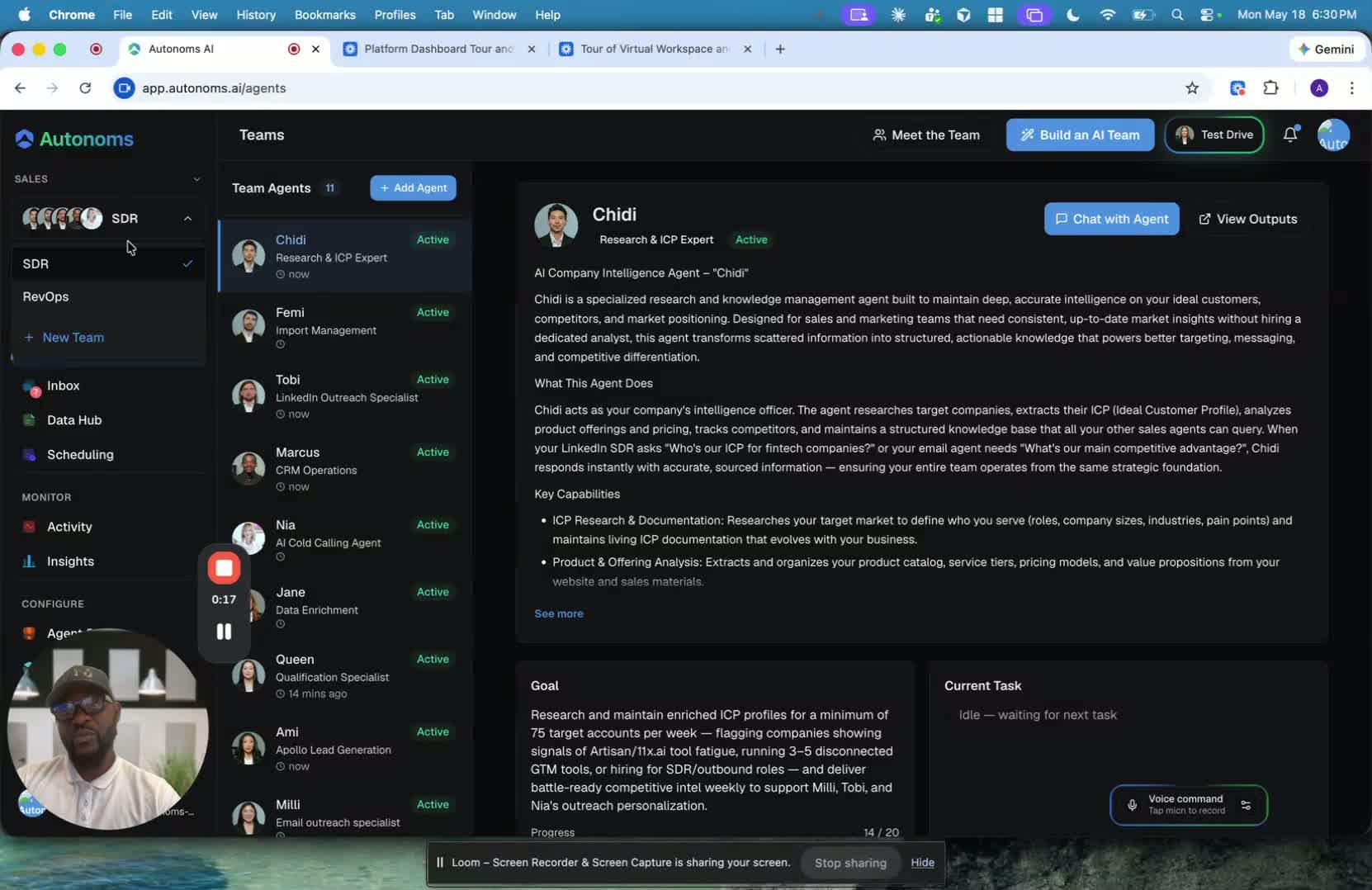
- In the Teams tab, you can see each team member and what they do.
- The goal is not just to list responsibilities, but to show:
- What each person is responsible for
- How their work supports the larger company goal
- This helps you understand the team as an ecosystem, not just as individual contributors.
3. Check goals, task history, and outputs 0:29
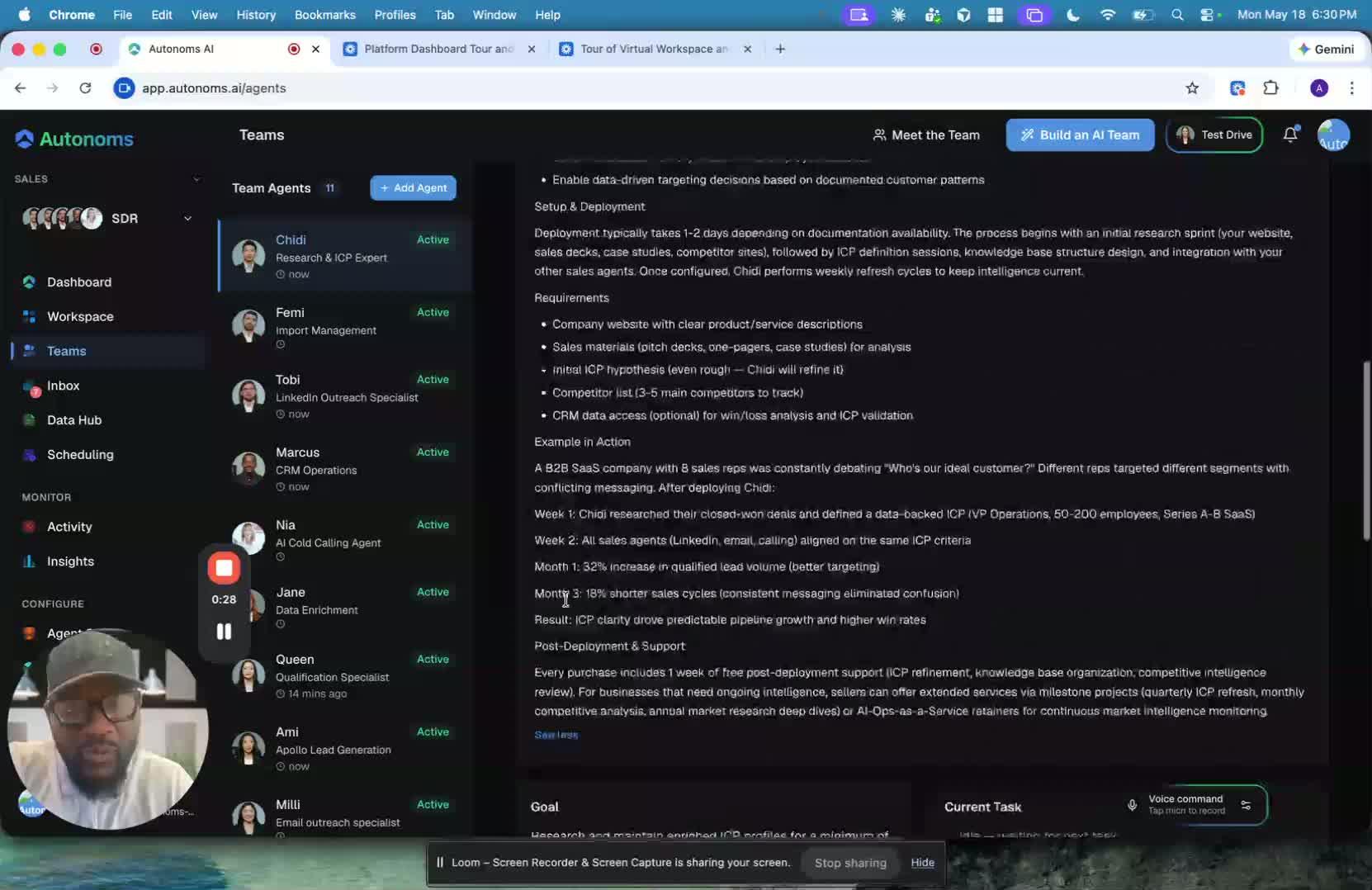
- For each team member, you can view:
- Their specific goal
- Their task history
- Their outputs
- Outputs may include things like:
- Trends
- Recommendations
- Research findings
- This gives you transparency into what each person is working on and what they have produced.
4. Use Chidi as an example of a research-focused team member 0:47
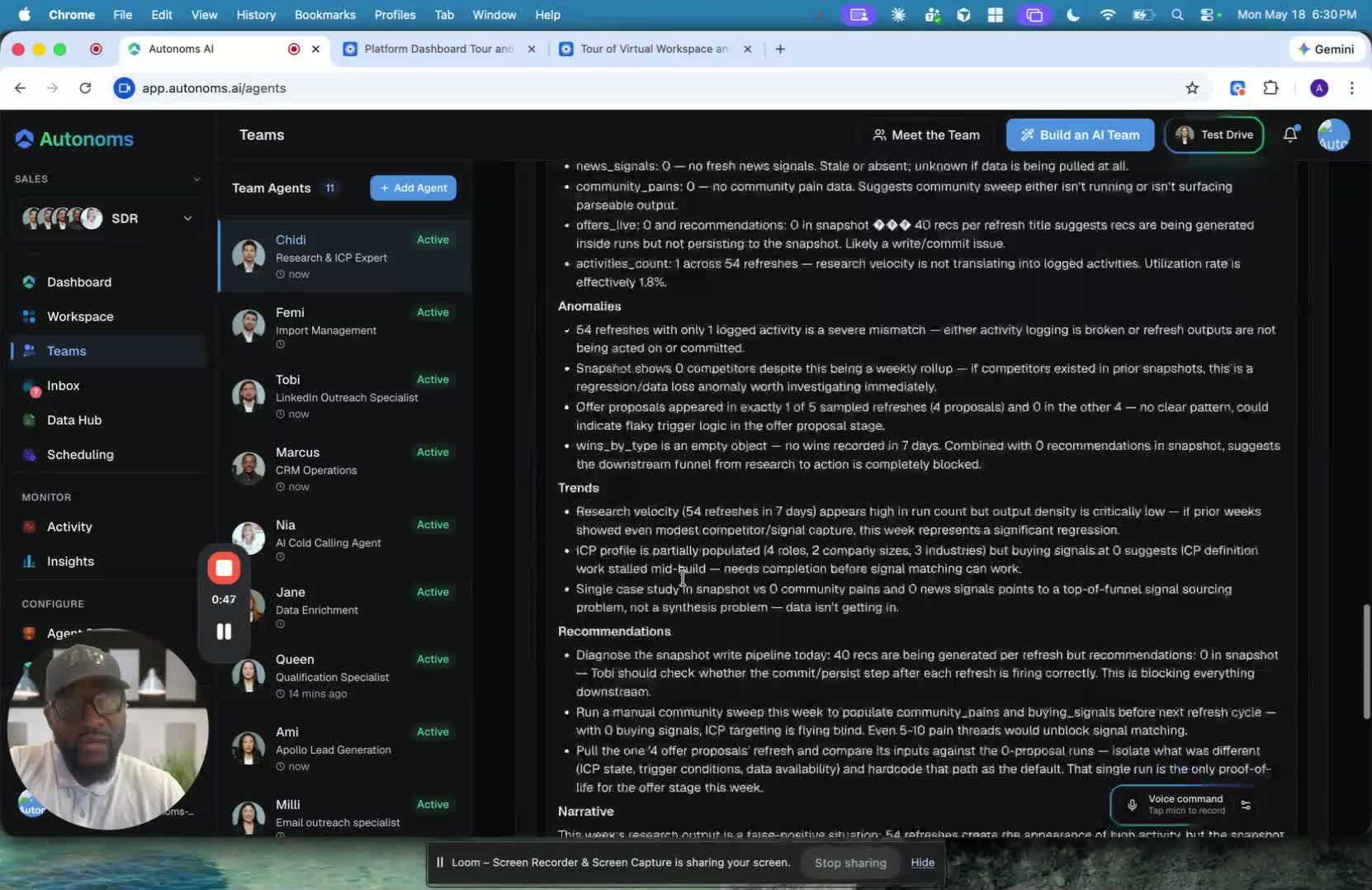
- Chidi is used as an example of how the system works.
- He performs daily research and adds his findings into the Teams tab.
- His outputs can include:
- Research and company intelligence
- Positioning insights
- Case studies
- Testimonials
- Other team members can then use this information as needed for their own work.
5. Collaborate through chat and shared visibility 1:34
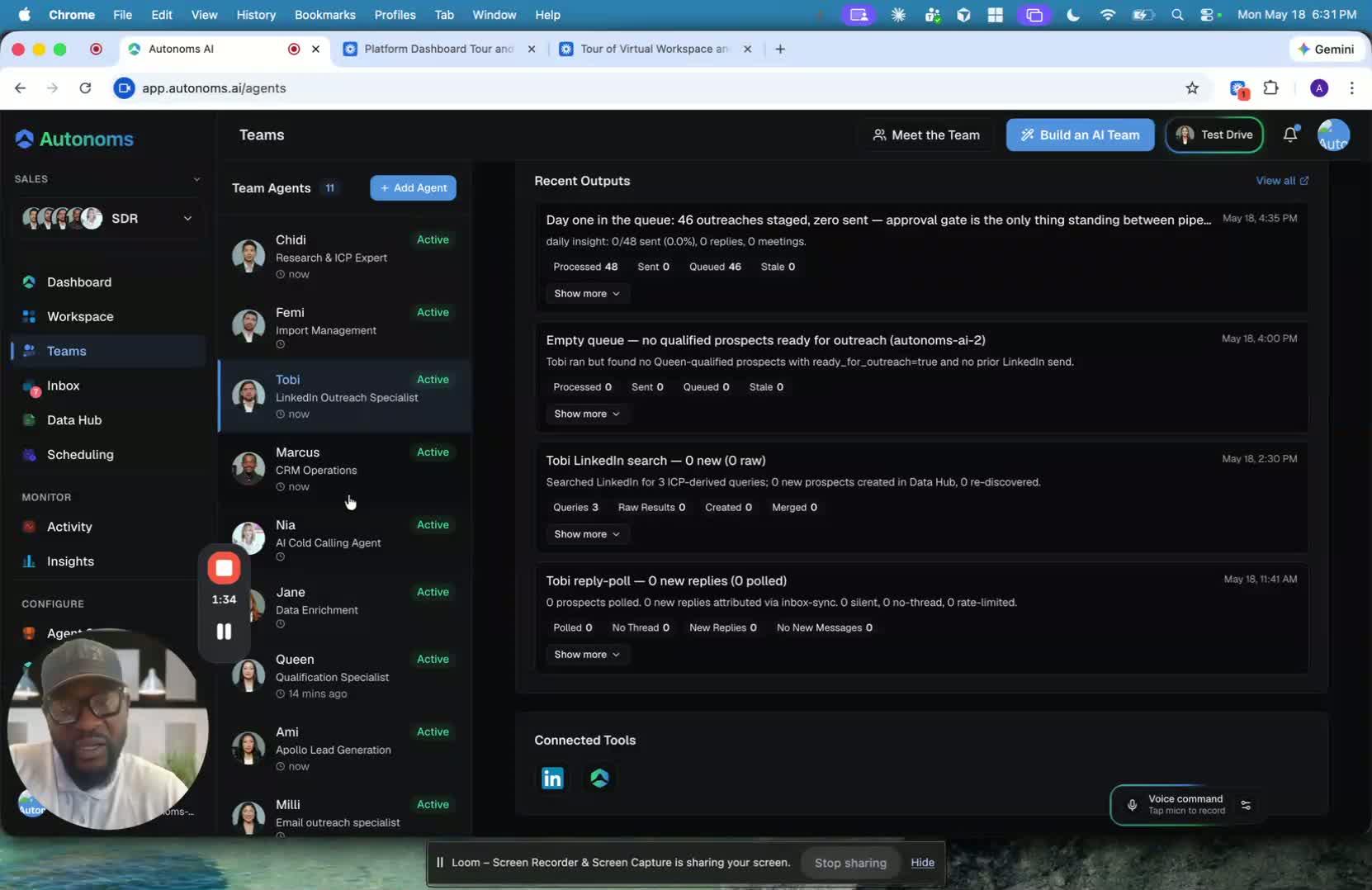
- From the Teams tab, you can chat with a team member directly.
- You can also review their outputs to understand:
- What they are doing
- What they have completed
- What information they are contributing to the team
- The main benefit is transparency across the team.
6. Review connected tools, current tasks, and dependencies 1:48
generated-image-at-00:01:48
- The Teams tab also shows:
- The company-connected tools used by the team member
- Their current tasks
- Any dependencies on other teams
- Some team members may be waiting on:
- A scheduled run
- Data from another team
- Input needed before they can continue
- This helps you understand why work may be paused and what is blocking progress.
7. Remember the key takeaway: the Teams tab is for transparency and coordination 2:08
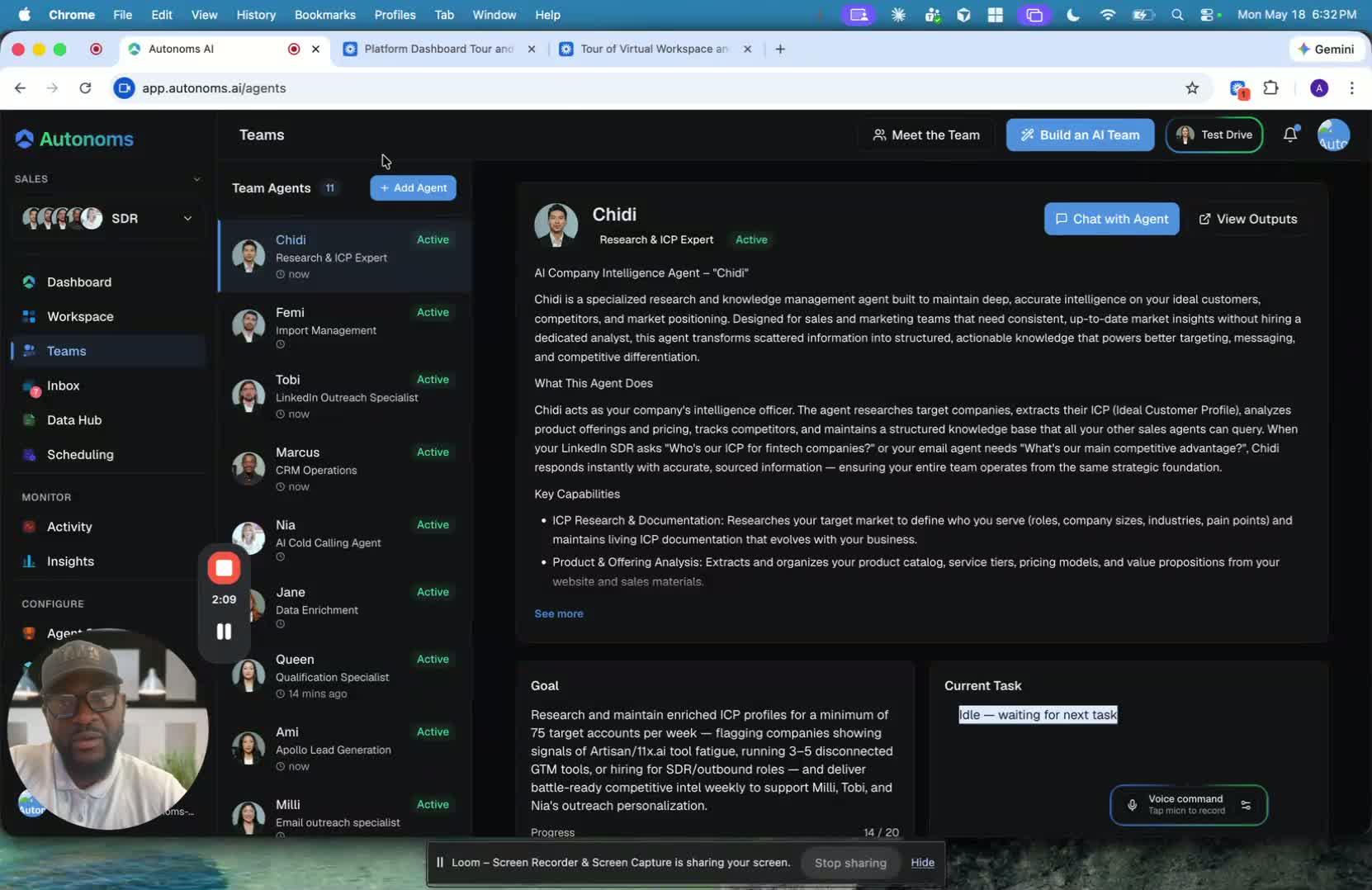
- The Teams tab is designed to make team operations easy to understand.
- It shows:
- Roles
- Goals
- Outputs
- Task history
- Tools
- Dependencies
- Overall, it helps the whole organization stay aligned around the company goal.
Link to Loom
https://loom.com/share/9340f488147a4474a7fe07db8190fabe
Cautionary Notes
- Do not assume a team member is blocked without checking their task status and dependency notes first.
- Make sure you are viewing the correct organization and team before taking action or sharing information.
- Outputs may be updated daily, so always verify you are using the most recent version.
- Some tasks may appear inactive because they are waiting on another team or scheduled run; avoid duplicating work.
Tips for Efficiency
- Start with the team member’s goal to understand context before reviewing tasks or outputs.
- Use outputs as a shared source of truth for research, recommendations, and supporting materials.
- Check task history to spot recurring issues or repeated dependencies.
- Use direct chat from the Teams tab to reduce back-and-forth and speed up clarification.
- Review connected tools and scheduling status early to avoid delays caused by waiting on dependencies.