

SOP: Navigating the Workspace, Teams, and Human-in-the-Loop Support
Key Steps
1. Open the Workspace as Your Virtual Office 0:00

- Navigate to the Workspace area.
- Treat the workspace like a virtual office where you can move between teams and interact with team members.
- Use this area to collaborate, monitor work, and communicate across the organization.
2. Understand the Workspace Structure 0:15
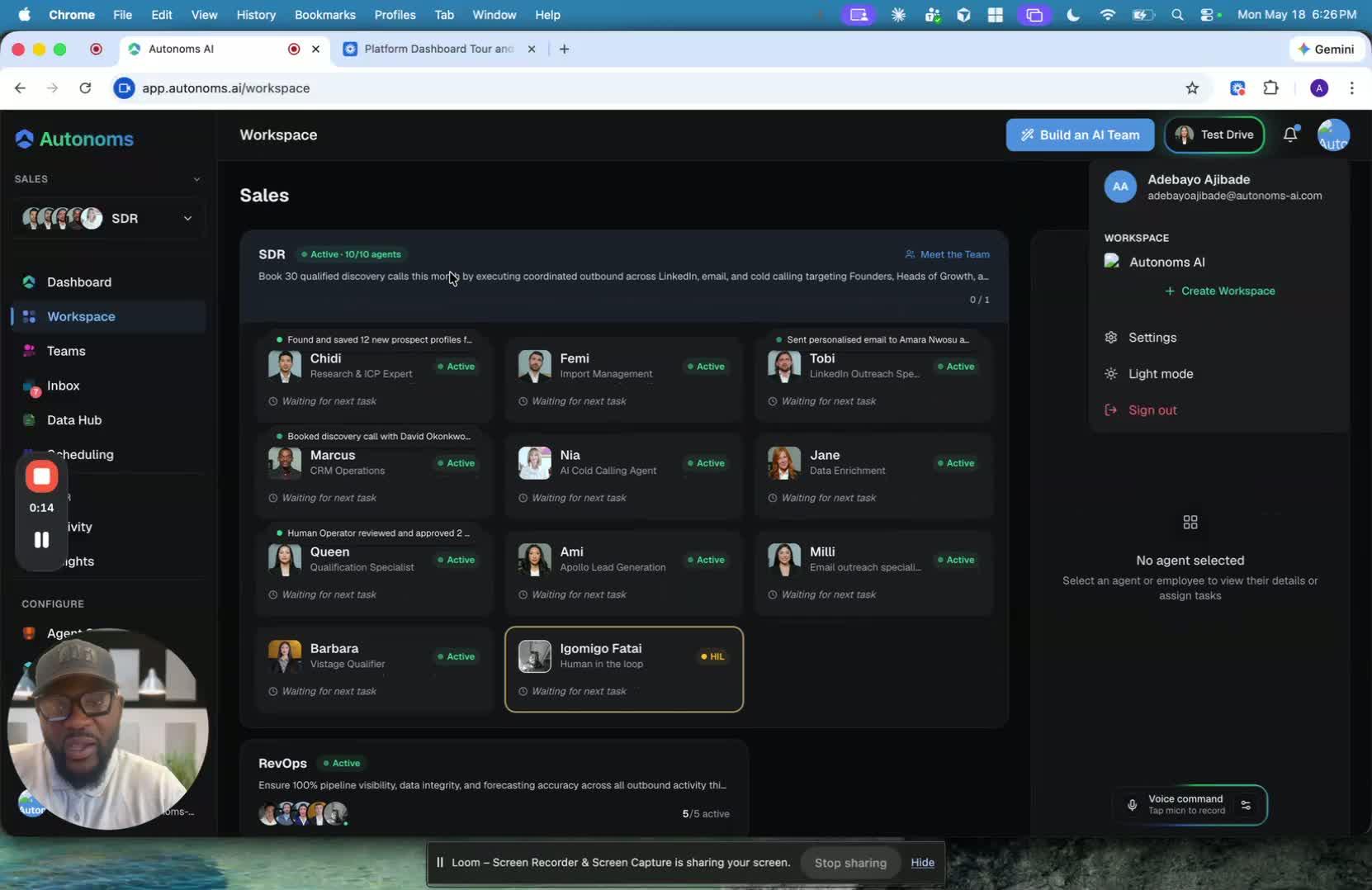
- Recognize that the workspace is structured like a real virtual office.
- Understand the hierarchy:
- Company / Tenant
- Locations
- Organizations
- Teams
- Team Members
- Use this structure to locate the correct team or department before taking action.
3. Switch Between Organizations 0:31
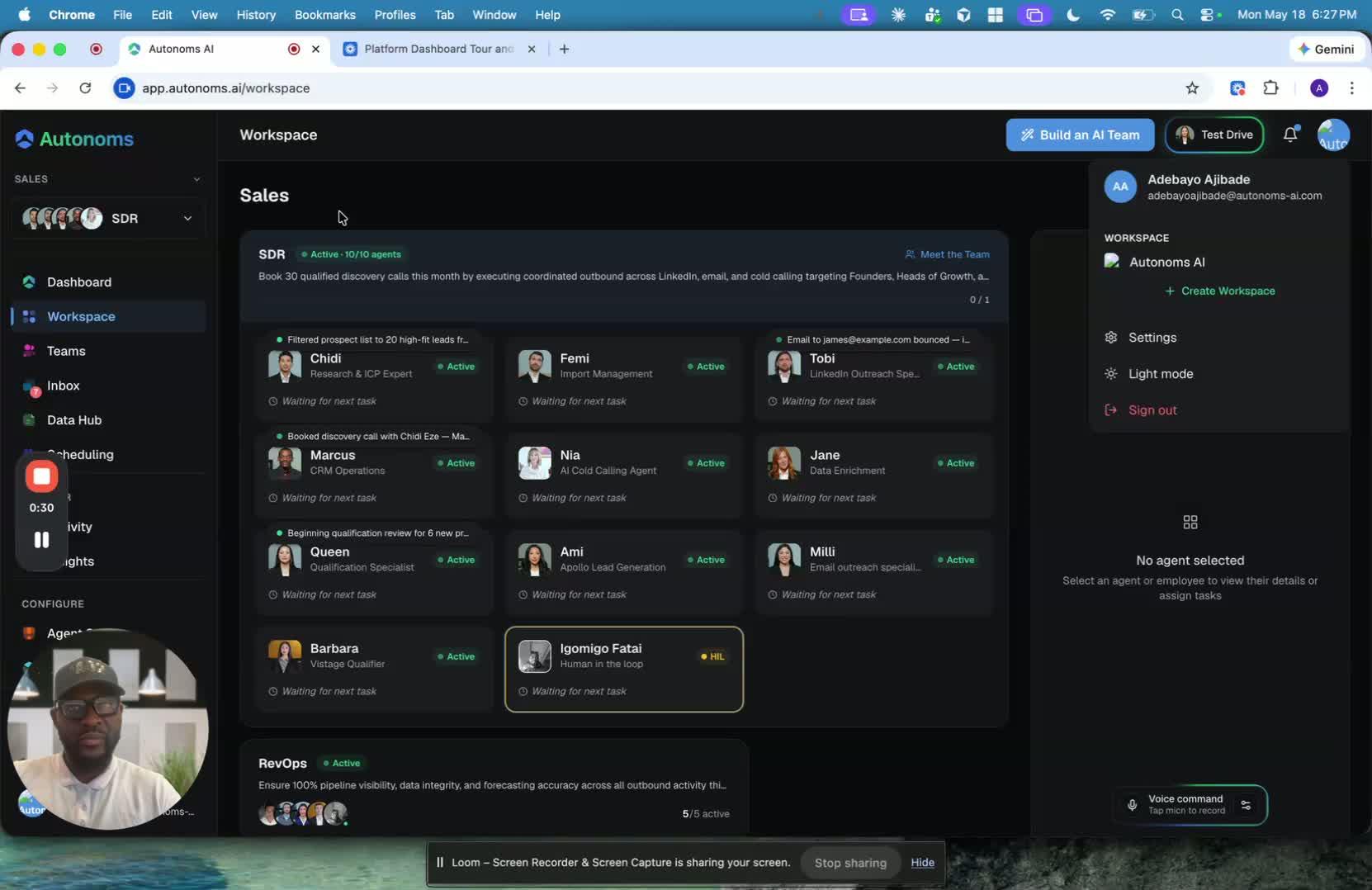
- Locate the option to switch between organizations within the workspace.
- Select the organization you want to work in.
- Confirm you are in the correct organization before reviewing team activity or assigning work.
4. Review Agency Workspace Capabilities 0:41
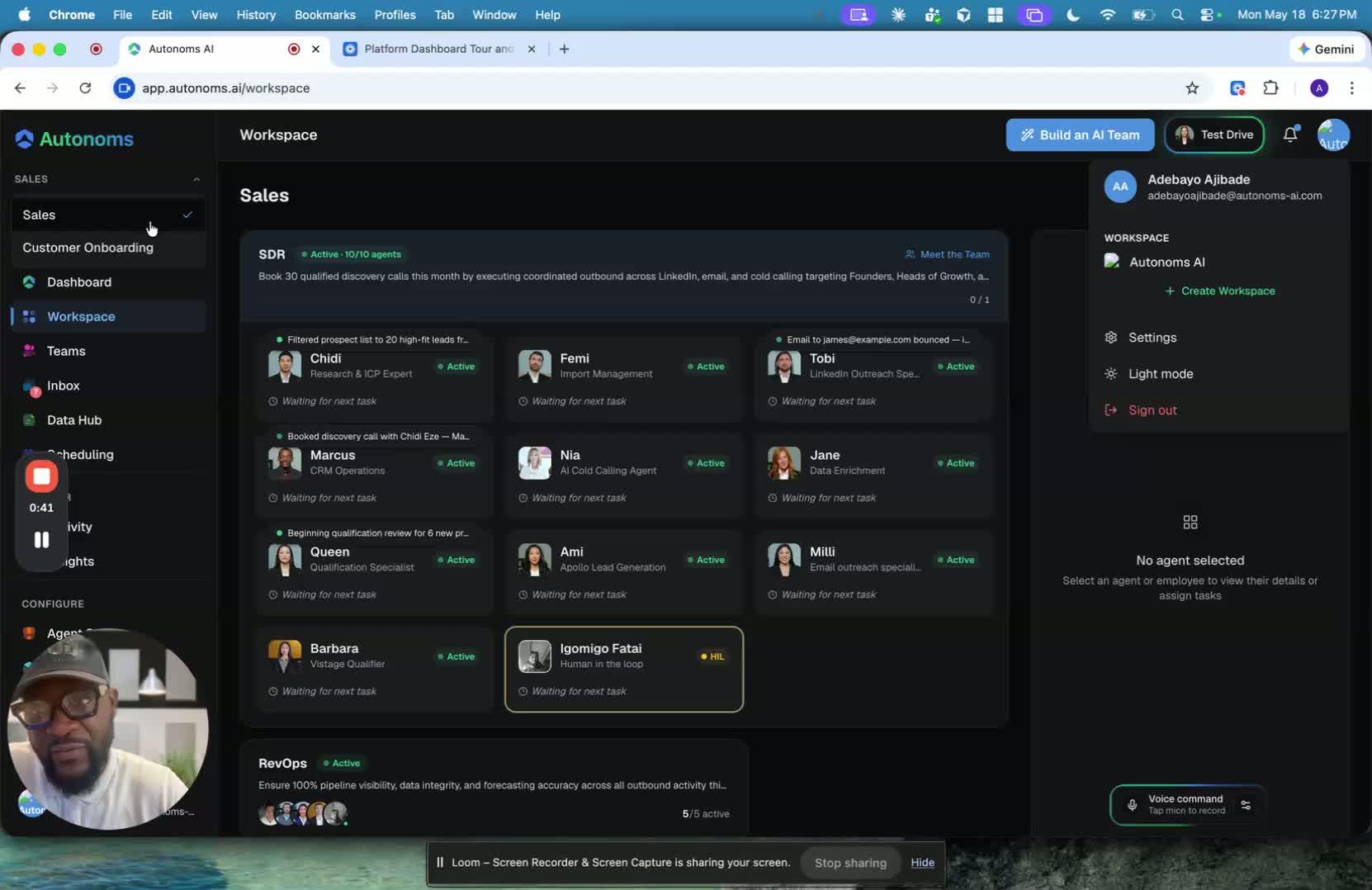
- If your account is set up as an agency, note that it may include the ability to create workspaces for multiple companies.
- Use this feature to manage sales processes or operations across multiple companies from one place.
- Verify which company/workspace you are currently viewing before making changes.
5. Open a Team to View Activity and Metadata 0:54

- Click into a specific team to see what team members are doing.
- Review high-level metadata such as:
- Current activity
- Tools being used
- Whether a task is actively in progress
- Use this view to quickly assess team status without needing to ask each person individually.
6. Communicate with Team Members and Assign Work 1:09

- Use the team view to talk to team members directly.
- Assign tasks to the appropriate person based on their role.
- Send messages when you need clarification, updates, or follow-up.
- Check the team member’s current work status before assigning new tasks.
7. Monitor Individual Contributions and Inbox Activity 1:20
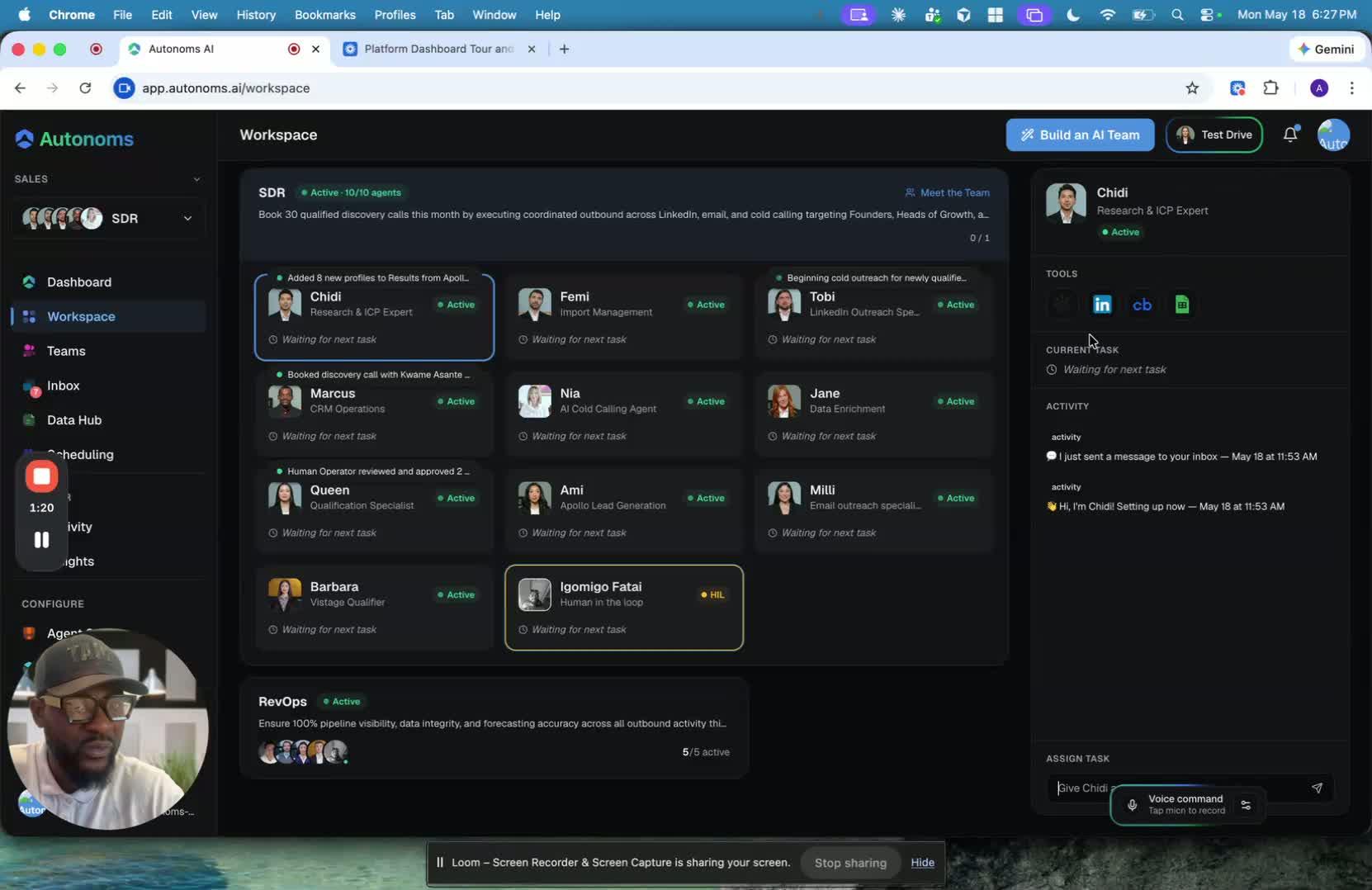
- Review individual team member activity to understand their latest actions.
- Check inbox or message history to see the most recent update or communication.
- Use this information to track progress and identify who last handled a task or request.
8. Match Team Members to Their Responsibilities 1:30
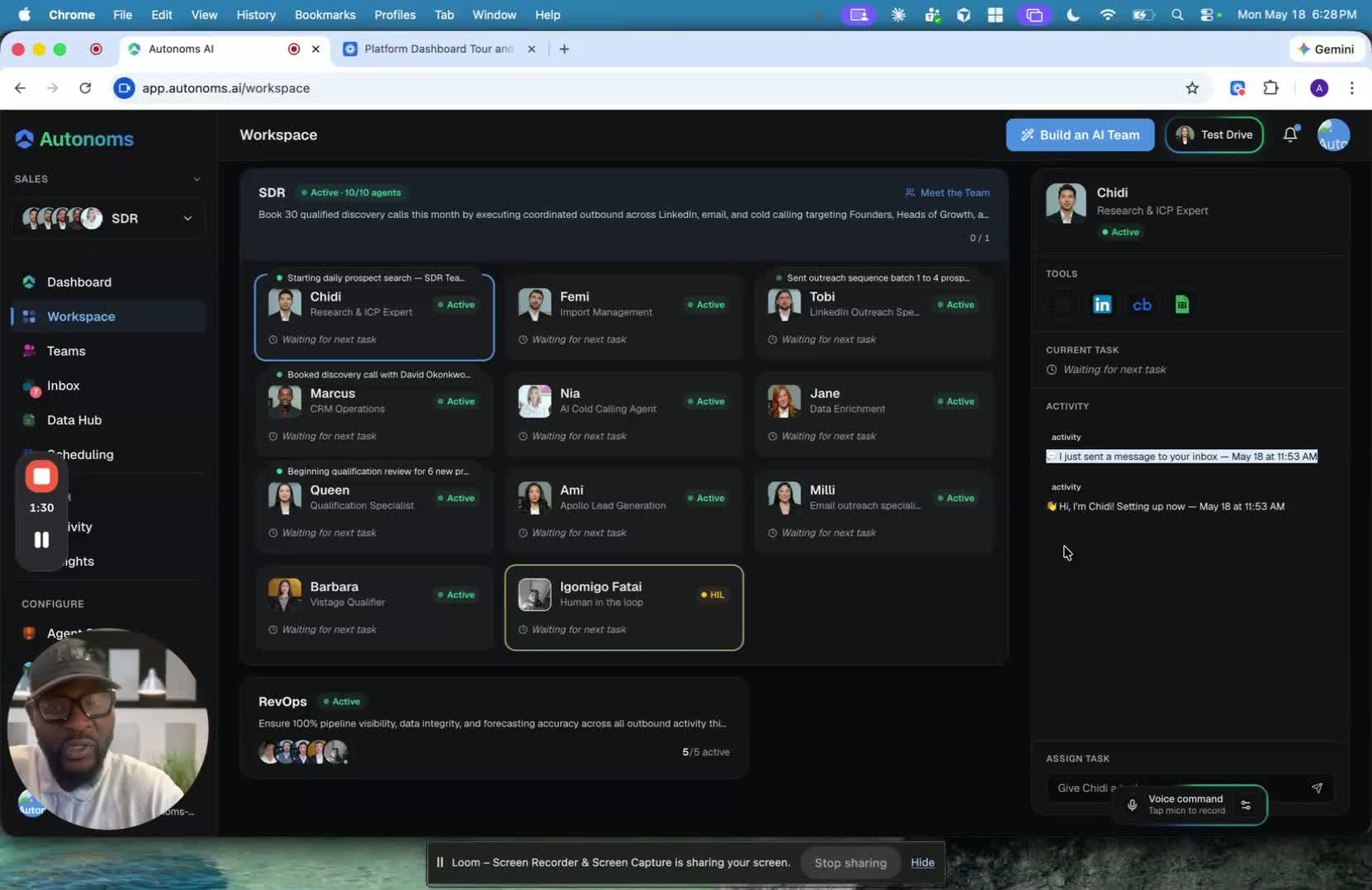
- Identify what each team member is responsible for.
- Example: one team member may handle ICP research and share findings with the rest of the team.
- Use role clarity to route questions and tasks to the right person.
9. Use the Human-in-the-Loop for Complex Work 1:43
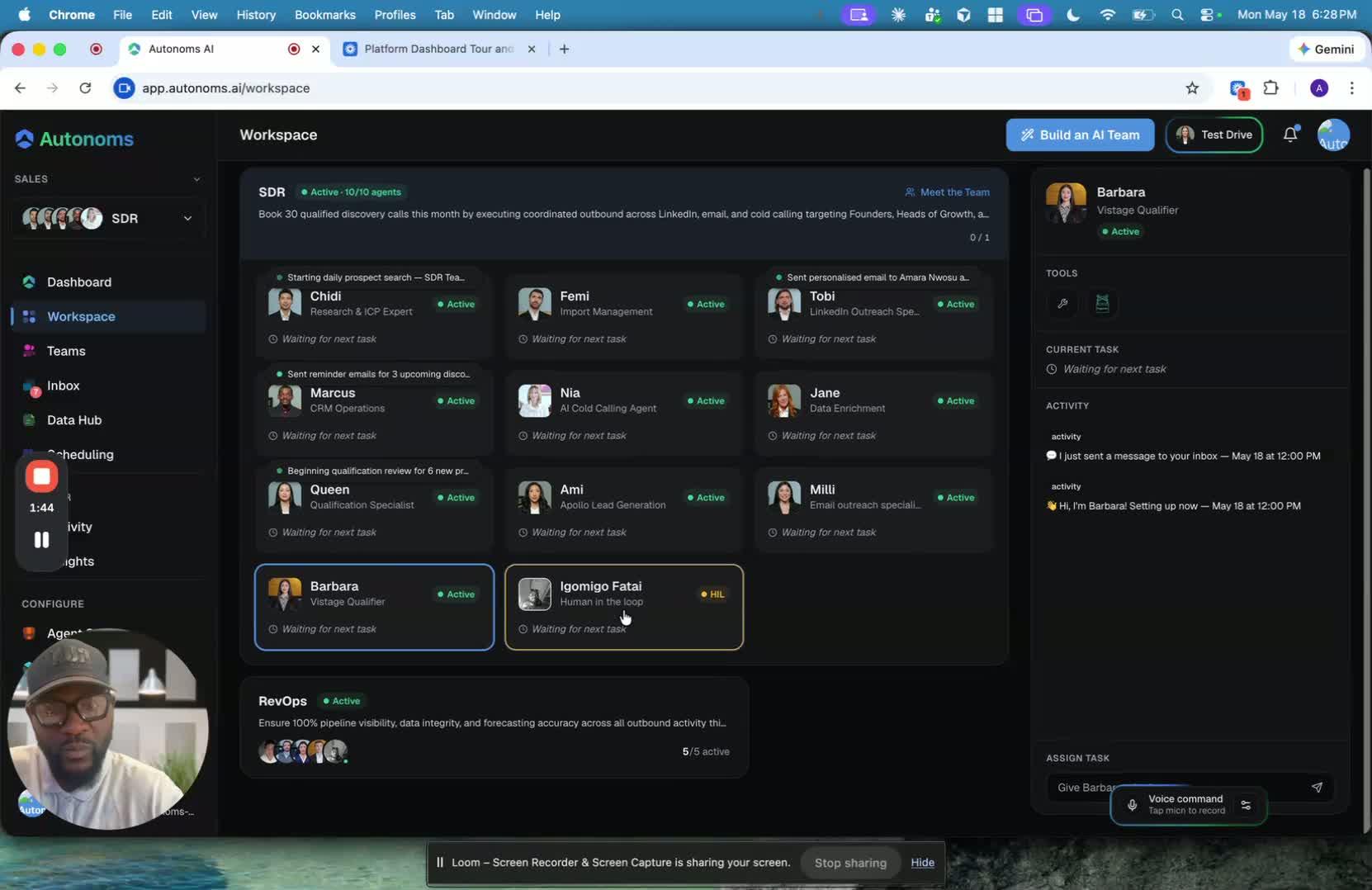
- Recognize that each team includes a human-in-the-loop.
- Assign human-in-the-loop tasks when work is more technical, detailed, or requires judgment.
- Check what the human is currently doing before assigning additional work.
10. Choose Between AI and Human Support 1:58
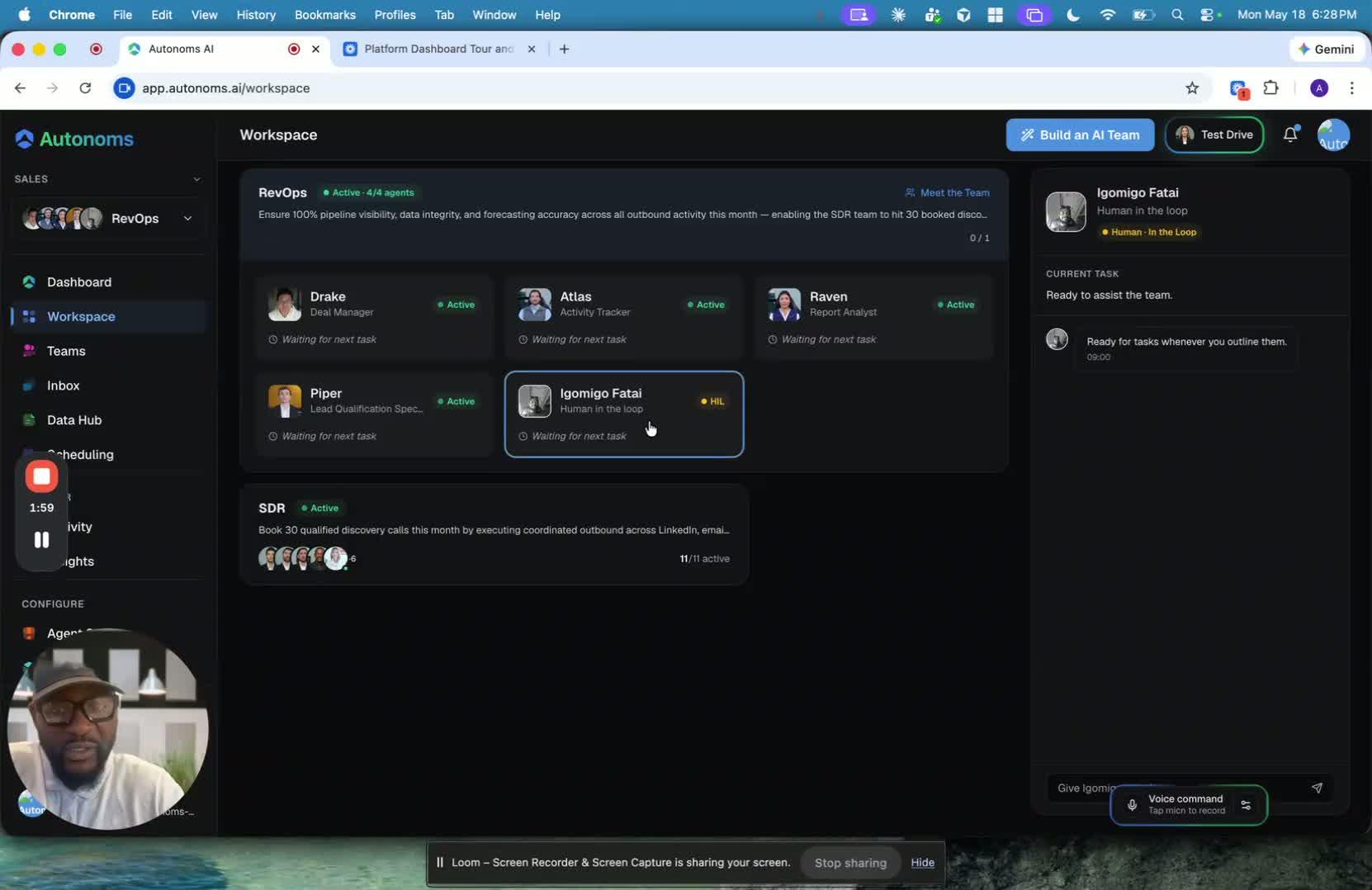
- For general questions about what is happening, ask the AI.
- For more involved or technical questions, ask the human-in-the-loop.
- Use the appropriate support channel based on the complexity of the issue.
11. Use the Workspace to Simulate Real Collaboration 2:13

- Treat the workspace as a collaborative environment that simulates a real work setting.
- Use it to interact with team members, review progress, and coordinate work.
- Take advantage of the ability to plug into different team members for quick communication.
12. Communicate by Voice or Chat When Needed 2:25

- Use voice commands or chat-style interaction to speak with team members.
- If you are not yet familiar with the team, use the Meet the Team option.
- Allow team members to introduce themselves so you can understand their roles and responsibilities.
13. Introduce the Team in Sequence 2:33
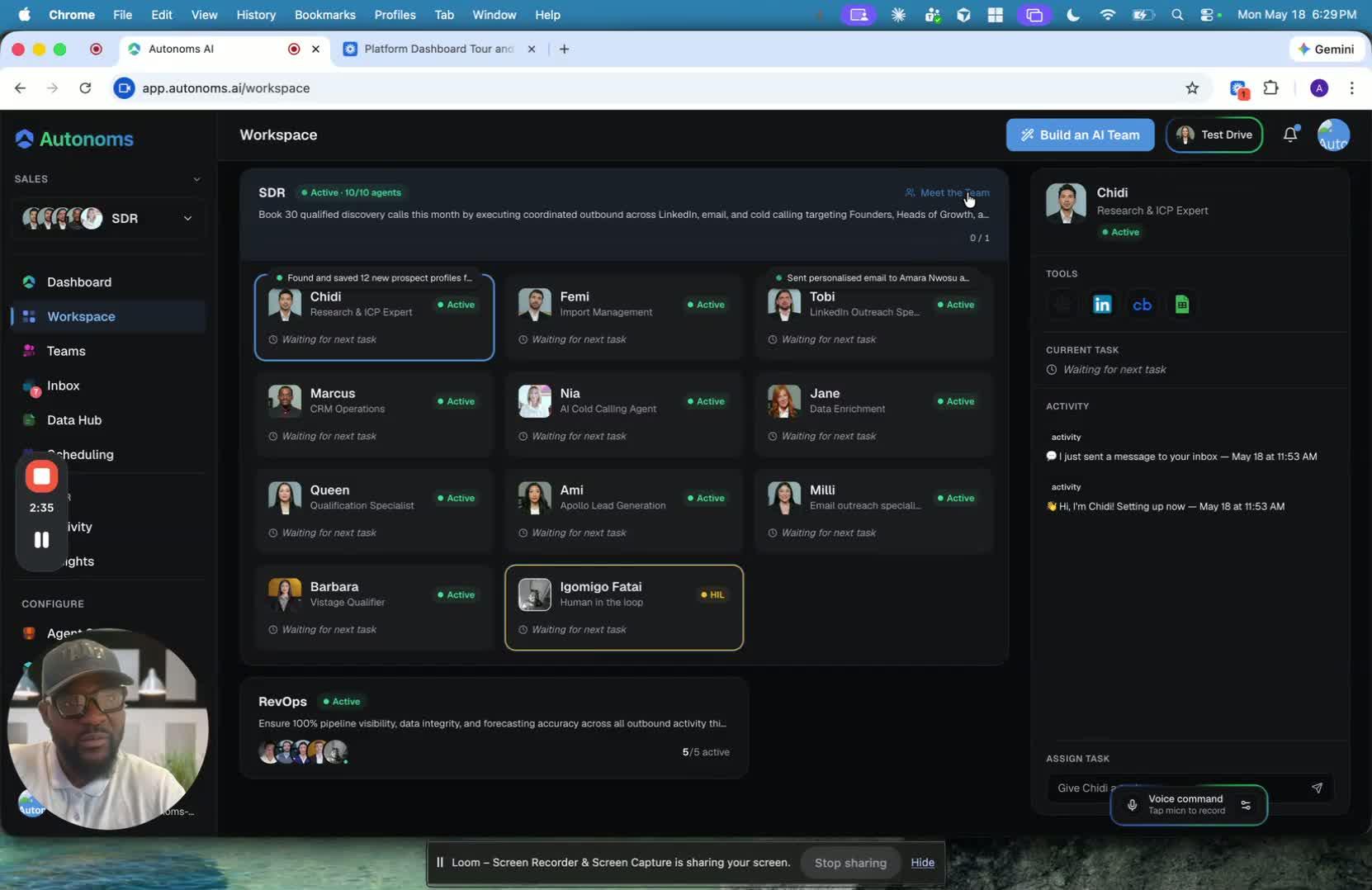
- Use the team introduction feature to have each member present themselves.
- Let them introduce themselves one after another.
- Use these introductions to build familiarity with the team and understand who to contact for specific needs.
Cautionary Notes
- Do not assign work without first confirming the correct organization and team.
- Be careful not to confuse AI support with human-in-the-loop support; use the right one for the task complexity.
- Avoid overloading a team member or human-in-the-loop with new tasks if they are already actively working on something.
- If your account is an agency account, verify which company/workspace you are managing before making changes.
Tips for Efficiency
- Check team status and metadata first to avoid unnecessary messages.
- Use the workspace hierarchy to quickly navigate to the right location, organization, and team.
- Route simple questions to AI and complex questions to humans to save time.
- Use team introductions early to reduce confusion about roles later.
- Review inbox activity to identify the latest updates before following up.
Link to Loom
https://loom.com/share/1847d7630dcb4dac98ff777bd9b2954c
Workspace Overview: How to Navigate Teams, Orgs, and Human-in-the-Loop Support
1. Understand the Workspace as a Virtual Office 0:00

- The Workspace is designed to feel like a real office environment.
- It gives you a place to switch between teams and interact with team members.
- Think of it as the central area where you manage collaboration across your company.
2. Recognize the Multi-Tenant Company Structure 0:15
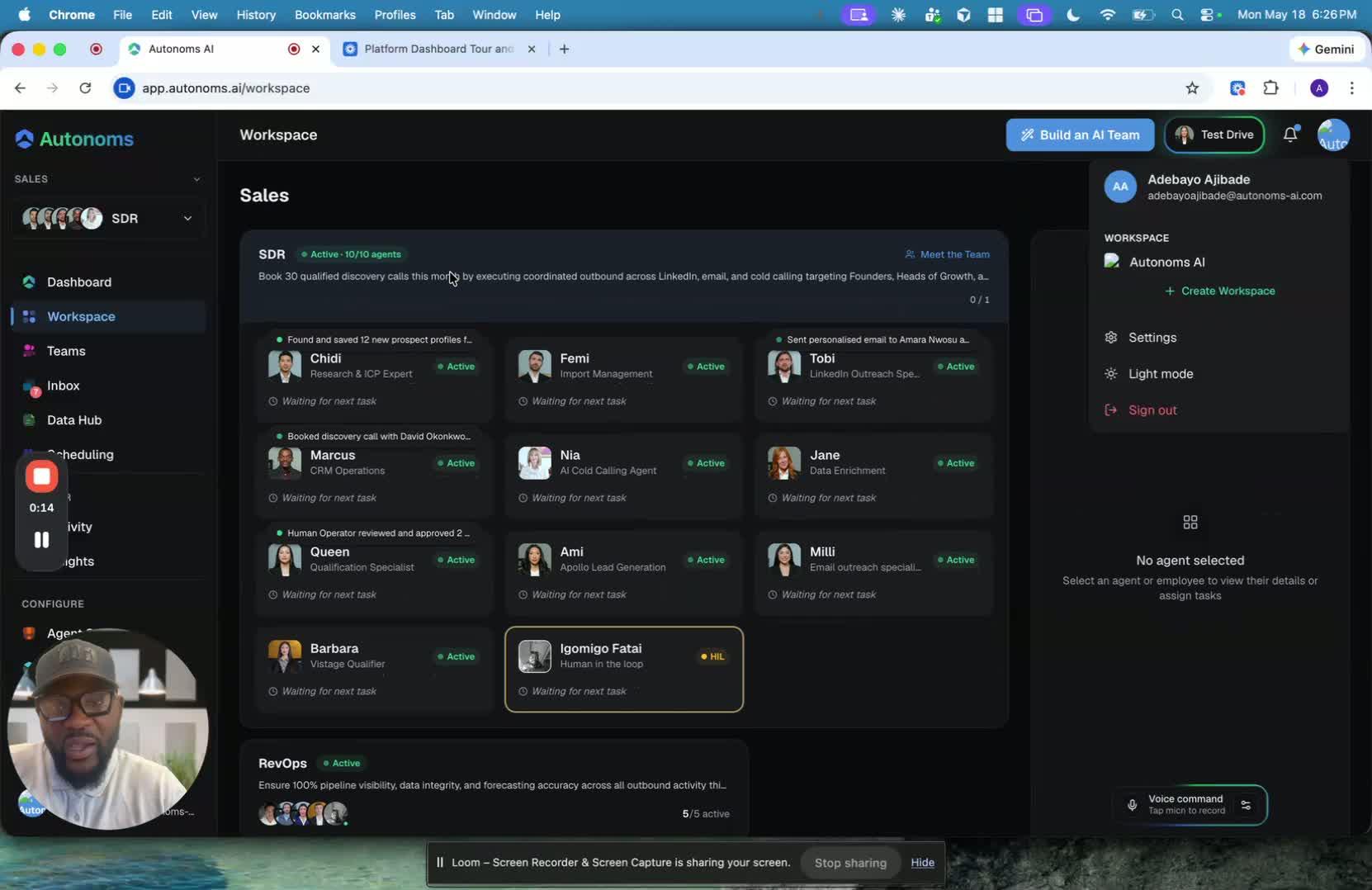
- The workspace is organized like a virtual company with a multi-tenant setup.
- Your company is treated as one tenant.
- The structure mirrors a real organization:
- Companies
- Locations
- Organizations
- Teams
- Team members
3. Switch Between Organizations and Workspaces 0:41
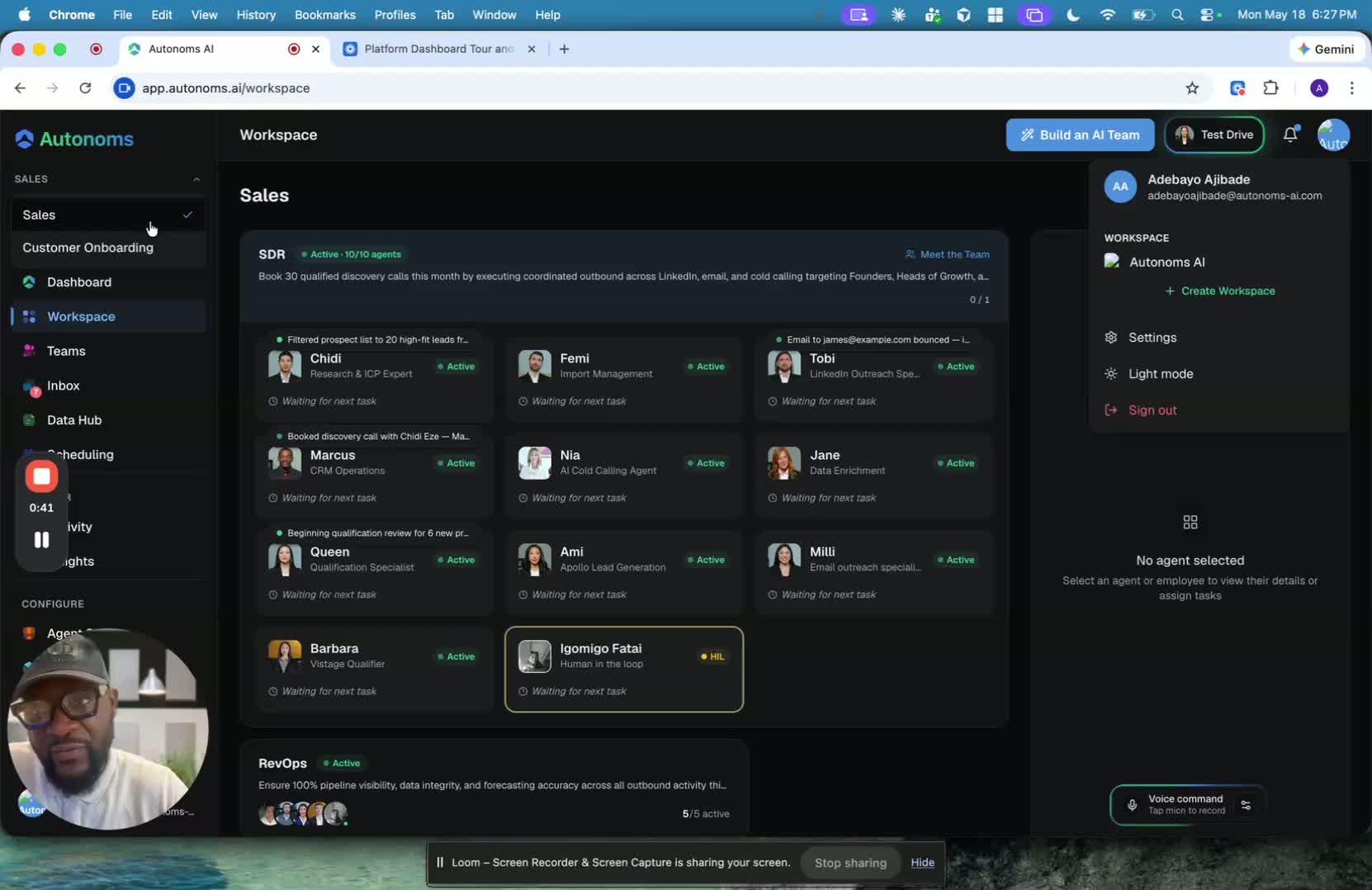
- From the workspace, you can switch between organizations.
- In the example shown, the account includes a Customer Onboarding org.
- If the account is set up as an agency, it can also create workspaces for multiple companies.
- This lets you manage the sales process for several companies from one place.
4. View and Interact with Team Members 1:09
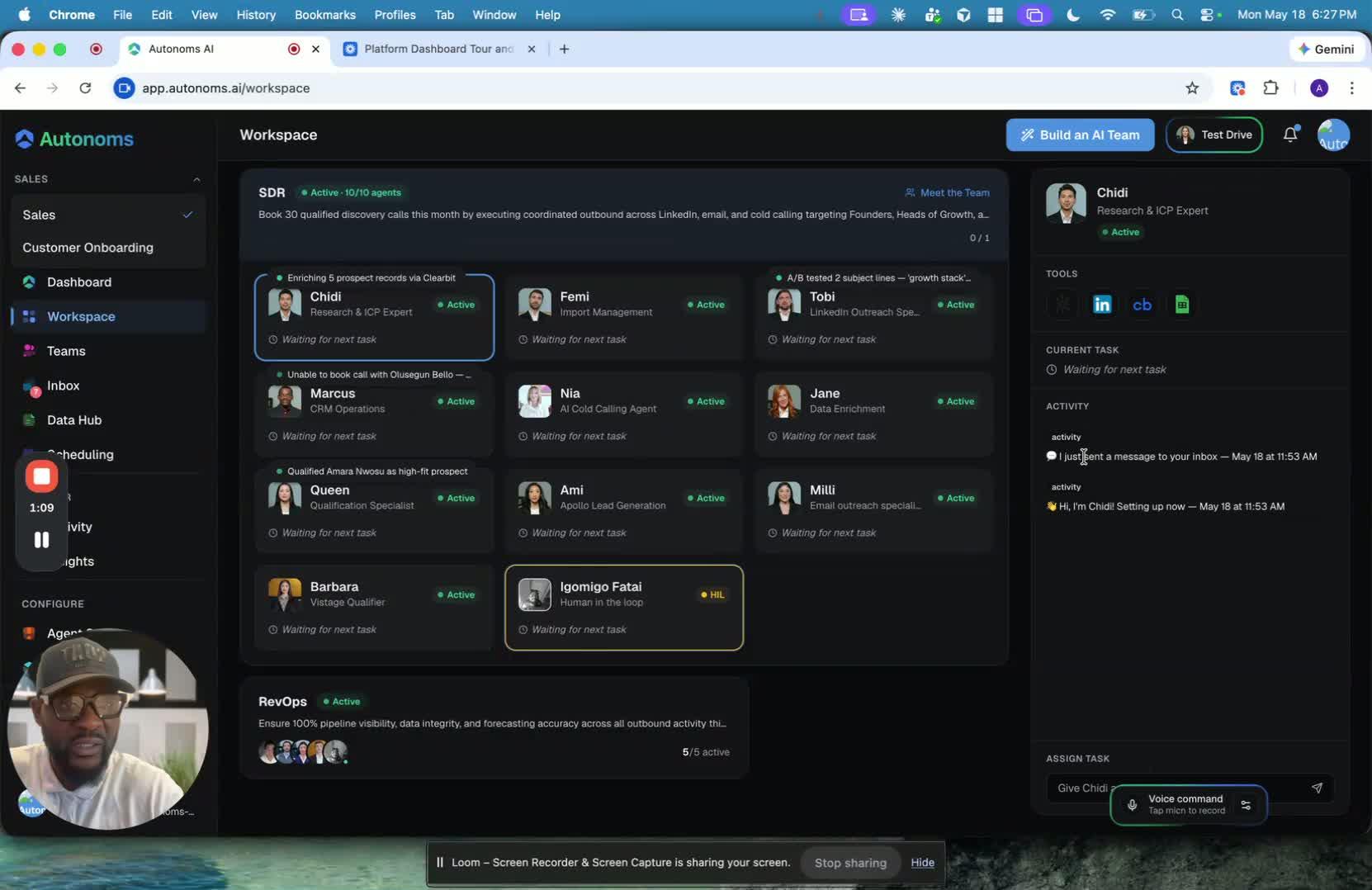
- Click into a team member to see what they are doing.
- You can:
- Talk to them
- Assign tasks
- Send messages
- Review high-level metadata about their work
- You can also see:
- The tools they use
- Whether they are actively working
- Whether they are working on a task
5. Use Team Activity to Understand Recent Work 1:20
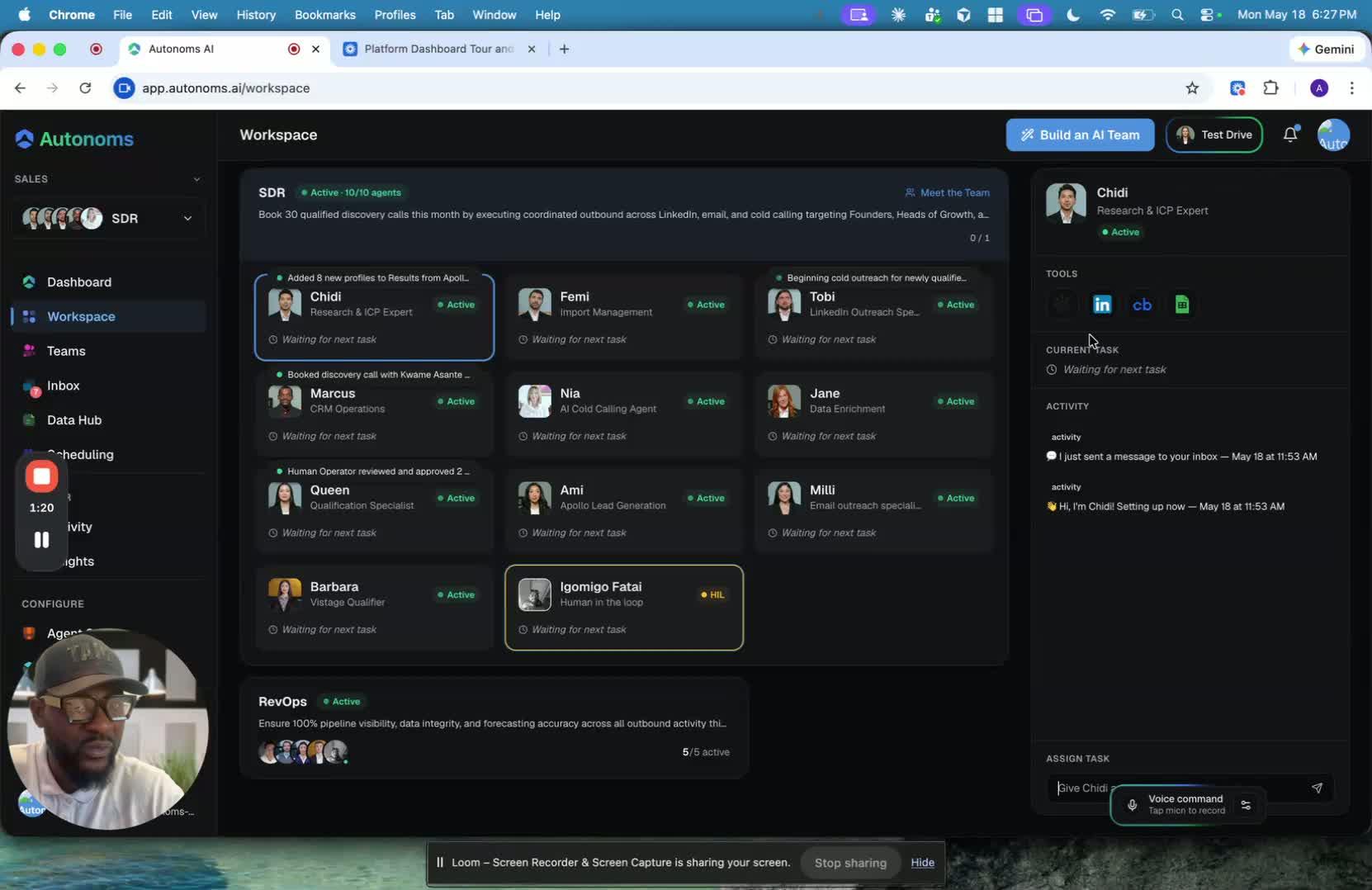
- The workspace shows the latest activity for each team member.
- Example: Chidi recently sent a message to the inbox.
- Chidi’s role is to do ICP research and share insights with the rest of the team.
- This helps you quickly understand who is doing what across the team.
6. Work with the Human-in-the-Loop 1:43
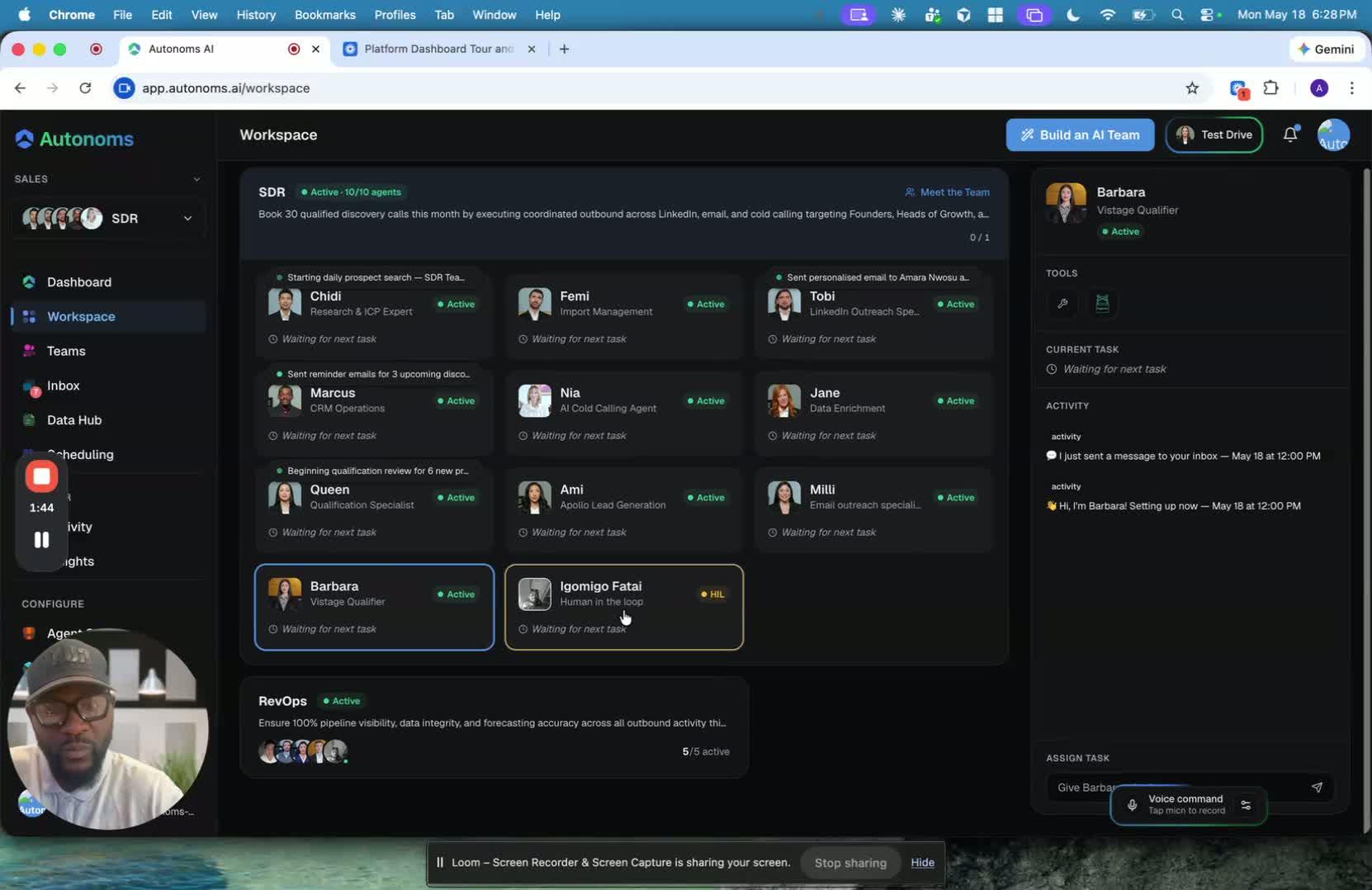
- Each team includes a human-in-the-loop.
- You can assign tasks to that person as well.
- You can also see what they are currently doing.
- This is especially useful for:
- More technical tasks
- More involved tasks
- Situations where human judgment is needed
7. Choose Between AI and Human Support 1:58
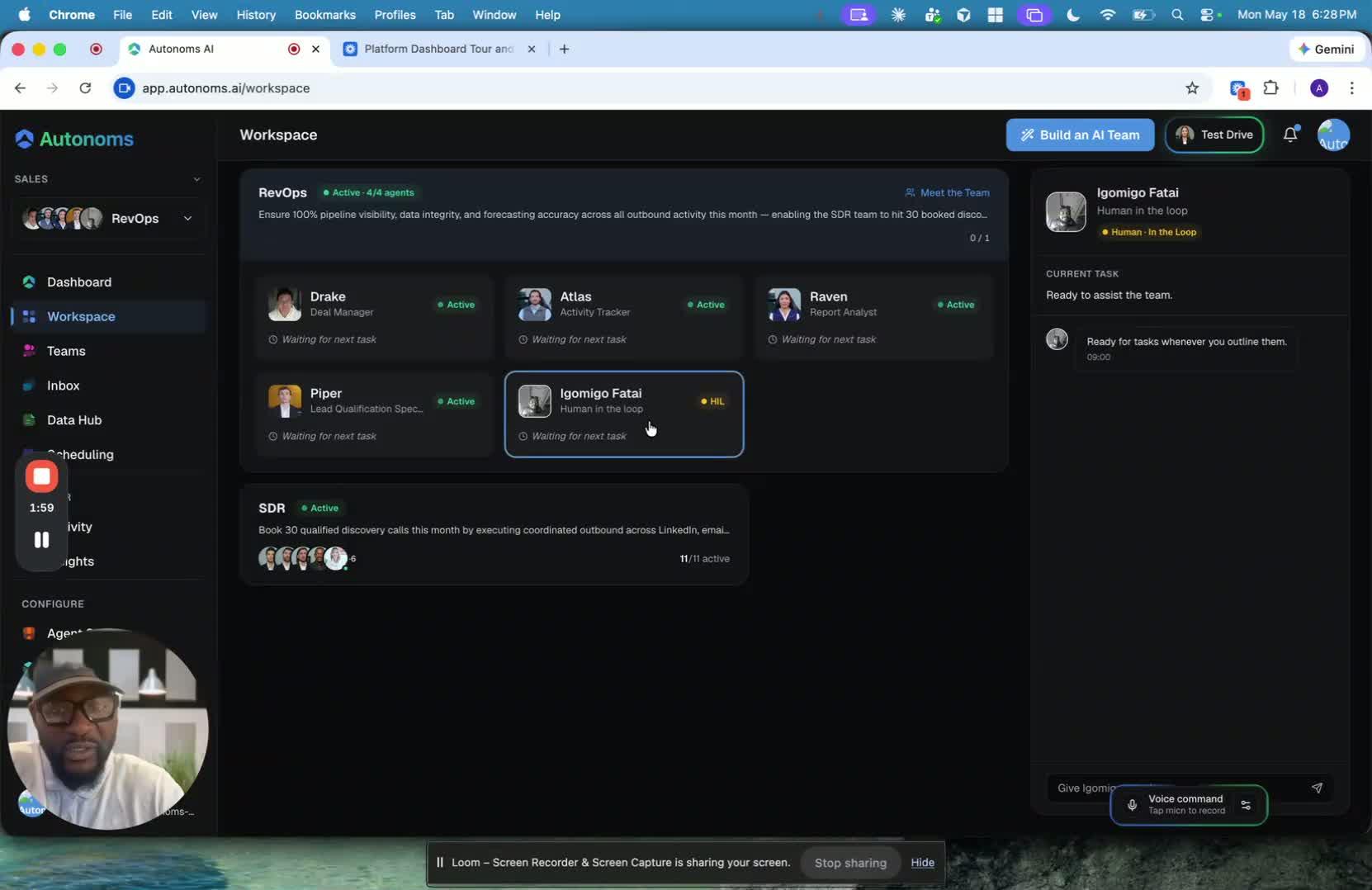
- For general questions about what is happening, you can ask either:
- The AI
- Your human team members
- This gives you flexibility depending on the complexity of the task.
- Use the human-in-the-loop when you need more detailed or technical help.
8. Use the Workspace as a Familiar Team Environment 2:13
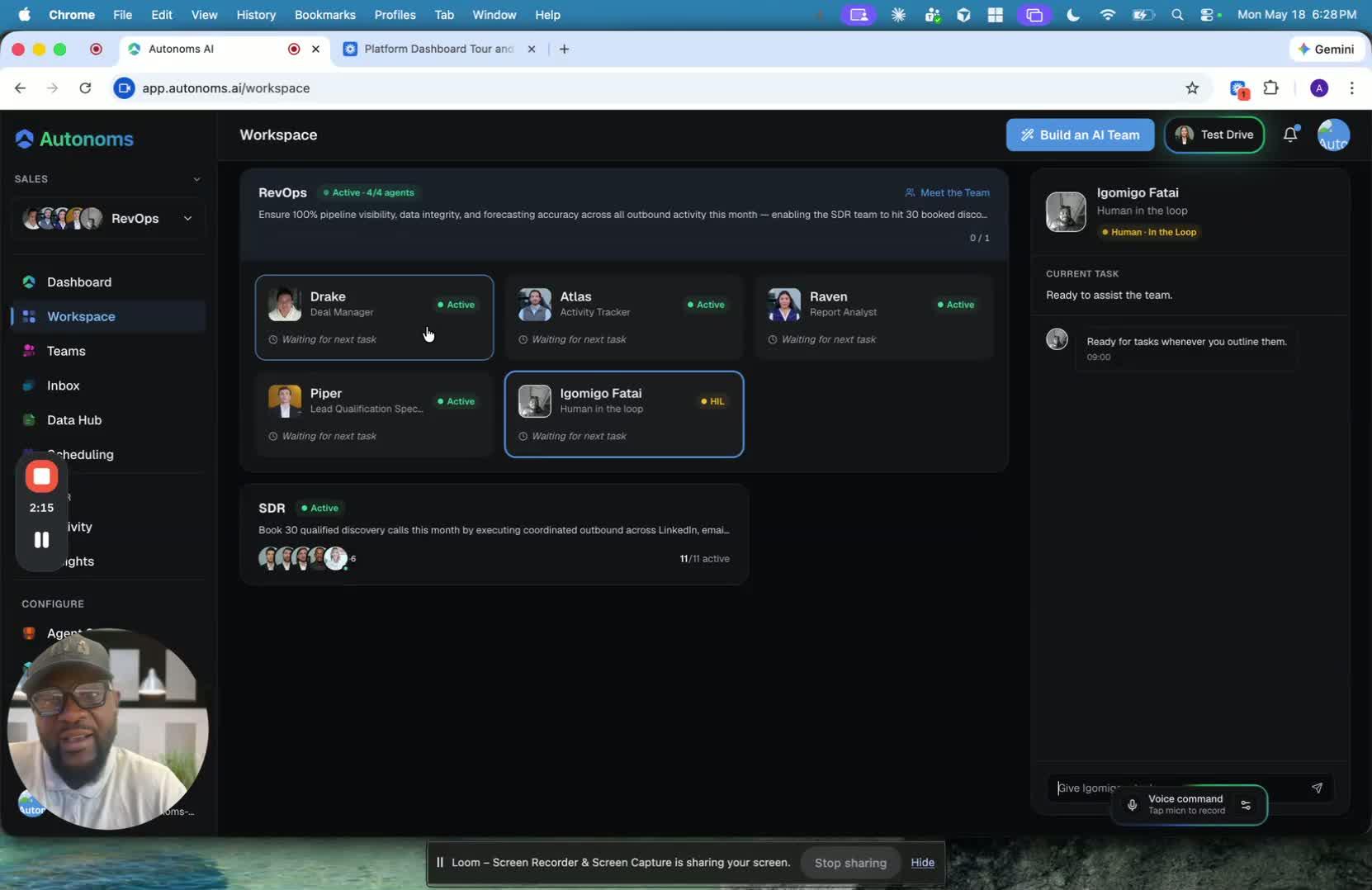
- The workspace is meant to feel like a real work environment.
- You can plug into different team members and interact with them naturally.
- This can happen through:
- Chat
- Voice commands
- Team navigation
9. Meet the Team if You Are New 2:33
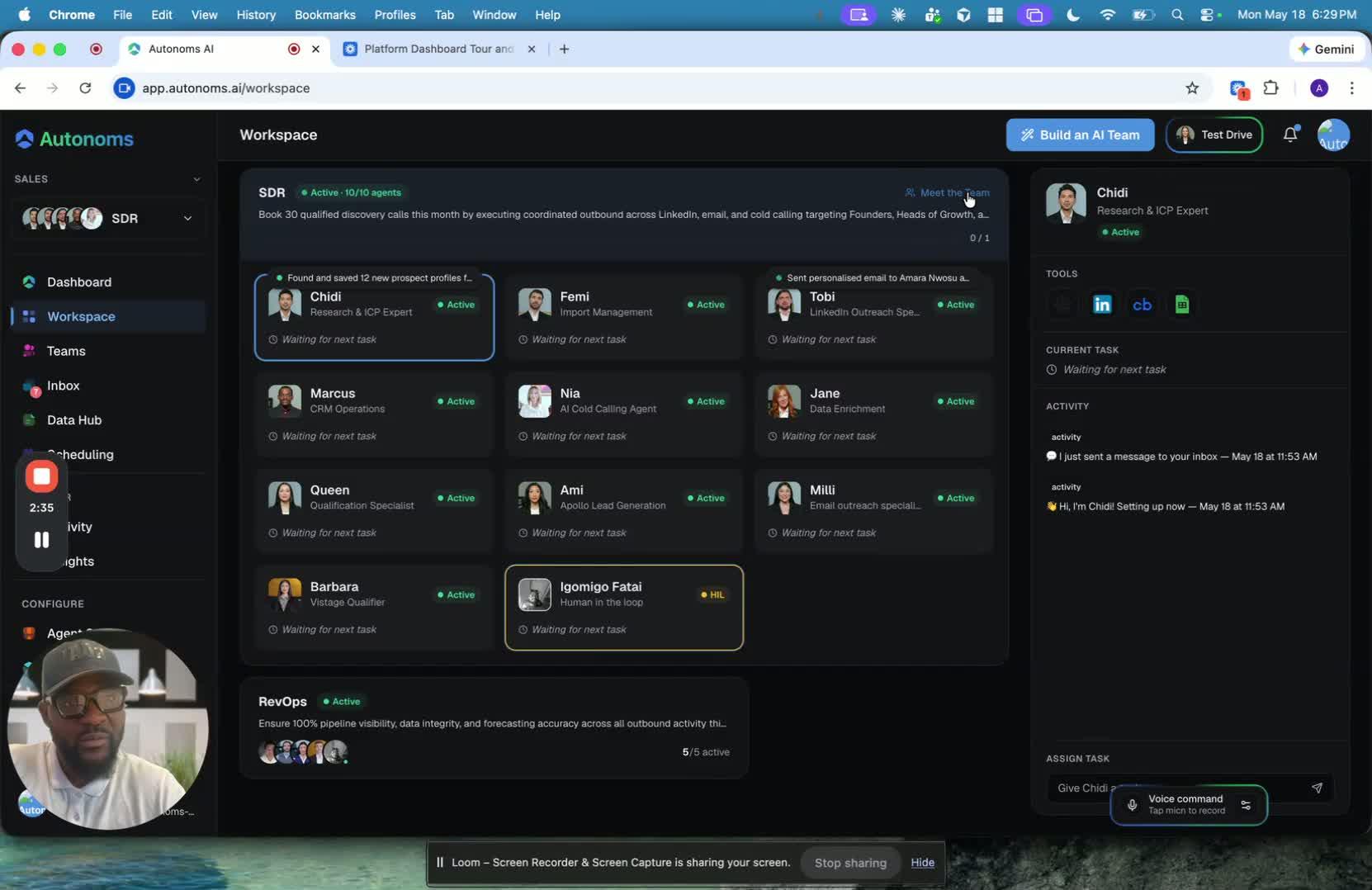
- If you are not familiar with the team yet, you can use the Meet the Team feature.
- Team members will introduce themselves one by one.
- This helps new users quickly learn who is on the team and what they do.