

How to Use the Activities Tab to Monitor AI Agents and Human Loop Work
1. Open the Activities tab 0:00
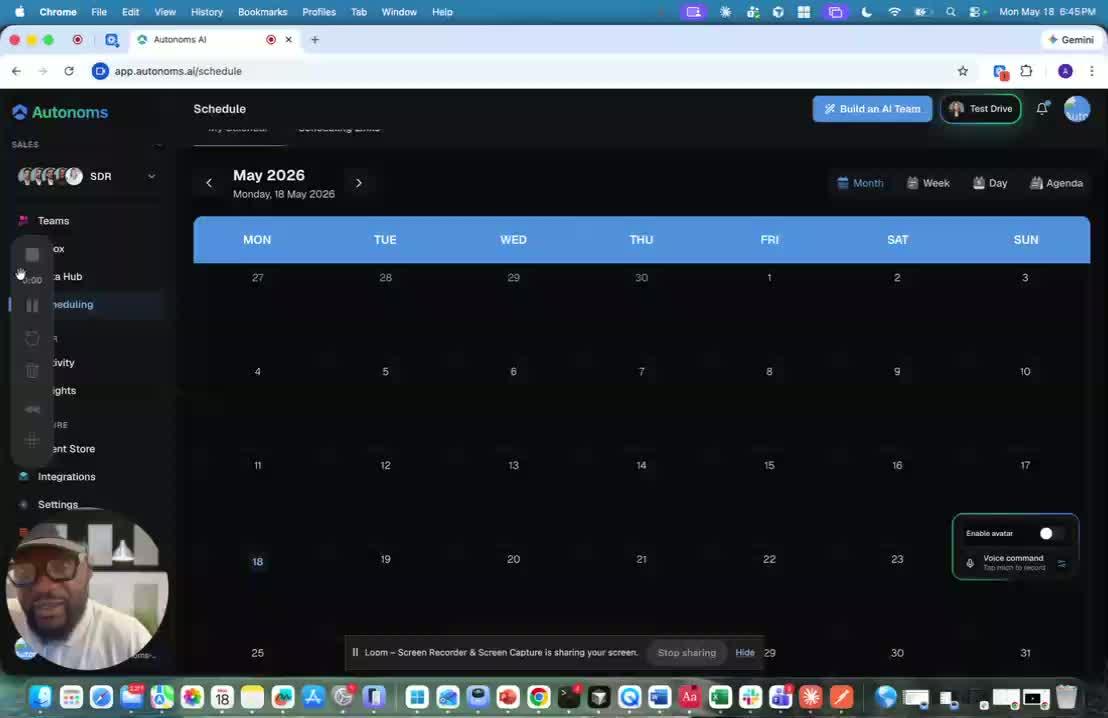
- After reviewing the schedule, go to Activities.
- This is where you can see what your AI agencies/agents are doing.
- The tab is meant to give you visibility into ongoing work.
2. Review live activity updates 0:08
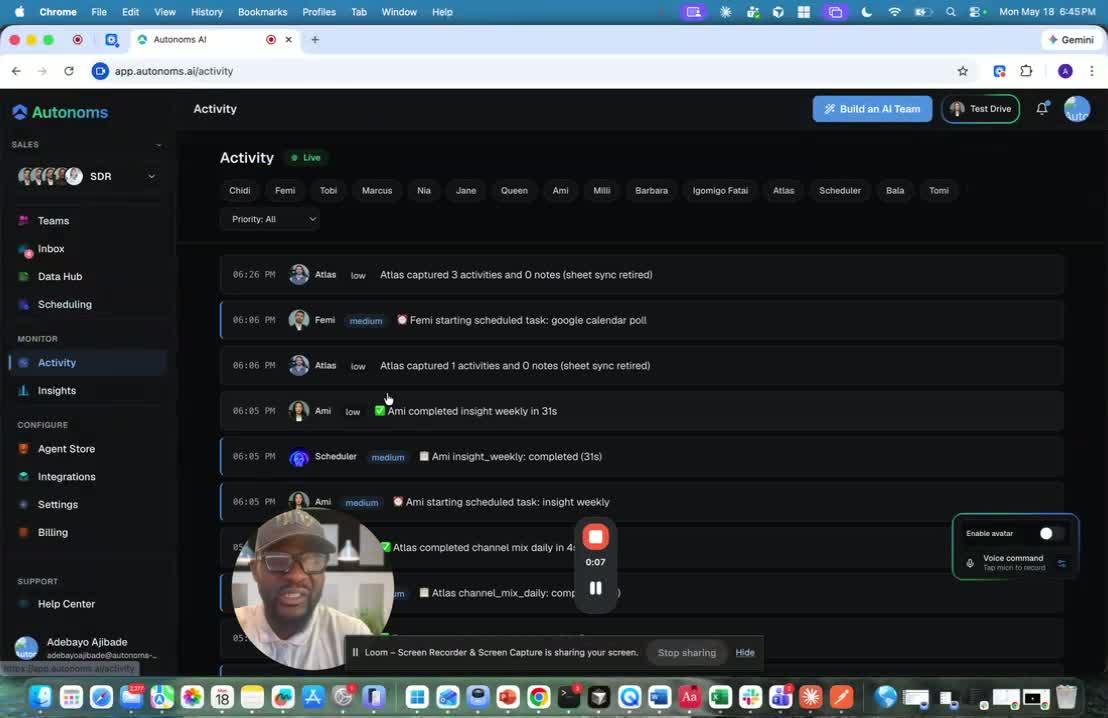
- The Activities tab shows updates on what’s happening across agents.
- You can use it to understand the current status of work without needing full transparency into every internal action.
- Updates appear live as agents do the work.
3. Drill down into a specific agent 0:17
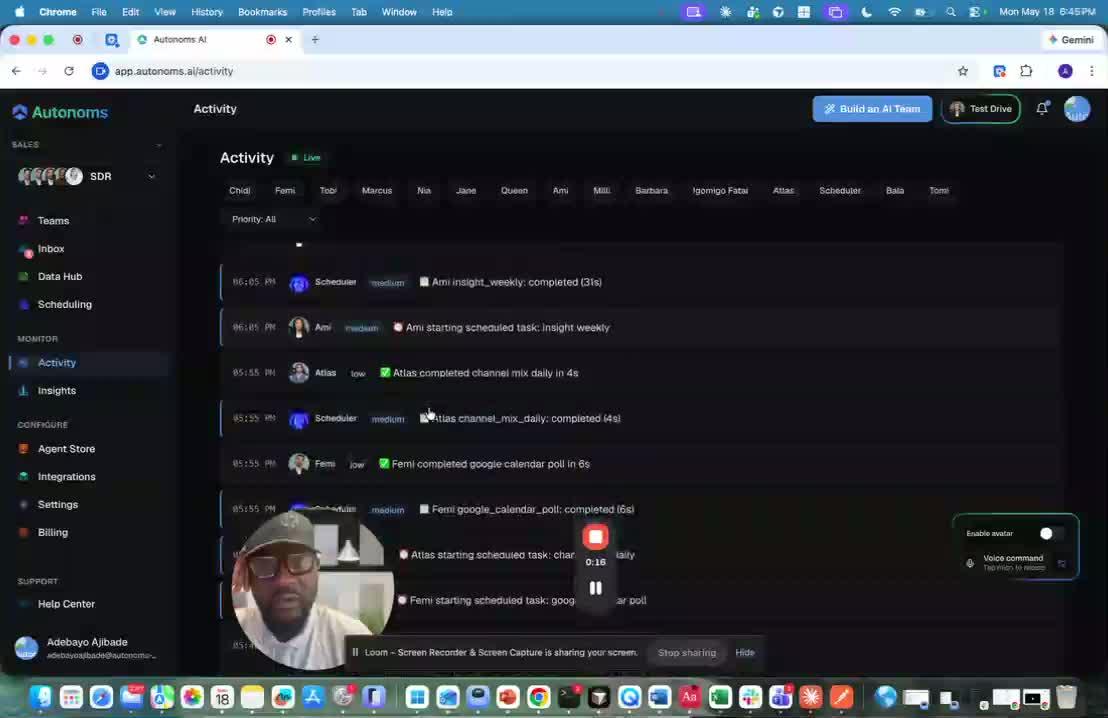
- If you want more detail, click into a specific agent.
- This lets you see only that agent’s activity trail.
- Useful for:
- debugging
- health checks
- tracking what happened over time
4. Use activity history to monitor and adjust work 0:36
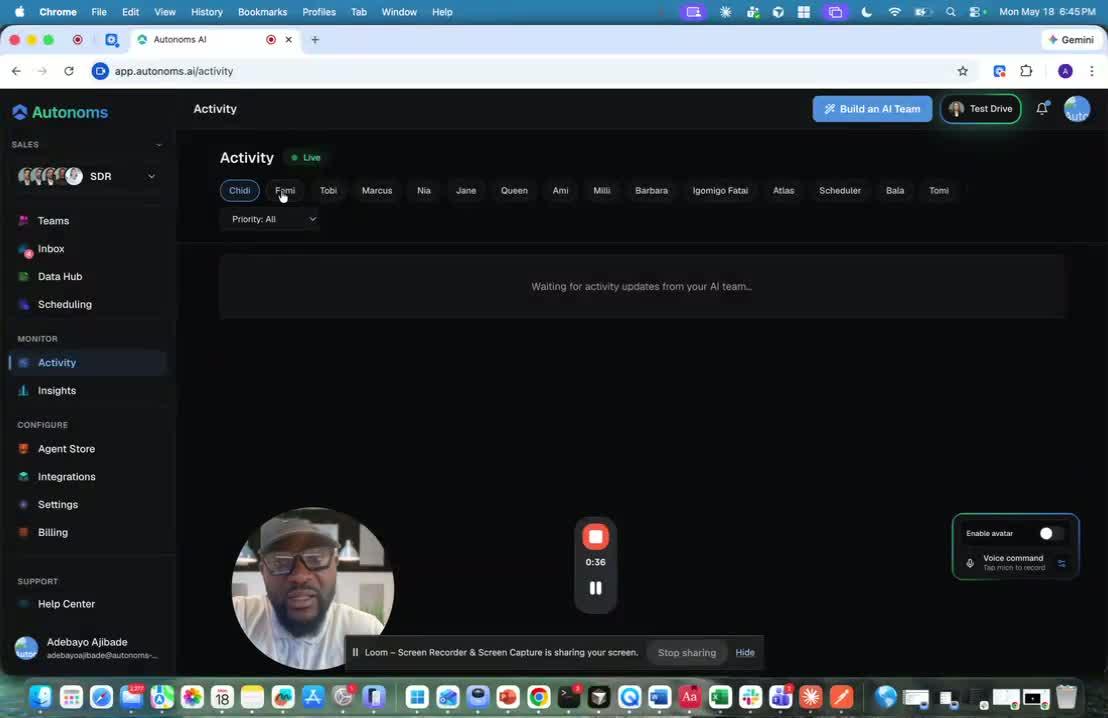
- Because activity is reported live, you can monitor progress in real time.
- This makes it easier to:
- control agents
- redirect them if needed
- pivot them to new tasks based on recent progress
5. Check the Human Loop activity 0:54
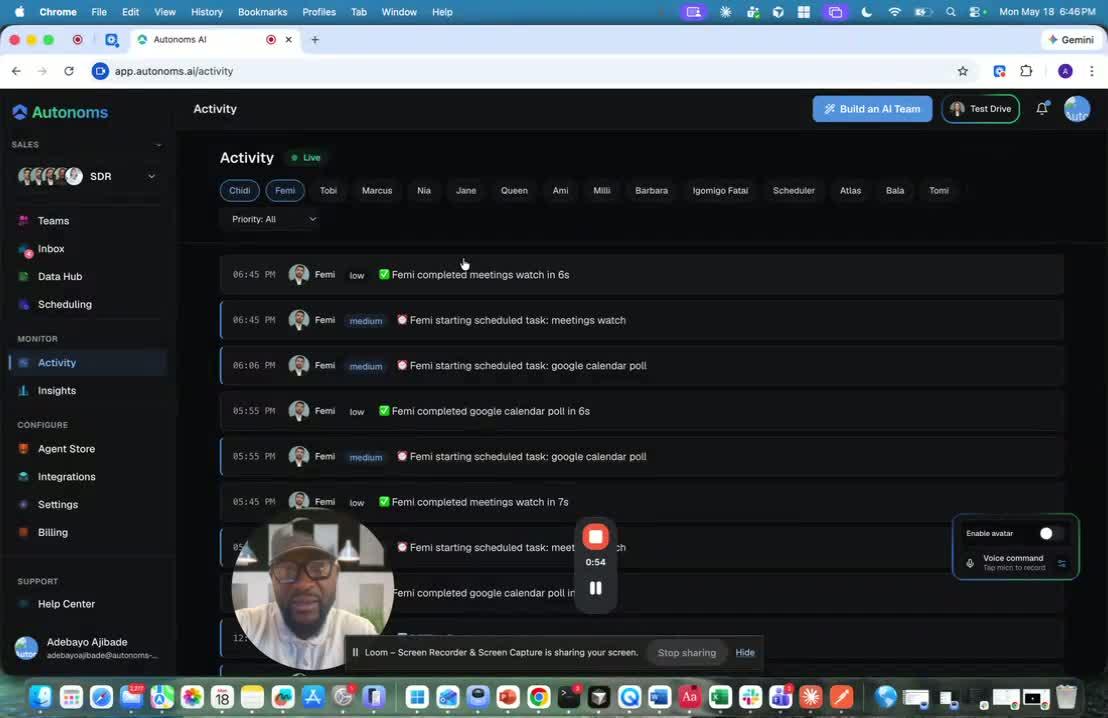
- The Activities tab also includes the human loop.
- This gives you a high-level view of what human participants are doing.
- In the example shown, the human loop has no activity yet because the account was just created.
6. Filter by priority if needed 1:13
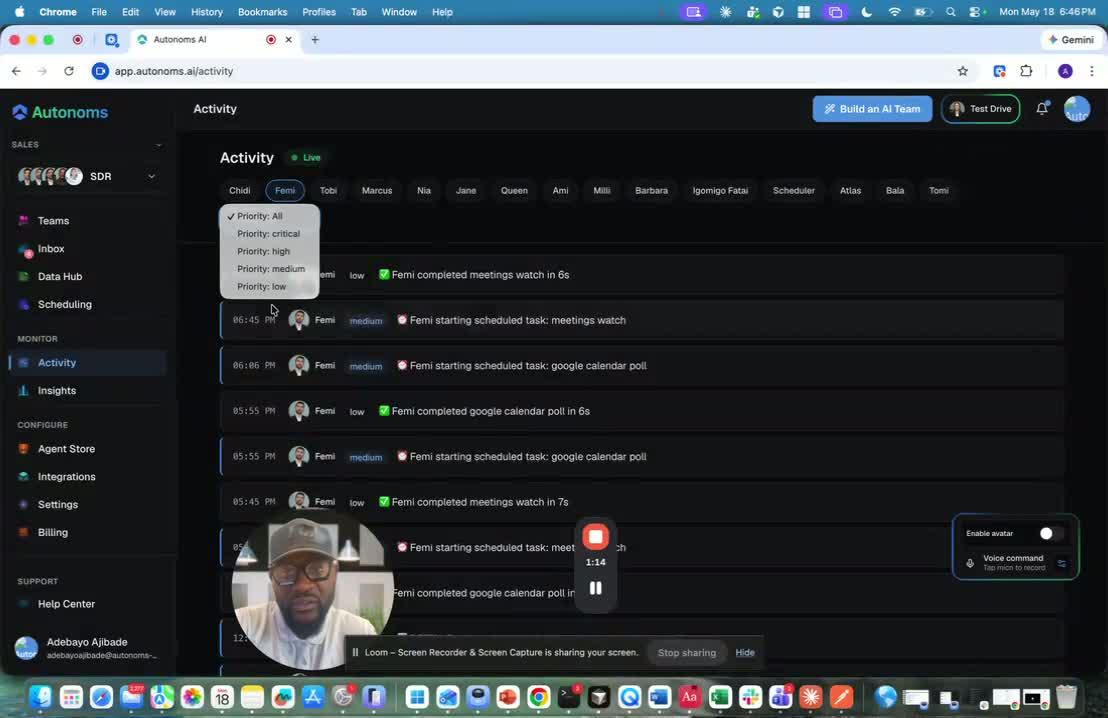
- You can also filter activities by priority.
- This helps you focus on the most important work first.
- The tab is designed to be a simple, broad overview of everything happening.
Link to Loom
https://loom.com/share/1b9f2e2abacb47df87e4f77dbb36fae1
Cautionary Notes
- Do not rely on the Activities tab as a substitute for direct task validation when accuracy is critical.
- New accounts may show little or no human loop activity, which is normal and not necessarily an error.
- Live updates can change quickly, so refresh or recheck the feed before making final decisions.
- Filtering by priority may hide lower-priority events, so remove filters when doing a full audit.
Tips for Efficiency
- Start with the overall activity feed, then drill into specific agents only when needed.
- Use the live feed to catch issues early instead of waiting for end-of-task summaries.
- Check recent achievements before reassigning work to avoid duplicating effort.
- Apply priority filters to focus on urgent items and reduce time spent scanning low-value logs.
- Keep a short internal note of recurring activity patterns to speed up future troubleshooting.