

SOP: Set Up and Use the Scheduling Calendar and Booking Link
Key Steps
1. Open the Scheduling Calendar 0:00
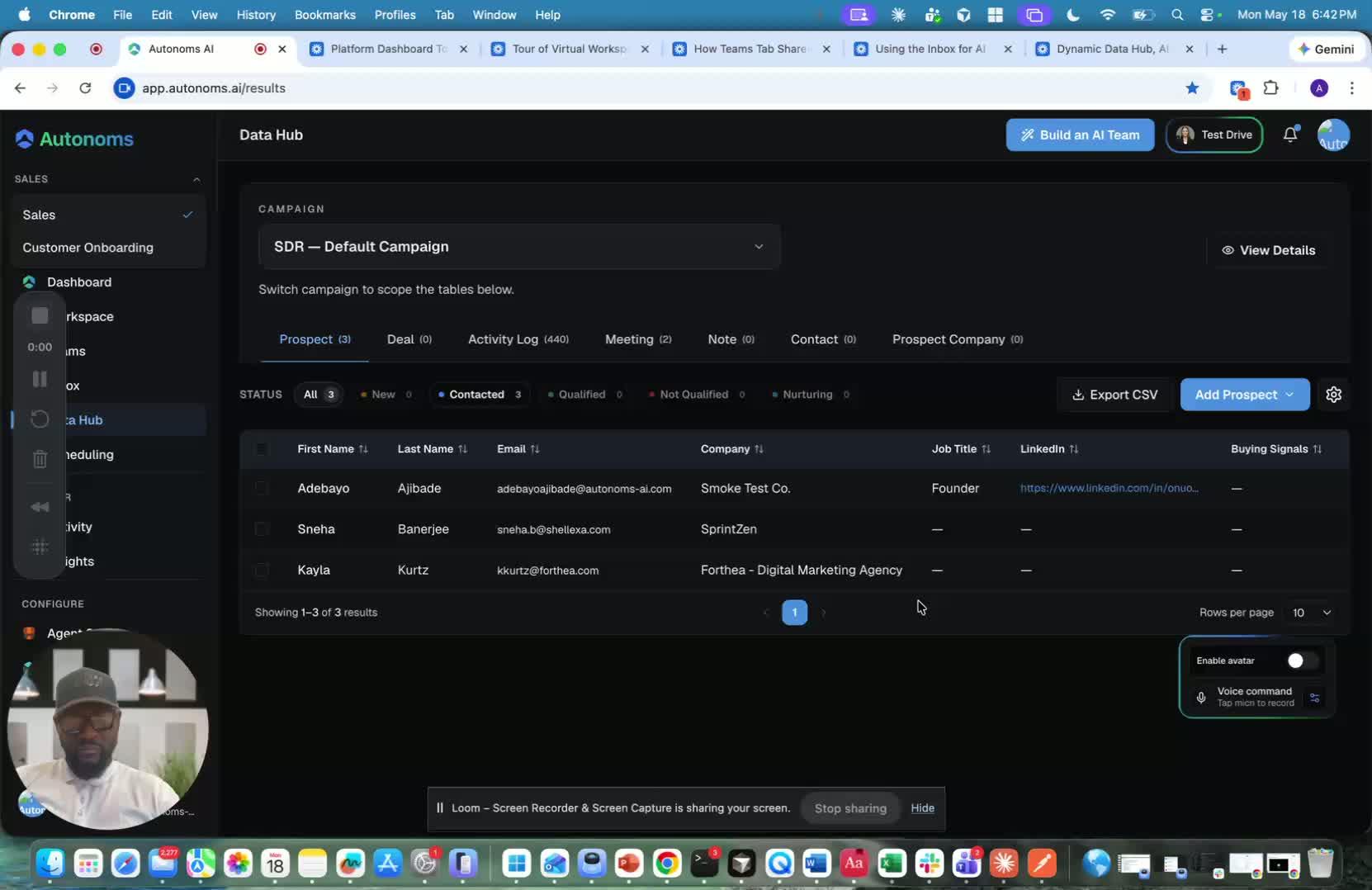
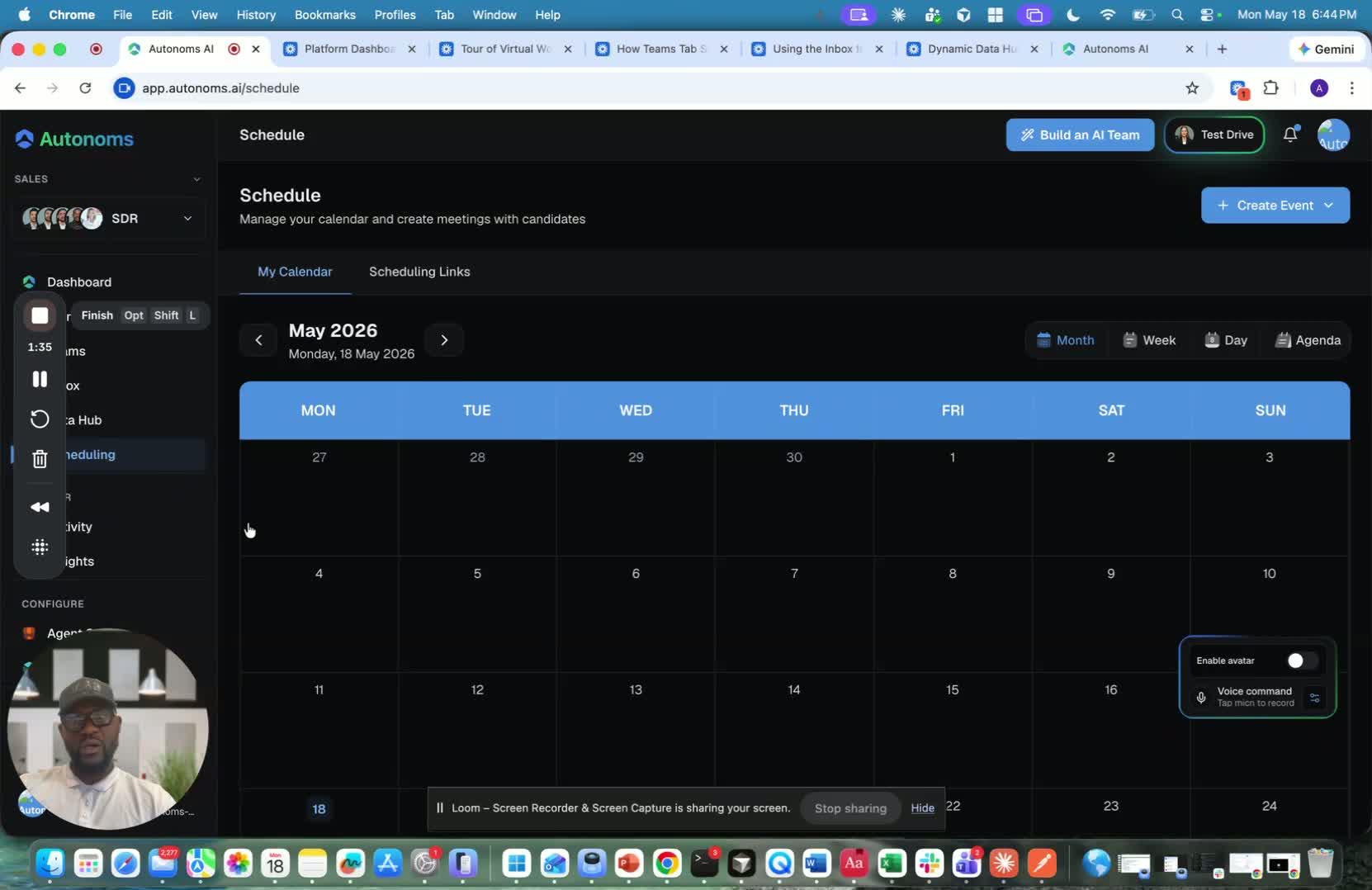
- Navigate to Scheduling from the data hub.
- Confirm that the built-in calendar is available in the scheduling area.
- Use this calendar as the central place for managing meetings and availability.
2. Verify Google Calendar Sync 0:07
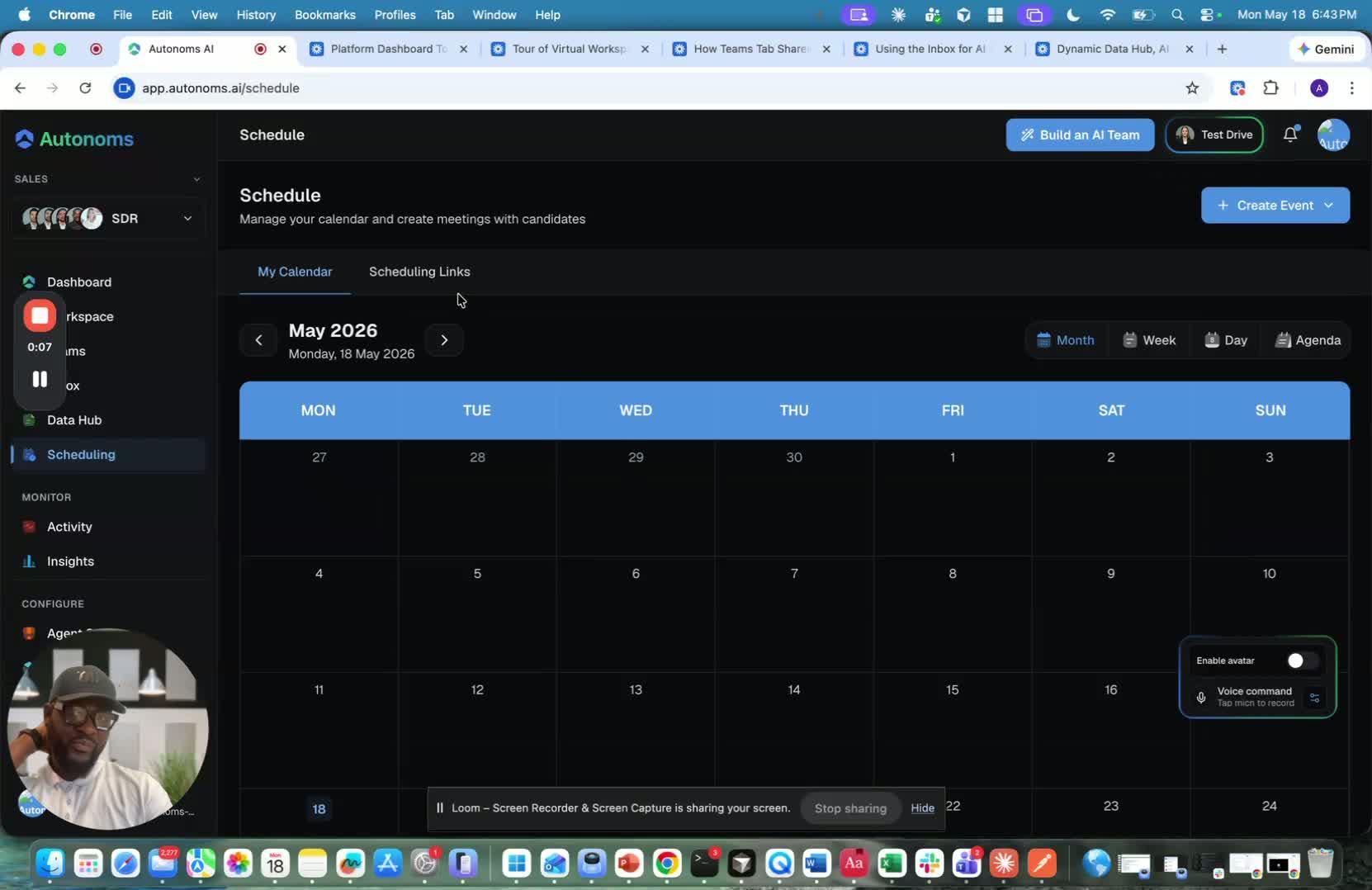
- Check that the calendar is backed by Google Calendar.
- Confirm your Google Workspace account is connected.
- Make sure the inbuilt calendar is syncing properly with your Google calendar data.
3. Understand AI Routine Syncing 0:16
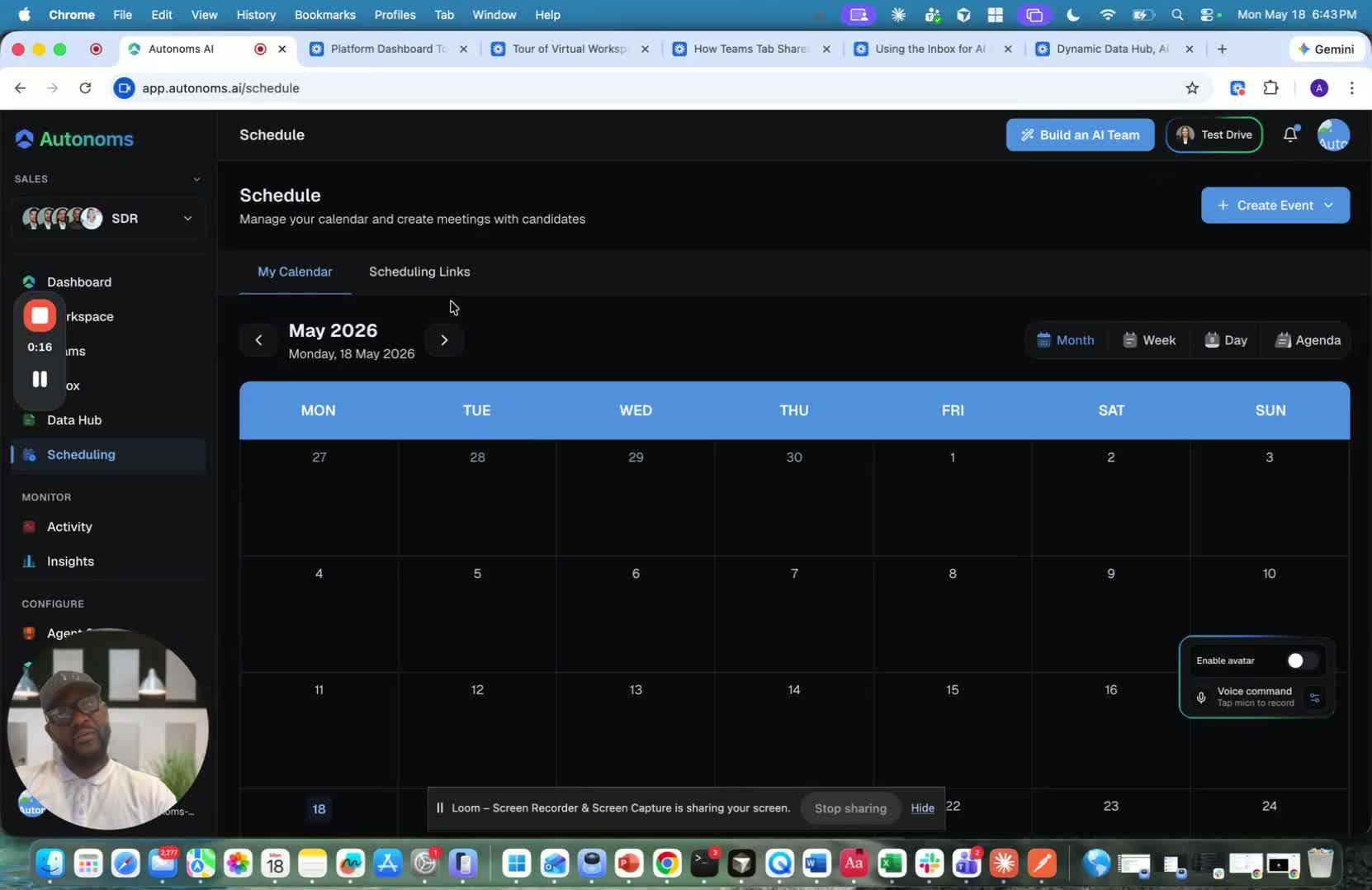
- Review how the calendar also syncs with AI agentic routines and AI employee routines.
- Expect automated tasks and routine events created by AI agents to appear in the same calendar.
- Use the calendar as a shared view of both human and AI-driven scheduling activity.
4. Create a Booking Link 0:27

- Generate a booking link from the scheduling system.
- Confirm the link displays a calendar where others can book meetings.
- Use the booking link as the primary method for external scheduling requests.
5. Manage Incoming Meeting Bookings 0:42
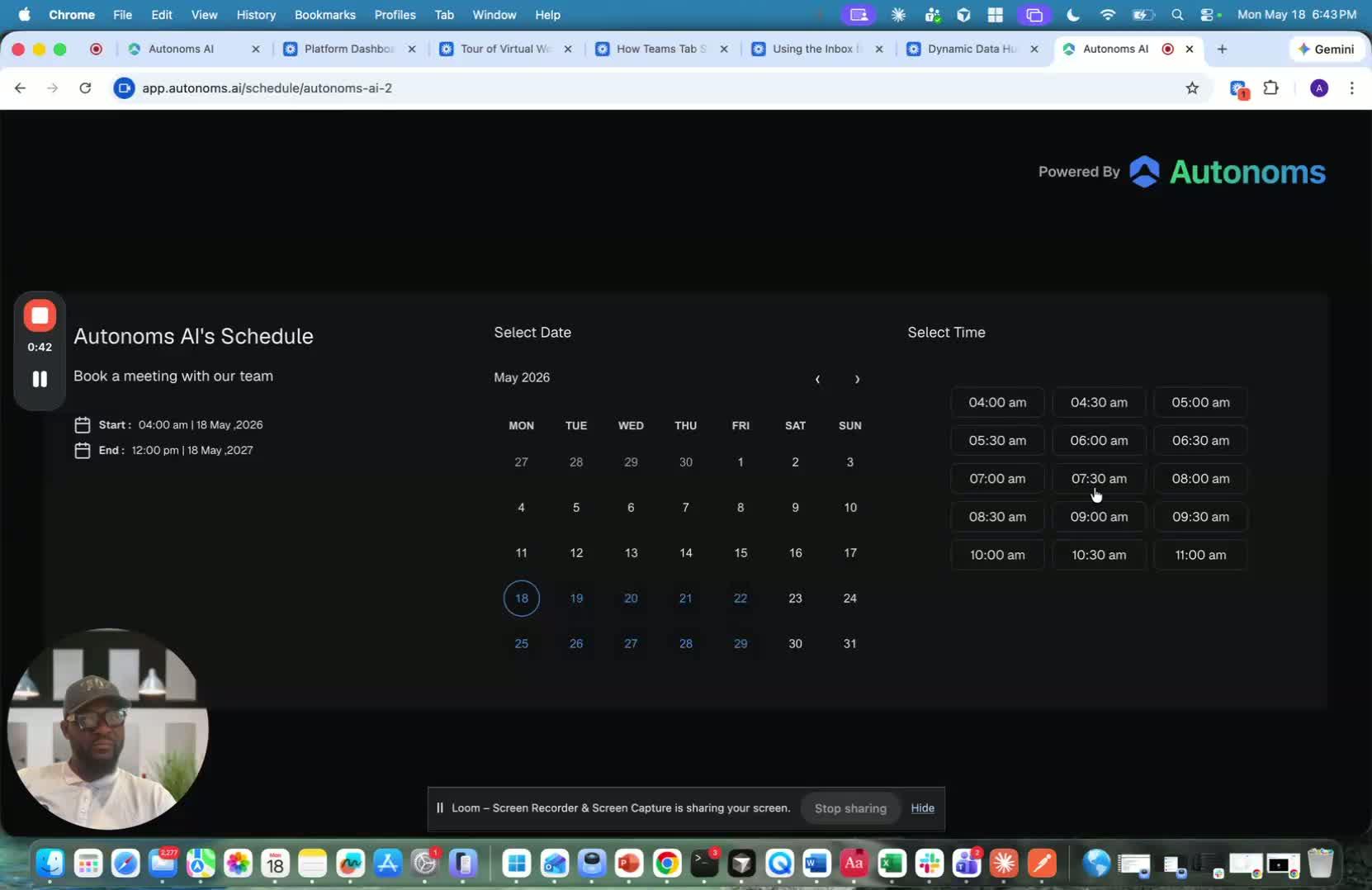
- Share the booking link with customers or prospects.
- When someone books a meeting, verify it appears on your calendar.
- Use the calendar to track booked meetings and keep availability up to date.
6. Set Up Additional Scheduling Links or Calendar Types 0:52
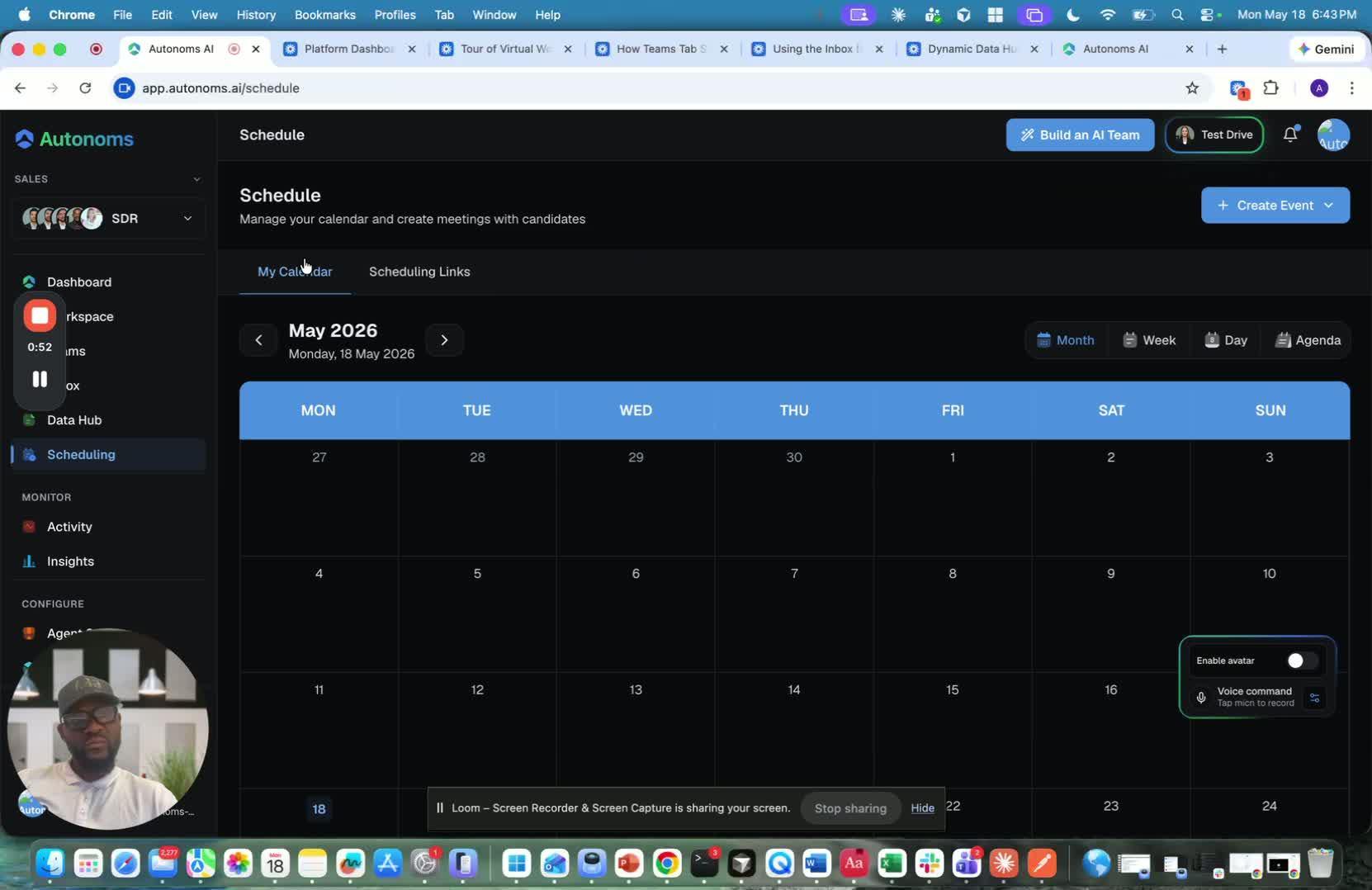
- Create a different scheduling link if a separate meeting type is needed.
- Configure alternate calendars or schedules for different use cases.
- Ensure each link matches the correct meeting purpose, team, or audience.
7. Review Scheduled AI-Generated Routines 1:06
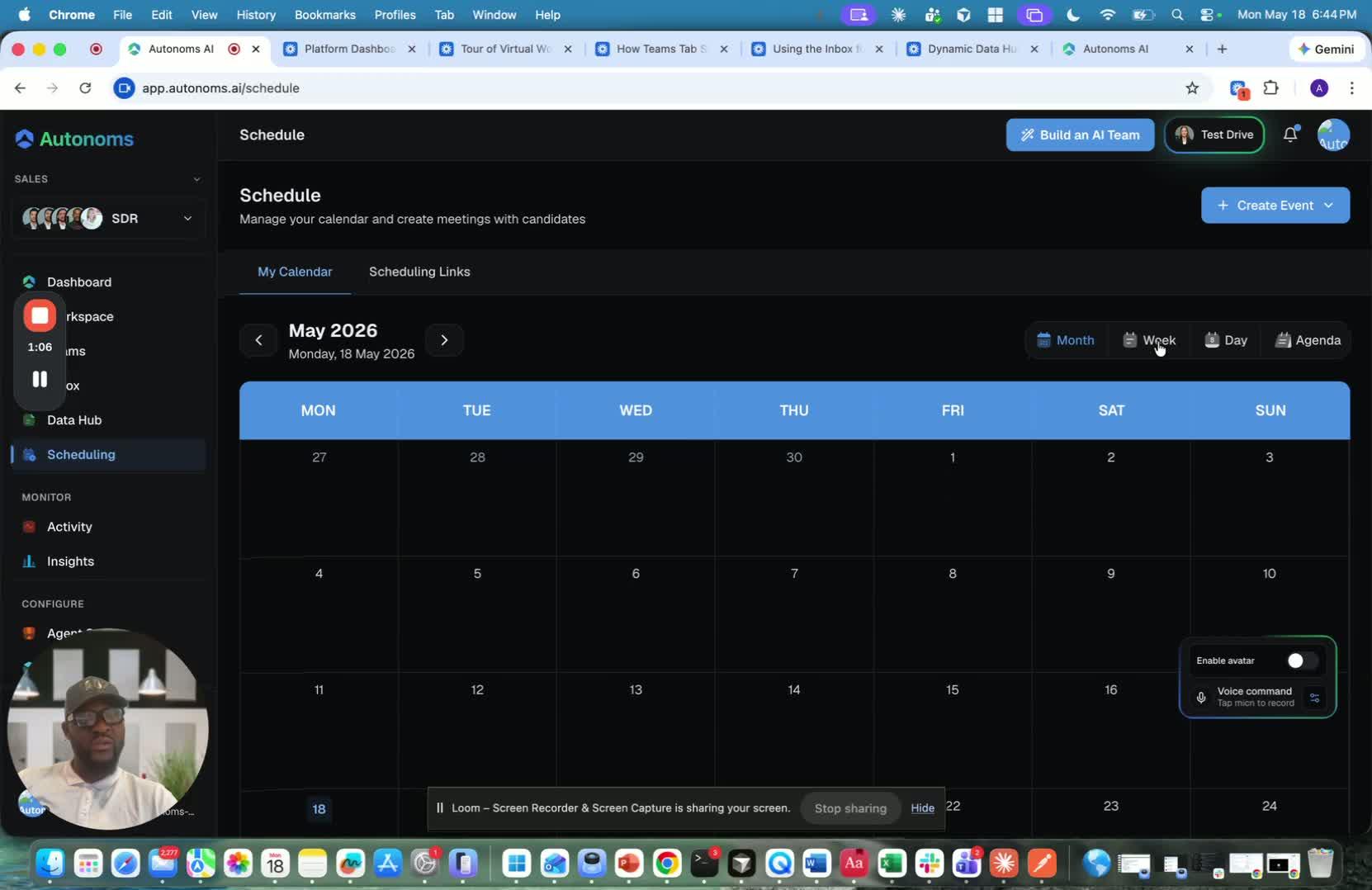
- Monitor the calendar for routines created by AI agents.
- Confirm these automated routines are visible alongside manual meetings.
- Use the calendar to coordinate human tasks and AI-driven workflows in one place.
8. Use the Booking Page for External Scheduling 1:12
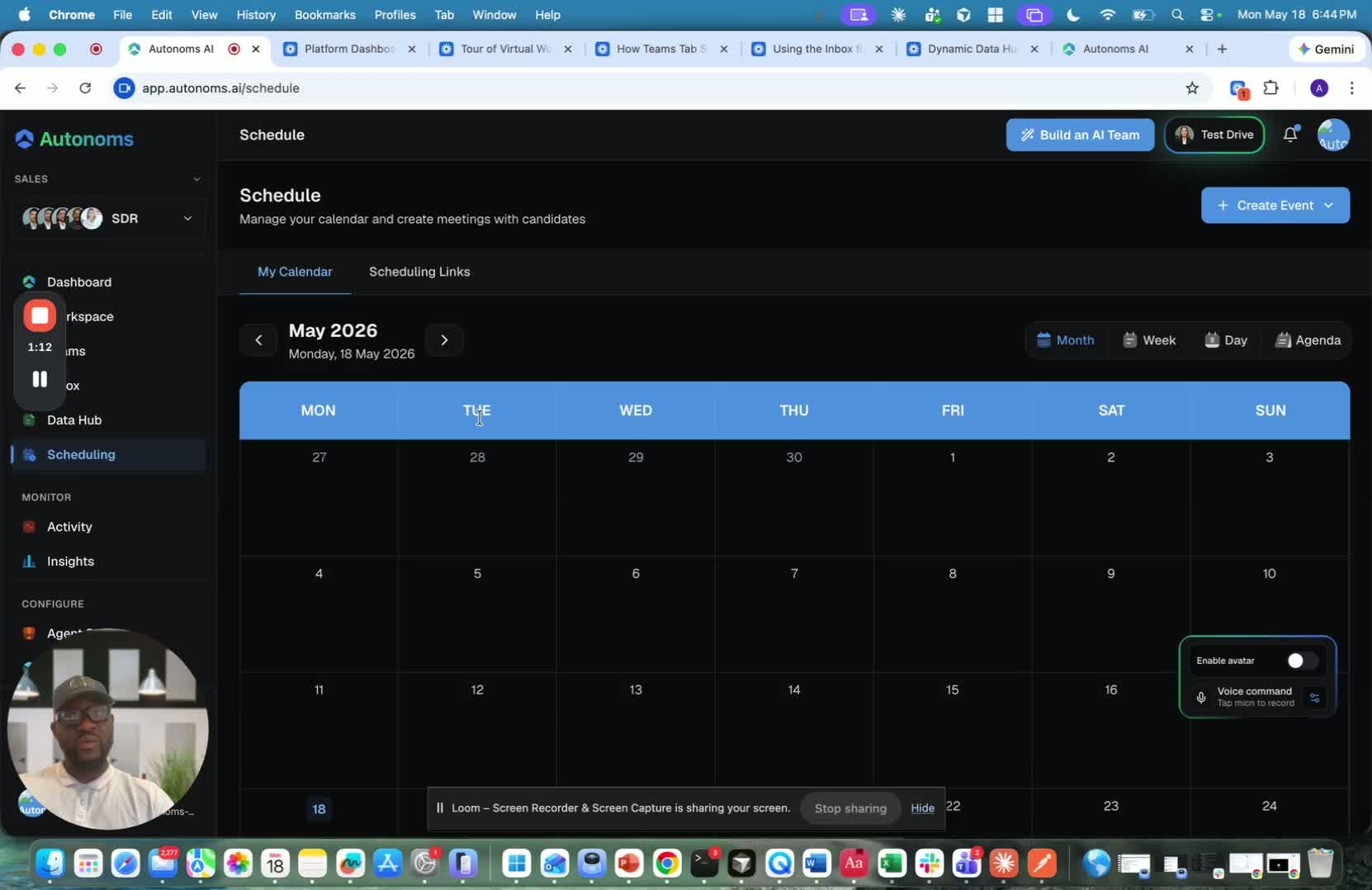
- Treat the booking page as the public-facing scheduling interface.
- Share it so people can book meetings without back-and-forth coordination.
- Make sure the booking page is accurate and reflects current availability.
9. Distribute Booking Links Across Communication Channels 1:19
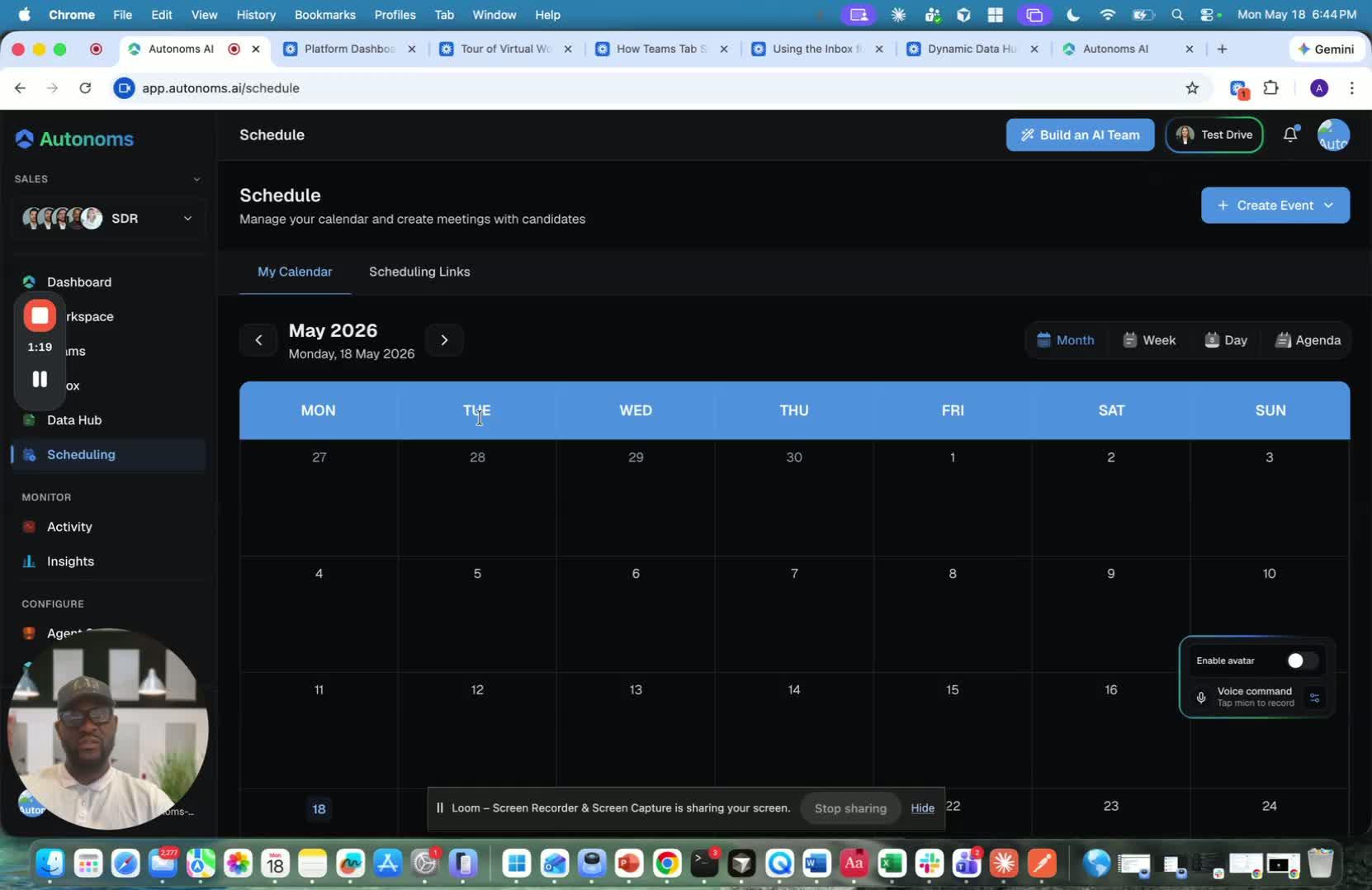
- Send booking links through approved outreach channels, including:
- Cold calling follow-ups
- Text messages
- Ensure the correct booking link is used for each campaign or customer segment.
- Track where the link is shared so scheduling requests can be managed consistently.
Cautionary Notes
- Do not share a booking link without confirming the calendar availability is current.
- If multiple scheduling links exist, make sure each one is tied to the correct meeting type to avoid confusion.
- Verify Google Workspace access and sync settings before relying on the calendar for bookings.
- Be aware that AI-generated routines may appear in the calendar; distinguish them from manually scheduled meetings when reviewing availability.
Tips for Efficiency
- Use one primary booking link for standard meetings to reduce scheduling friction.
- Create separate links only when different meeting lengths, purposes, or audiences require them.
- Check the calendar regularly so AI routines and booked meetings do not create conflicts.
- Share booking links in every outbound channel to reduce manual coordination and speed up meeting setup.
Link to Loom
https://loom.com/share/00616fafab8c43c792d9a49400eed9ab
Scheduling: Calendar, Booking Links, and AI-Synced Routines
1. Open the Scheduling section 0:00
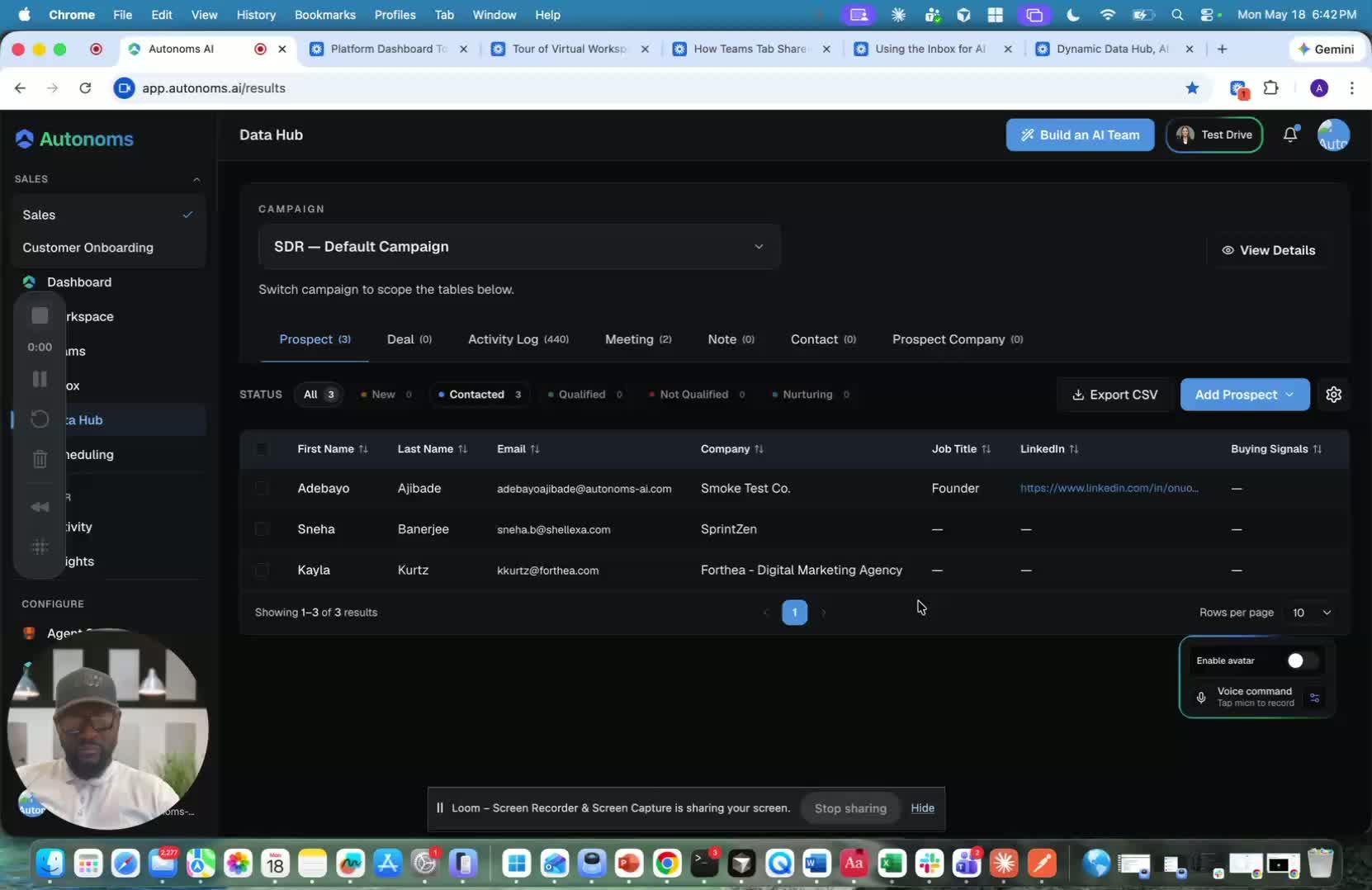
- After the Data Hub, navigate to Scheduling.
- This is where the platform’s calendar and booking tools live.
- The scheduling area is designed to manage both human meetings and AI-driven routines.
2. Use the built-in calendar backed by Google 0:07

- The calendar is backed by Google Calendar.
- The system provisions the calendar for you automatically.
- You get:
- A native in-app calendar
- Sync with your Google Workspace account
- Sync with AI agent routines and AI employee routines
3. Create and manage booking links 0:27
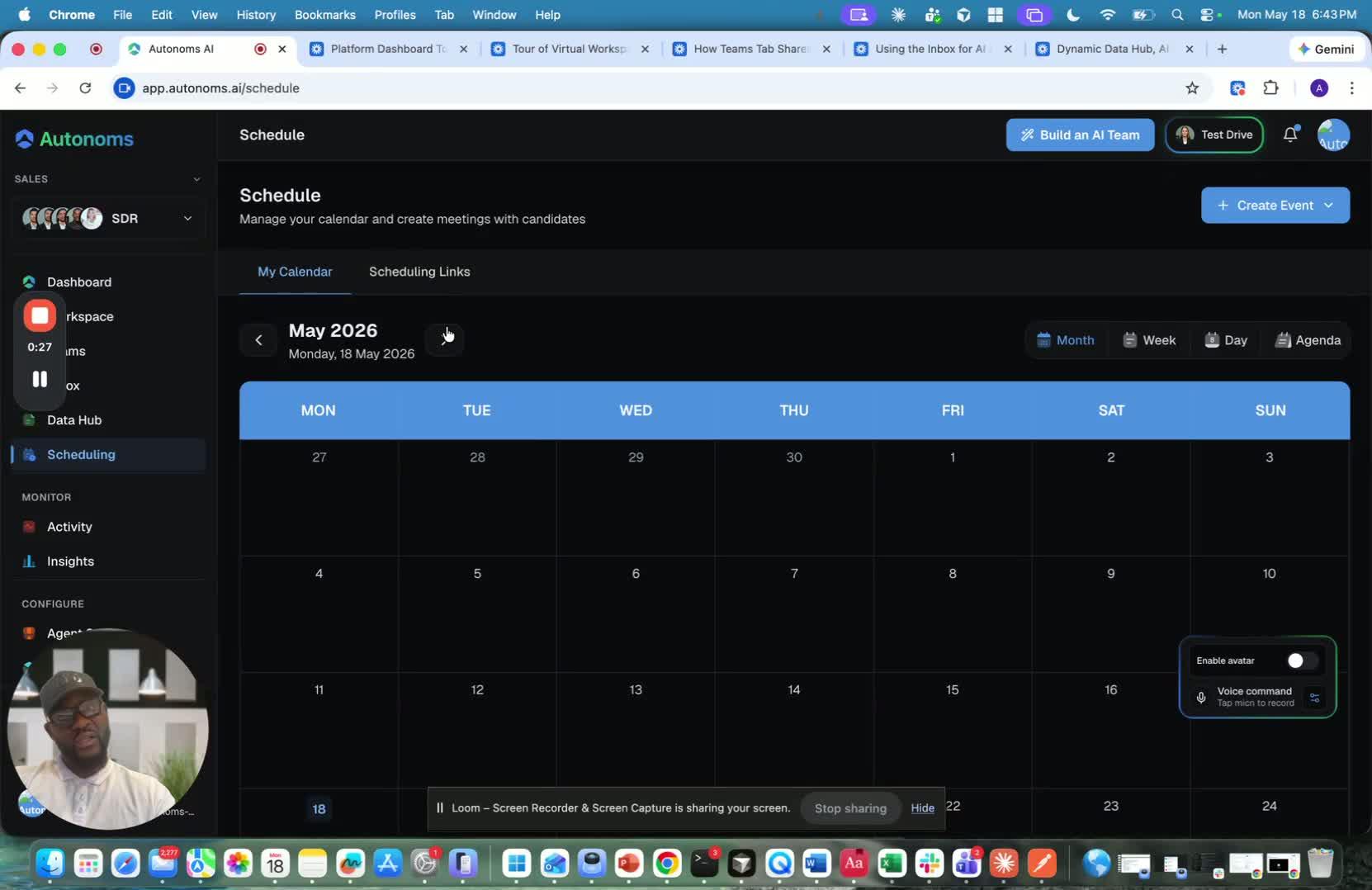
- The platform automatically creates a booking link for you.
- This booking link provides a page where others can schedule meetings with you.
- Meetings booked through the link are added directly to your calendar.
4. Let people book meetings through the calendar page 0:42
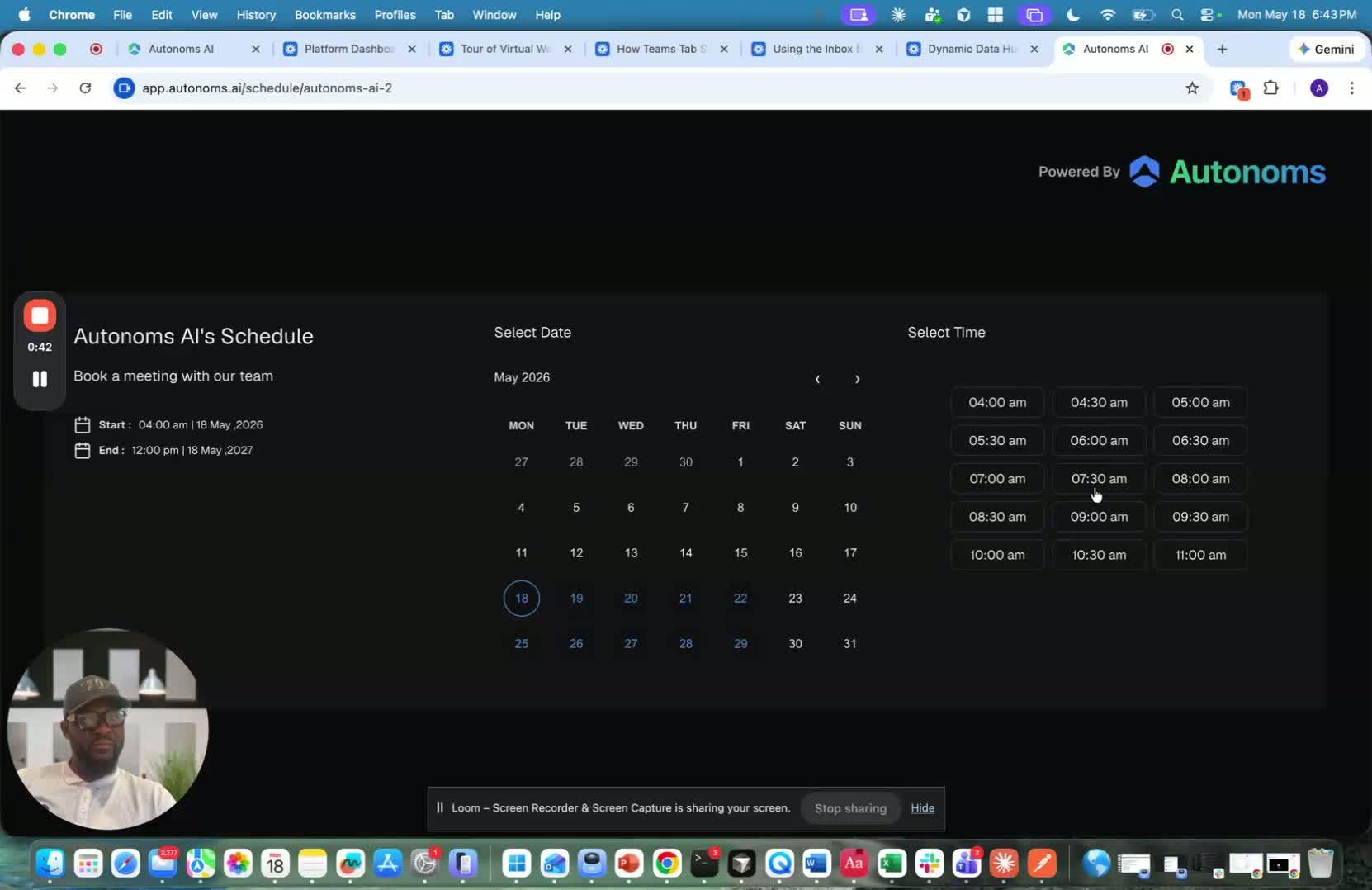
- Visitors can open the booking page and choose a time to meet.
- Once booked, the meeting appears on your calendar.
- Your AI agent can also remind you about the meeting.
5. Create different schedules or booking pages as needed 0:52
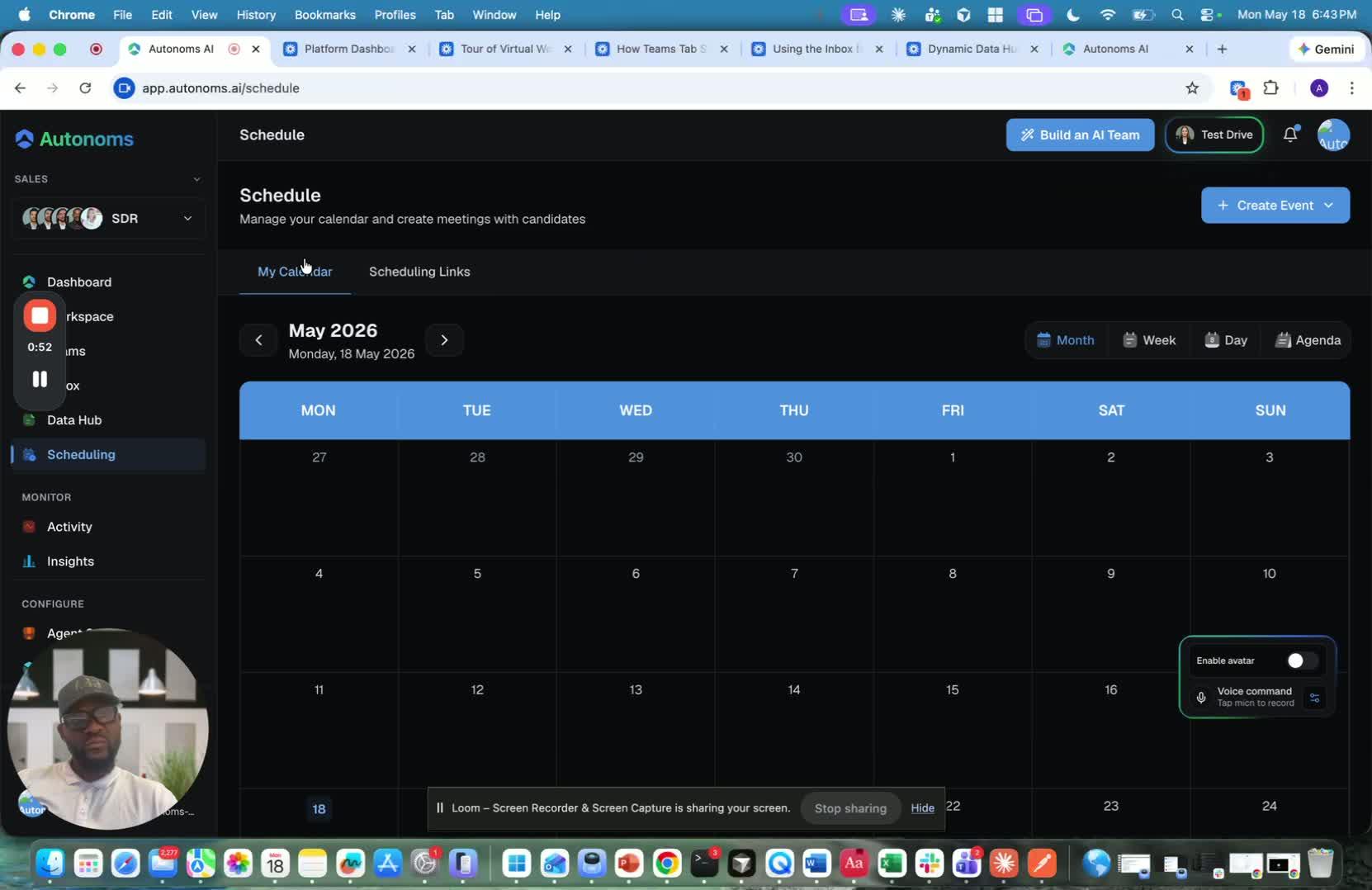
- You can create different scheduling links for different calendar types or use cases.
- You can also create schedules directly in the calendar.
- As AI agents begin creating routines, those routines will appear in the calendar too.
6. Understand the value of the booking link across channels 1:06
generated-image-at-00:01:06
- The calendar is standard, but the key feature is the booking page/link.
- This link can be shared with customers so they can book meetings with you.
- It can be distributed through multiple outreach channels, including:
- Cold calling
- Text messages
7. Transition to monitoring and activity tracking 1:34
- The walkthrough is moving next to My Activity and Monitoring.
- This signals a shift from scheduling setup to tracking activity and performance.