

SOP: Reviewing and Using Insights to Monitor Team Performance
Key Steps
1. Open the Insights section to review team progress 0:08

- Navigate to the Insights area of the system.
- Use this section to quickly assess how your team is progressing.
- Review the account status to understand whether the system has just launched or has been active for some time.
- Expect limited activity immediately after launch, then increasing detail as the system warms up.
2. Check core performance metrics 0:16

- Review the main metrics displayed in Insights, including:
- Tasks completed
- Success rate
- Saved time
- Use these metrics to understand how effectively the team or AI is performing.
- Compare current results against expected outcomes to identify early performance trends.
3. Interpret success rate and saved time 0:30
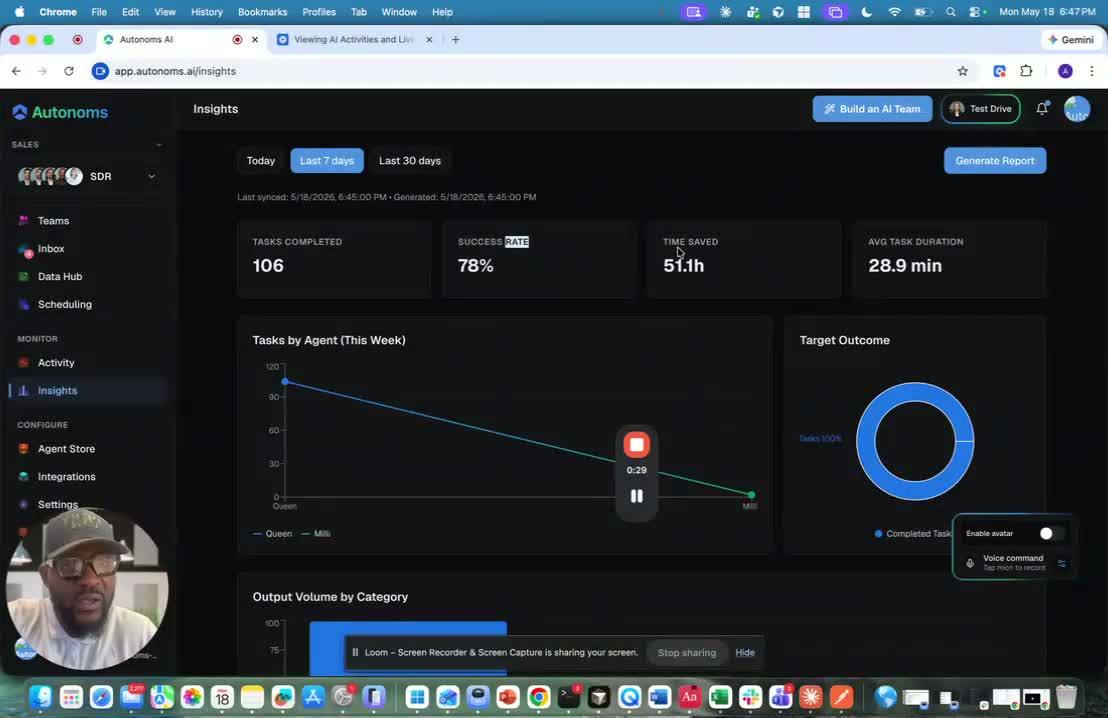
- Use success rate to measure how well tasks were completed relative to what was intended.
- Review saved time to understand the efficiency gained by using AI instead of manual work.
- If needed, open the help/details area for saved time to see how the system calculates it.
- Compare the estimated time a human would take with the actual time the AI took to complete the task.
4. Review output volume by category 0:57
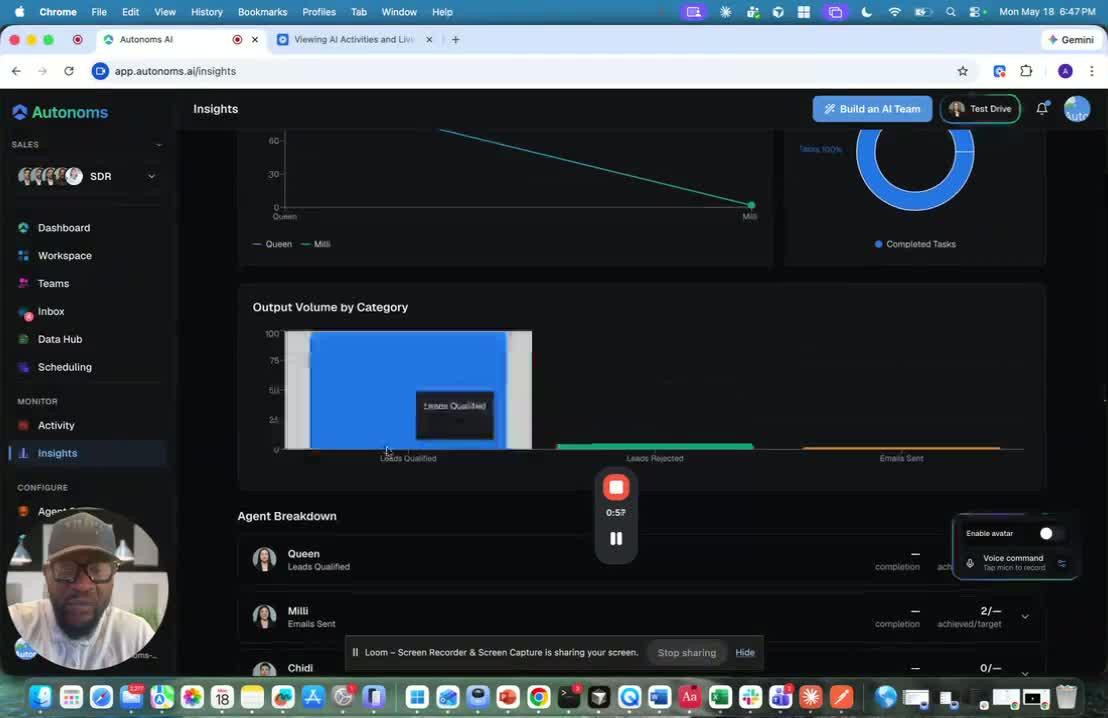
- Check the output volume by category section.
- Review the distribution of outputs such as:
- Emails sent
- Leads rejected
- Qualified leads
- Use the percentages and counts to understand which outcomes are most common.
- Track category trends over time to spot changes in workflow performance.
5. Analyze tasks by agent 1:08

- Open the Tasks by agents view.
- Review the list of agents and the tasks assigned or completed by each one.
- As the system continues to warm up, expect more detailed agent-level data.
- Use this view to compare:
- Completion rates
- Targets
- Individual agent activity
- Identify which agents are performing well and which may need attention.
6. Generate and save reports 1:33
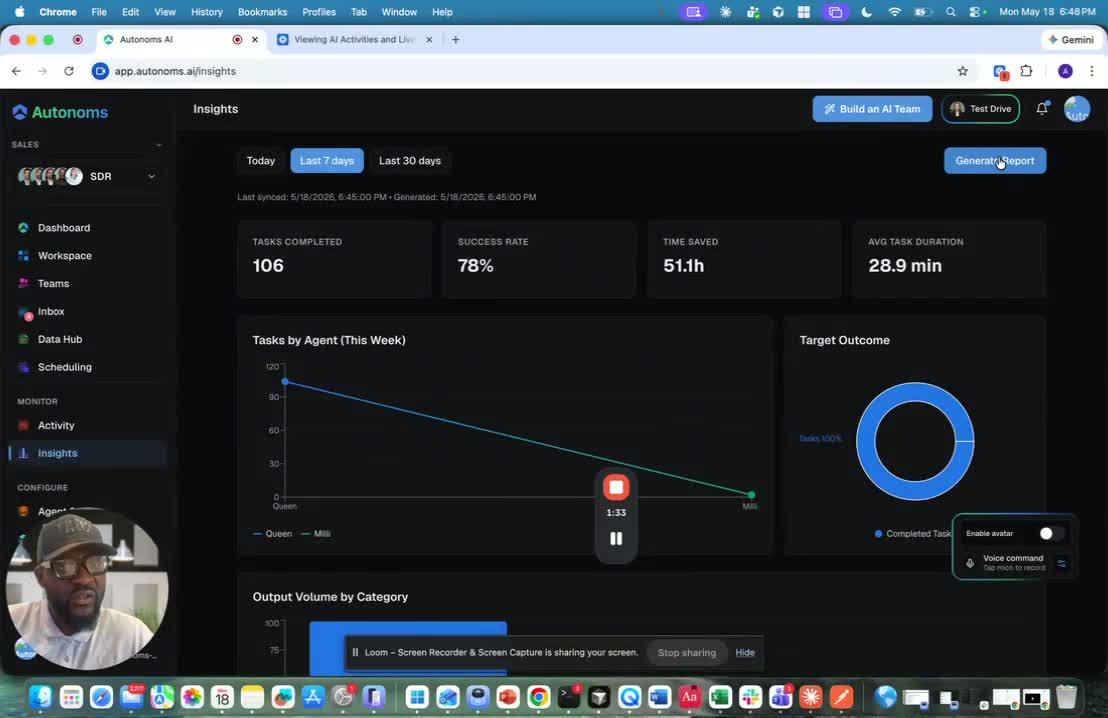
- Create reports from the Insights data when you need to share results with your team.
- Save reports for future reference and team collaboration.
- Use shared reports to support business decisions and optimization efforts.
- Organize reports so stakeholders can quickly access the information they need.
7. Request custom insights when needed 1:52
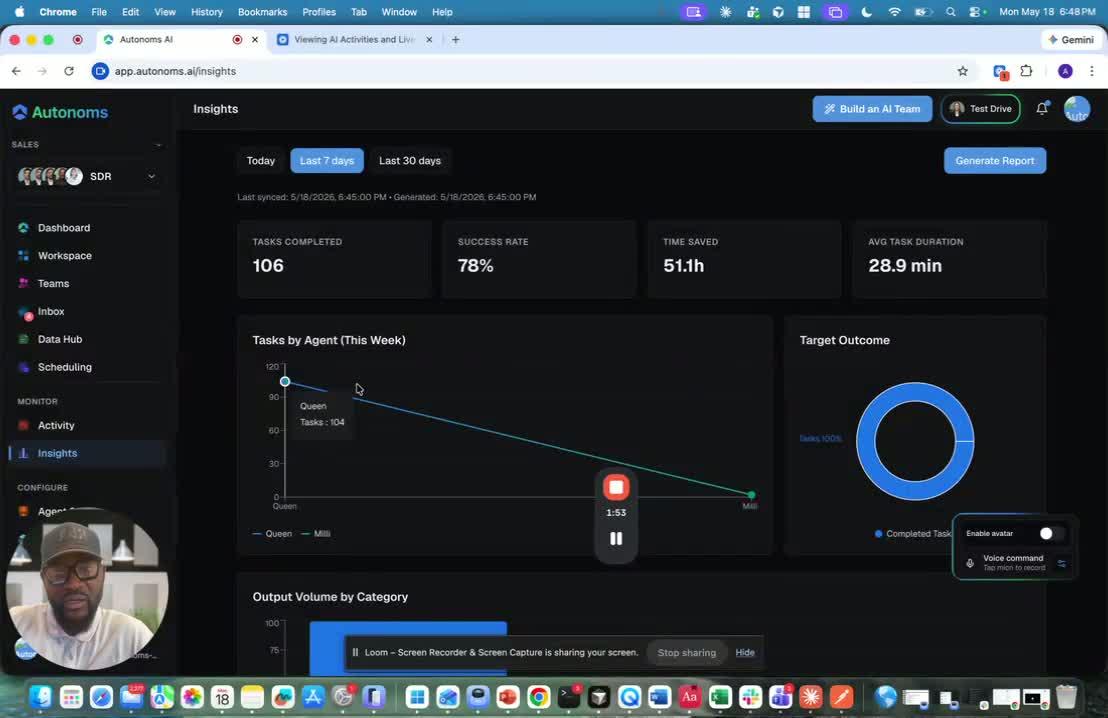
- If the default Insights views do not meet your needs, request a custom insight.
- Work with the data AI agent team to create insights on the fly.
- If applicable, ask for the insights to be embedded into your own instance of the Autonomous Operating System.
- Confirm the required metrics, format, and delivery method before implementation.
Cautionary Notes
- Do not rely on early metrics alone immediately after launch; data may be limited until the system has warmed up.
- Make sure you understand how each metric is calculated before using it for business decisions.
- Avoid comparing agents or outputs too aggressively until enough data has accumulated for a fair assessment.
- Confirm report access and sharing permissions before distributing insights to others.
Tips for Efficiency
- Review Insights on a regular schedule to catch trends early.
- Focus on a small set of core metrics first: tasks completed, success rate, saved time, and output volume.
- Use agent-level views to quickly identify bottlenecks or top performers.
- Save standardized reports so you can compare performance over time.
- Request custom insights only when the default dashboards do not answer your question.