

SOP: Navigating the Platform, Switching Contexts, and Requesting AI Team Members
Key Steps
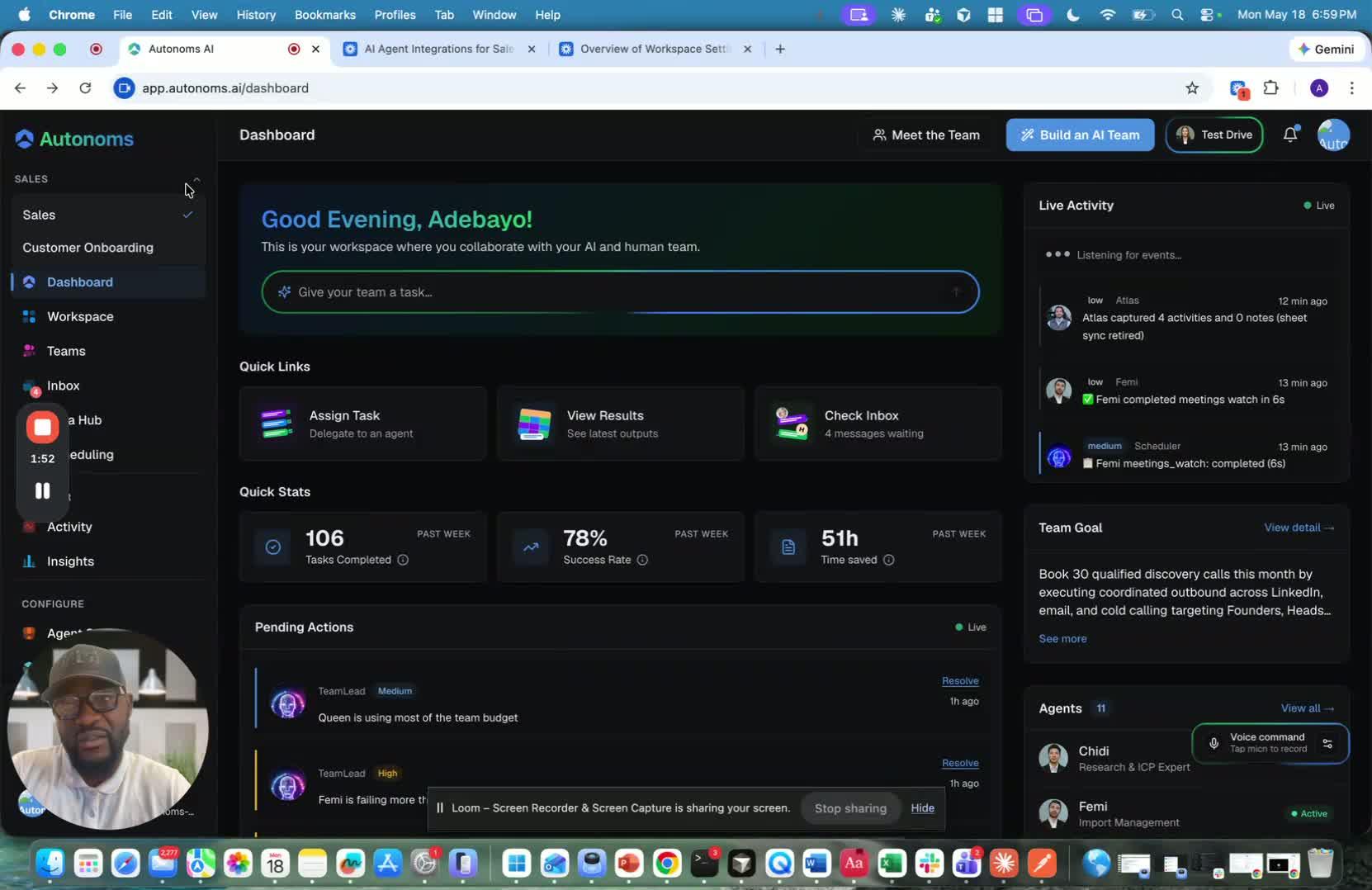
1. Switch between organizations and teams 0:09
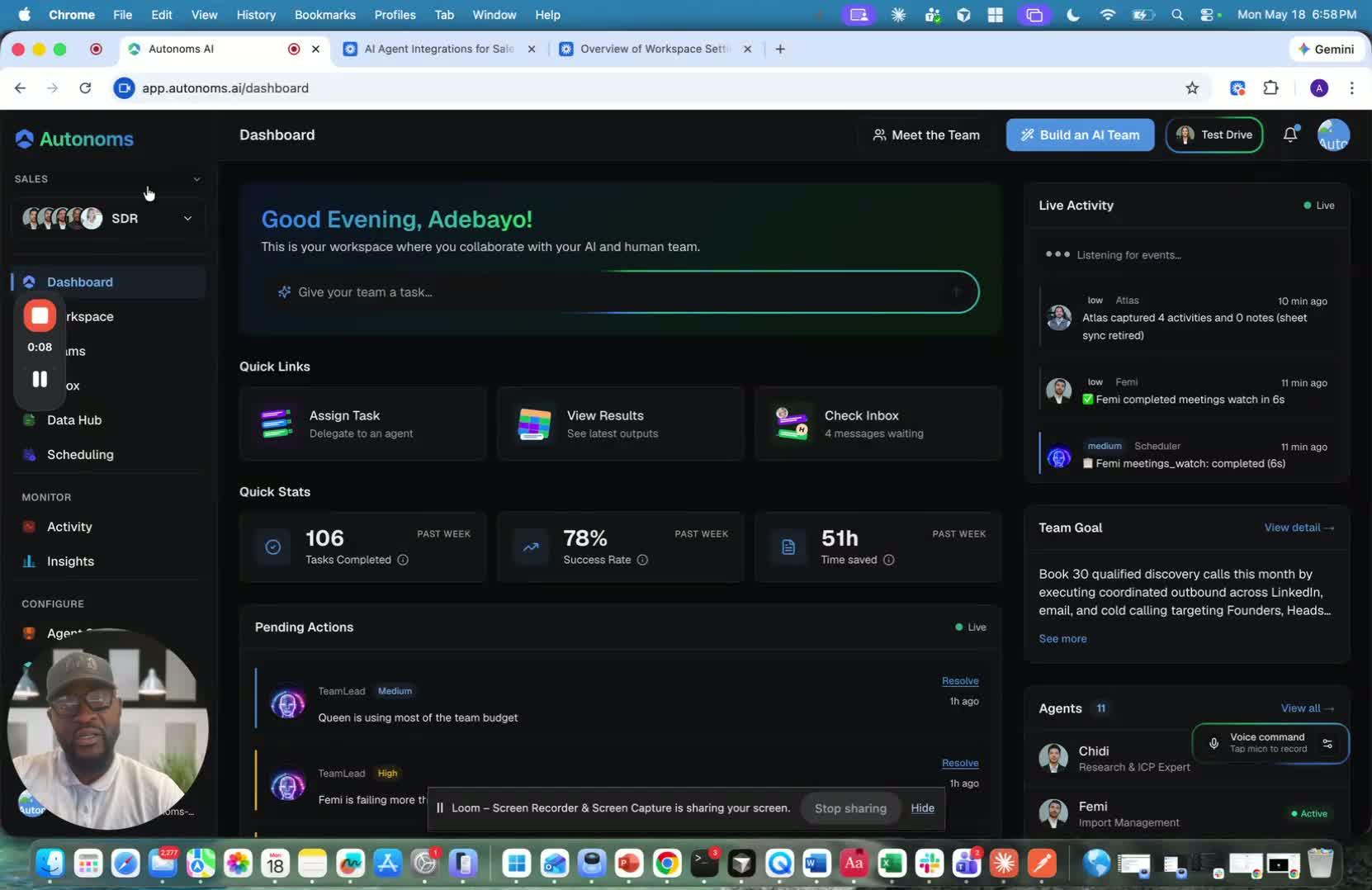
- Use the organization switcher to move between different organizations.
- After selecting an organization, review the team list associated with that organization.
- Use this area like an app switcher to quickly move to the correct organizational context.
- Confirm you are in the right organization before taking any action that affects team data or workflows.
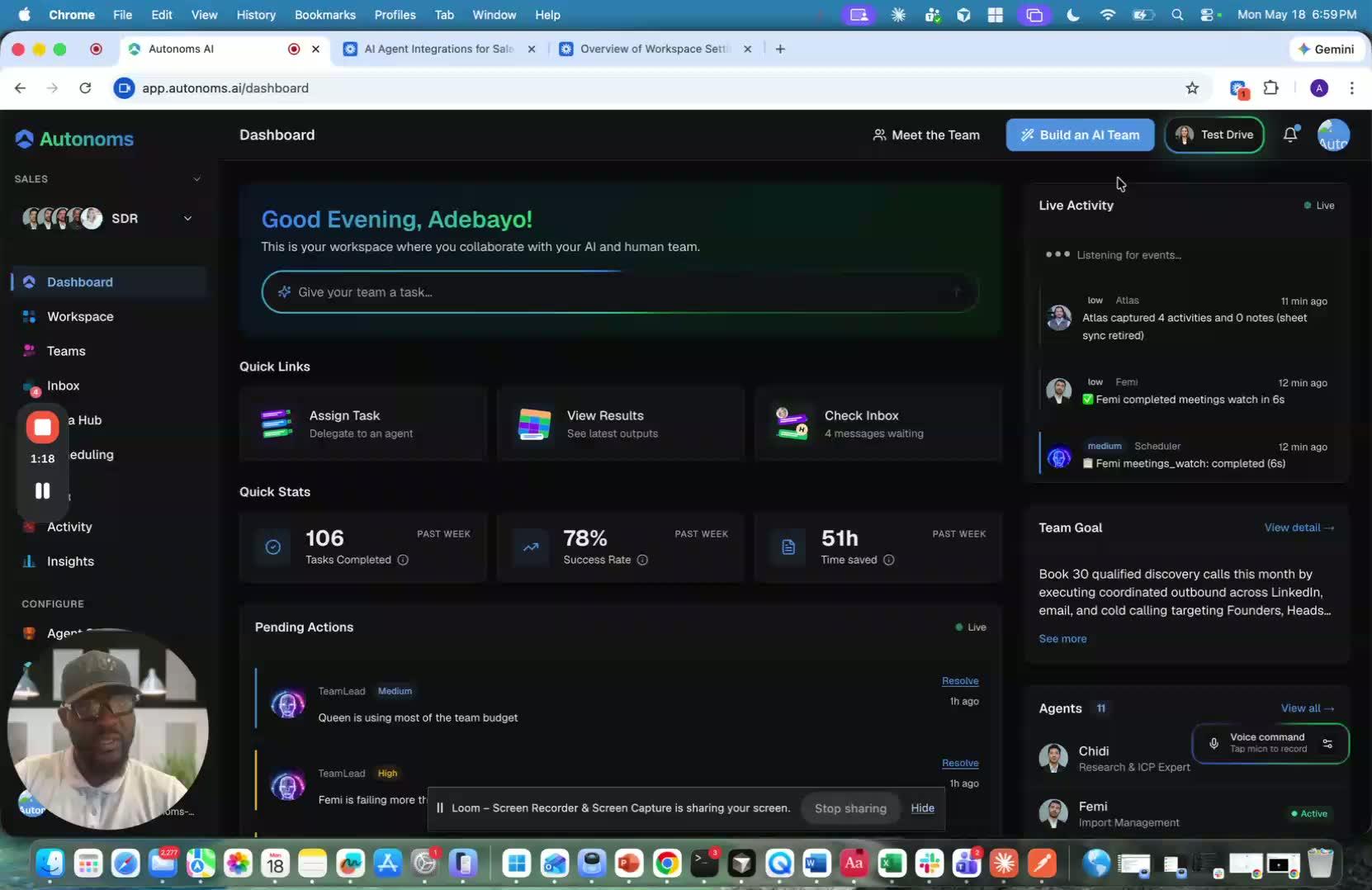
2. Switch between team members to view a different session 0:24
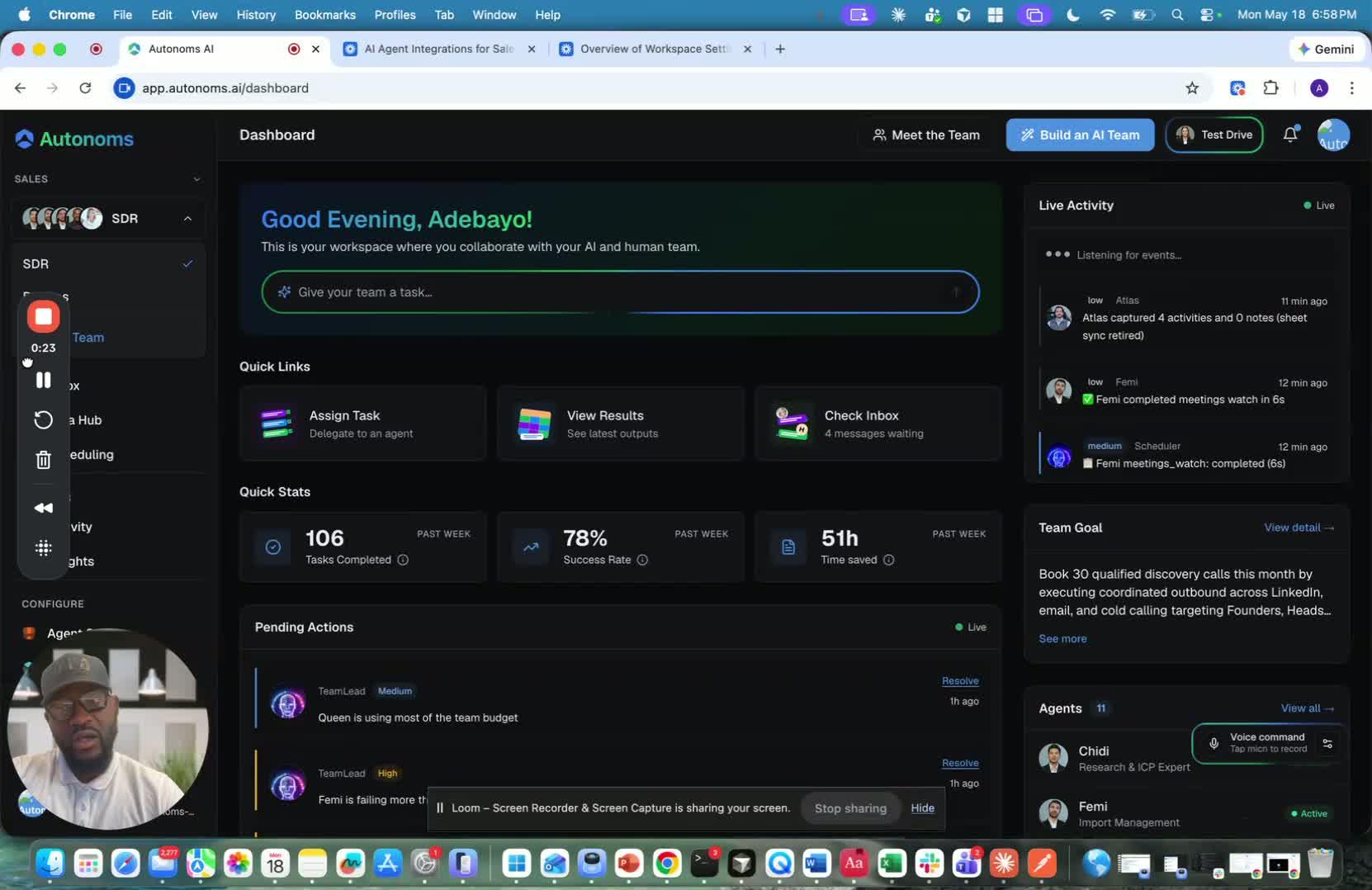
- Use the team switcher to move between different team members.
- Switching team members opens a different session, which can help you view that person’s inbox and related activity.
- Use this when you need to understand work from another teammate’s perspective or review their assigned items.
- Verify the selected team member before continuing with inbox or task review.
3. Reintroduce yourself to the team when roles are unclear 0:45
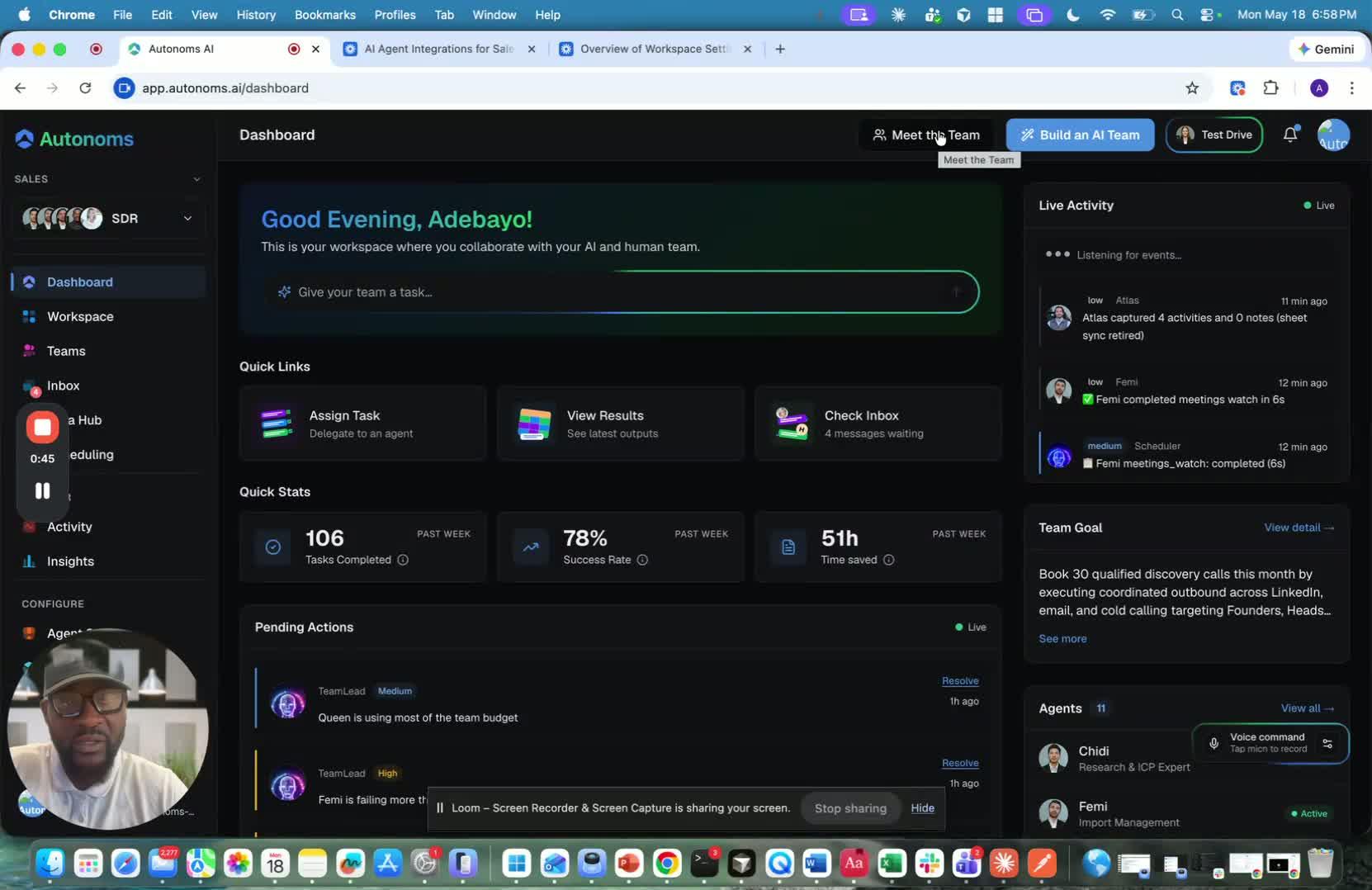
- If team names or responsibilities are confusing, use the team introduction option.
- Ask the team to reintroduce themselves so you can understand who does what.
- Use this step when onboarding, when team structure changes, or when you need clarity on ownership.
- Capture the role breakdown so you can route future requests correctly.
4. Request a new AI team member or agent 1:20
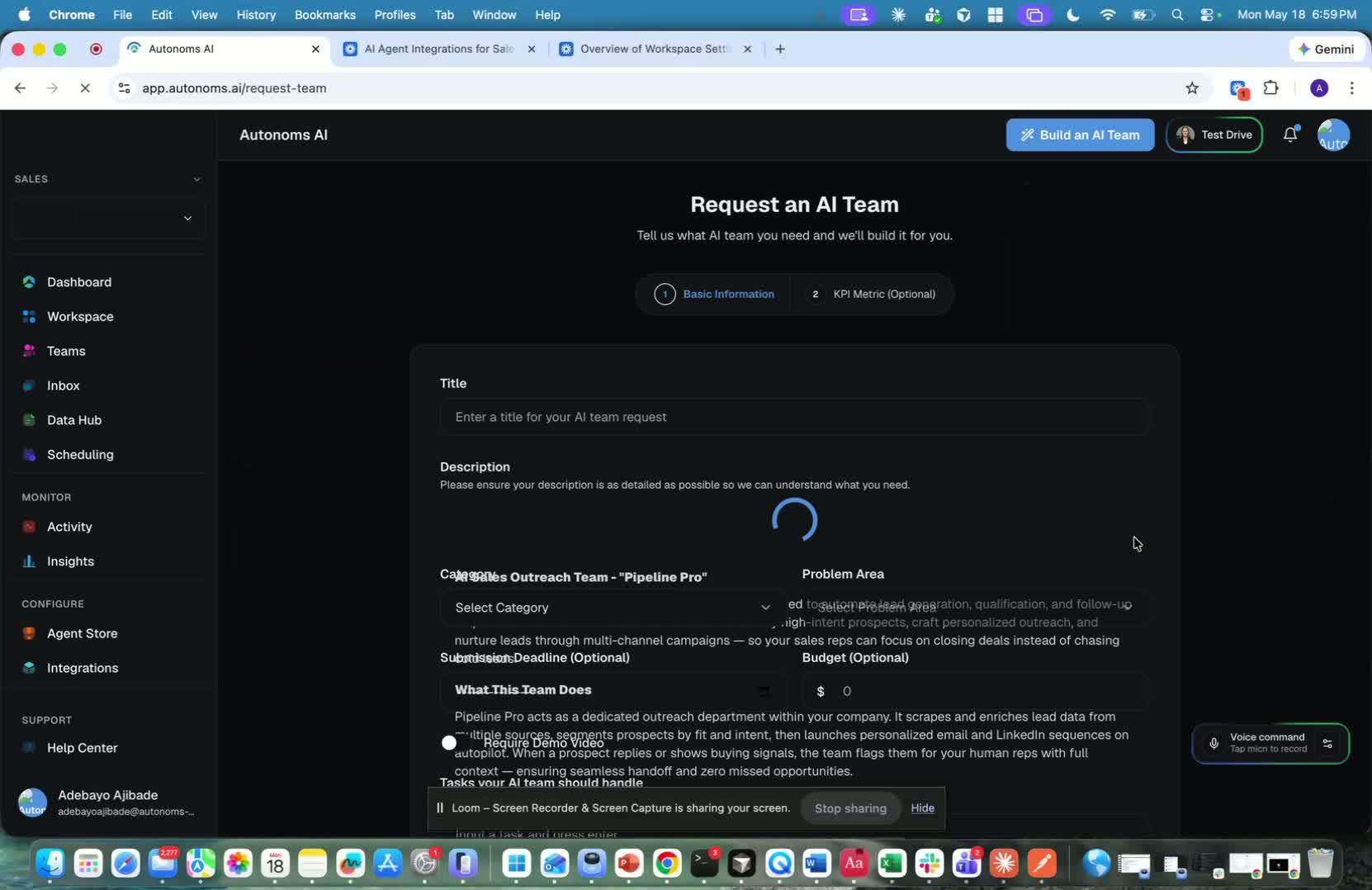
- If you need a new AI agent for a use case, use the request AI team member option.
- Provide the following details:
- The functions the agent should perform
- The roles it should support
- The tools it should be able to use
- Any custom use cases or workflows
- Submit the request so the team can build and roll out the agent quickly.
- Once completed, confirm the new agent appears in the correct team and organization structure.
5. Review notifications and workspace controls 1:50
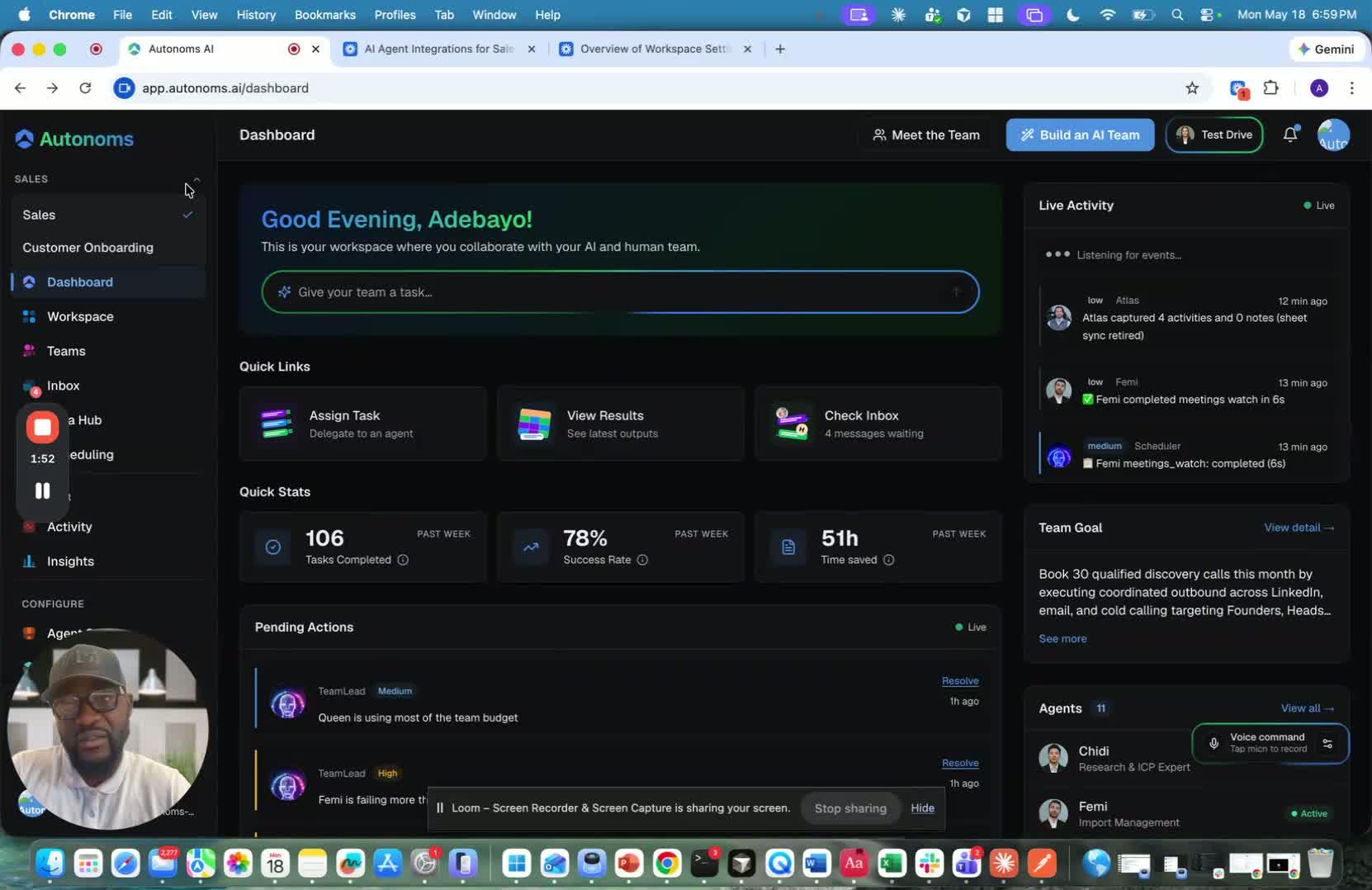
- Check the notification/alarm icon for alerts and updates.
- Open the workspace/profile area to access account-related controls.
- Use the workspace to manage your session and monitor important platform activity.
- Keep an eye on notifications before switching contexts so you do not miss important updates.
6. Use profile options for display, sign-out, and settings 2:01
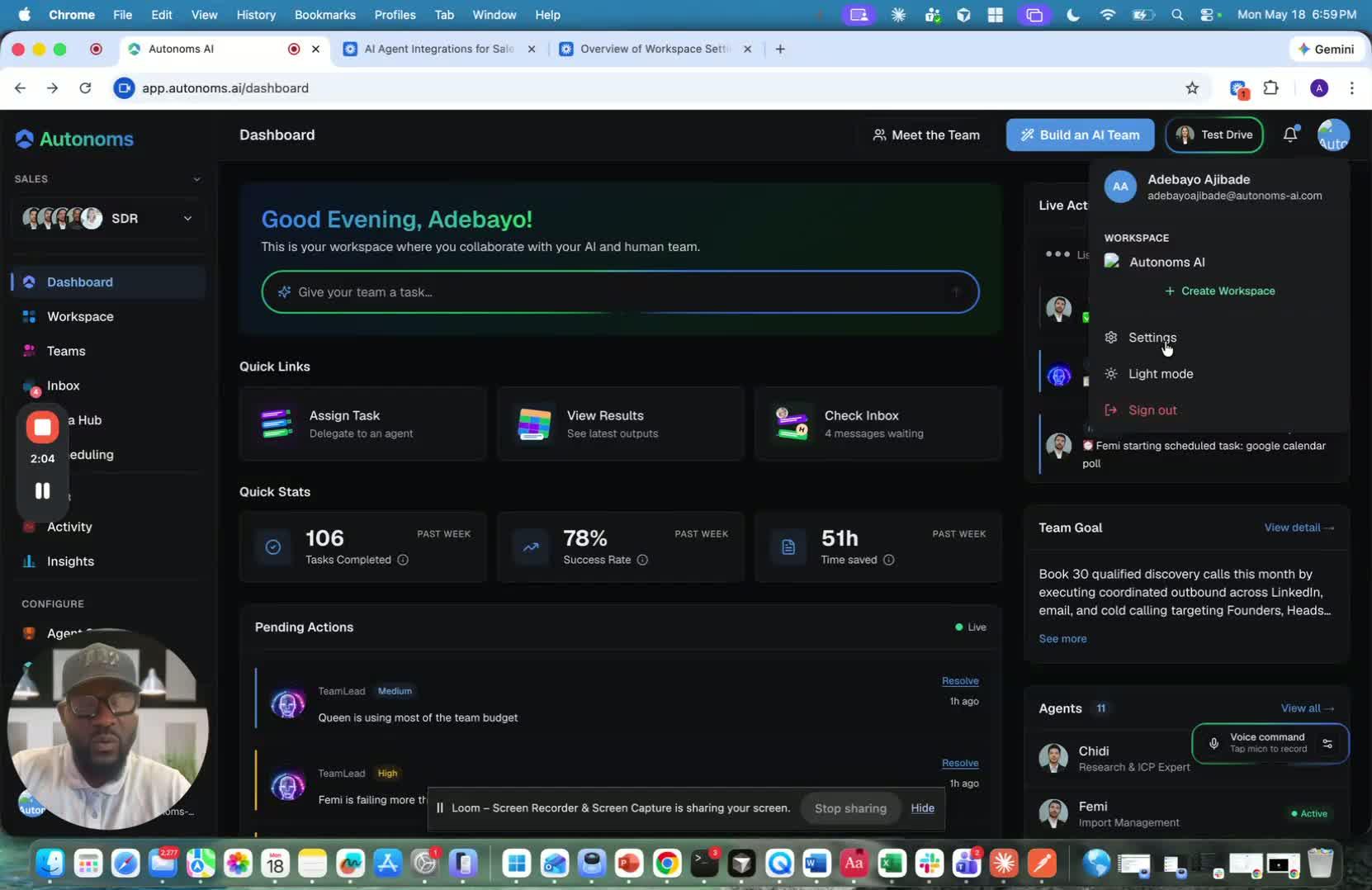
- From the profile area, you can:
- Switch to light mode
- Sign out of the platform
- Open the settings page
- Use settings to review or adjust your account configuration.
- Confirm any changes before leaving the page, especially if you are updating preferences or ending your session.
Cautionary Notes
- Do not switch organizations or team members without confirming the correct context first. Actions taken in the wrong session may affect the wrong team or inbox.
- AI agent creation is not self-service yet. Requests must be submitted through the provided request flow.
- Be specific when requesting a new AI team member. Vague role or tool descriptions can delay implementation.
- Check notifications regularly so important updates are not missed before changing views or signing out.
Tips for Efficiency
- Use the organization and team switchers as your first step whenever you need to change context.
- If you are unsure who owns what, request a team introduction early to avoid routing work incorrectly.
- When requesting a new AI agent, prepare the use case, responsibilities, and required tools in advance to speed up delivery.
- Review notifications before signing out or switching sessions so you do not miss urgent items.
- Use the profile area to quickly adjust display preferences like light mode for easier viewing.
Link to Loom
https://loom.com/share/45d090c71bec449aa2c399f632a93766
Overview of Common Platform Areas: Switching Orgs, Teams, AI Requests, and Workspace Controls
1. Switch between organizations and teams 0:00
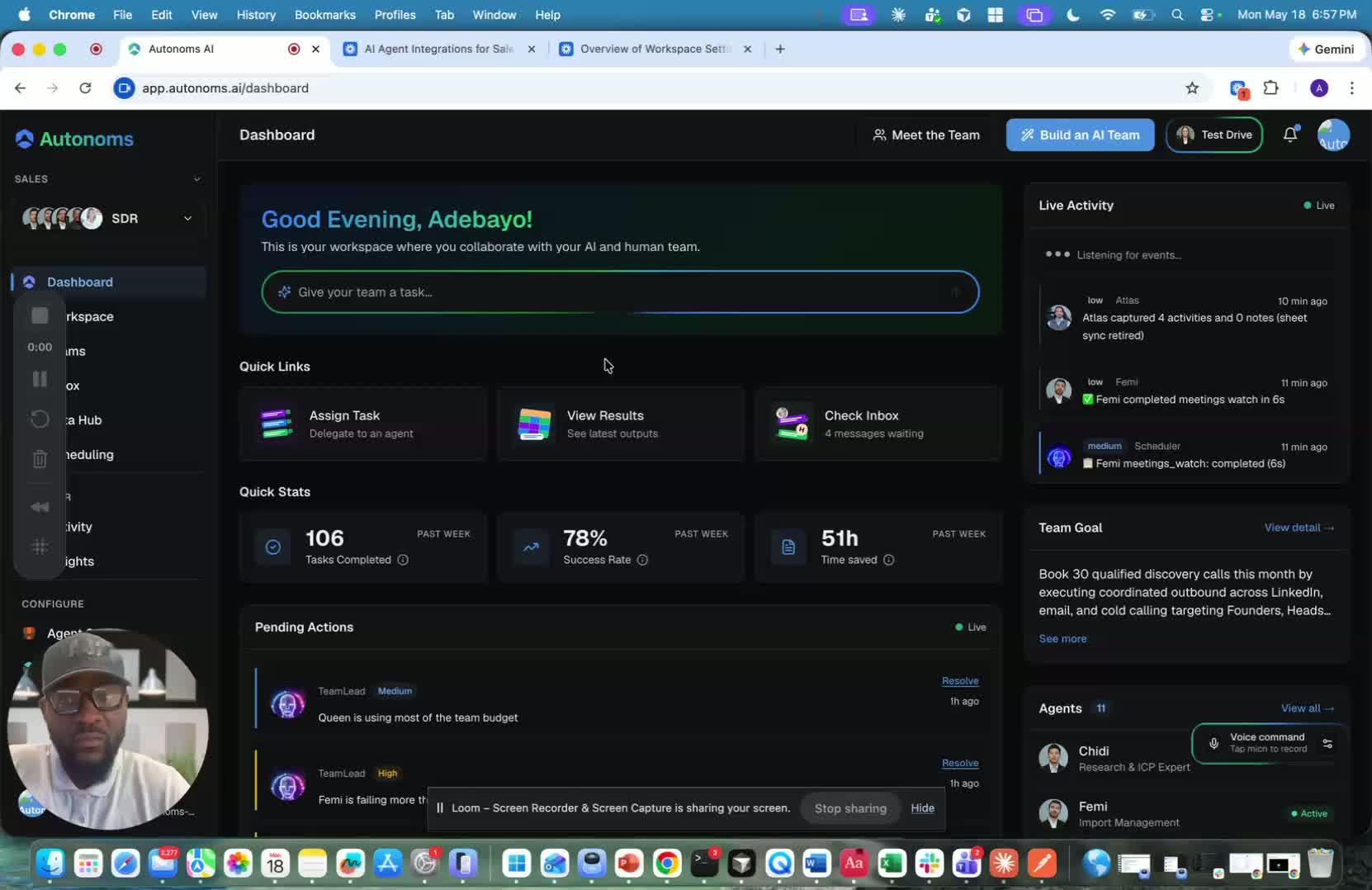
- Use the org switcher to move between different organizations.
- Within each organization, use the team switcher to jump between the teams tied to that org.
- This works like an app switcher, making it easy to move across contexts without leaving the platform.
2. Switch between team members to view their session 0:24
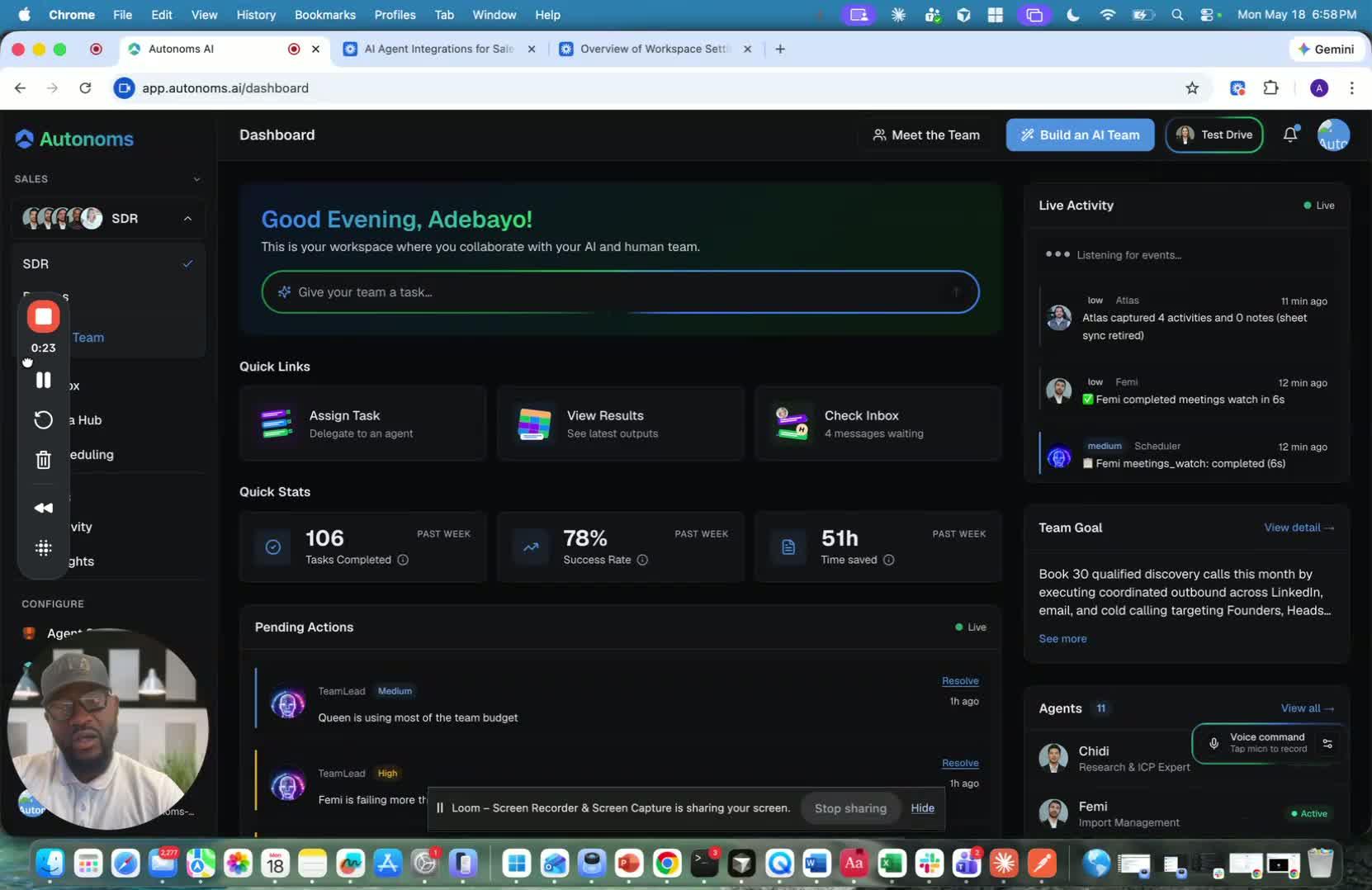
- Use the team member switcher to open a different member’s session.
- This lets you view things like their inbox and other member-specific activity.
- It’s useful when you need to see the platform from another person’s perspective.
3. Use the team intro feature when roles are unclear 0:31
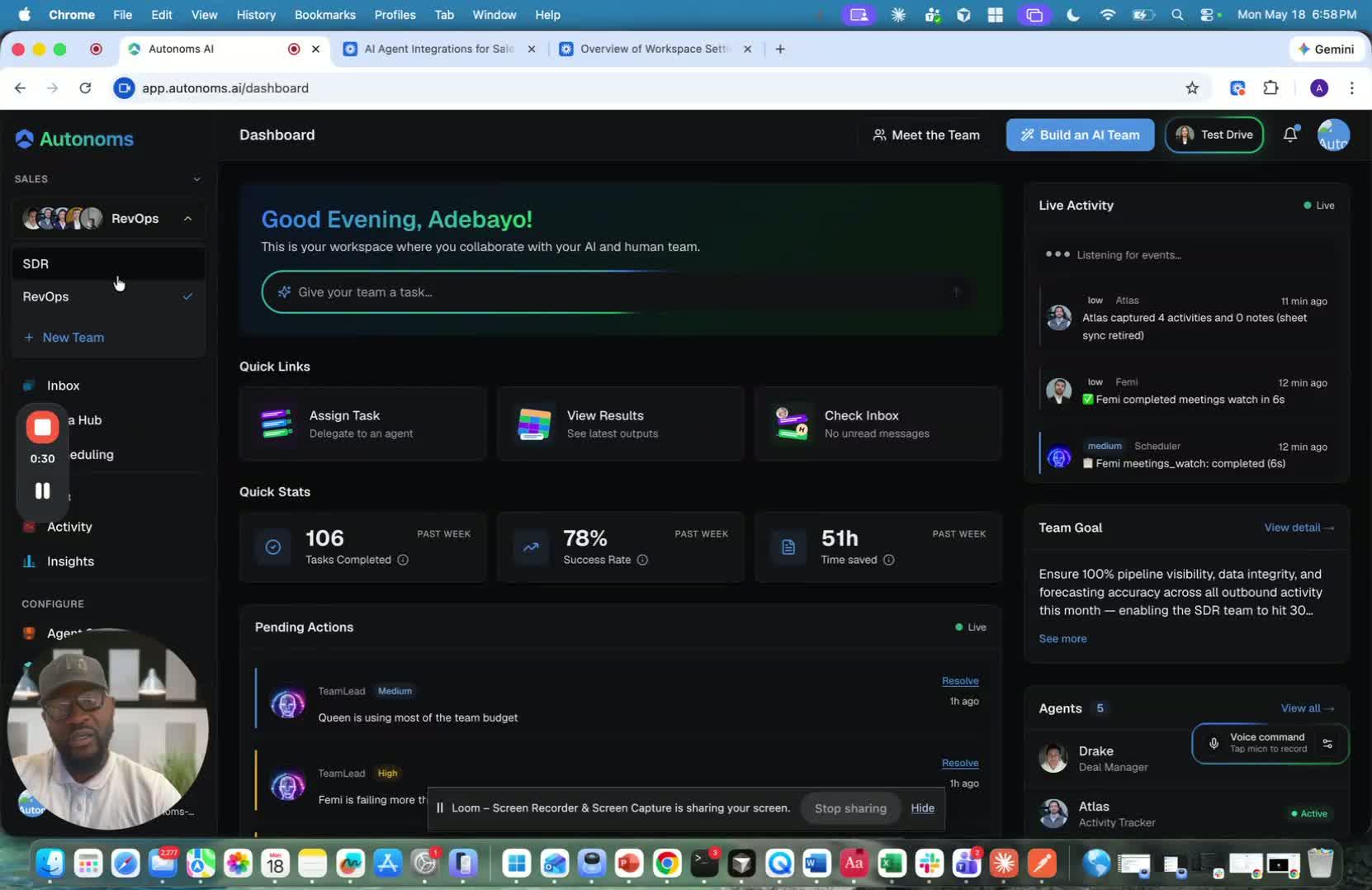
- If team names or responsibilities are confusing, use the option to introduce yourself to the team.
- This helps the team explain who does what and gives you a quick orientation.
- It’s a simple way to get clarity before assigning work or building workflows.
4. Request a new AI team member for a use case 1:20
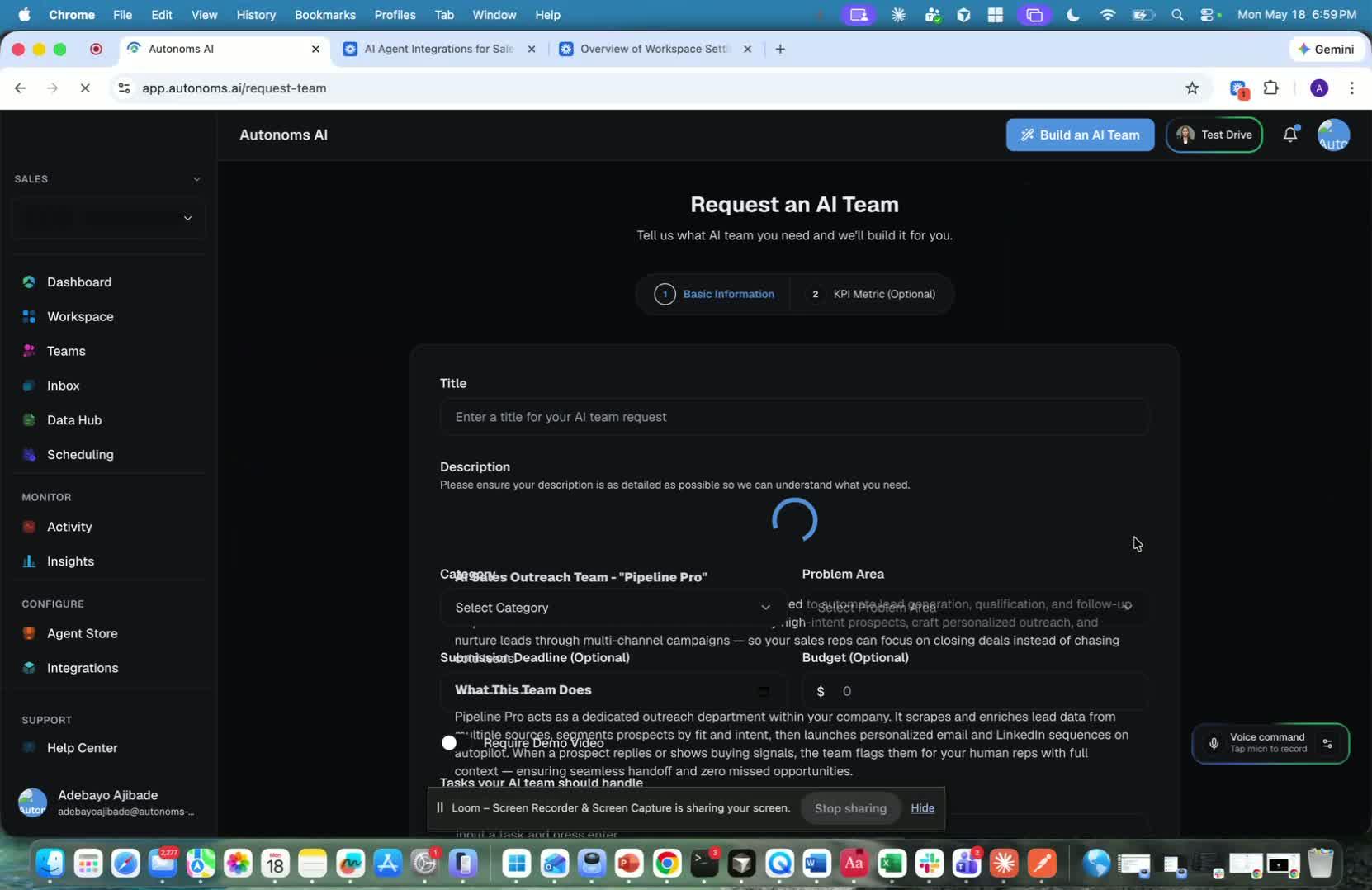
- If you need a new AI agent for your team, use the request AI team member flow.
- Provide details about:
- The functions the agent should perform
- The roles it should cover
- The tools it should be able to use
- Any custom use cases
- The team will build and roll it out quickly, and it will appear in your team/org structure.
5. Note the future self-serve AI agent builder 1:04
- A future capability will let you build AI agents conversationally on your own.
- This is not available yet because it requires deeper technical work to get right.
- Once released, it will integrate with the rest of the system and your team structure.
6. Use notifications and workspace/profile controls 1:50
- Check the notification/alarm icon for alerts.
- Open your workspace/profile area for account-level actions.
- From there, you can:
- Switch to light mode
- Sign out
- Go to Settings
7. Next topic: AI workspace and adding companies 2:18
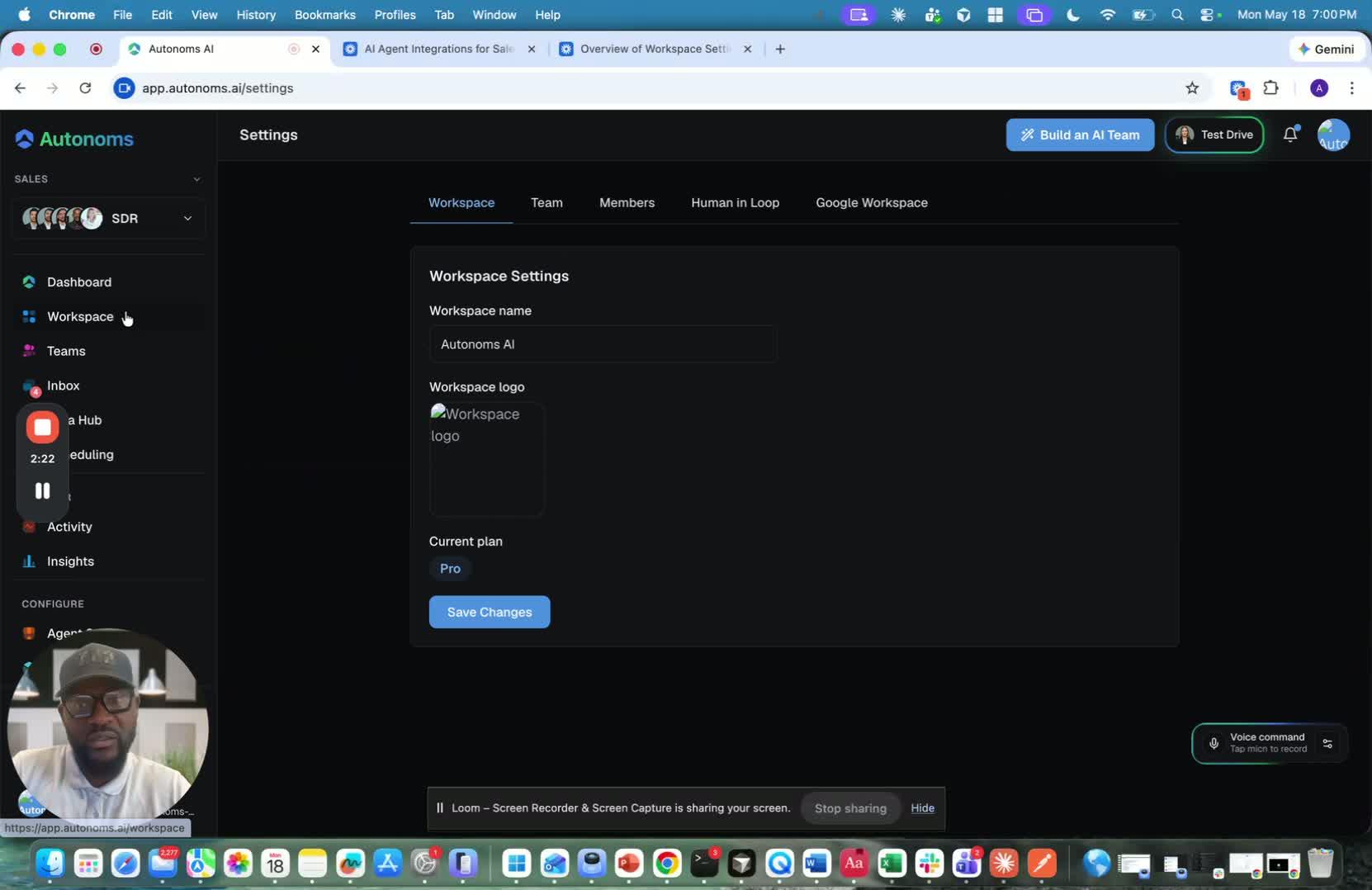
- The next section will cover the AI workspace in more detail.
- It will also explain how to add new companies as an agency managing multiple organizations.