

SOP: Configure and Use Integrations for the AI Sales Team
Key Steps
1. Review Available Integrations 0:00
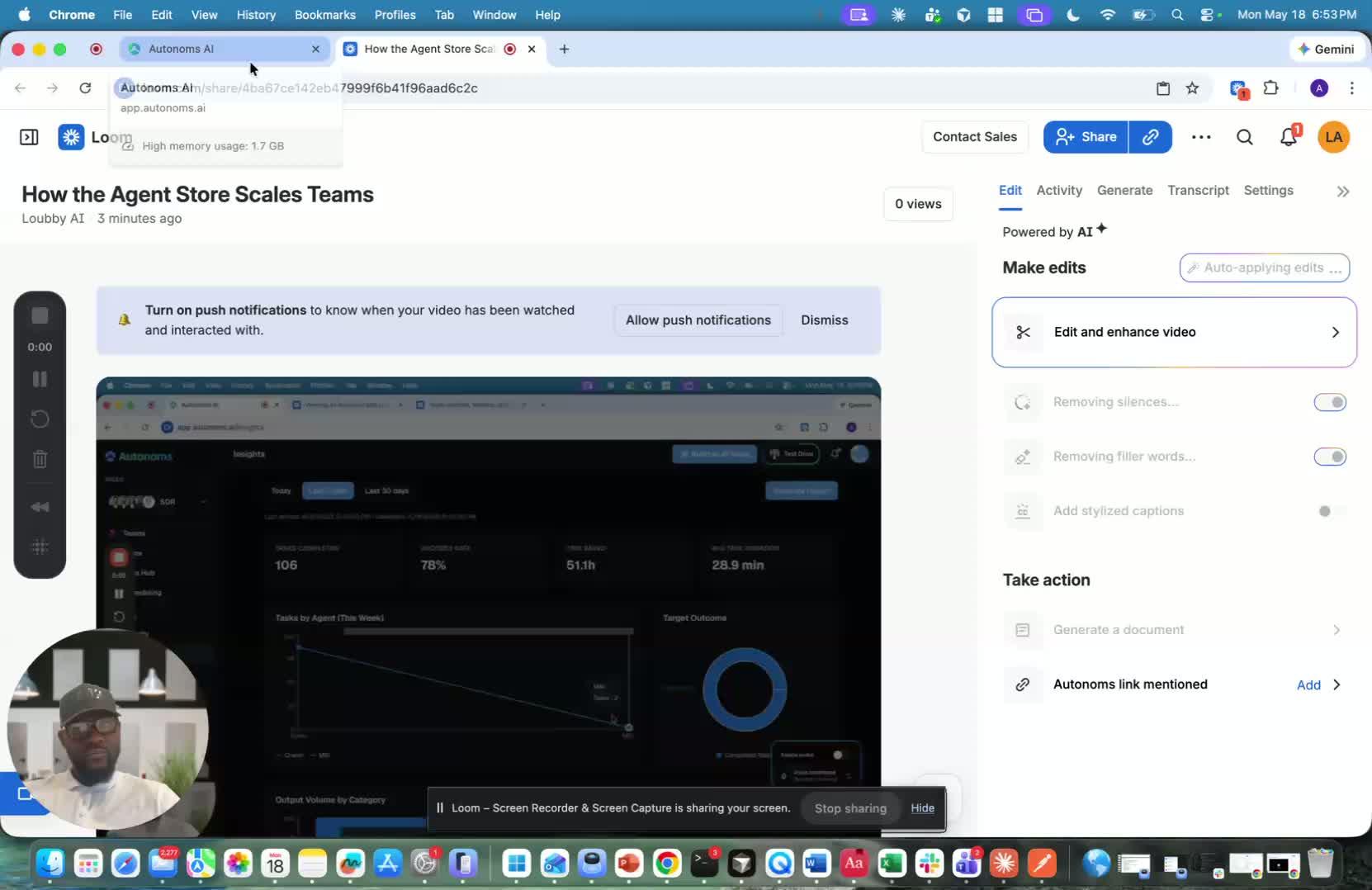
- Open the Integrations section to view all tools available to AI agents.
- Identify which integrations are already connected and which still need to be connected.
- Use this area as the central place to manage all AI tool access.
2. Confirm Which Integrations Are Shared vs. Provisioned 0:17
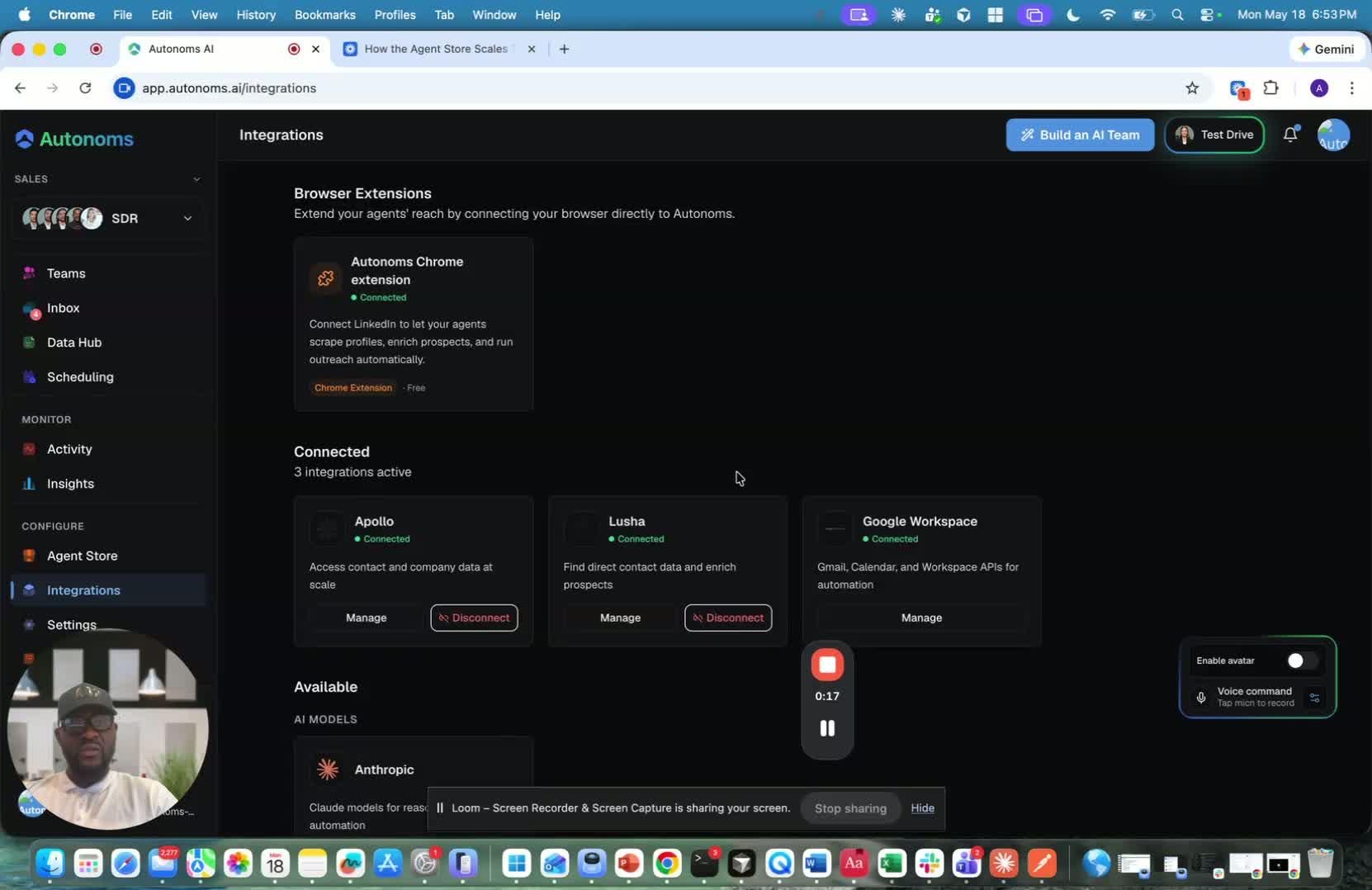
- Check whether the integration is part of a shared/free trial setup or requires account provisioning.
- For free trial users, use the shared tools provided.
- For subscribed or active accounts, confirm the correct integrations are provisioned for the account.
3. Connect the Chrome Store Plugin for LinkedIn Prospecting 0:30
generated-image-at-00:00:30
- Connect the Chrome Store plugin used for LinkedIn prospecting.
- Use this tool to find leads that match the ideal customer profile (ICP).
- Apply it for outreach, follow-up, and moving prospects into the sales pipeline.
4. Use Apollo for Contact Discovery 0:48
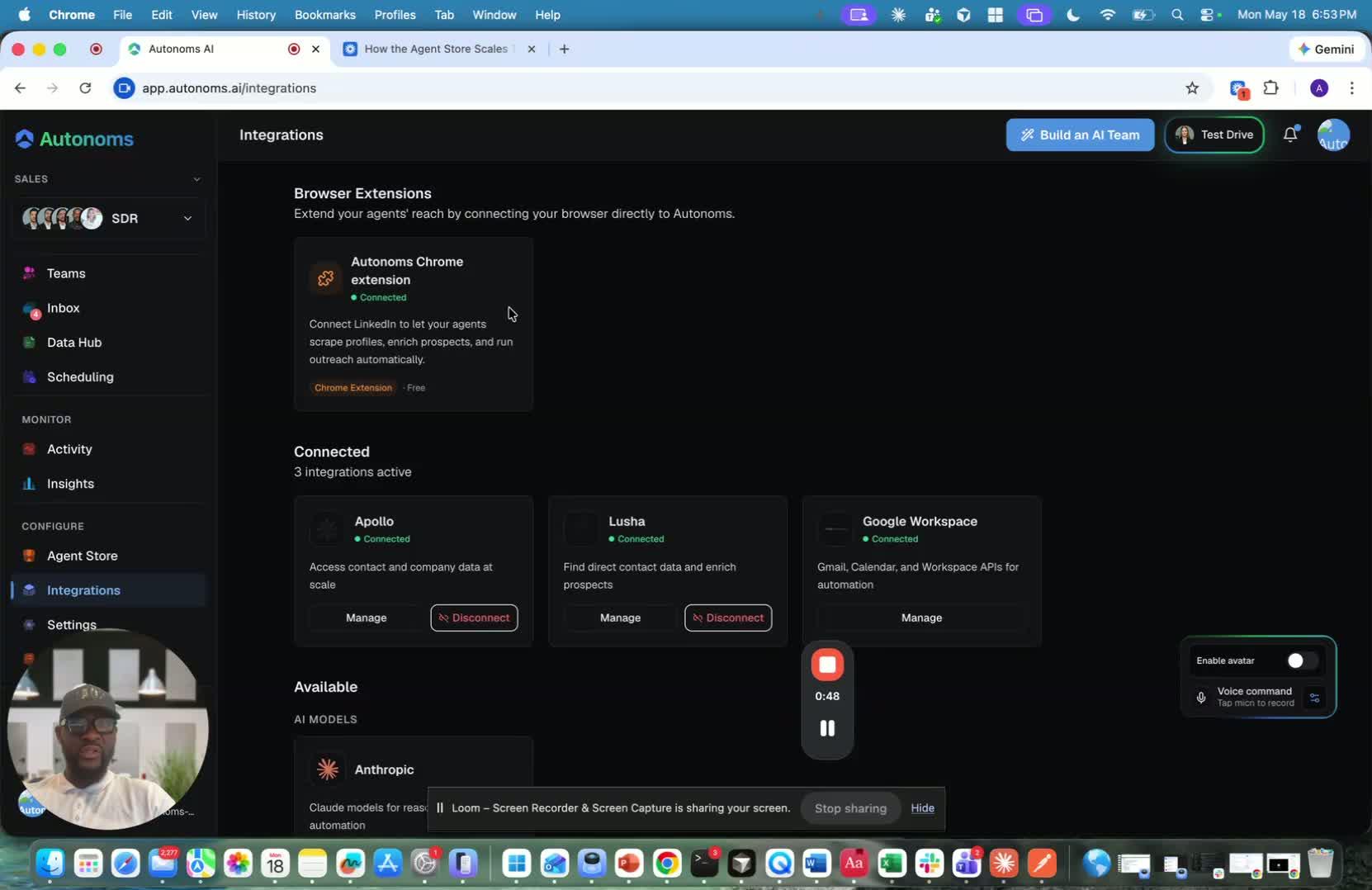
- Verify Apollo is connected and available.
- Use Apollo as a source for contact data.
- Pull contacts needed for outreach and lead generation workflows.
5. Use Lusha for Phone Number Lookup 0:55
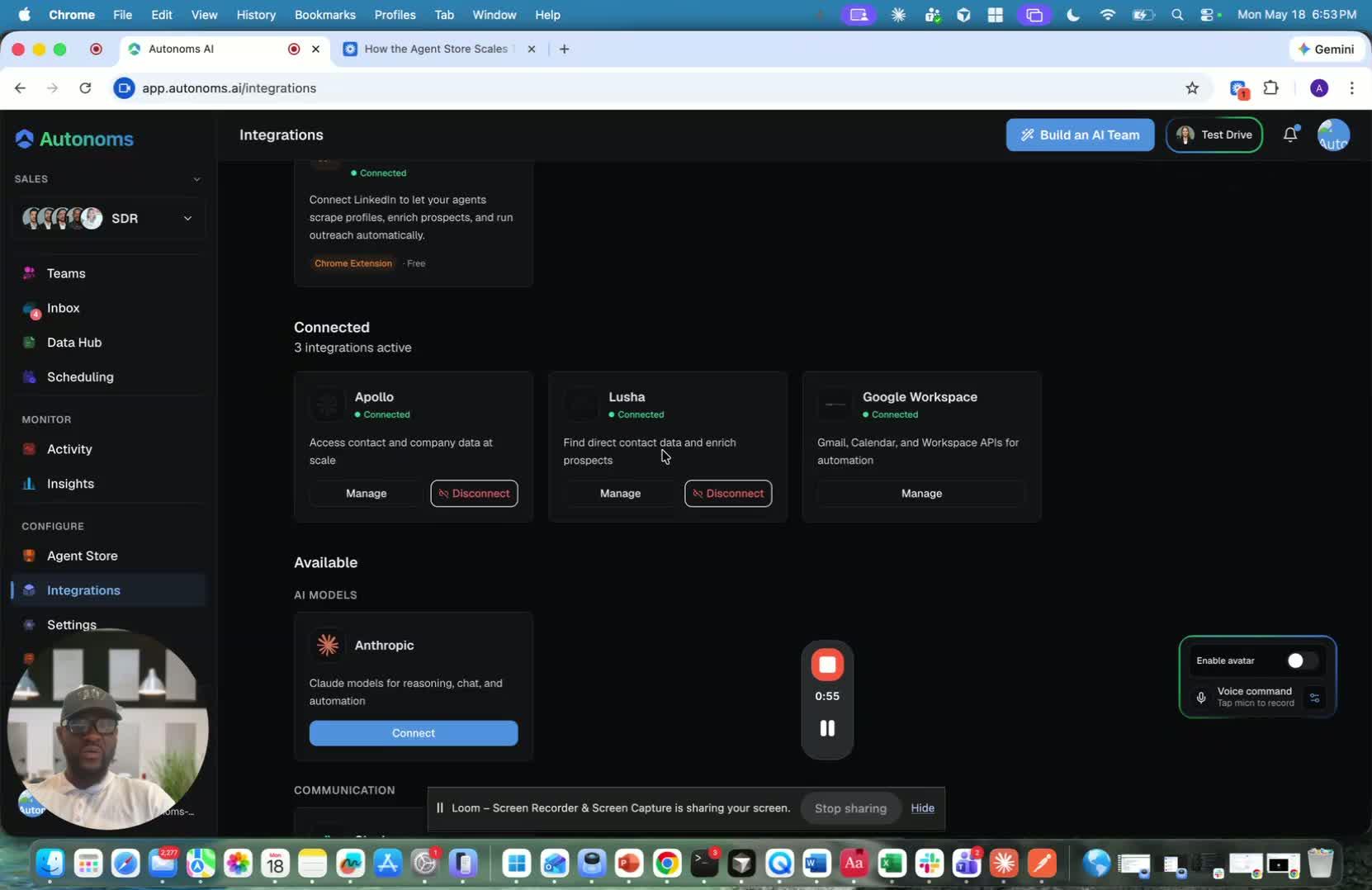
- Confirm Lusha is connected.
- Use Lusha to find phone numbers for prospects.
- Provide verified numbers to the calling agent so it can place calls effectively.
6. Set Up Google Workspace for AI Sales Operations 1:04
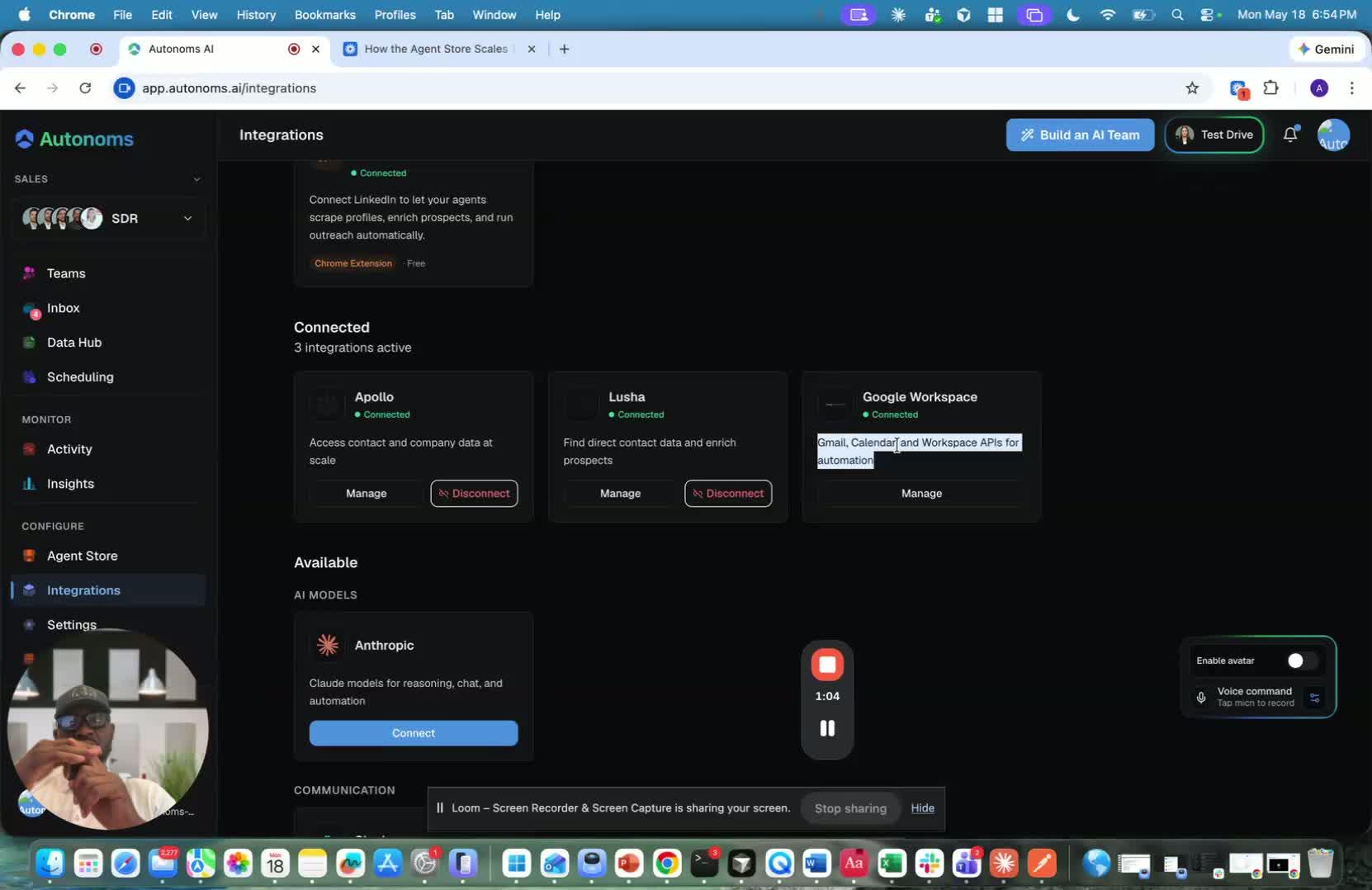
- Connect Google Workspace to support the AI sales environment.
- Ensure access is available for:
- Gmail accounts
- Calendar
- APIs
- Meeting transcription
- Meeting intelligence
- Recording capabilities
- Drive storage
- Use these tools to support the full sales workflow.
7. Keep Sales Data in a Separate Google Workspace Environment 1:16
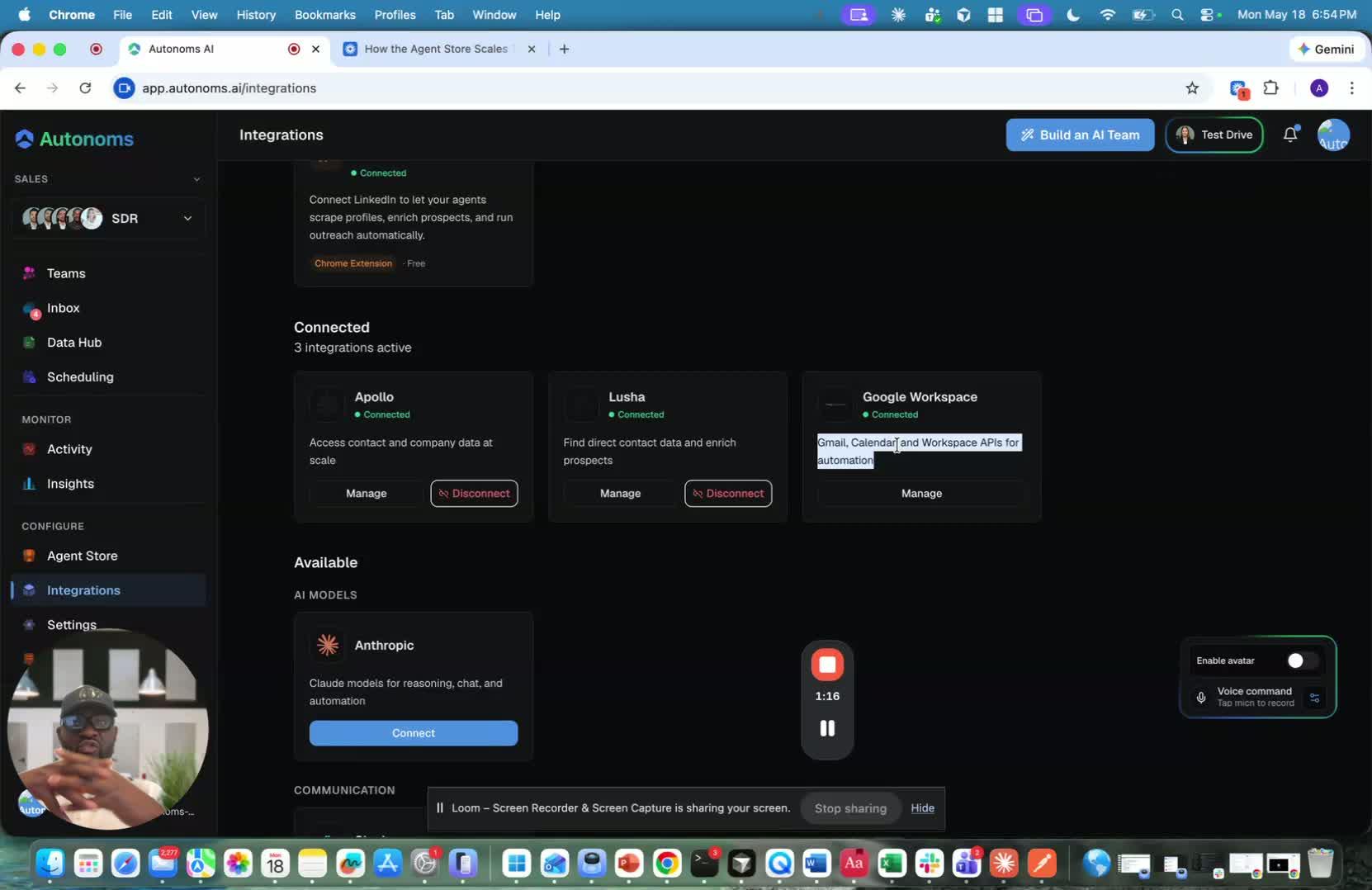
- Create an isolated Google Workspace environment dedicated to AI sales efforts.
- Keep this environment separate from the human team’s private or general business email.
- Use the dedicated workspace for meeting intelligence, follow-up, reminders, and recordings.
8. Maintain Separation of Concerns for Accountability 1:44
generated-image-at-00:01:44
- Use the dedicated sales email and workspace only for sales-related activity.
- Keep lead generation, outreach, and follow-up data organized in one place.
- Track AI team performance more easily by separating wins, losses, and lead activity from other business functions.
9. Use Shared Anthropic Accounts for Free Trials 1:59

- For free accounts, use the shared Anthropic account provided for testing.
- Use this setup only for the test-drive or trial period.
- Do not treat the shared account as the long-term production environment.
10. Switch to Personal Anthropic Accounts After Subscription 2:07
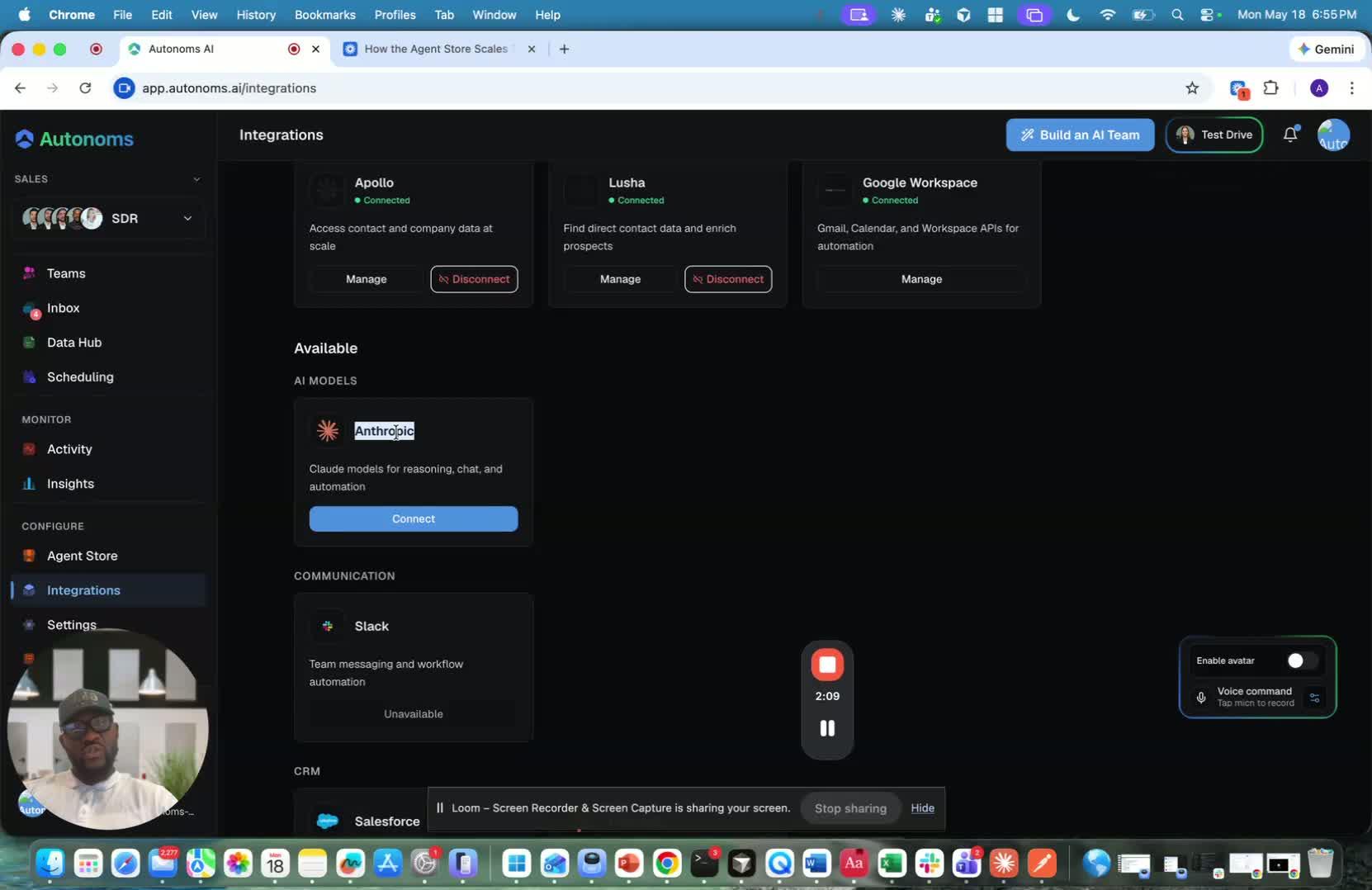
- Once the user subscribes, move from the shared Anthropic account to the personal account setup.
- Confirm the personal account is active and connected properly.
- Use the personal account for ongoing production use.
11. Connect Additional Supported Tools as Needed 2:18
generated-image-at-00:02:18
- Review other available integrations such as:
- Slack
- Salesforce
- Hotshots
- Zapier
- Notion
- Add any tools needed to support the workflow.
- Keep the stack simple while ensuring it remains powerful and scalable.
Cautionary Notes
- Do not mix AI sales data with the human team’s private email or workspace.
- Shared/free-trial accounts should only be used for testing, not long-term operations.
- Only connect integrations that are necessary for the workflow to reduce clutter and risk.
- Ensure account provisioning is complete before expecting an integration to function properly.
Tips for Efficiency
- Use one dedicated sales workspace to simplify tracking and reporting.
- Standardize the integration setup so every AI agent works from the same toolset.
- Connect only the tools needed for the current workflow, then expand as needed.
- Keep lead sources, contact data, and communication tools organized by function to speed up follow-up and accountability.
Link to Loom
https://loom.com/share/e72aad829e564316aa0430145d650a3b
Integrations Overview: What They Are and How They Support the AI Sales Team
1. Open the Integrations section 0:00
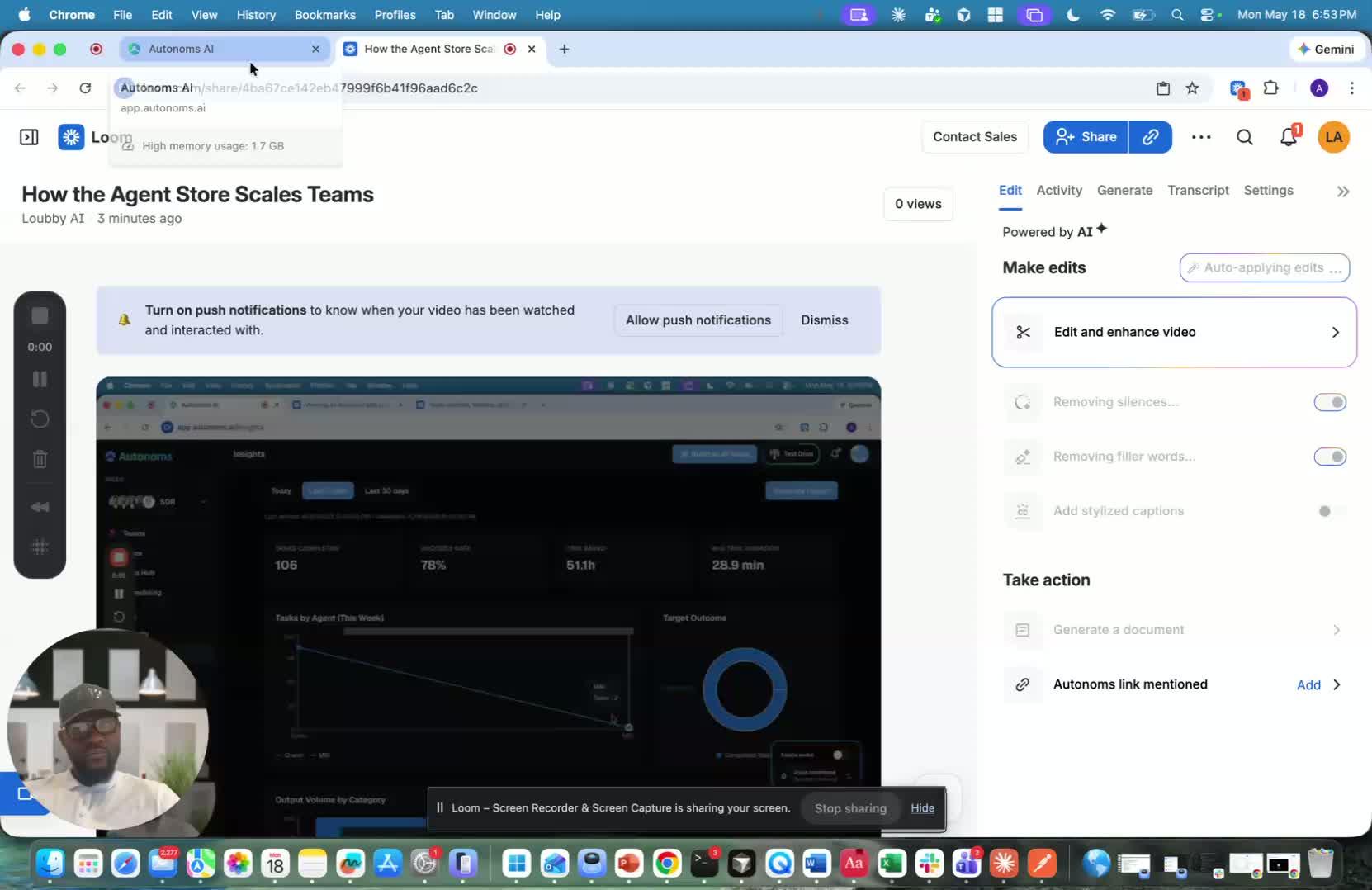
- Go to Integrations to see all tools available to the AI agents.
- This is where you can review:
- Connected tools
- Available tools you can connect
- Some integrations are shared by default, while others may need to be provisioned when your account is added.
2. Understand the purpose of the core sales tools 0:30
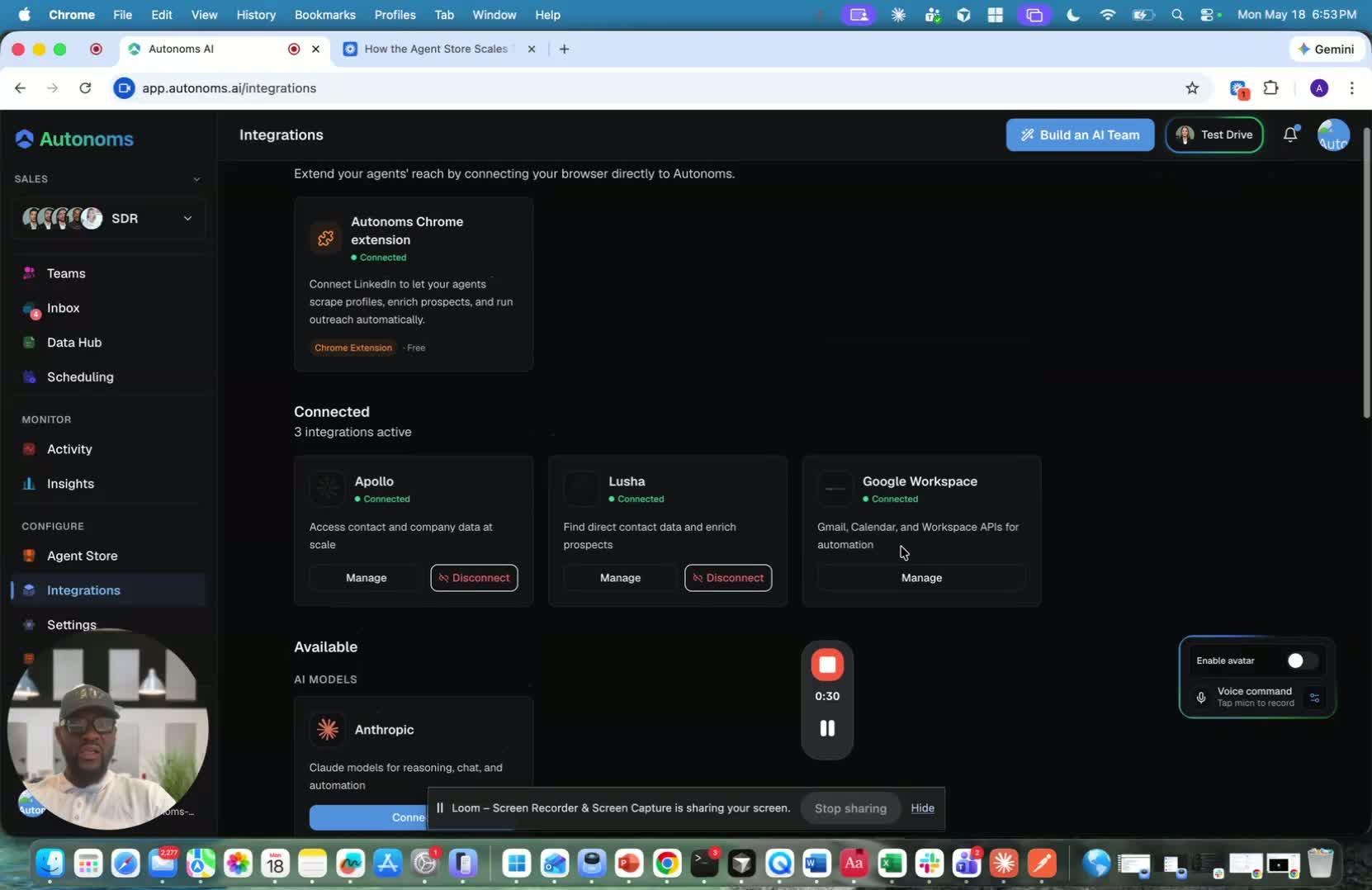
- The integrations shown here support the AI team’s sales workflow.
- Key tools include:
- Chrome Store plugin: used for LinkedIn prospecting and lead finding.
- Apollo: used to source contacts.
- Lusha: used to find phone numbers so Nia can make calls.
- These tools help the AI agents identify, contact, and follow up with leads.
3. Use Google Workspace as the AI team’s operating environment 0:55
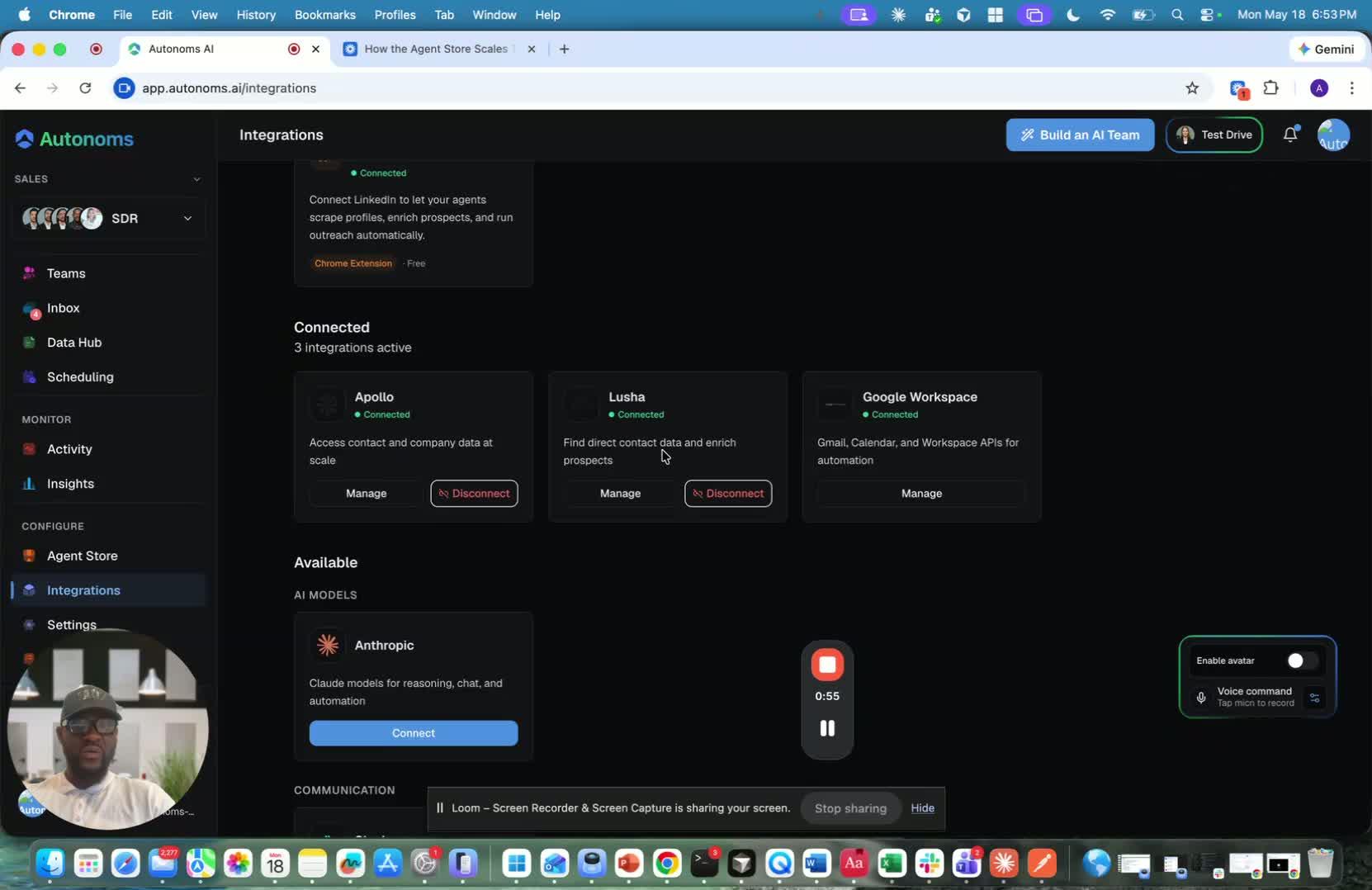
- Google Workspace provides the core infrastructure for the AI sales team.
- It gives access to:
- Gmail
- Calendar
- Meeting transcription
- Meeting intelligence
- Recording capabilities
- Drive for storing transcription and related files
- This setup supports the full sales workflow for the AI agents.
4. Keep the AI sales environment separate from your personal/team accounts 1:16
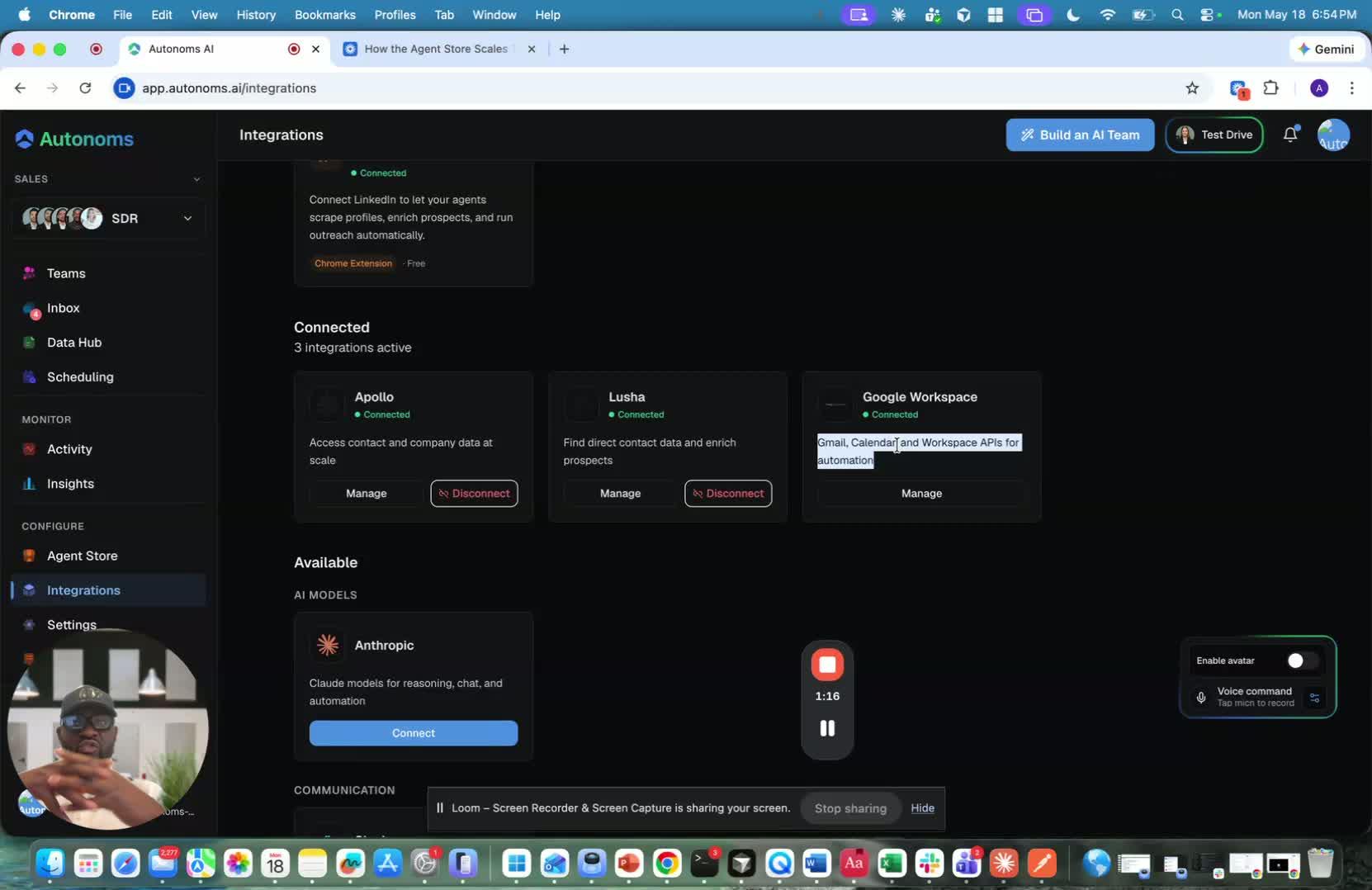
- The goal is to create an isolated environment for AI sales activity.
- This separation helps avoid mixing AI work with your existing team’s private or internal accounts.
- Benefits of separation:
- Easier tracking of AI activity
- Clear accountability for leads, wins, and losses
- Better organization of follow-up, reminders, and meeting data
- The sales email environment should be used only for sales-related work.
5. Use the right account type for AI and trial access 1:59
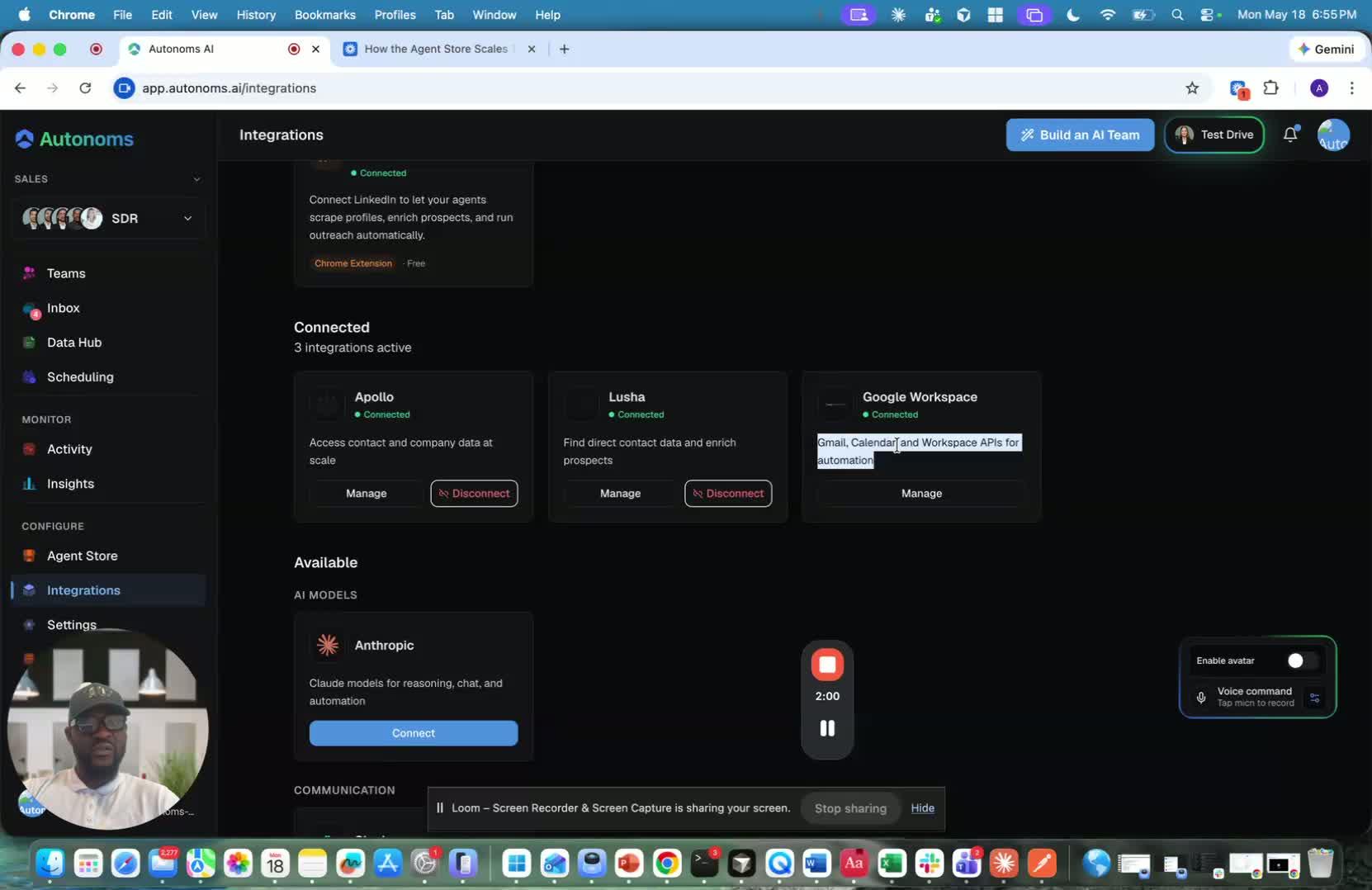
- For free accounts / trial access, shared Anthropic accounts are used so you can test the system.
- Once you subscribe, you’ll move to your own personal Anthropic account.
- This ensures the AI tools are properly tied to your account for ongoing use.
6. Connect additional business tools as needed 2:18
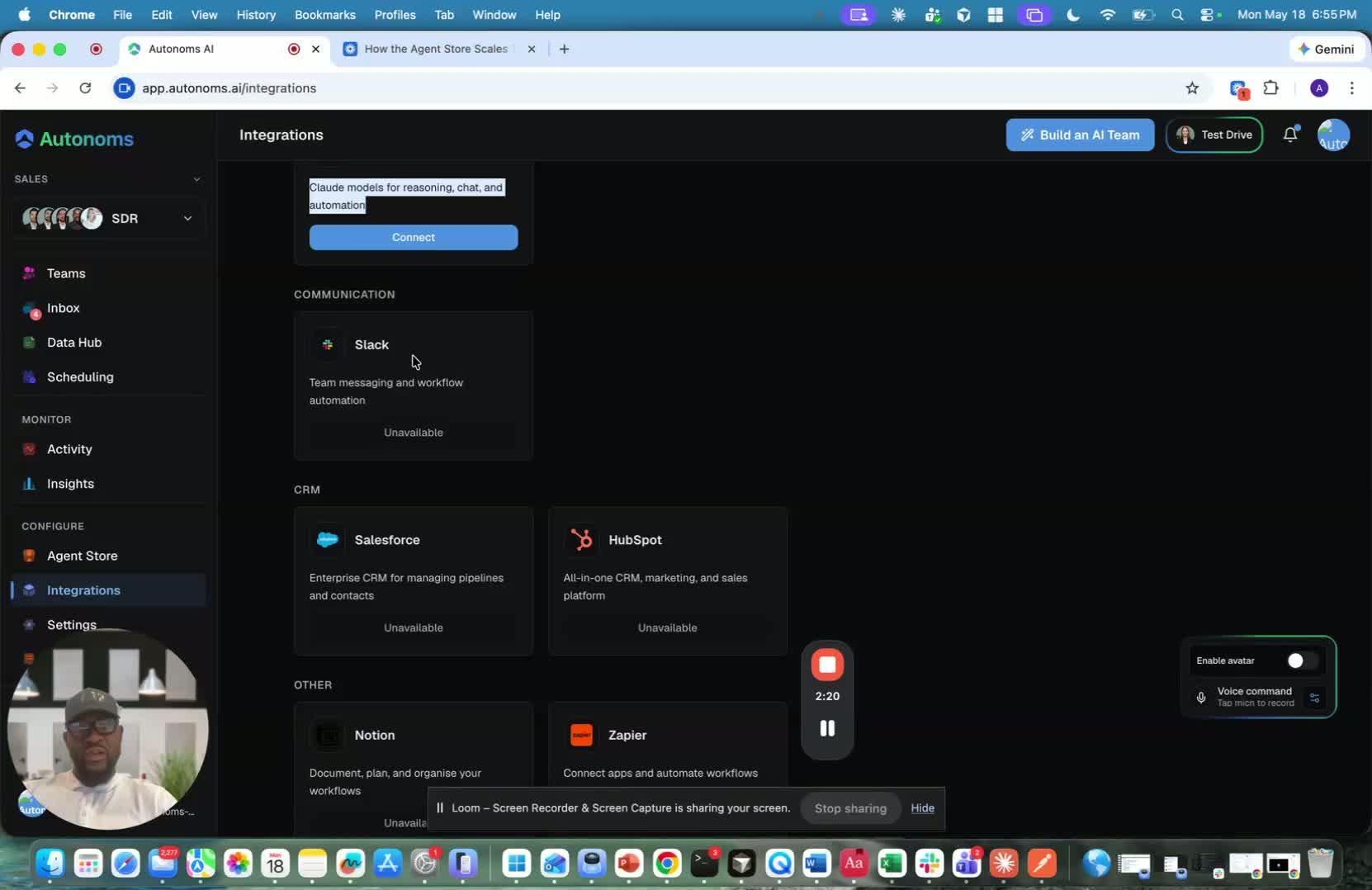
- Other supported integrations include:
- Slack
- Salesforce
- HubSpot
- Zapier
- Notion
- More tools will continue to be added over time.
- The system is designed to stay simple, while still being highly powerful.
Link to Loom
https://loom.com/share/e72aad829e564316aa0430145d650a3b
- The Settings section is where you manage workspace-level information.
- It provides a simple place to view your workspace details and team-related information.
- This is the starting point for accessing the rest of the settings options.
2. Manage your team members 0:15
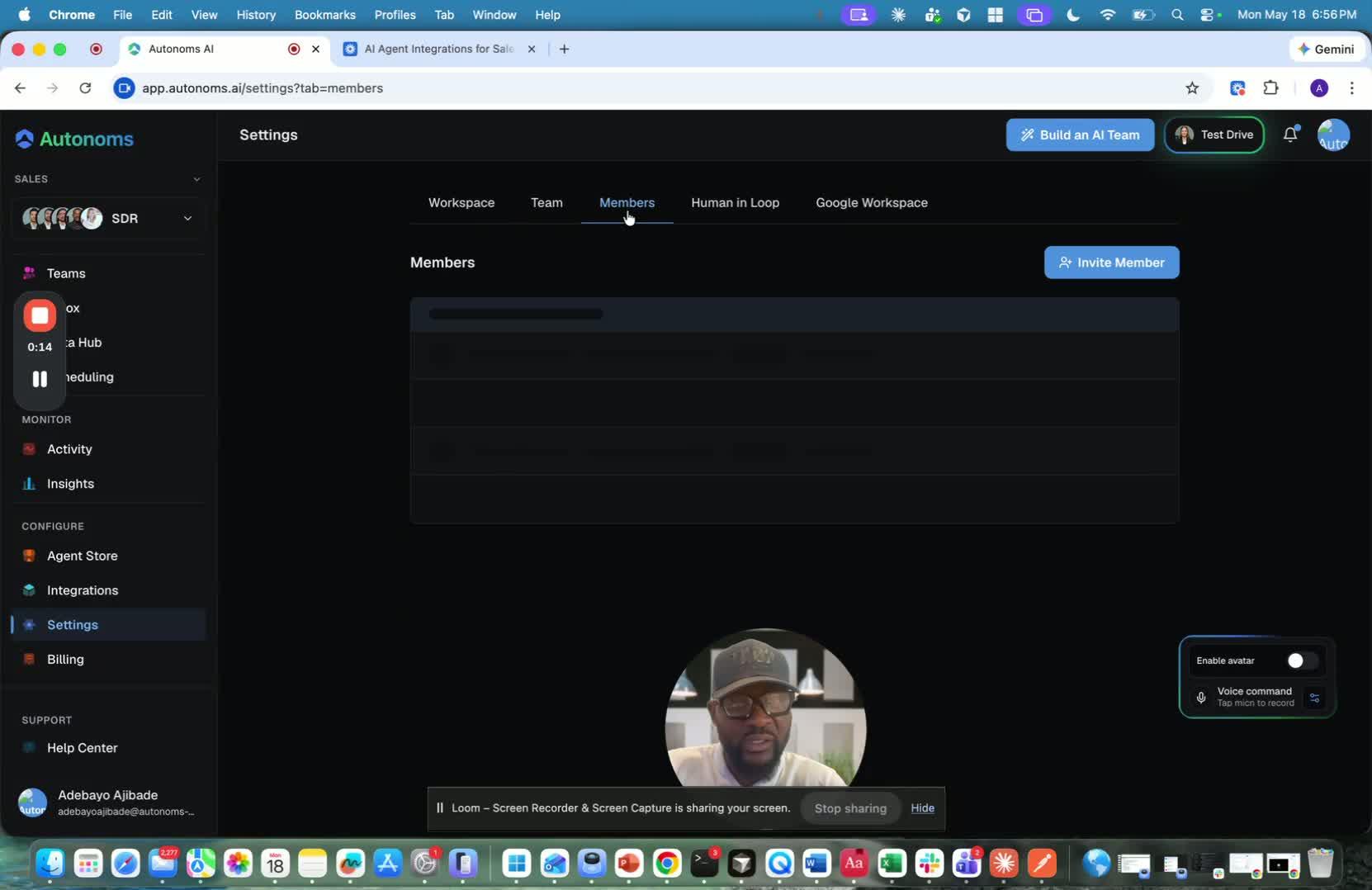
- Add team members who are part of your company and need access to the system.
- These are real human users, not AI team members.
- You can also delete, fire, or hide team members as needed.
- The goal is to keep your workspace team list accurate and up to date.
3. View human-in-the-loop profiles pulled from Lobby AI 0:23
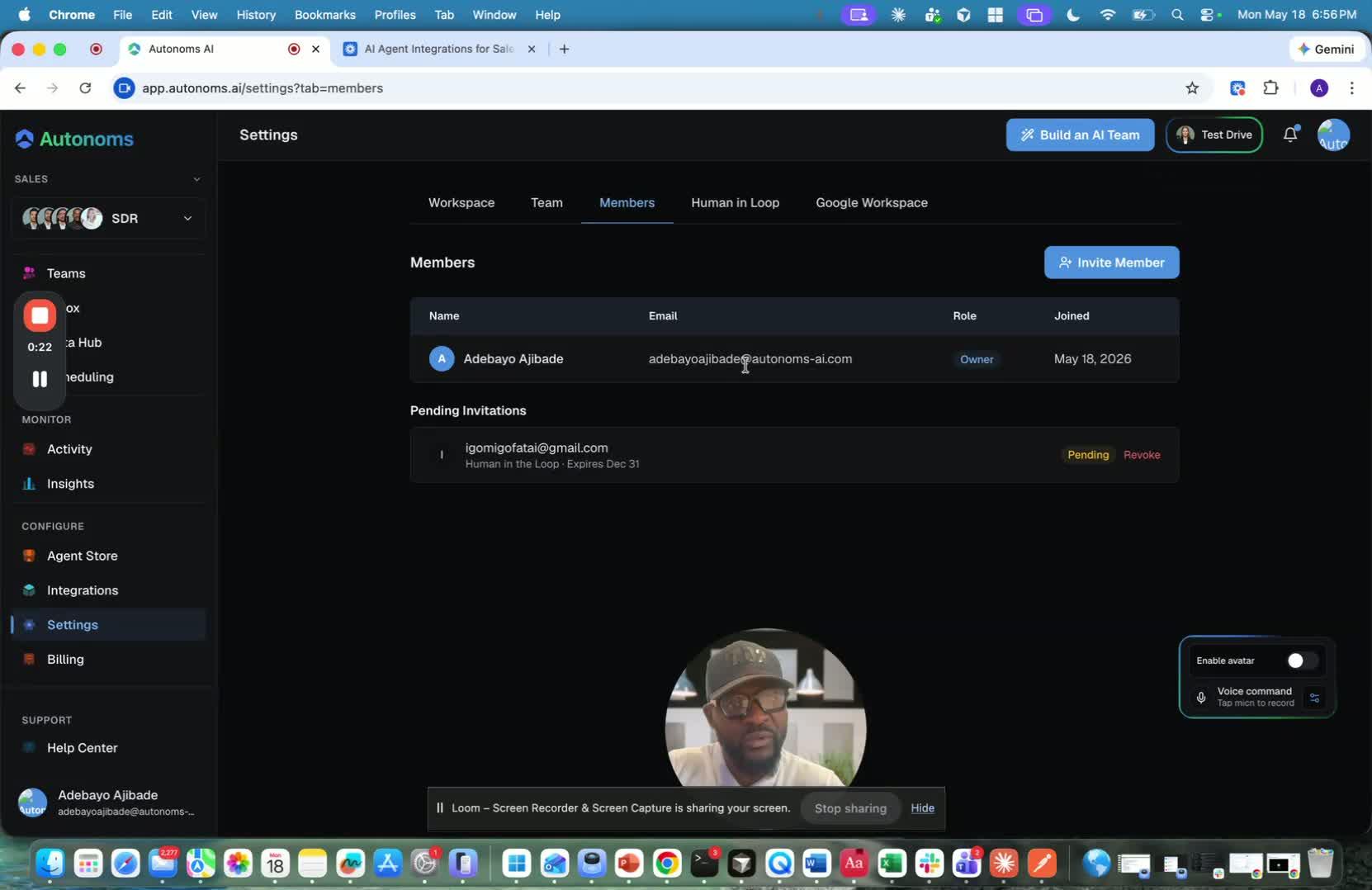
- The system includes a human-in-the-loop section for managing real people involved in the workflow.
- You can open a team member’s profile to see their information.
- Profiles are pulled in from Lobby AI, so you can review candidate or team details in one place.
- This supports communication and coordination with candidates and other users.
4. Review Google Workspace connection details 0:47
generated-image-at-00:00:47
- The Google Workspace section shows connected account information.
- You can view details such as:
- Password
- Calendar link
- This helps confirm your workspace integration and access settings.
5. Use the Help Center when you need support 0:58
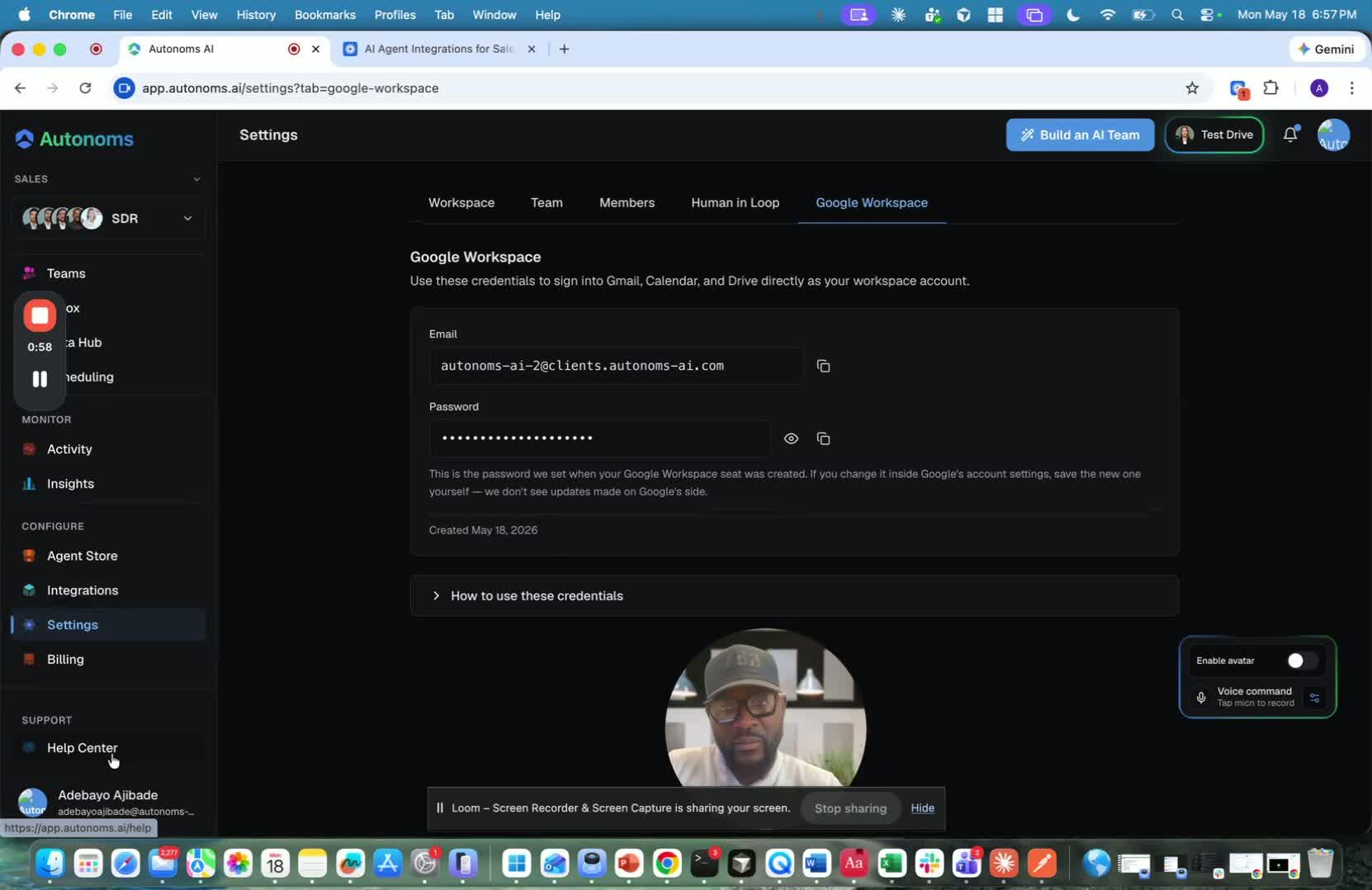
- The Help Center gives you a direct way to get assistance.
- If you run into issues or need guidance, you can contact support from here.
- This is the final support option mentioned in the settings walkthrough.