

SOP: AI Workspace Onboarding and Environment Provisioning
Key Steps
1. Confirm onboarding prerequisites are complete 0:00
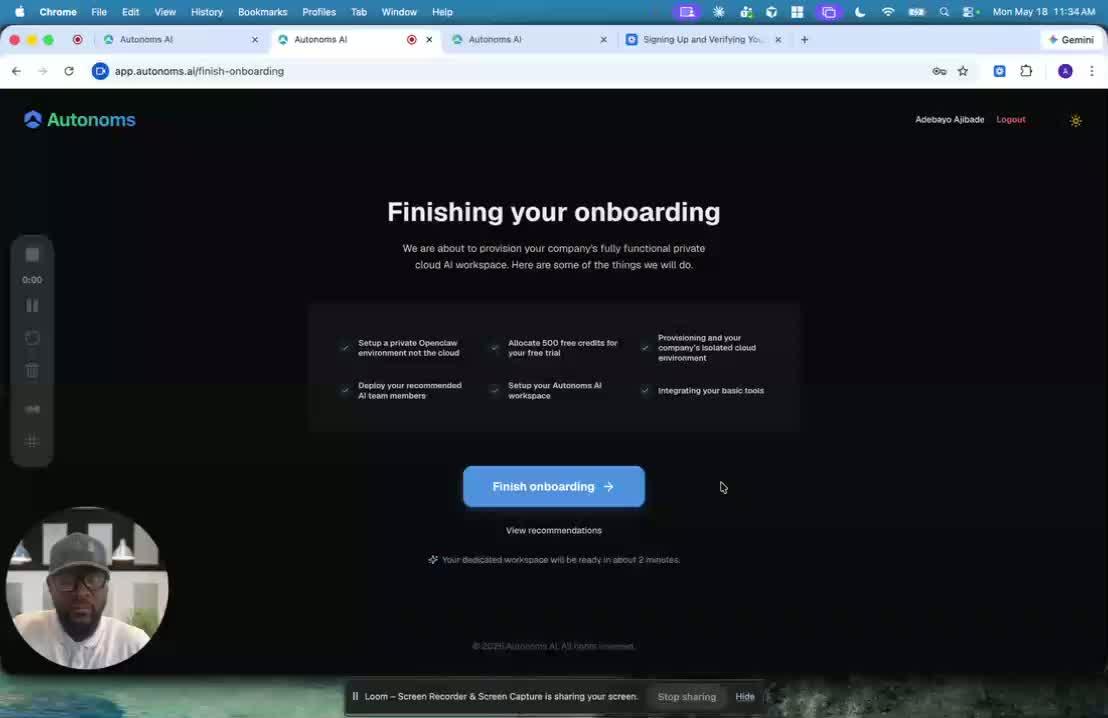
- Verify the initial onboarding has already been completed.
- Confirm the growth plan has been reviewed.
- Confirm the user has answered the onboarding questions and received initial recommendations.
- Ensure the account has been signed up, email verified, and the user is logged in before proceeding.
2. Review the workspace setup process 0:29
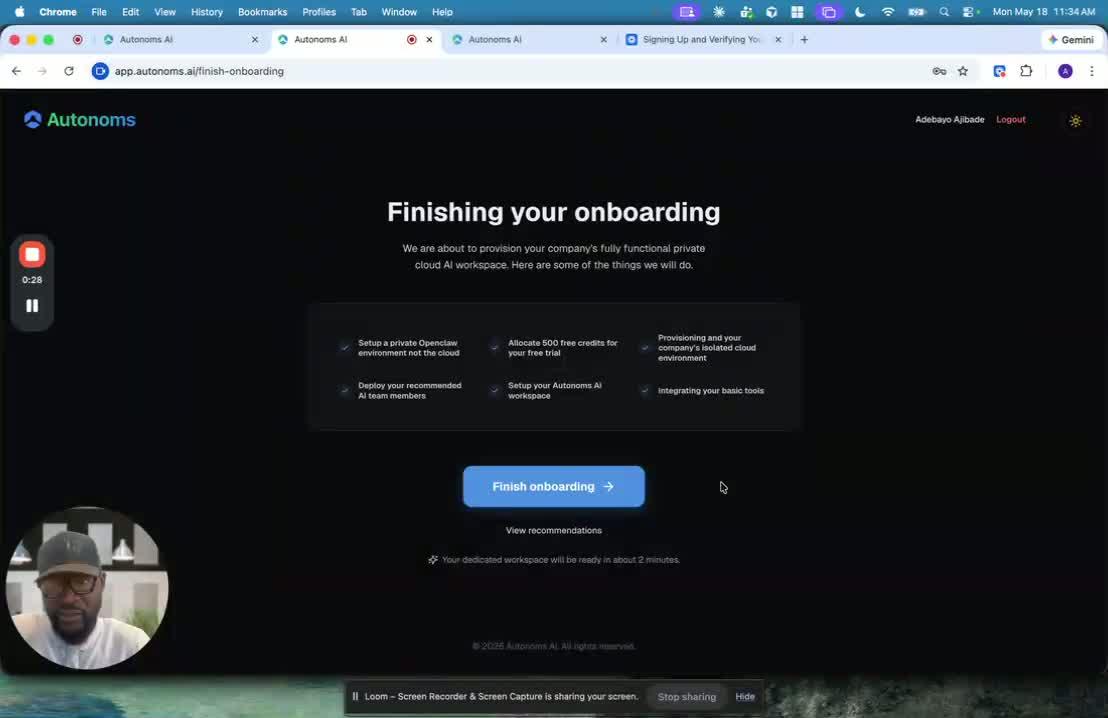
- Explain that the first login triggers workspace setup.
- Inform the user that the system is preparing a new environment.
- Set expectations that the setup includes security, patching, and environment configuration.
- Let the user know the process will provide live status updates as it runs.
3. Start the AI-driven DevOps onboarding workflow 1:17
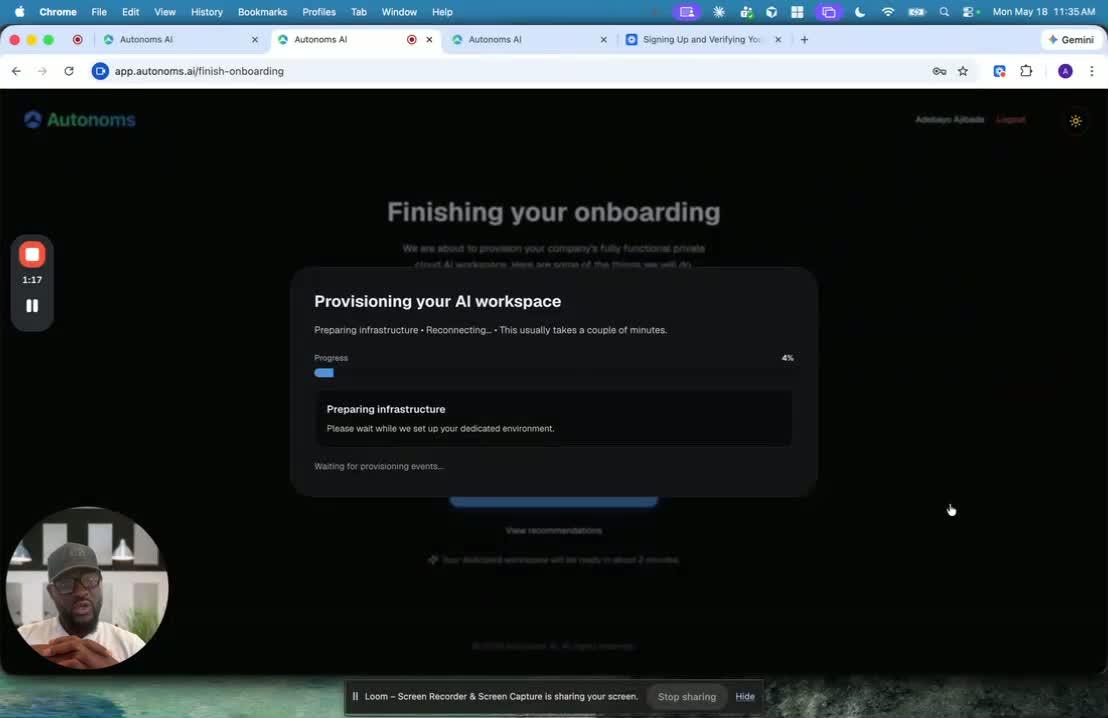
- Initiate the automated DevOps-style setup for the workspace.
- Use AI agents to handle the provisioning tasks instead of manual engineering work.
- Communicate that the process is designed to replace what would traditionally take a large engineering team significant time.
- Monitor the workflow as it creates the environment in real time.
4. Provision the cloud environment and secure it 1:52
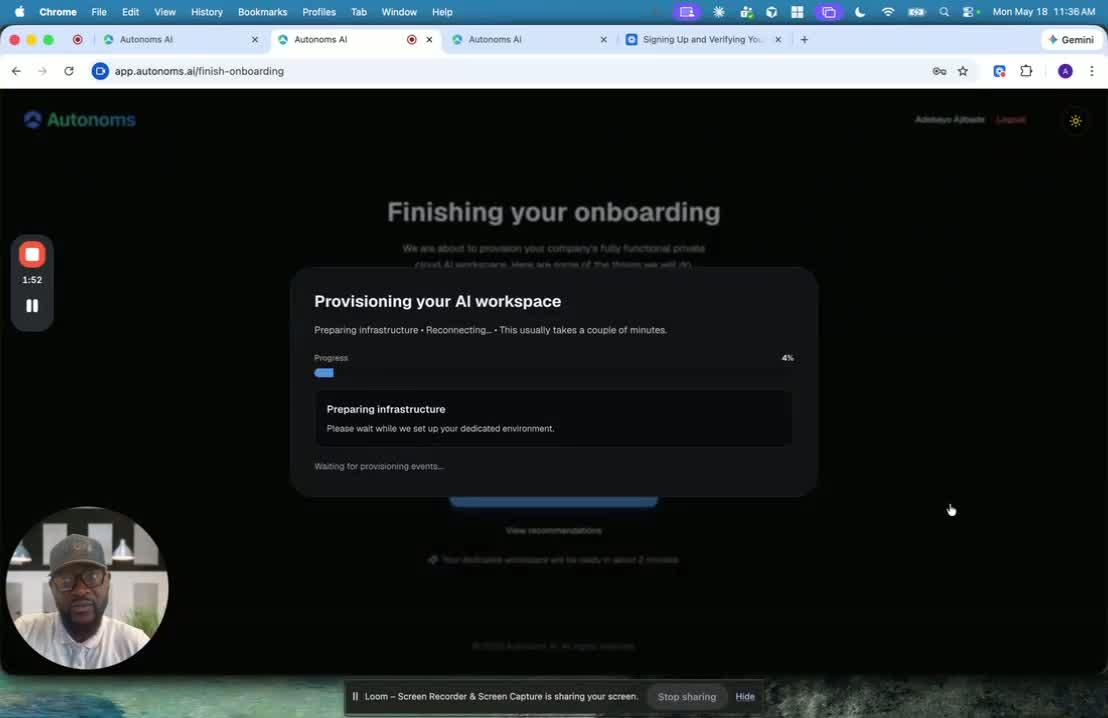
- Create the workspace environment in the cloud using the appropriate provider.
- For DigitalOcean, provision a droplet/container that will serve as the virtual office.
- Ensure the environment includes the required CPU and RAM resources.
- Apply security groups and security patches to isolate the environment for the user.
- Confirm the environment is patched and ready for application deployment.
5. Deploy the platform and recommended team members 2:32

- Deploy OpenCloud and the platform enhancements into the new environment.
- Allow the system to complete team setup before provisioning finishes.
- Deploy the recommended AI team members aligned to the user’s goals.
- Confirm the environment is persistent so it remains available after setup completes.
- Track progress through the live provisioning updates.
6. Create the premium Google Workspace 3:28
generated-image-at-00:03:28
- Set up a premium Google Workspace for the user.
- Create a separate, isolated email address for the workspace.
- Use the dedicated email to improve deliverability and separate reputations.
- Keep sales email activity isolated from other operational efforts for cleaner tracking.
- Verify that the workspace includes meeting and calendar capabilities.
7. Enable meeting and calendar productivity tools 3:56
generated-image-at-00:03:56
- Confirm meeting recording is enabled for booked meetings.
- Set up the booking page/calendar page so others can schedule meetings.
- Enable meeting insights and AI meeting assistance features.
- Ensure the workspace supports transcription, buying signals, follow-up items, action items, and calendar links.
- Verify the calendar is available and connected to the workspace.
8. Provision phone and prospecting dependencies 4:38
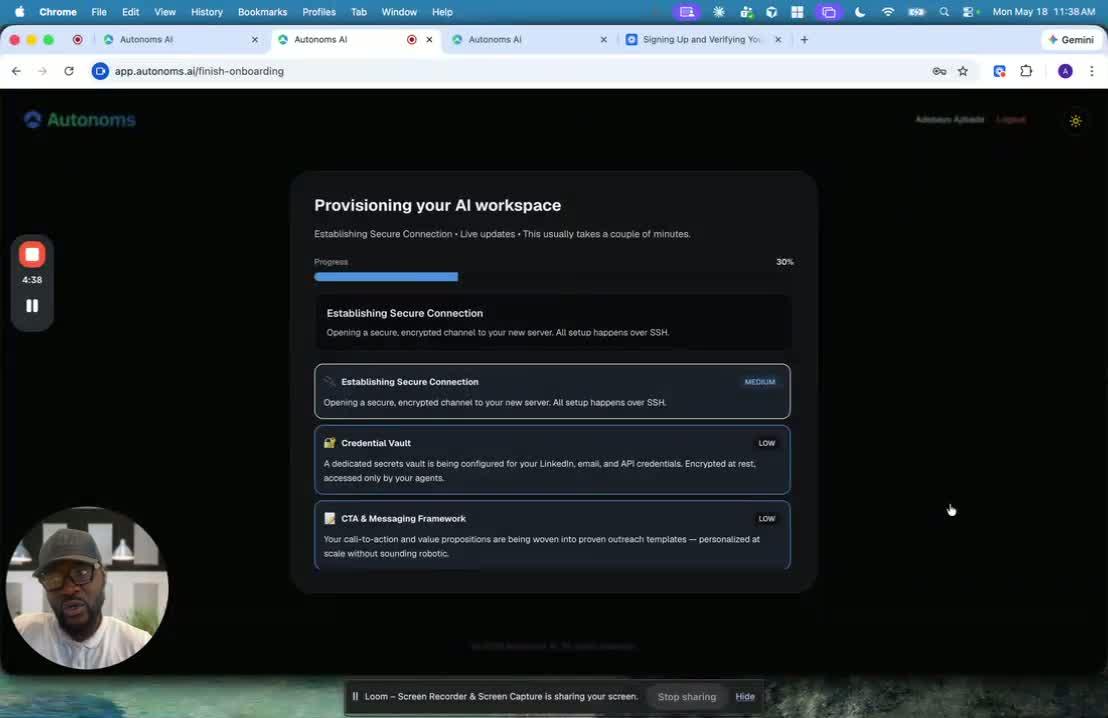
- Create a dedicated phone number for the AI calling agent.
- Assign the phone number to the cold-calling agent that will use it for customer outreach.
- Set up enrichment and prospecting tools such as Apollo and Lusha.
- Confirm the required accounts are created and connected.
- Prepare the supporting tools needed for outreach and data enrichment.
9. Connect LinkedIn and other external tools 5:16
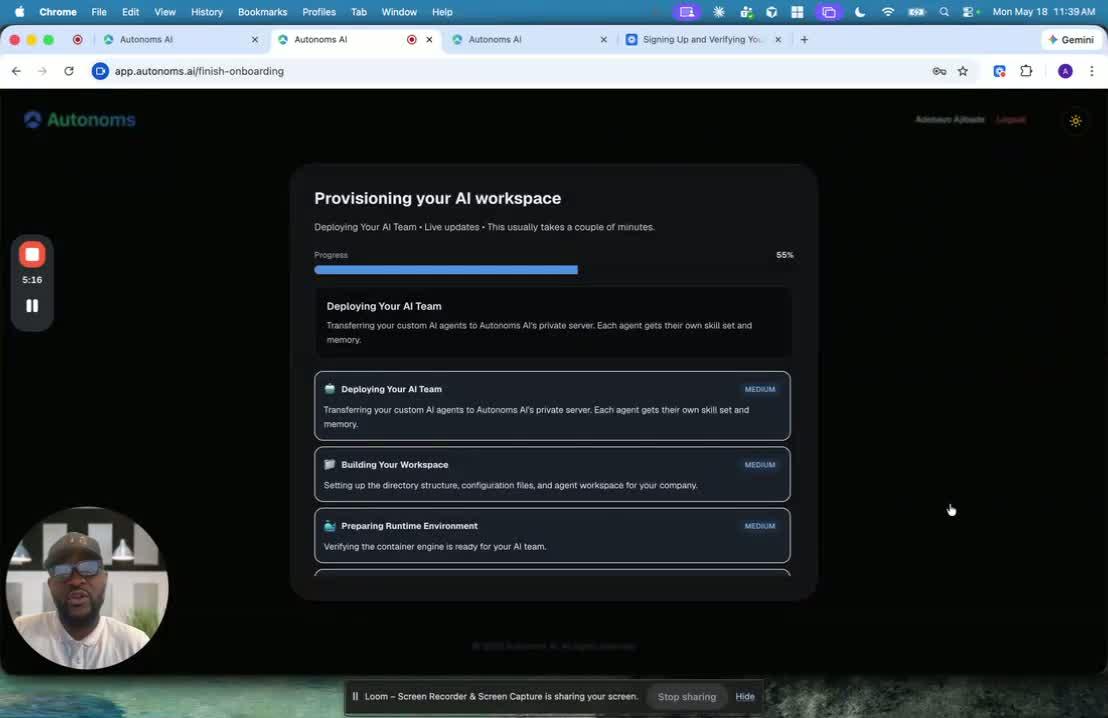
- Install or configure the LinkedIn plugin from the Chrome store.
- Use personalized credentials to connect LinkedIn to the AI workforce.
- Verify the connection is ready for use in prospecting and outreach workflows.
- Ensure all external dependencies are linked before the team begins work.
10. Configure agent routines and operating cadence 5:30
generated-image-at-00:05:30
- Assign routines to each AI agent based on their role and goals.
- Define morning, afternoon, evening, and weekend routines.
- Include work tasks, meetings, delegation, and handoffs to other agents or dependencies.
- Confirm the agents operate 24/7 and can provide live updates as they work.
- Allow ad hoc task interruptions when urgent requests come in.
11. Enable communication and support channels 6:08
generated-image-at-00:06:08
- Confirm agents can be contacted by voice and text.
- Allow users to chat directly with agents without human intervention when appropriate.
- Provide access to human-in-the-loop support for issues that need manual fixes.
- Make sure support escalation is available if setup or workflow problems occur.
12. Finalize workspace context and launch the team 6:40

- Verify the domain is set up correctly.
- Confirm the AI team has been started.
- Ensure the workspace runtime environment and secure connection are prepared.
- Load the ICP and contextual information gathered during onboarding.
- Confirm the team members have the information they need to begin their roles.
- Transition into the team introduction phase once provisioning is complete.
Cautionary Notes
- Do not begin provisioning until signup, email verification, and login are complete.
- Ensure the environment is properly isolated and patched before deploying tools or agents.
- Use dedicated accounts and credentials for workspace-specific systems to avoid mixing reputations or data.
- Confirm all external integrations are authorized and connected securely.
- If any step fails, route the issue to human-in-the-loop support rather than forcing the workflow forward.
Tips for Efficiency
- Rely on the automated AI/DevOps workflow to reduce manual setup time.
- Keep the onboarding inputs accurate so the system can configure the right team and tools the first time.
- Use live status updates to monitor progress instead of checking each component manually.
- Standardize the setup of email, phone, and enrichment tools to speed up future onboardings.
- Encourage users to review the workspace as it is being provisioned so they can add team members or organizations early if needed.
Link to Loom
https://loom.com/share/927346dd16774105b6181cbb5f54a45d
AI Workspace Onboarding: Environment Setup and Team Deployment
1. Start the onboarding setup after signup and login 0:00
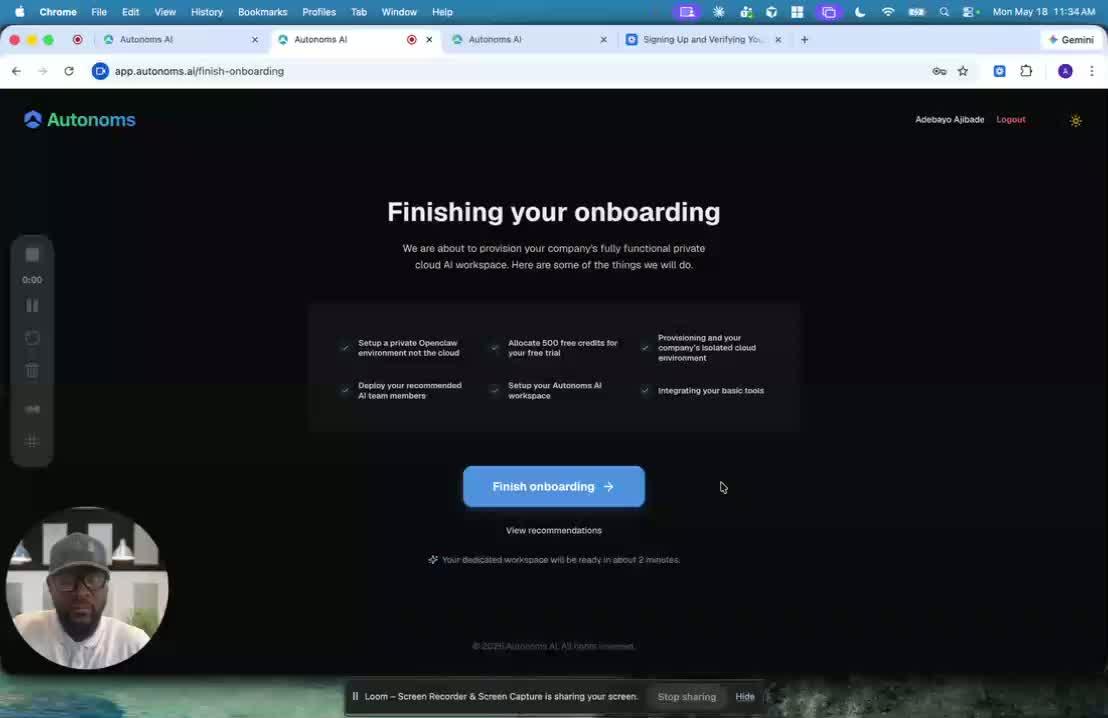
- This walkthrough begins after the initial growth-plan and onboarding questionnaire are complete.
- The user has already:
- Signed up
- Verified their email
- Logged in for the first time
- The system now begins setting up the user’s workspace from scratch.
2. Provision the cloud workspace and secure it 1:17
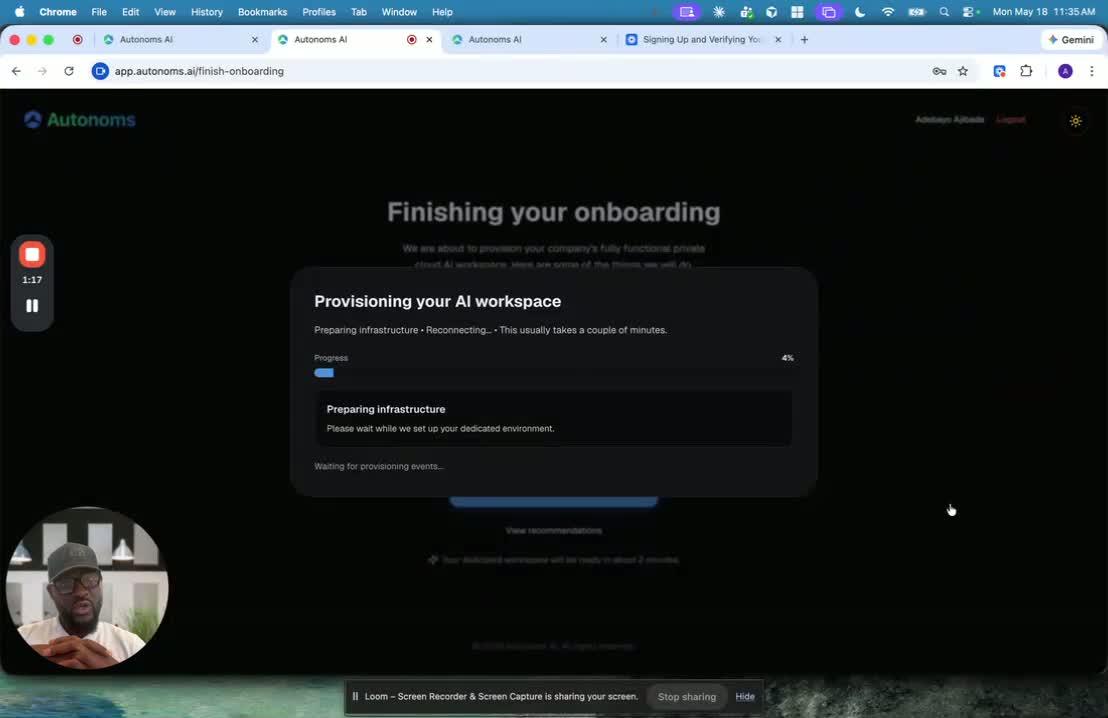
- The platform forms a DevOps/ops team to create the environment automatically.
- It provisions a persistent cloud workspace in providers like:
- AWS
- DigitalOcean
- In DigitalOcean, it creates a droplet/container with the needed resources:
- CPU
- RAM
- Virtual office infrastructure
- It also applies security setup:
- Security groups
- Security patches
- Isolation for the user’s environment
- The speaker emphasizes this would normally take an engineering team months, but here it happens in minutes.
3. Deploy OpenCloud and the recommended AI team 2:21
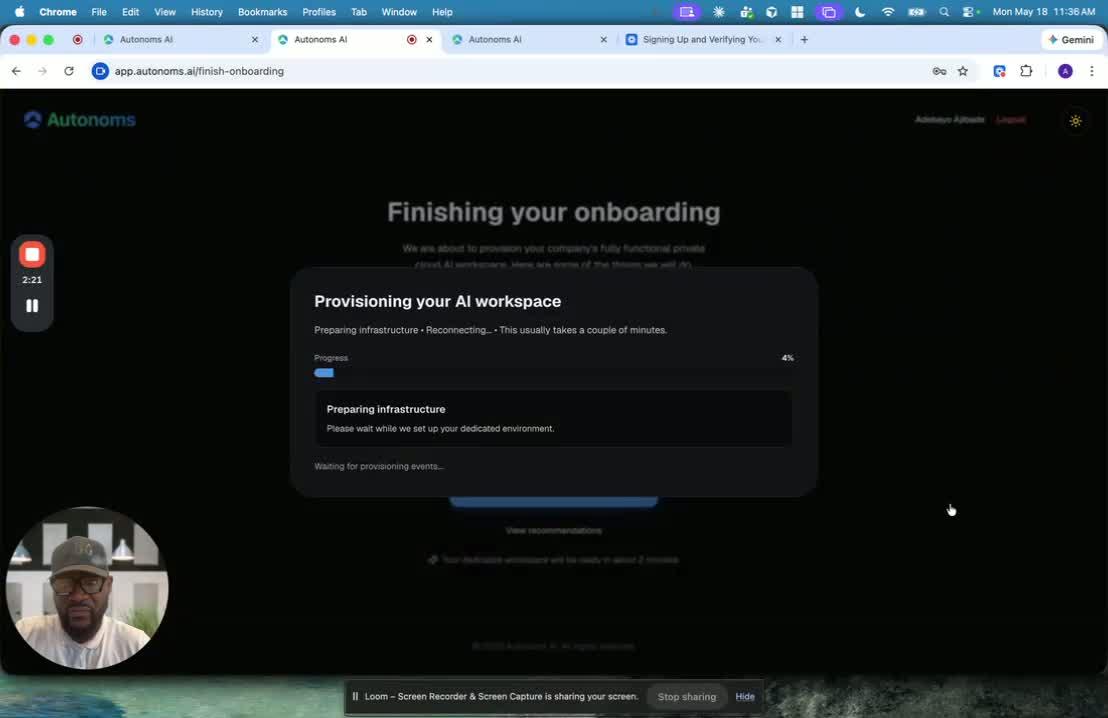
- After the environment is ready, the system deploys:
- OpenCloud
- The platform’s enhancements to OpenCloud
- It first sets up the team and understands the user’s context before provisioning finishes.
- Then it deploys the AI team members recommended for the user’s goals.
- The workspace is persistent, so the setup remains available after onboarding.
- Users can later add more team members, teams, or organizations as needed.
4. Create a dedicated Google Workspace 3:28
generated-image-at-00:03:28
- The system creates a premium Google Workspace for the user.
- This is used to isolate the user’s business email from other email activity.
- Reasons for this include:
- Better email deliverability
- Separate sender reputations
- Clear separation between sales and other outreach efforts
- The premium workspace also includes useful collaboration and meeting features:
- Meeting recording
- Booking/calendar page
- Meeting insights
- AI meeting assistance
- Transcription
- Buying signals
- Follow-up and action items
- Calendar links
5. Set up phone, enrichment, and LinkedIn tools 4:38
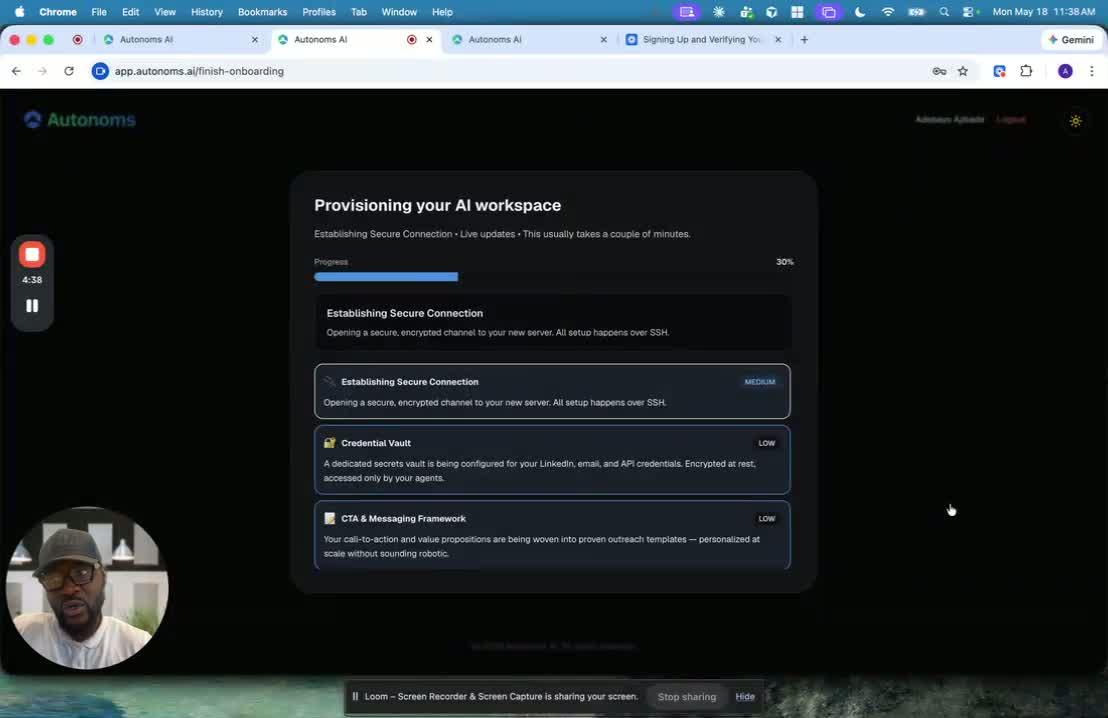
- The platform creates a phone number for the AI agents to use for calling.
- It also sets up the external tools and dependencies the agents need, including:
- Apollo for prospecting and email enrichment
- Lusha for enrichment and phone data
- A LinkedIn plugin from the Chrome store
- These tools are connected with personalized credentials so the AI workforce can use them automatically.
6. Configure agent routines and live operations 5:30
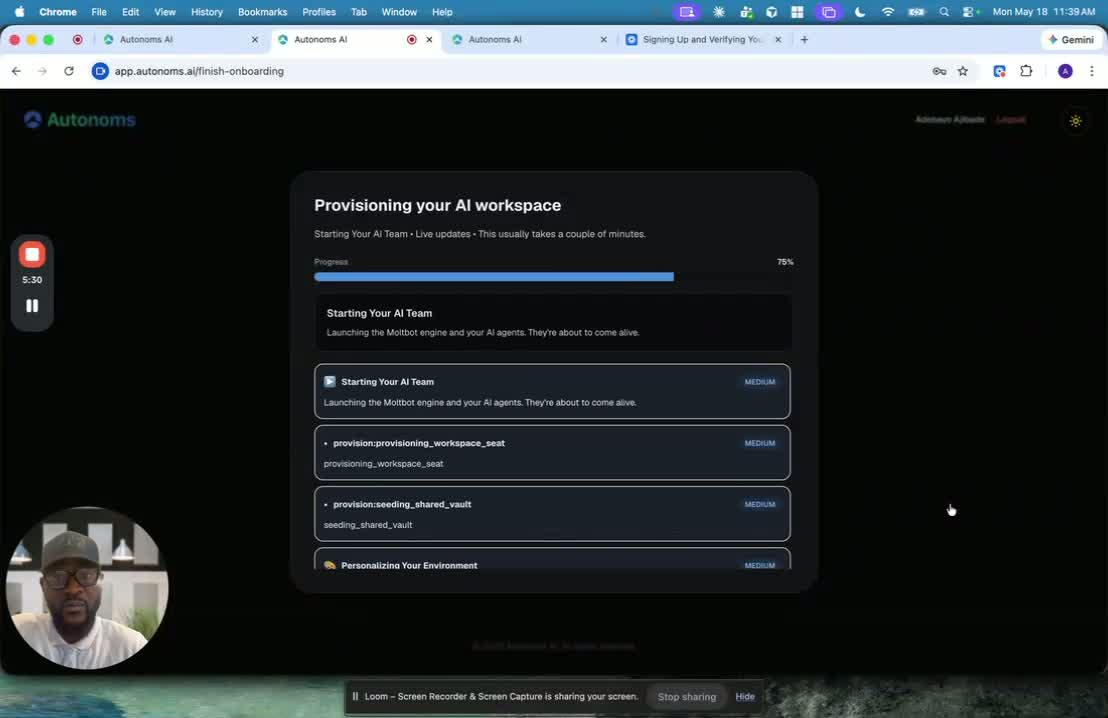
- The AI agents are given context and routines based on the user’s goals and roles.
- Their routines may include:
- Morning work blocks
- Afternoon work blocks
- Evening work blocks
- Weekend activity
- During these routines, agents may:
- Do their own work
- Attend meetings
- Delegate tasks to other agents or dependencies
- Pass information along to other systems
- The agents work 24/7 and provide live updates as they complete tasks.
- Users can interrupt routines and assign ad hoc tasks.
- Users can also interact with agents by:
- Voice
- Text
- Human support is available if something needs to be fixed.
7. Finalize the workspace and load ICP context 6:40
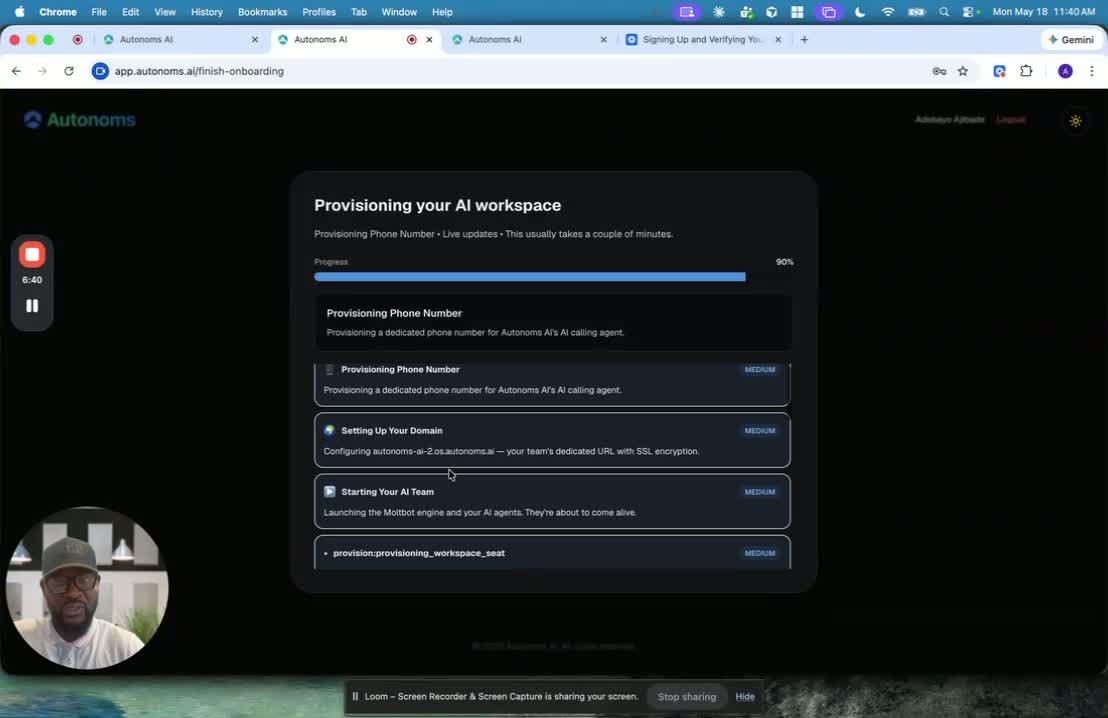
- The system continues reporting setup progress, including:
- Domain setup
- AI team startup
- Runtime preparation
- Secure connection setup
- It also loads the user’s ICP context so the agents understand:
- Ideal customer profile
- Research findings
- LinkedIn/list data
- Other contextual information needed for their roles
- This ensures the team is ready to operate with the right background and targeting.
8. Introduce the team and begin operations 7:20
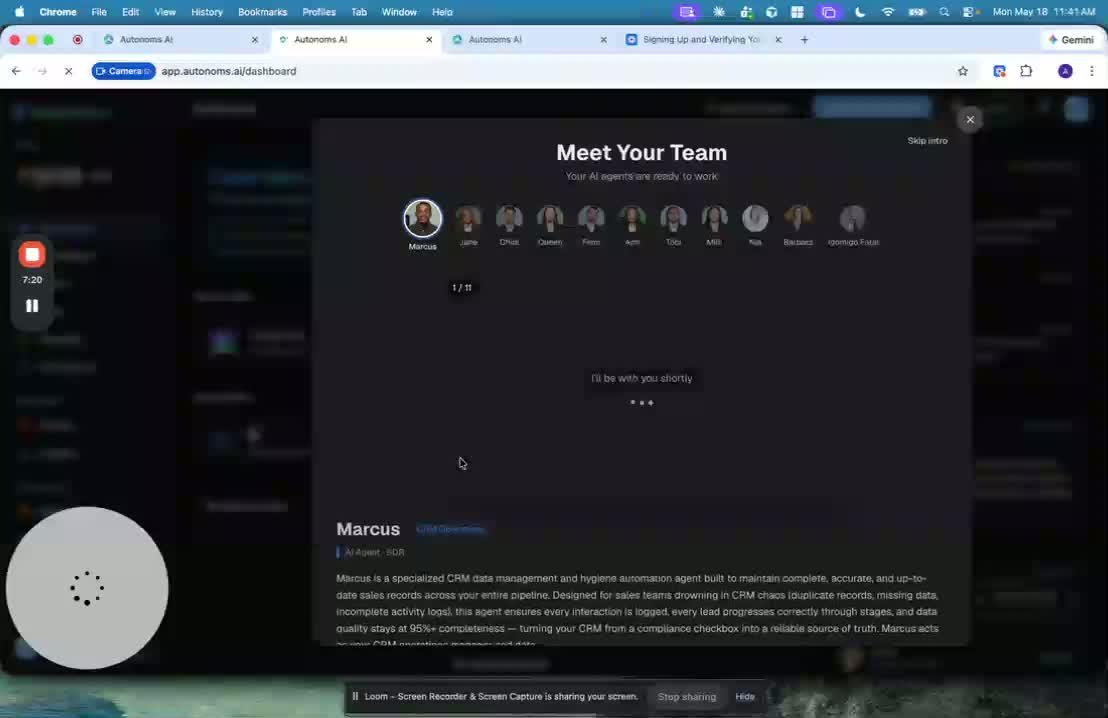
- Once setup is complete, the user is introduced to the team.
- The team then begins its first round of activity.
- This marks the transition from onboarding/setup into active AI workforce operation.
Link to Loom
https://loom.com/share/927346dd16774105b6181cbb5f54a45d
HOW_TO_GUIDE
AI Workspace Onboarding: Environment Setup and Team Deployment
1. Start the onboarding setup after signup and login 0:00

- This walkthrough begins after the initial growth-plan and onboarding questionnaire are complete.
- The user has already:
- Signed up
- Verified their email
- Logged in for the first time
- The system now begins setting up the user’s workspace from scratch.
2. Provision the cloud workspace and secure it 1:17
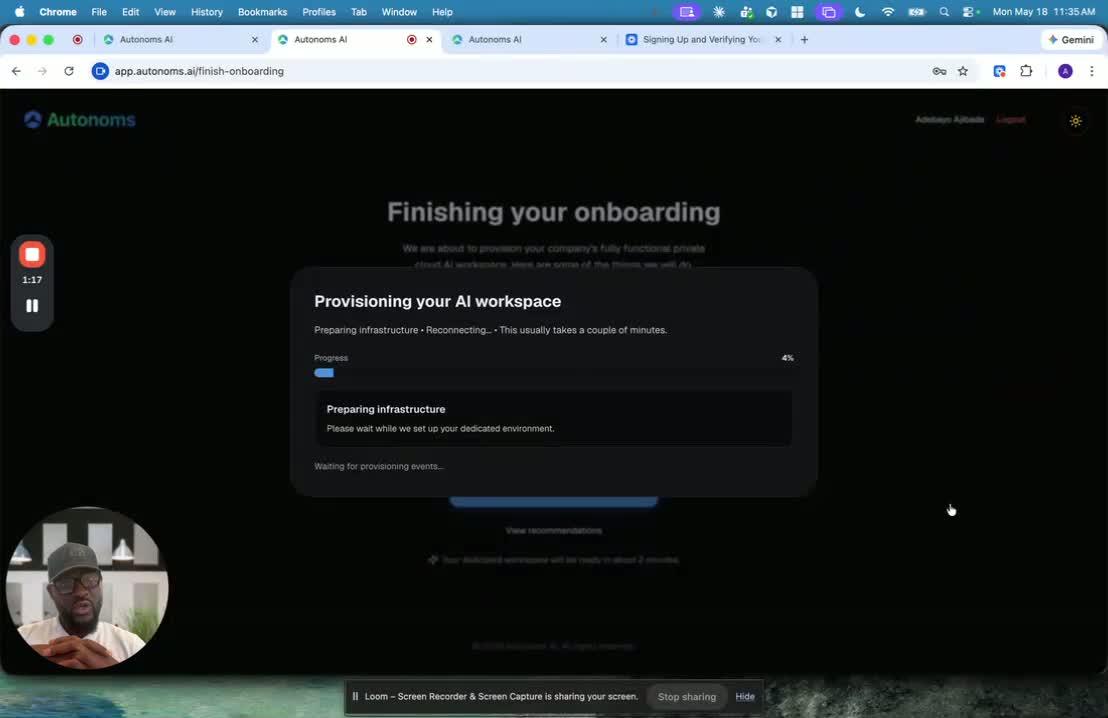
- The platform forms a DevOps/ops team to create the environment automatically.
- It provisions a persistent cloud workspace in providers like:
- AWS
- DigitalOcean
- In DigitalOcean, it creates a droplet/container with the needed resources:
- CPU
- RAM
- Virtual office infrastructure
- It also applies security setup:
- Security groups
- Security patches
- Isolation for the user’s environment
- The speaker emphasizes this would normally take an engineering team months, but here it happens in minutes.
3. Deploy OpenCloud and the recommended AI team 2:21
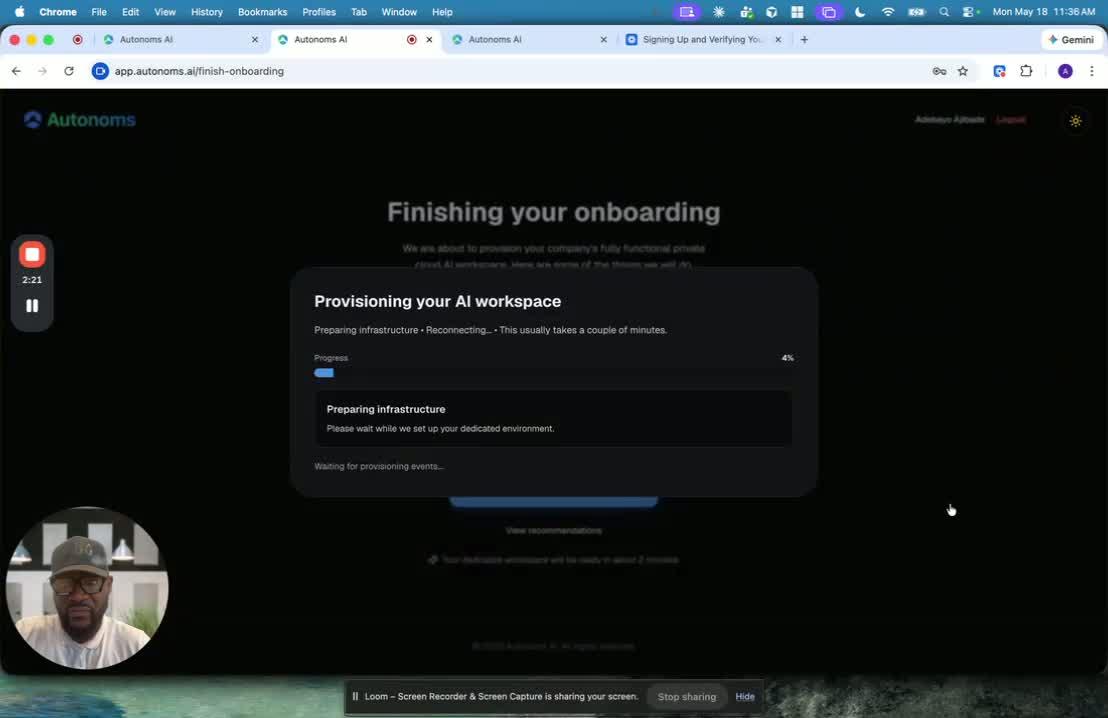
- After the environment is ready, the system deploys:
- OpenCloud
- The platform’s enhancements to OpenCloud
- It first sets up the team and understands the user’s context before provisioning finishes.
- Then it deploys the AI team members recommended for the user’s goals.
- The workspace is persistent, so the setup remains available after onboarding.
- Users can later add more team members, teams, or organizations as needed.
4. Create a dedicated Google Workspace 3:28
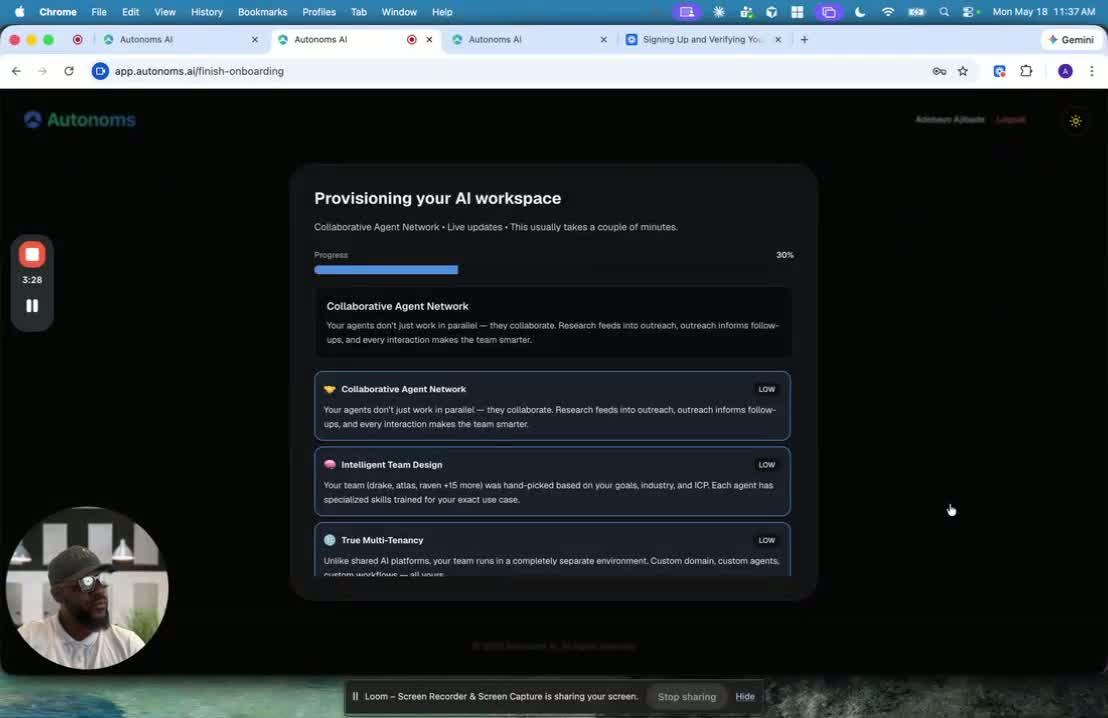
- The system creates a premium Google Workspace for the user.
- This is used to isolate the user’s business email from other email activity.
- Reasons for this include:
- Better email deliverability
- Separate sender reputations
- Clear separation between sales and other outreach efforts
- The premium workspace also includes useful collaboration and meeting features:
- Meeting recording
- Booking/calendar page
- Meeting insights
- AI meeting assistance
- Transcription
- Buying signals
- Follow-up and action items
- Calendar links
5. Set up phone, enrichment, and LinkedIn tools 4:38

- The platform creates a phone number for the AI agents to use for calling.
- It also sets up the external tools and dependencies the agents need, including:
- Apollo for prospecting and email enrichment
- Lusha for enrichment and phone data
- A LinkedIn plugin from the Chrome store
- These tools are connected with personalized credentials so the AI workforce can use them automatically.
6. Configure agent routines and live operations 5:30
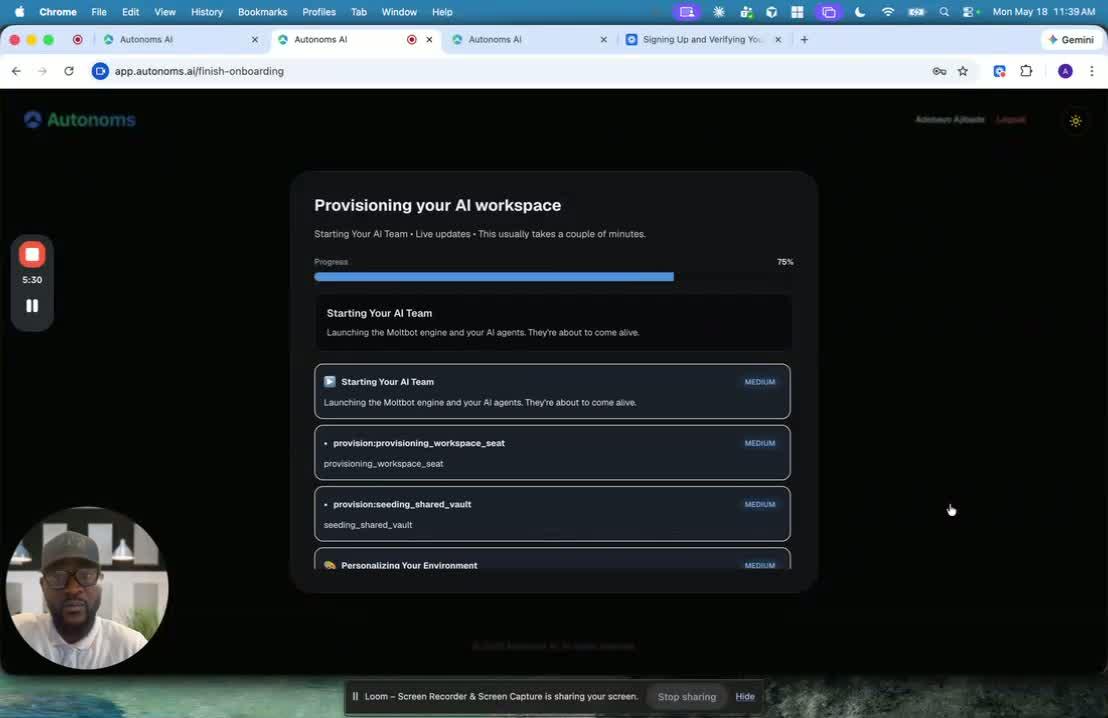
- The AI agents are given context and routines based on the user’s goals and roles.
- Their routines may include:
- Morning work blocks
- Afternoon work blocks
- Evening work blocks
- Weekend activity
- During these routines, agents may:
- Do their own work
- Attend meetings
- Delegate tasks to other agents or dependencies
- Pass information along to other systems
- The agents work 24/7 and provide live updates as they complete tasks.
- Users can interrupt routines and assign ad hoc tasks.
- Users can also interact with agents by:
- Voice
- Text
- Human support is available if something needs to be fixed.
7. Finalize the workspace and load ICP context 6:40
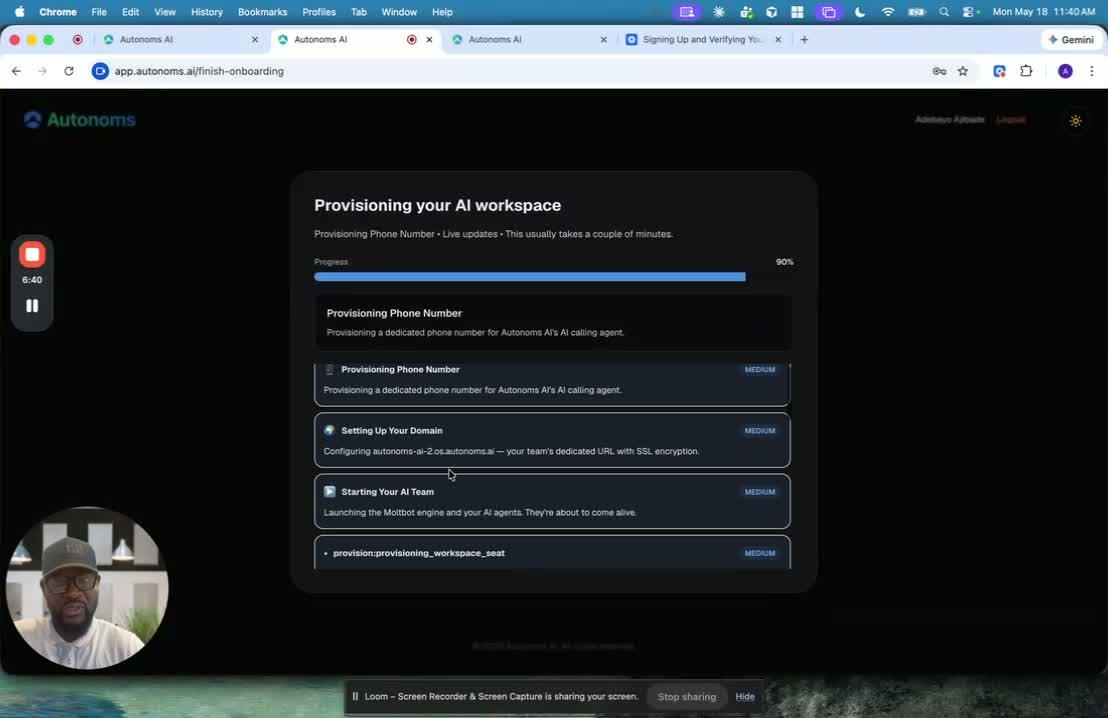
- The system continues reporting setup progress, including:
- Domain setup
- AI team startup
- Runtime preparation
- Secure connection setup
- It also loads the user’s ICP context so the agents understand:
- Ideal customer profile
- Research findings
- LinkedIn/list data
- Other contextual information needed for their roles
- This ensures the team is ready to operate with the right background and targeting.
8. Introduce the team and begin operations 7:20
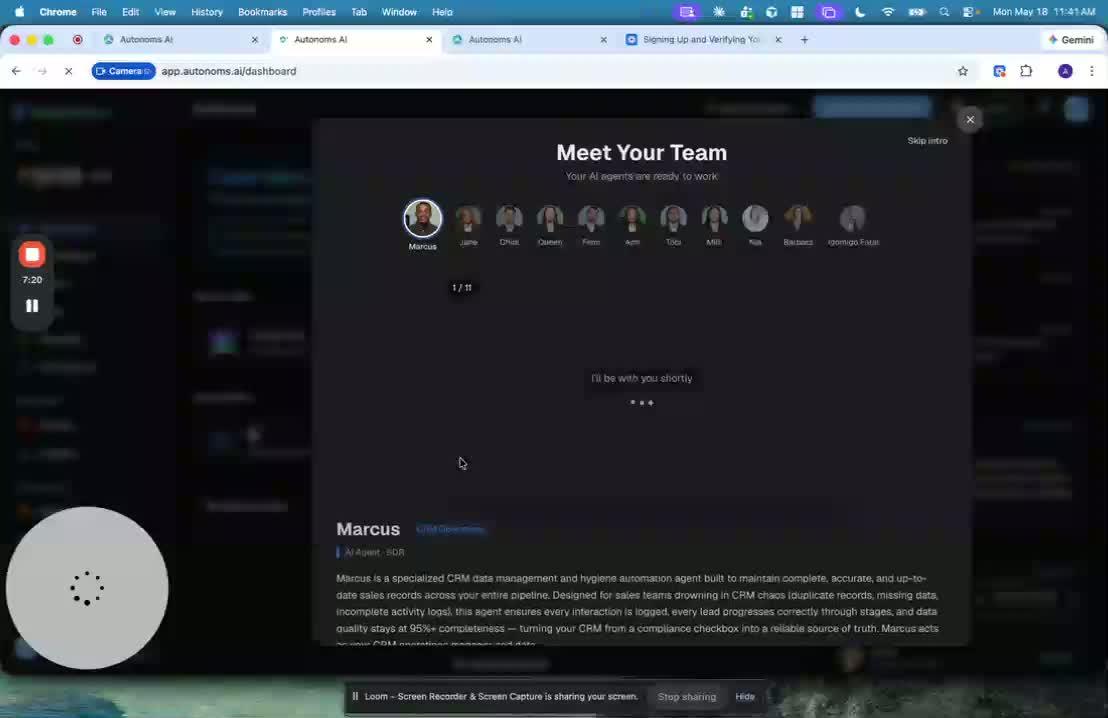
- Once setup is complete, the user is introduced to the team.
- The team then begins its first round of activity.
- This marks the transition from onboarding/setup into active AI workforce operation.