

How to Run the AI Prospecting Test Drive
1. Start the Test Drive 0:01
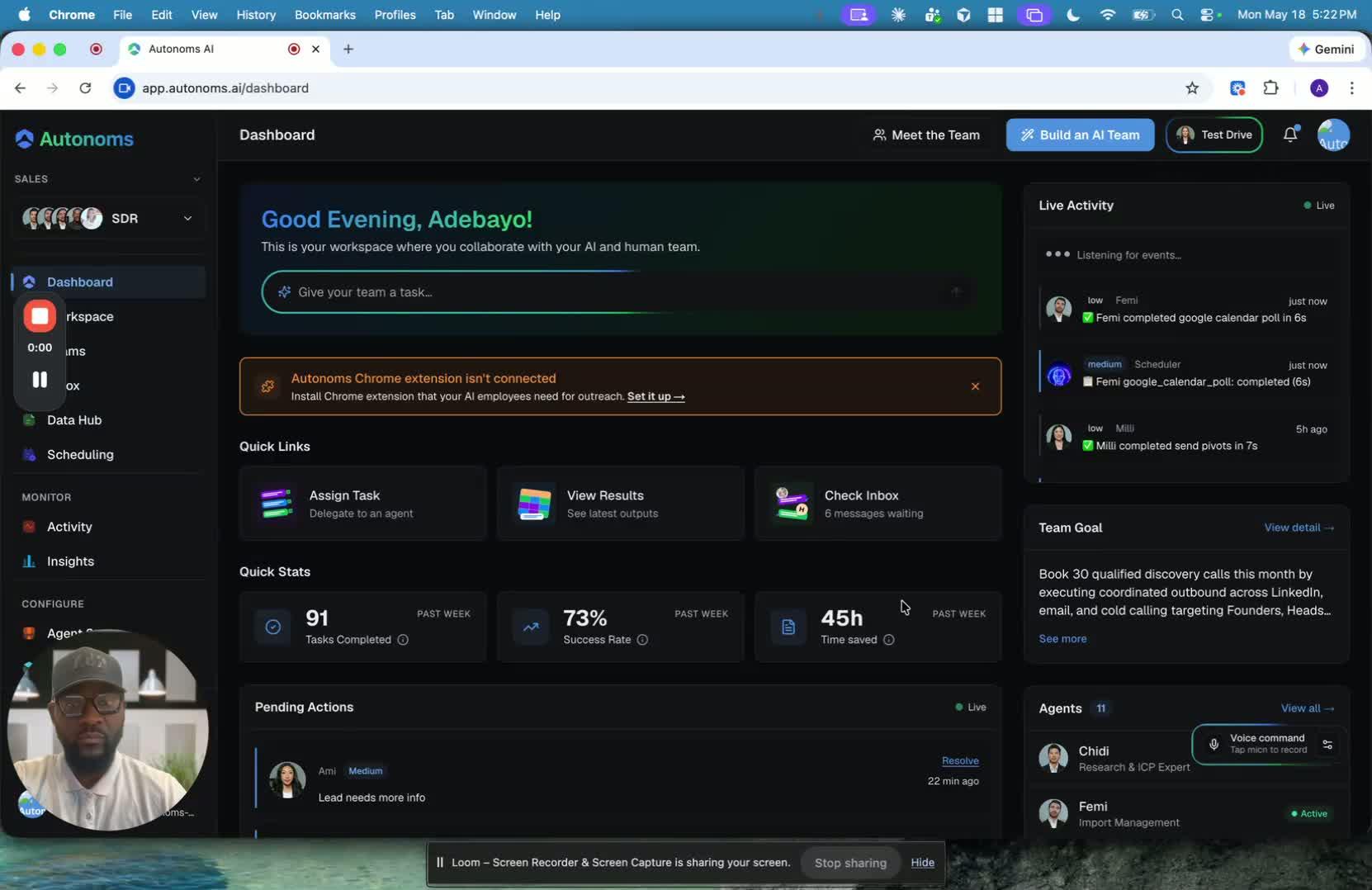
- After signing up, click the Test Drive button.
- The test drive is designed to show you how the AI team prospects for you end to end.
- It lets you experience the main outreach channels firsthand:
- Phone calling
- Email outreach
- LinkedIn outreach
- The goal is to give you a clear feel for how the system works in practice.
2. Review the Chief of Staff Intro 0:40
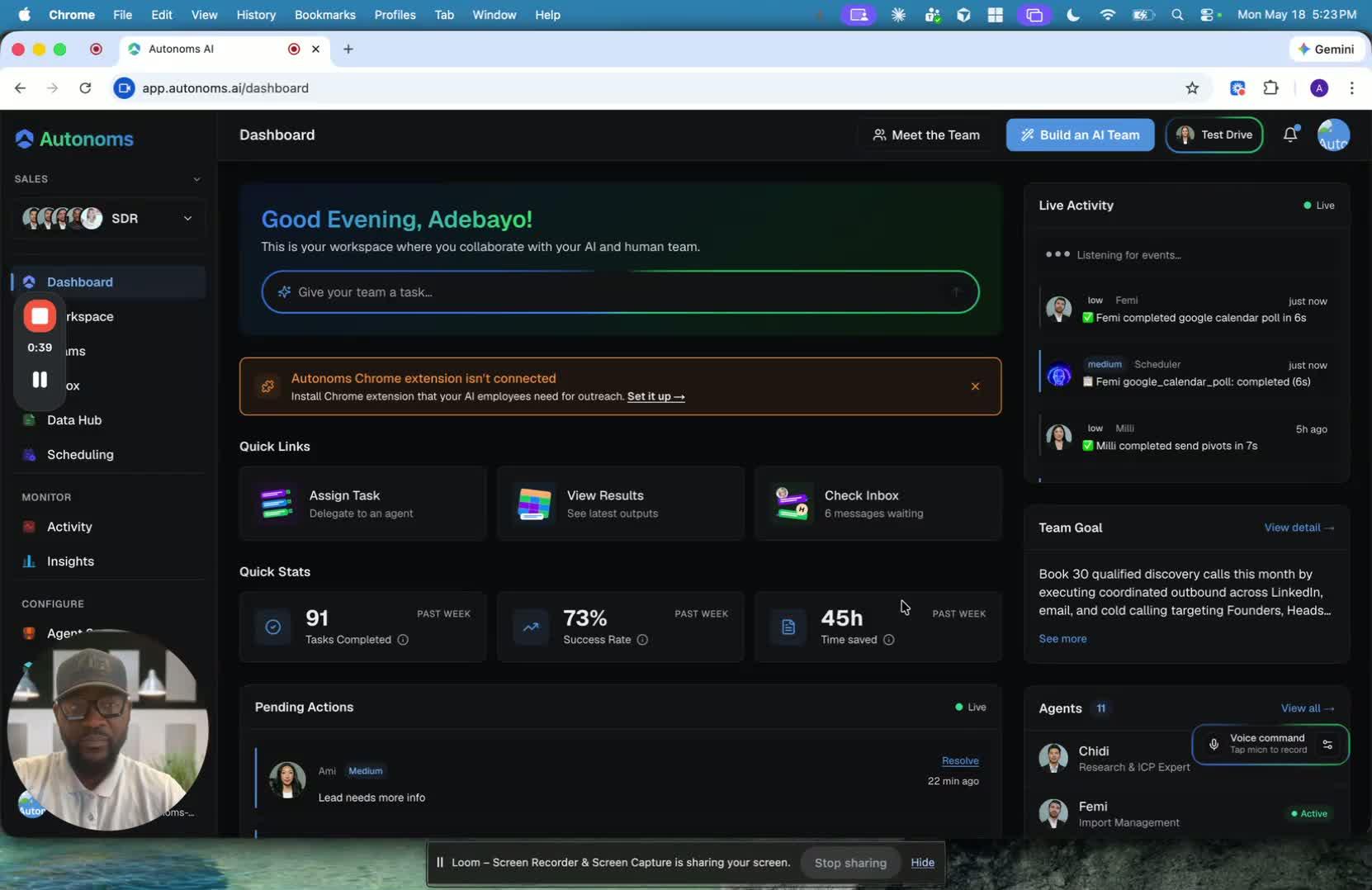
- When the test drive launches, the Chief of Staff / orchestrator appears first.
- This intro explains what the test drive is and what to expect.
- Click Continue to move forward once the overview is complete.
- This step helps set context before the outreach simulation begins.
3. Complete the Phone Call Simulation 1:57
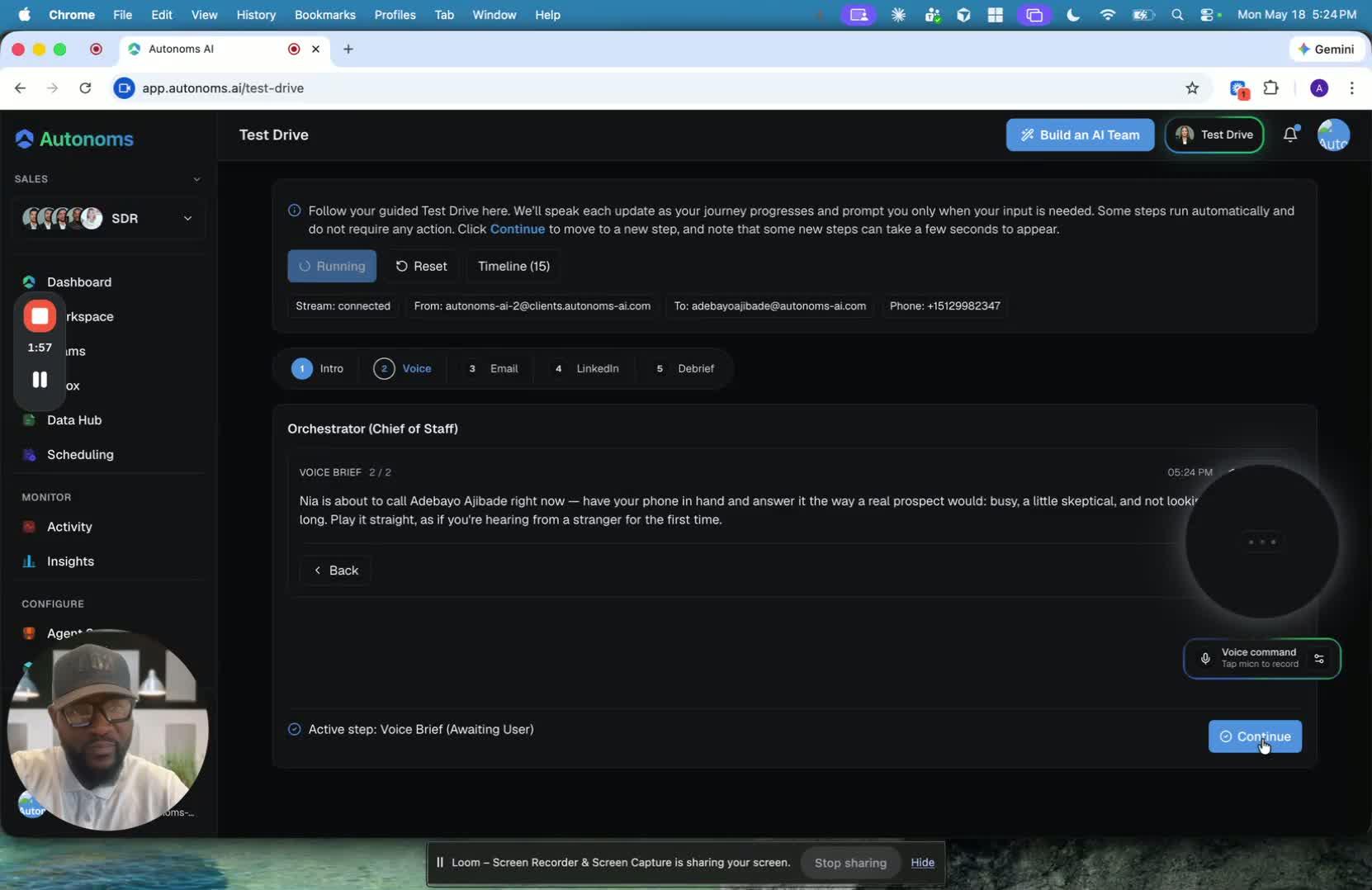
- The first live test is the voice call.
- The AI voice agent calls you as if you were a prospect.
- It introduces the company, asks about your growth challenges, and tries to qualify your needs.
- In the demo, the conversation focused on:
- Bottlenecks and repetitive tasks
- Outreach challenges
- Whether outreach is handled by a team or manually
- The agent then attempts to book a meeting directly on the calendar.
4. Confirm the Meeting Booking 5:03
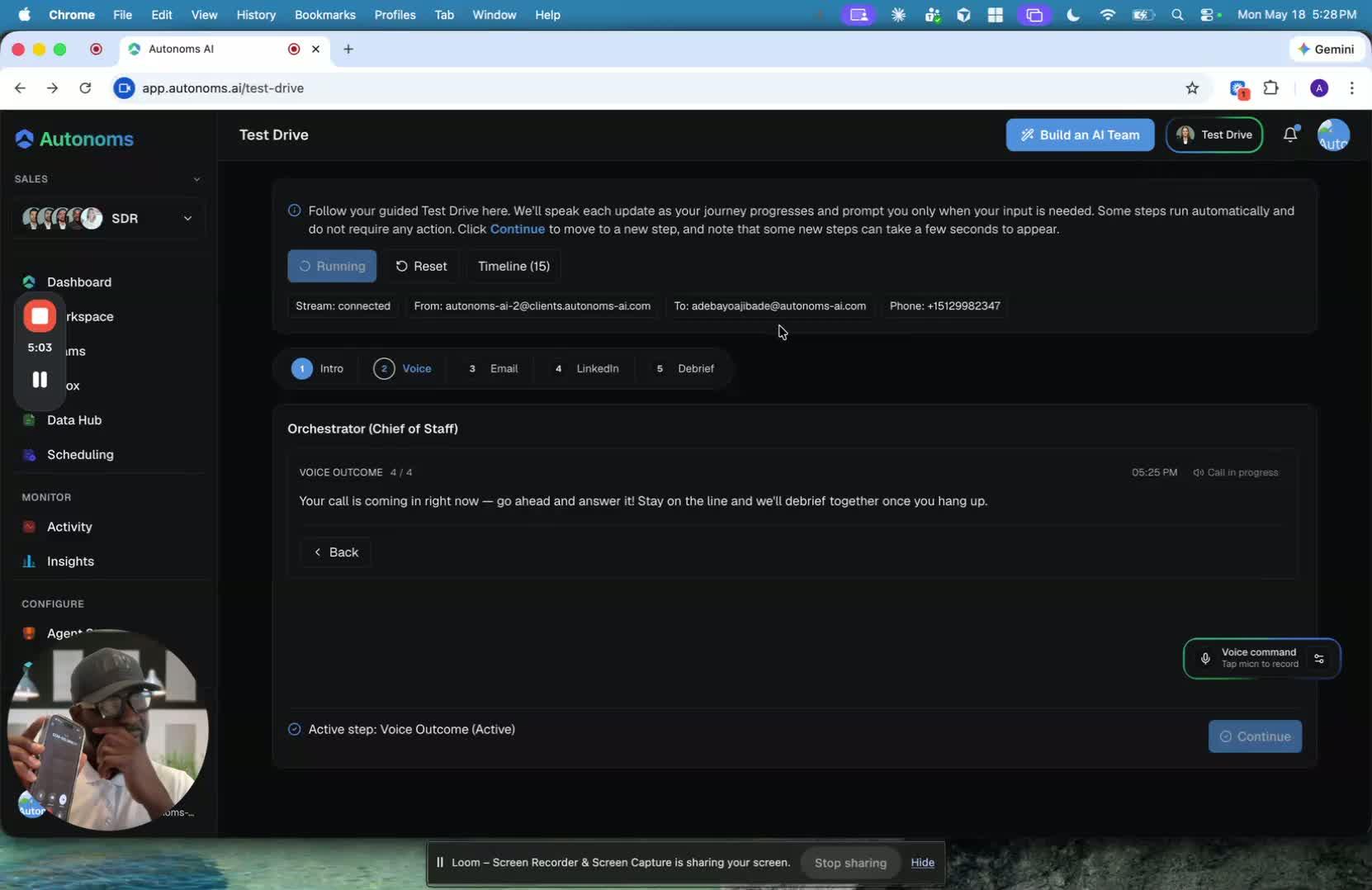
- If you agree to a meeting, the AI offers available times.
- Choose a time that works for you.
- The system uses the email already on file to send the invite.
- You should receive a calendar invite shortly after the booking is confirmed.
- This shows that scheduling is already built into the workflow.
5. Review the Outcome of the Call 6:01
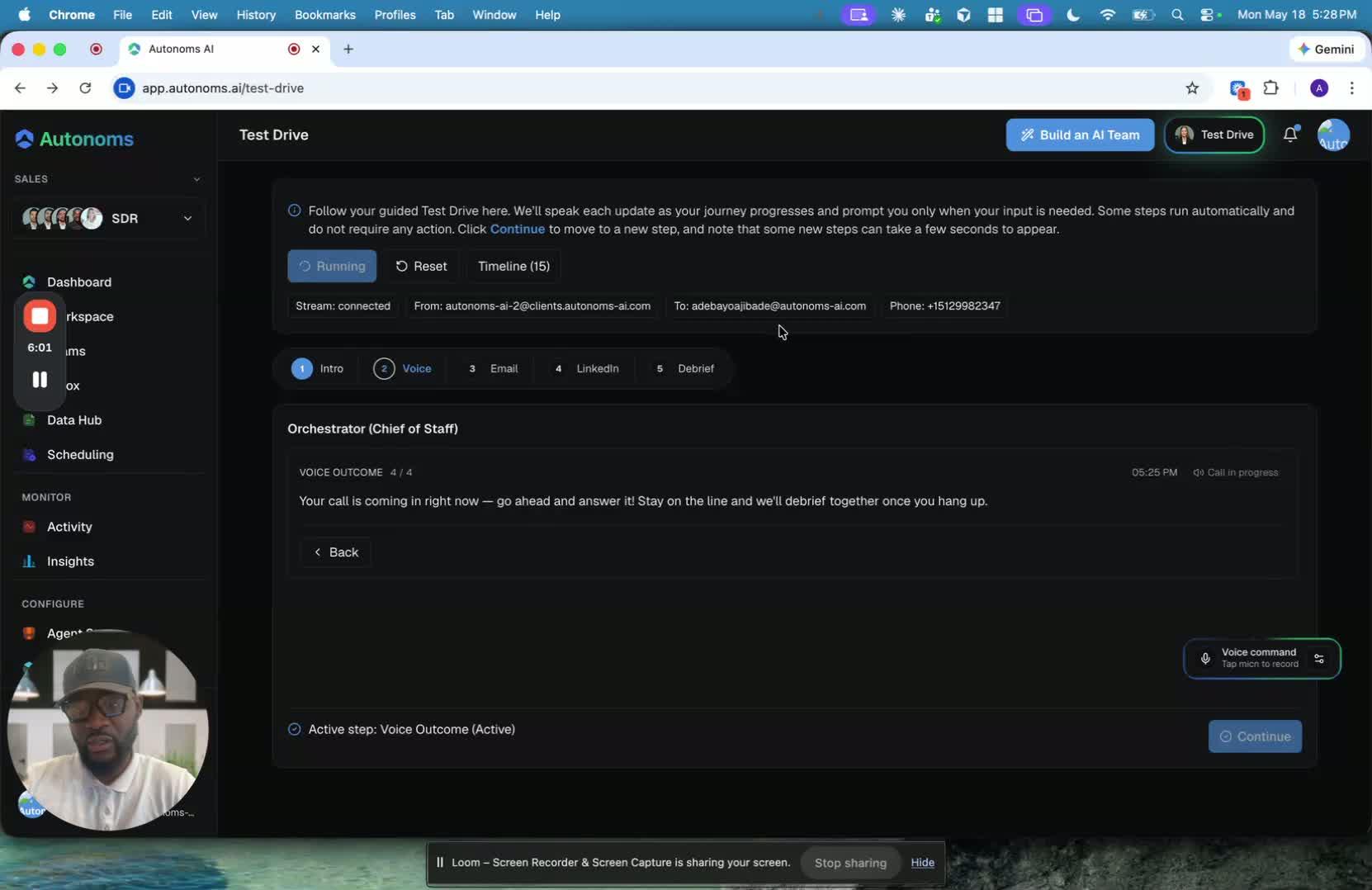
- After the call, the system generates a report from the voice interaction.
- The orchestrator also provides feedback on how the call went.
- In the demo, the speaker notes they kept the conversation simple for a smooth walkthrough.
- In a real test, you can ask harder questions to see how the AI handles objections and back-and-forth conversation.
6. Move on to Email and LinkedIn Tests 6:21
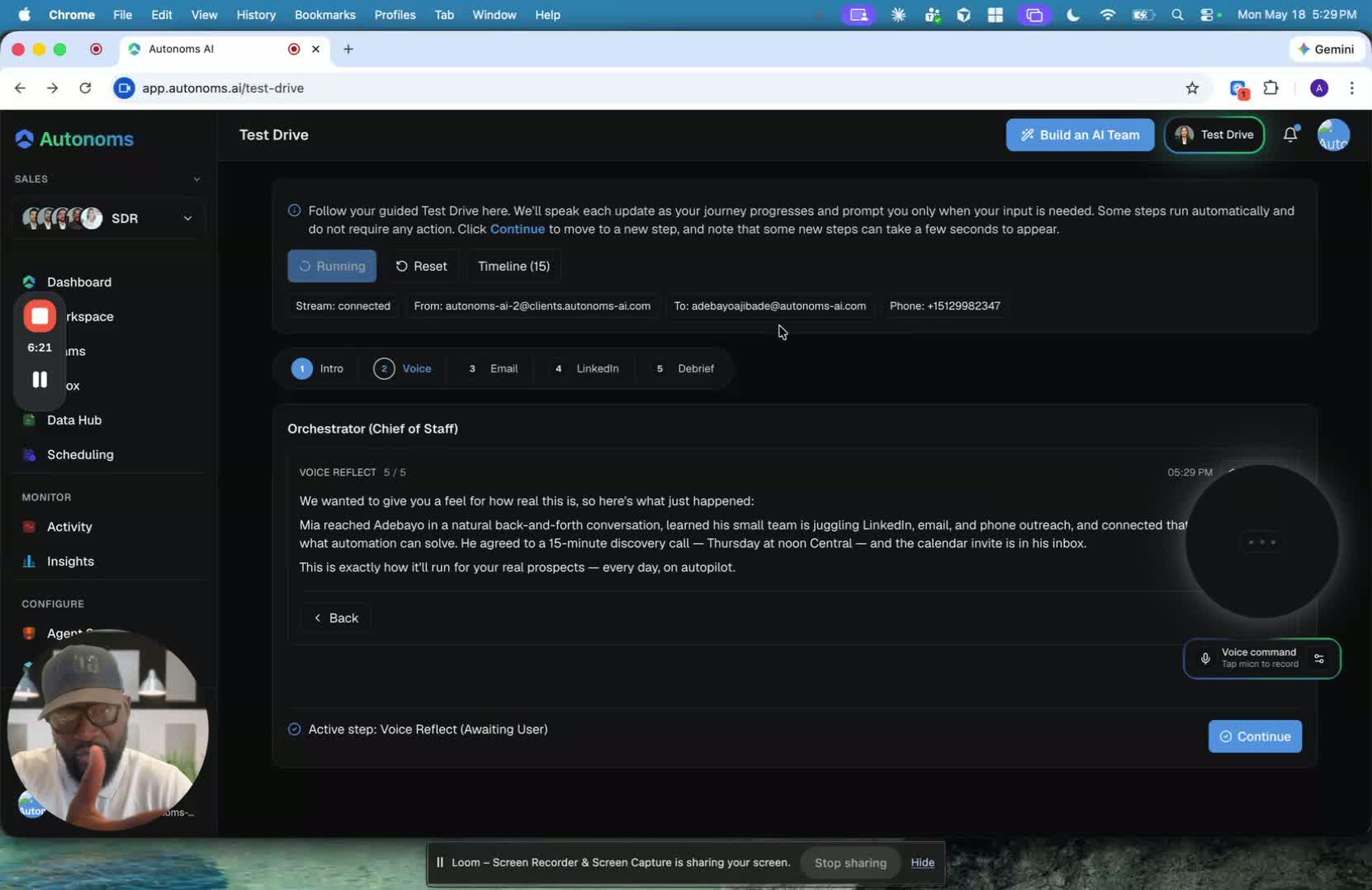
- After the voice call, the next stages are:
- These steps show how the AI handles outreach across multiple channels.
- The speaker notes that the full test drive gives you a quick feel for the entire system.
- No extra setup is needed for the demo—phone, email, calendar, and booking page are already orchestrated for you.
Link to Loom
https://loom.com/share/ec33c2d6e6894f29ac4e7eb75705d853
Cautionary Notes
- Do not assume the test drive is only a phone call; it is part of a broader multi-channel outreach workflow.
- If this is your first time, pay close attention to the Chief of Staff/orchestrator walkthrough before proceeding.
- Be prepared for the AI to ask qualifying questions and to handle follow-up responses.
- Confirm the correct email address before accepting the calendar invite.
- Review the generated report and feedback after the call so you do not miss improvement opportunities.
Tips for Efficiency
- Keep the first run simple and follow the happy path to understand the workflow quickly.
- Use speakerphone during the call if you want to focus on the conversation and take notes.
- Have your preferred meeting times ready before the AI asks for scheduling.
- Check that your inbox is open so you can verify the invite immediately after the call.
- Move directly from voice to email to LinkedIn testing to get a complete picture of the outreach system in one session.