

How to Connect the LinkedIn Chrome Extension in a Separate Chrome Profile
1. Understand what the LinkedIn extension does 0:00
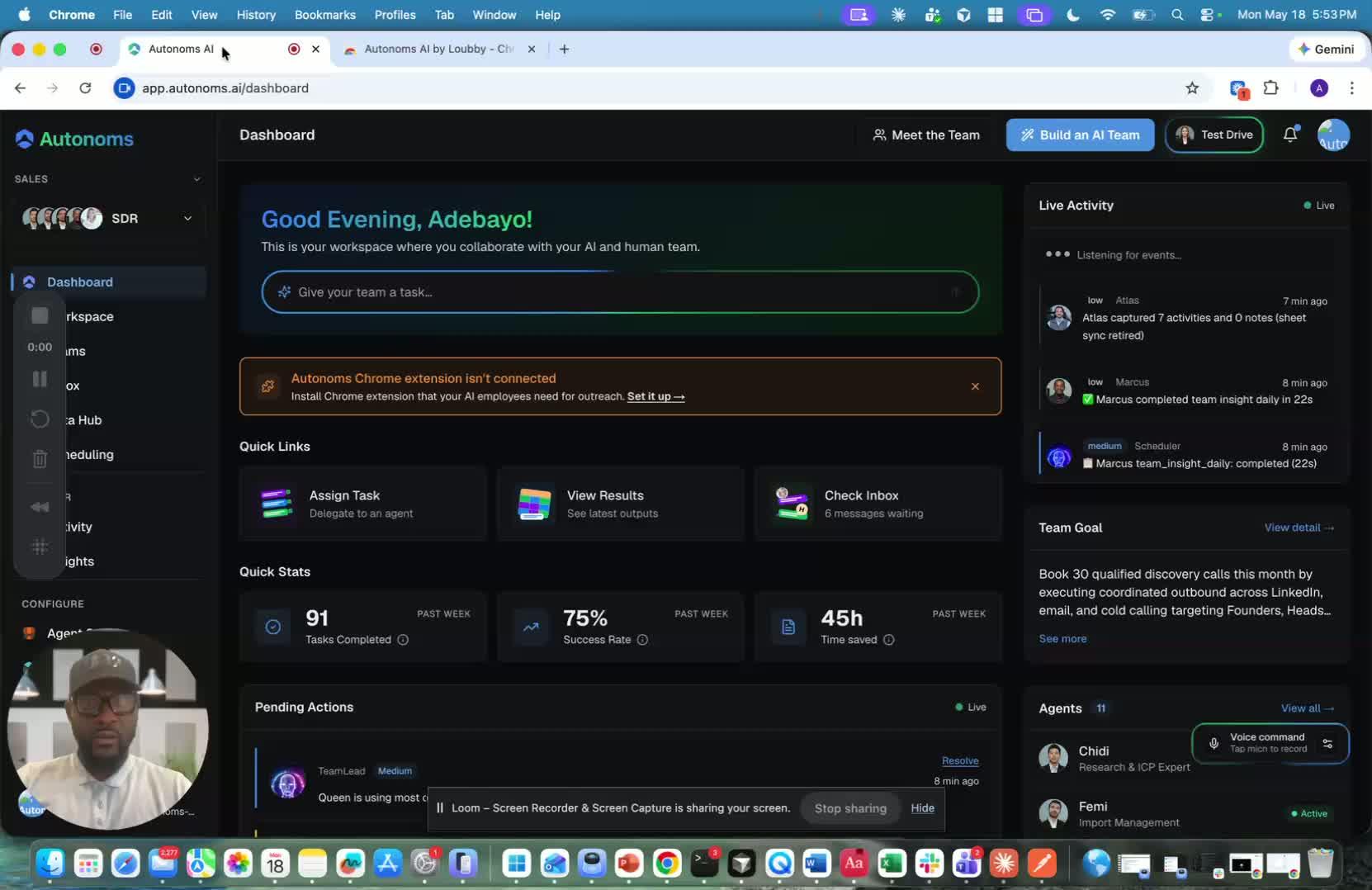
- The LinkedIn Chrome extension connects your LinkedIn account to the platform.
- It helps automate prospecting by:
- finding your ICP (ideal customer profile)
- searching for prospects
- sending personalized connection requests
- monitoring acceptances
- running follow-up/nurture message sequences
- The system is designed to respect LinkedIn’s rate limits, privacy rules, and anti-detection safeguards.
2. Choose a way to access the extension setup 1:20
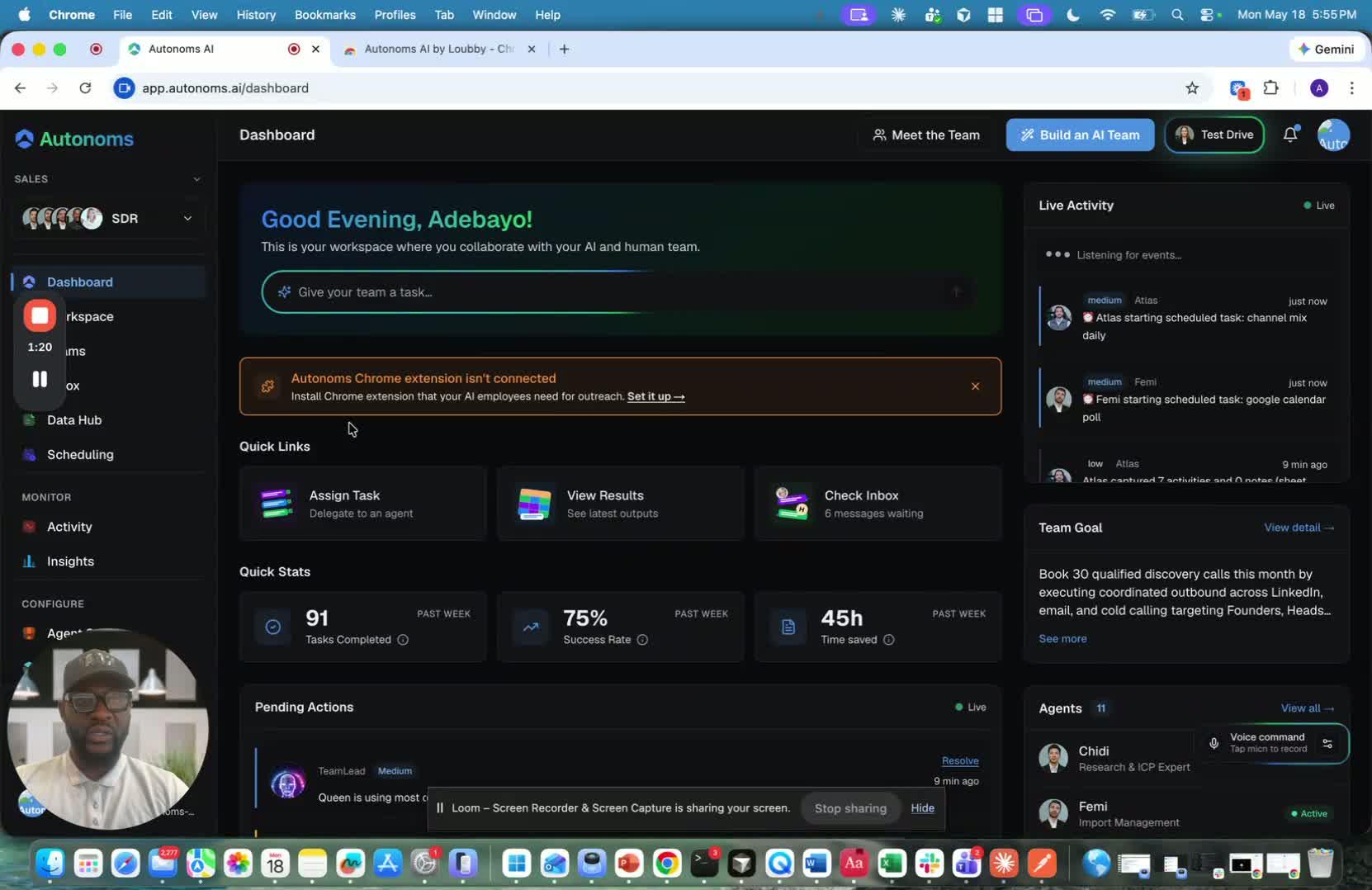
- There are multiple ways to get to the extension setup:
- from the dashboard install prompt
- from the Integrations page
- through an AI agent prompt when the tool is missing
- If an agent like Toby flags that LinkedIn is not connected, click Resolve to get guided help.
- The goal is to make setup easy and support both automated and human-assisted resolution.
3. Create a new Chrome profile before installing 2:20
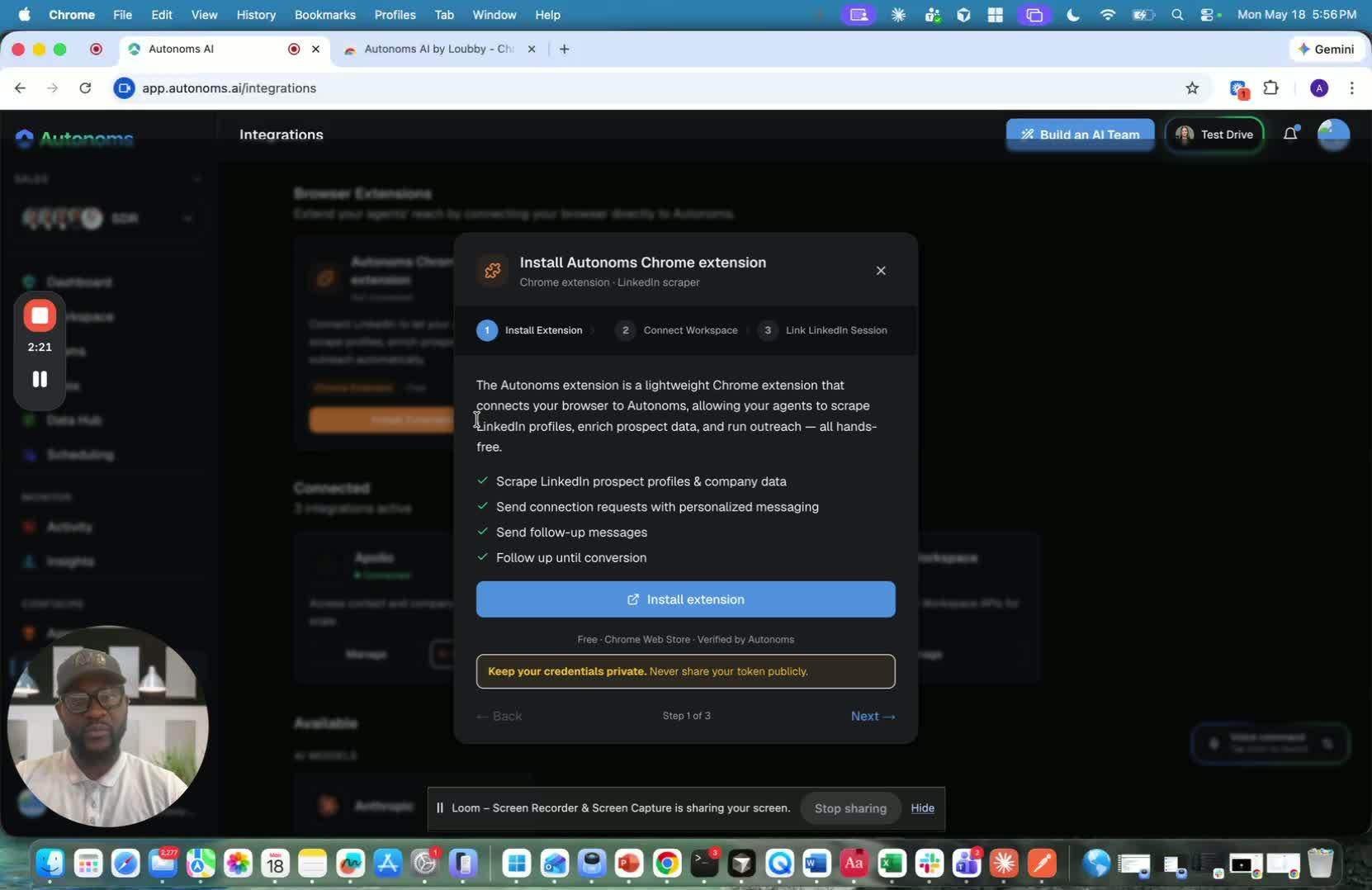
- The recommended setup is to use a new Chrome profile.
- This is important because the extension uses RPA (robotic process automation) and operates in your browser on your behalf.
- A separate profile helps keep the automation isolated from your normal browsing and reduces disruption to everyday work.
- It also helps keep the LinkedIn automation safer and more controlled.
4. Add a new Chrome profile 3:00
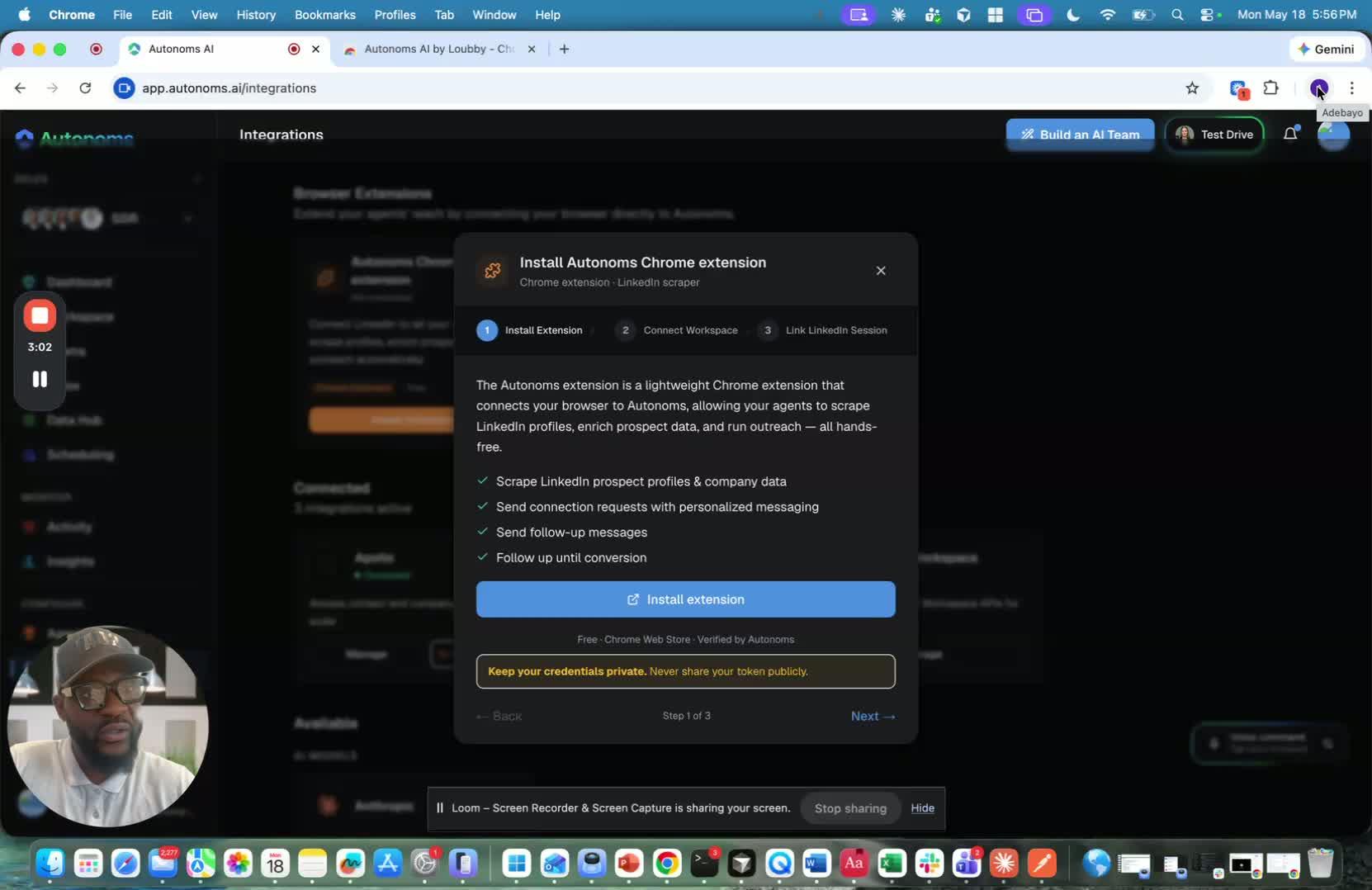
- In Chrome, click your profile icon in the top-right corner.
- Scroll down and select Add Chrome Profile.
- Set up the new profile.
- If needed, continue without signing into an account.
- Name the profile something recognizable, such as Autonomous OS.
5. Install the LinkedIn Chrome extension into that profile 3:54

- Once the new profile is ready, install the extension there.
- You can do this by:
- downloading the extension
- adding it to Chrome in the new profile
- or searching for it in the Chrome Web Store
- The transcript mentions searching for the extension and adding it to the new profile directly.
6. Confirm the extension is available in the new profile 5:20
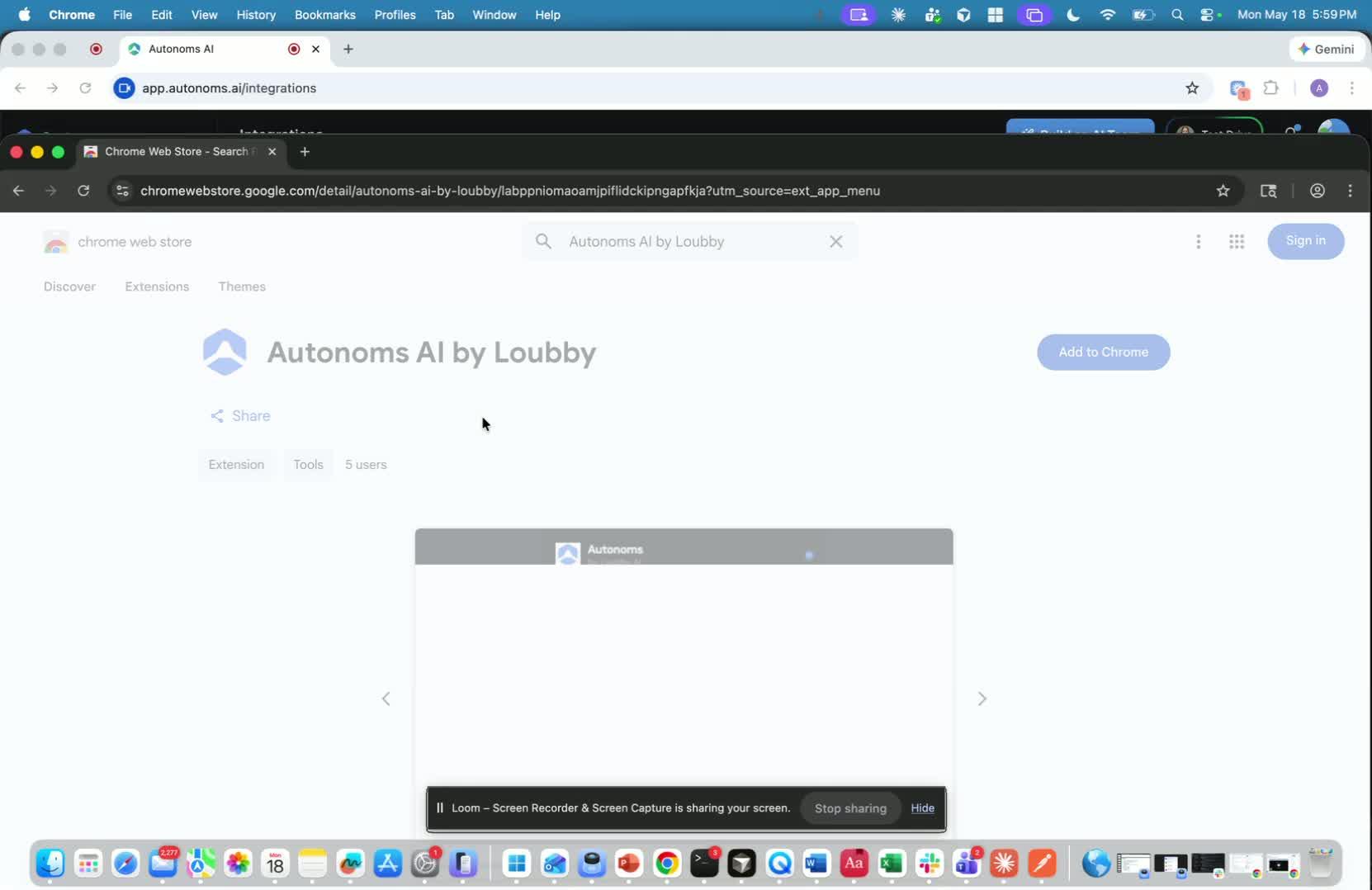
- After installation, verify that the extension appears in the new Chrome profile.
- If needed, check the Extensions menu or Chrome Web Store again.
- The key outcome is that the LinkedIn extension is installed in the separate profile, not your main browser profile.
7. Keep the setup isolated from your everyday browser use 6:00
- The main recommendation is to keep the LinkedIn extension in a dedicated Chrome profile.
- This prevents interference with your normal browsing and work activity.
- It also supports the safest and cleanest setup for LinkedIn automation.