

How to Install and Connect the LinkedIn Plugin
1. Open the LinkedIn integration setup 0:00
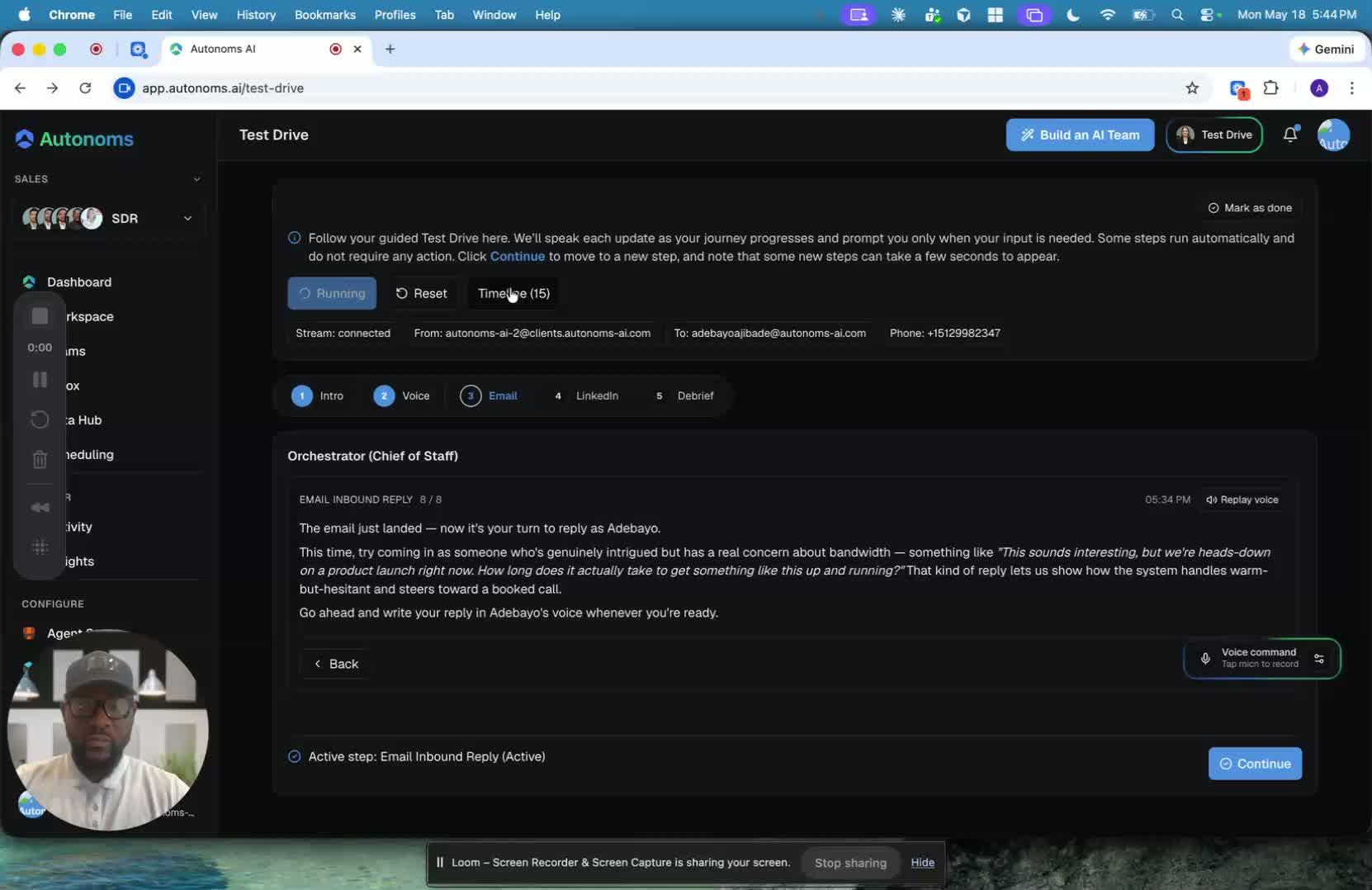
- The goal is to test LinkedIn by first installing the LinkedIn plugin.
- You can find the setup in Integrations or from the dashboard’s pending actions area.
- Pending actions show which tools are not yet connected and need attention.
2. Identify the LinkedIn connection request 0:27
generated-image-at-00:00:27
- In pending actions, look for messages like LinkedIn extension not connected.
- Agents may also directly tell you they need LinkedIn connected to do their job well.
- If needed, you can click Resolve to open the chat and get guided instructions.
3. Start the LinkedIn plugin installation 1:20
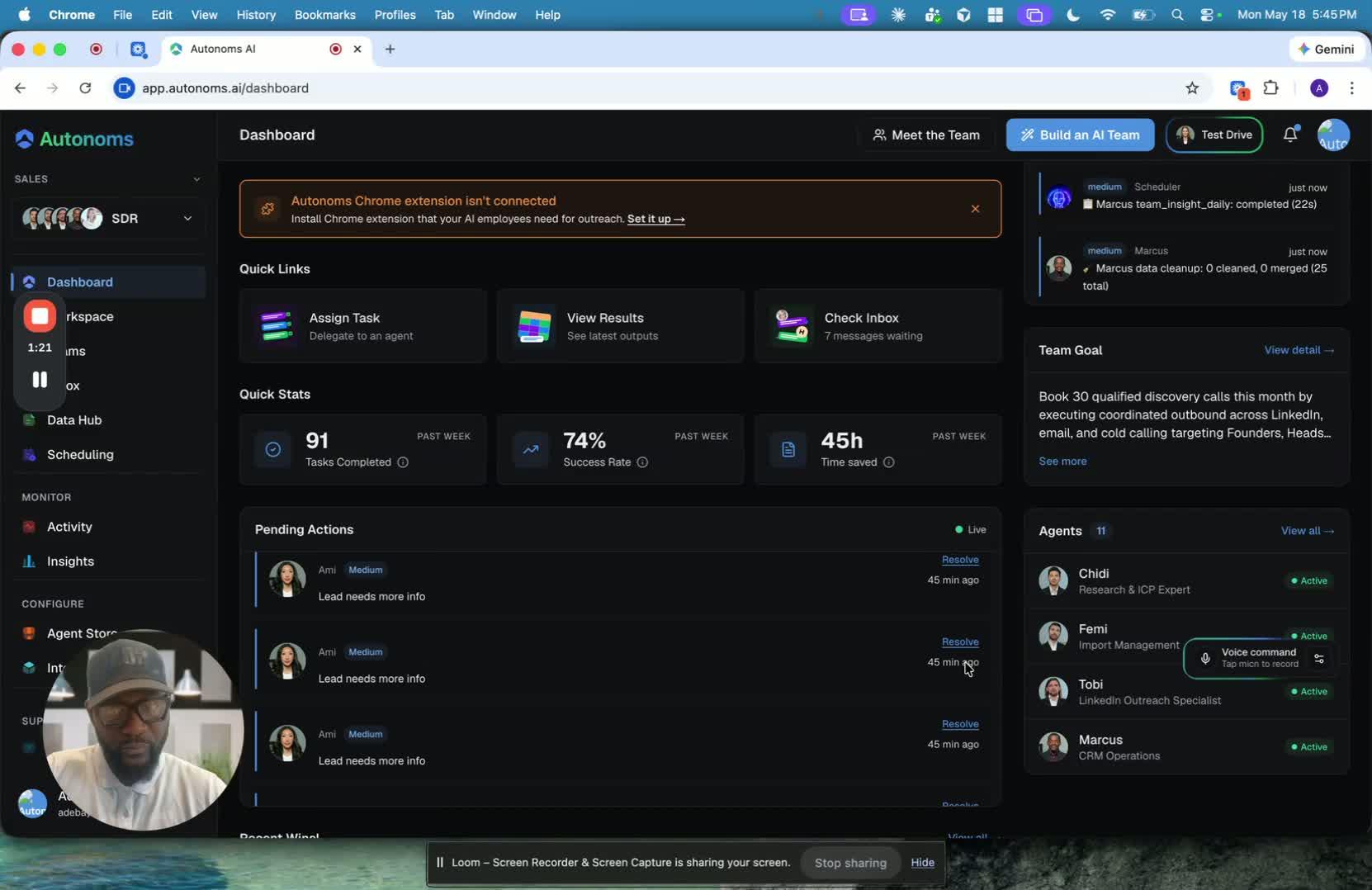
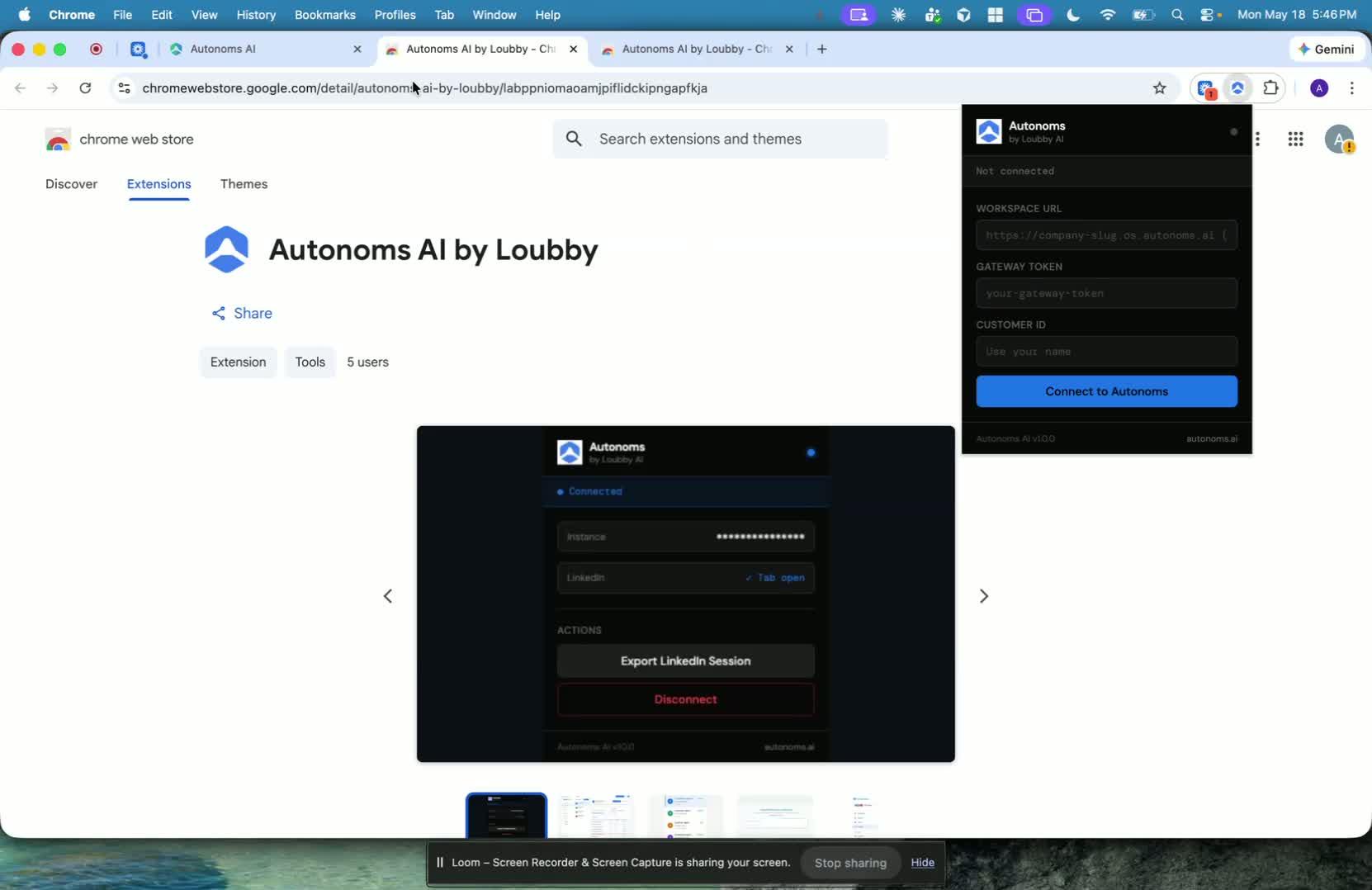
- From the dashboard, click Set up for LinkedIn.
- Follow the prompt to add the extension to Chrome.
- After installation, you can optionally pin the extension in Chrome for easier access.
4. Enter the required credentials into the Chrome extension 2:04
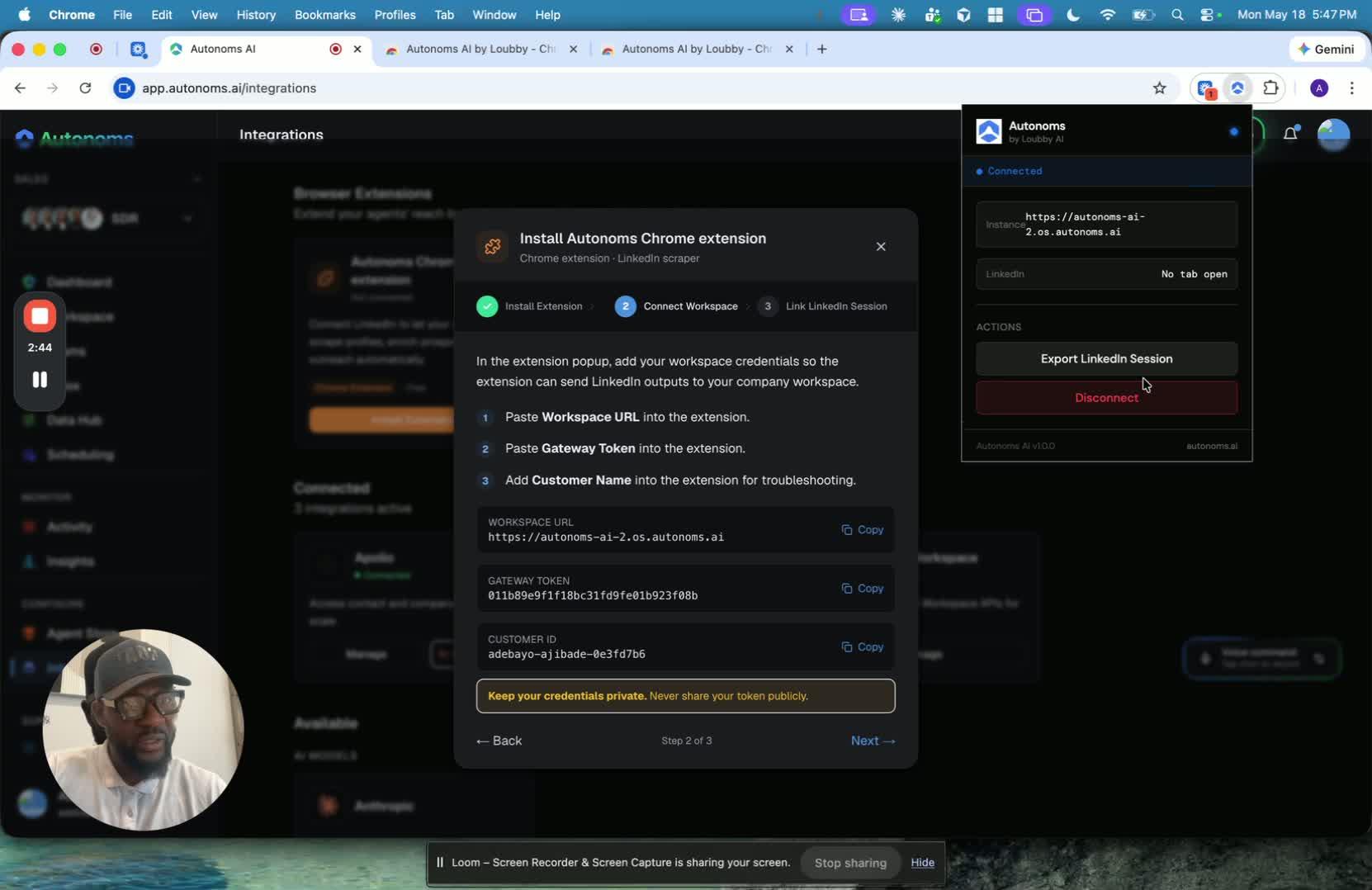
- The setup flow provides the credentials needed for the extension.
- Copy and paste the required values into the Chrome extension fields:
- Gateway
- Customer ID
- Any other required connection value shown in the setup flow
- These values link the extension to your account.
5. Grant permissions and export the LinkedIn session 2:40
- If prompted, click Allow permissions.
- Then export the LinkedIn session.
- Once you see session exported, the connection is complete.
6. Confirm LinkedIn is connected and return to testing 2:50
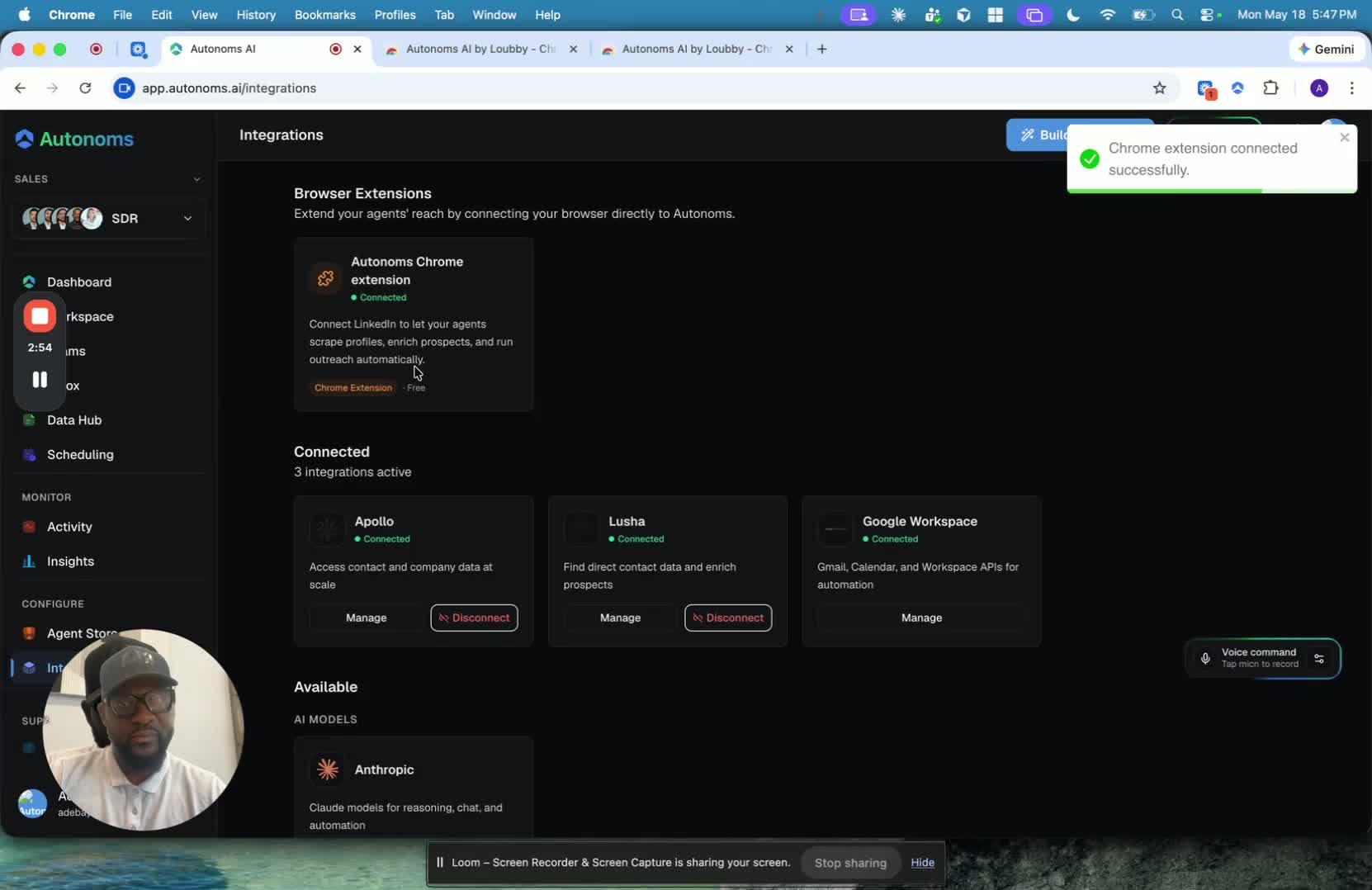
- After successful setup, the dashboard should show LinkedIn as connected.
- The pending action should disappear.
- Return to Test Drive and continue with the LinkedIn test.