

SOP: Test and Validate AI Agent Email Outreach and LinkedIn Connection Setup
Key Steps
1. Confirm the email testing phase and understand the setup 0:00
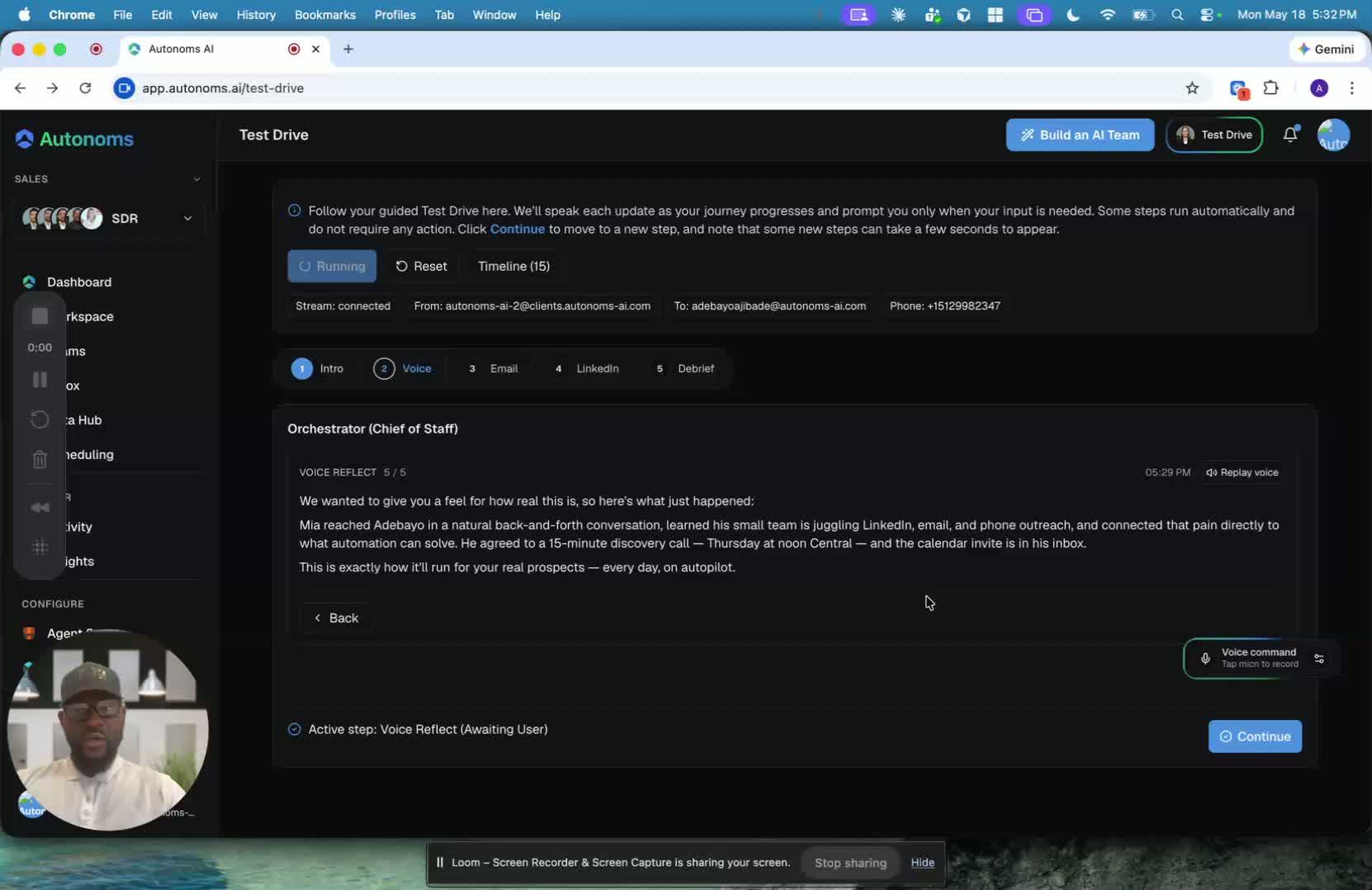
- Begin by moving from code-calling validation to email testing.
- Confirm that the system provisions a premium Google account for the AI agent.
- Understand that the email identity may be:
- Free tier: typically first name + last name at
autonoms.ai - Paid tier: fully customized to the client’s preference
- Verify that this email will be used by the AI agent for outreach and follow-up communication.
2. Use the dedicated AI email for outreach and keep it isolated 0:32
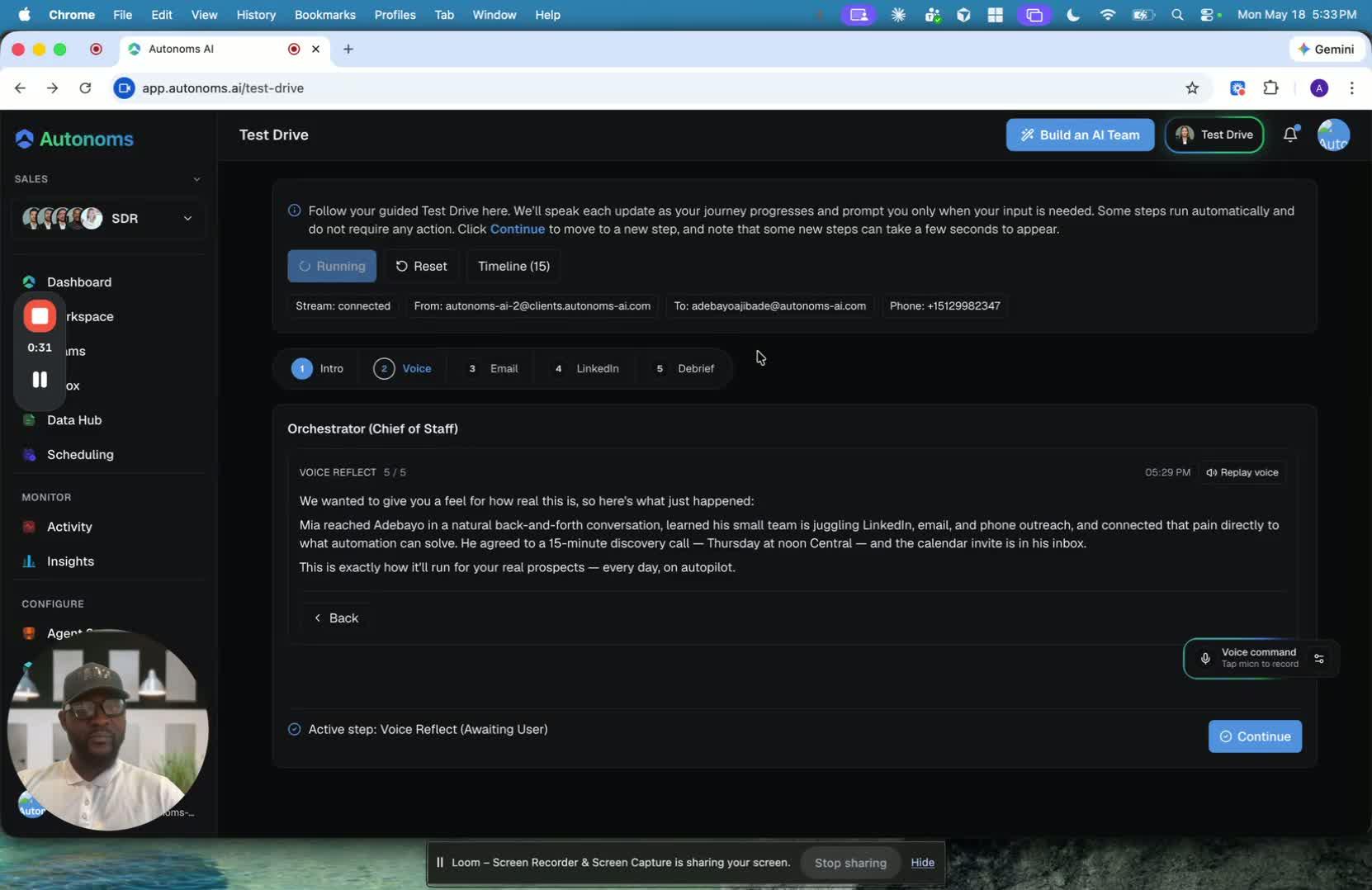
- Treat the provisioned email as the agent’s dedicated sales and growth inbox.
- Use it for:
- Prospect outreach
- Follow-up sequences
- Nurturing campaigns
- Reply handling
- Meeting transcriptions and related communication
- Keep this inbox separate from personal and business email accounts to maintain:
- Better organization
- Cleaner distribution
- Improved isolation
- Stronger deliverability and reachability management
3. Send a test email to verify outbound delivery 1:36
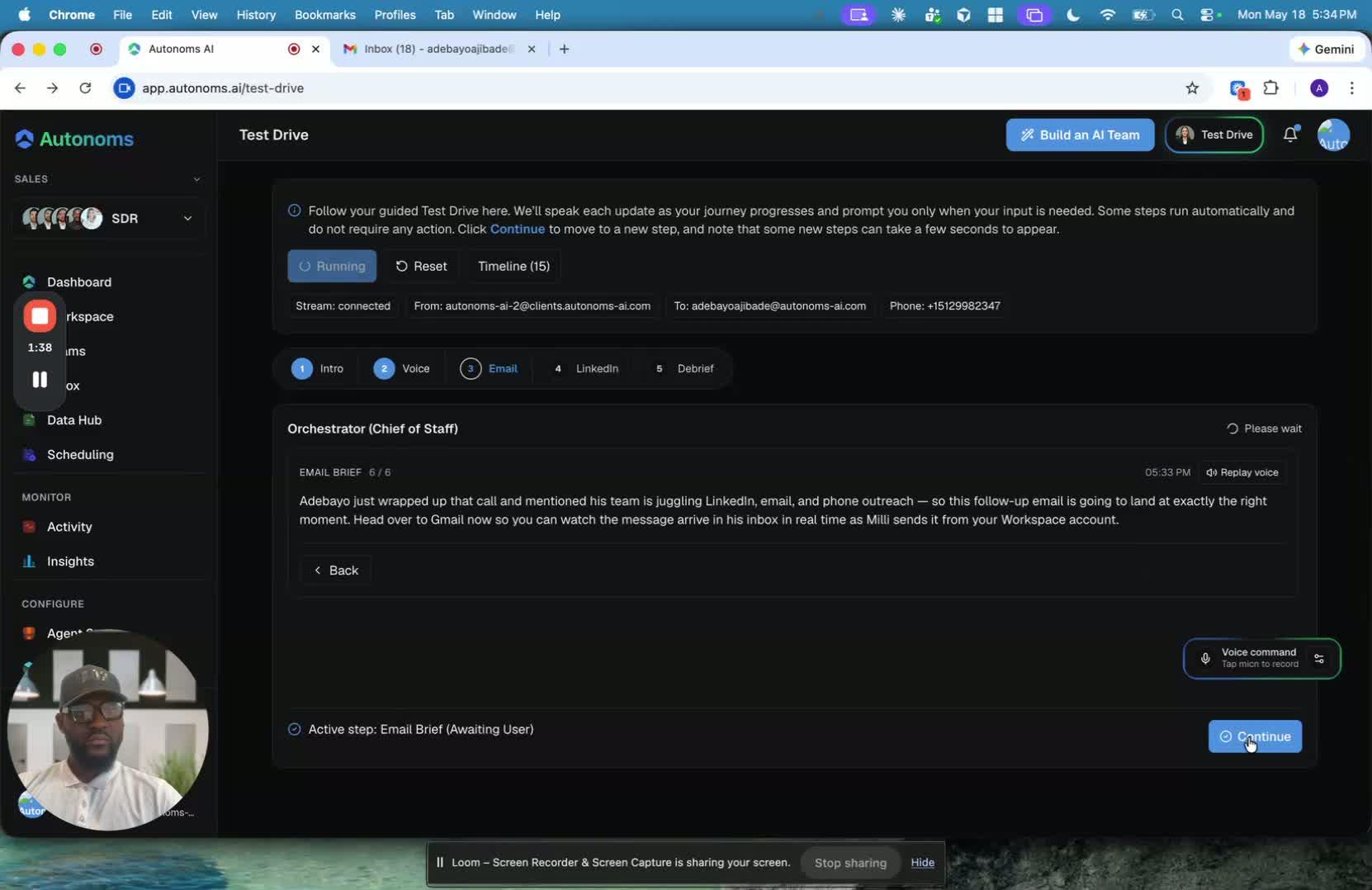
- Initiate a test email from the AI agent to a Gmail inbox.
- Confirm that the message is sent successfully.
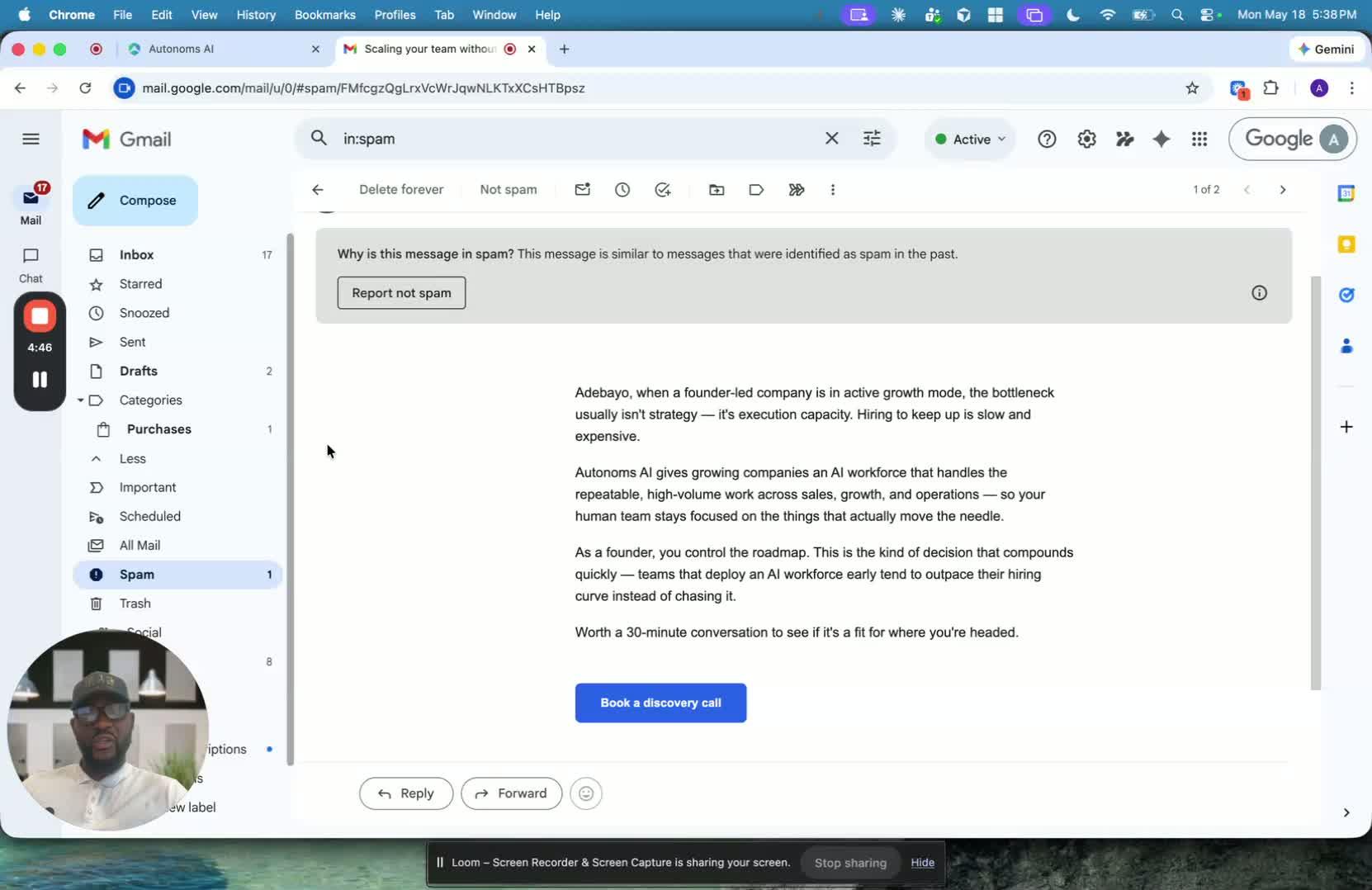
- Check the recipient inbox and spam folder if needed.
- Verify that the email content reflects the expected personalized run-through for the target ICP.
- Ensure the message demonstrates that the AI agent can personalize outreach based on the recipient profile.
4. Verify reply handling and personalization capabilities 2:08
generated-image-at-00:02:08
- Review the test email content to confirm it explains what the recipient should expect.
- Validate that the AI agent can personalize messages for different ICPs.
- Confirm that the dedicated email inbox is accessible for reading replies.
- Ensure the workflow supports back-and-forth communication between the AI agent and prospects.
- Keep all prospect communication in the dedicated inbox to avoid mixing it with unrelated messages.
5. Confirm calendar booking and meeting integration 2:56
generated-image-at-00:02:56
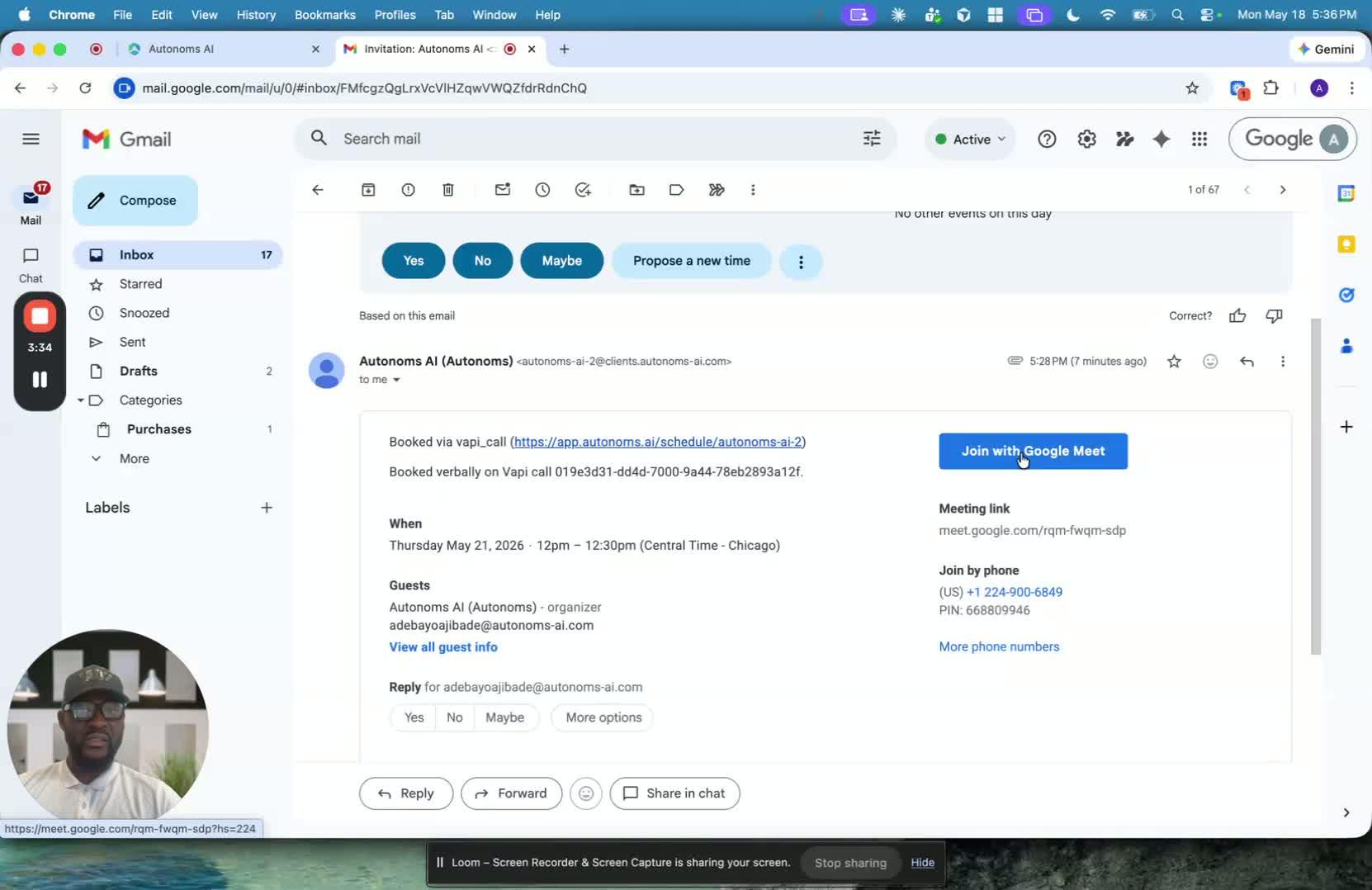
- Check the calendar to confirm that booked meetings appear correctly.
- Verify that the meeting is scheduled at the intended time and date.
- Confirm that the calendar invite includes:
- A calendar link
- A Google Meet link
- Proper meeting details
- Ensure the meeting setup includes optional capabilities such as:
- Transcription
- Meeting assistant connection
- Recording, if enabled
6. Validate email deliverability and inbox placement 3:28
- Review where the test email landed:
- Inbox
- Spam
- Note that the first email may land in spam, but inbox placement should improve after warm-up.
- Confirm that email warm-up is active to improve deliverability.
- Expect that most messages should land in the inbox over time, with a target of high inbox placement.
7. Prepare for LinkedIn outreach using the Chrome plugin 4:36
- After email testing is complete, move on to LinkedIn testing.
- Provide the user with access to download the required Chrome plugin.
- Instruct the user to install and connect the plugin to their system.
- Confirm that the plugin uses the user’s system and LinkedIn account to perform outreach.
- Verify that the LinkedIn outreach setup is ready before launching any campaigns.
Cautionary Notes
- Do not mix the dedicated AI outreach inbox with personal or general business email accounts.
- The first outbound email may land in spam; this is not necessarily a failure if deliverability improves after warm-up.
- Ensure the Google account and email permissions are configured correctly so the AI agent can read replies.
- Confirm meeting integrations are working before relying on automated scheduling.
- Only connect the Chrome plugin to approved systems and accounts.
Tips for Efficiency
- Use a dedicated inbox exclusively for sales and growth workflows to simplify monitoring.
- Warm up the email account before sending high-volume outreach to improve inbox placement.
- Test with a Gmail recipient first, since it is easy to inspect inbox vs. spam behavior.
- Verify calendar and Meet links immediately after booking to catch integration issues early.
- Keep LinkedIn plugin installation instructions simple and standardized for faster onboarding.
Link to Loom
https://loom.com/share/9a981aade3bc4493921a131e70e02b6e
Testing Email and Preparing LinkedIn Outreach in the AI Agent Workflow
1. Confirm the purpose of the email test 0:00
generated-image-at-00:00:00
- The Loom starts by moving from a successful code-calling test to the next validation: email.
- The goal is to verify that the AI agent can send and receive email correctly before moving on to the next channel.
- This email system is part of the agent’s outreach workflow, not a general-purpose inbox.
2. Understand how the email account is provisioned 0:10
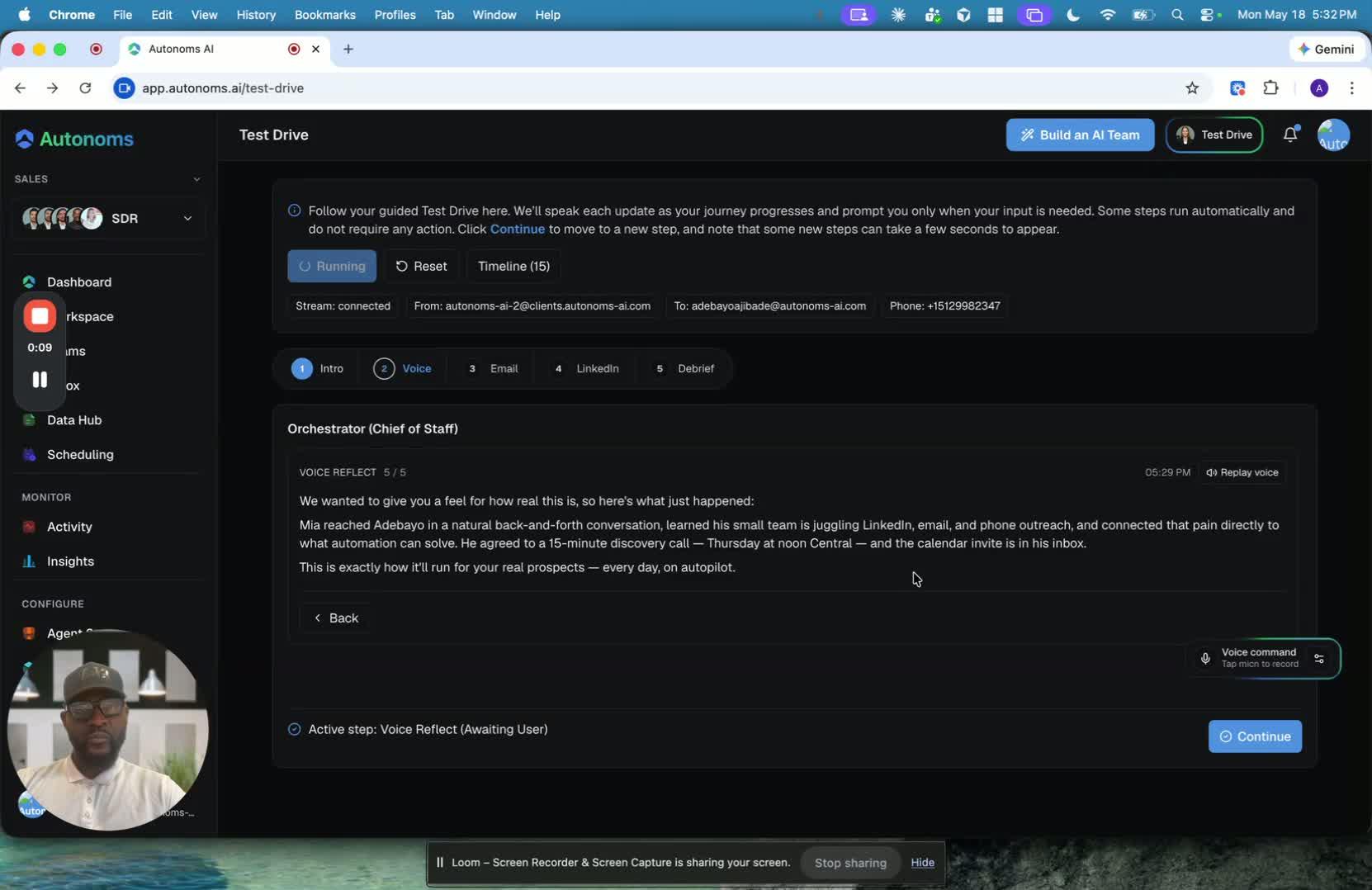
- A premium Google account is provisioned for the user.
- In the free tier, the email is usually based on the user’s first and last name at
autonoms.ai. - In a paid tier, the email can be fully customized to the user’s preference.
- The account is meant to be the dedicated identity the AI agent uses for outreach.
3. Use the dedicated email for sales and nurturing 0:32
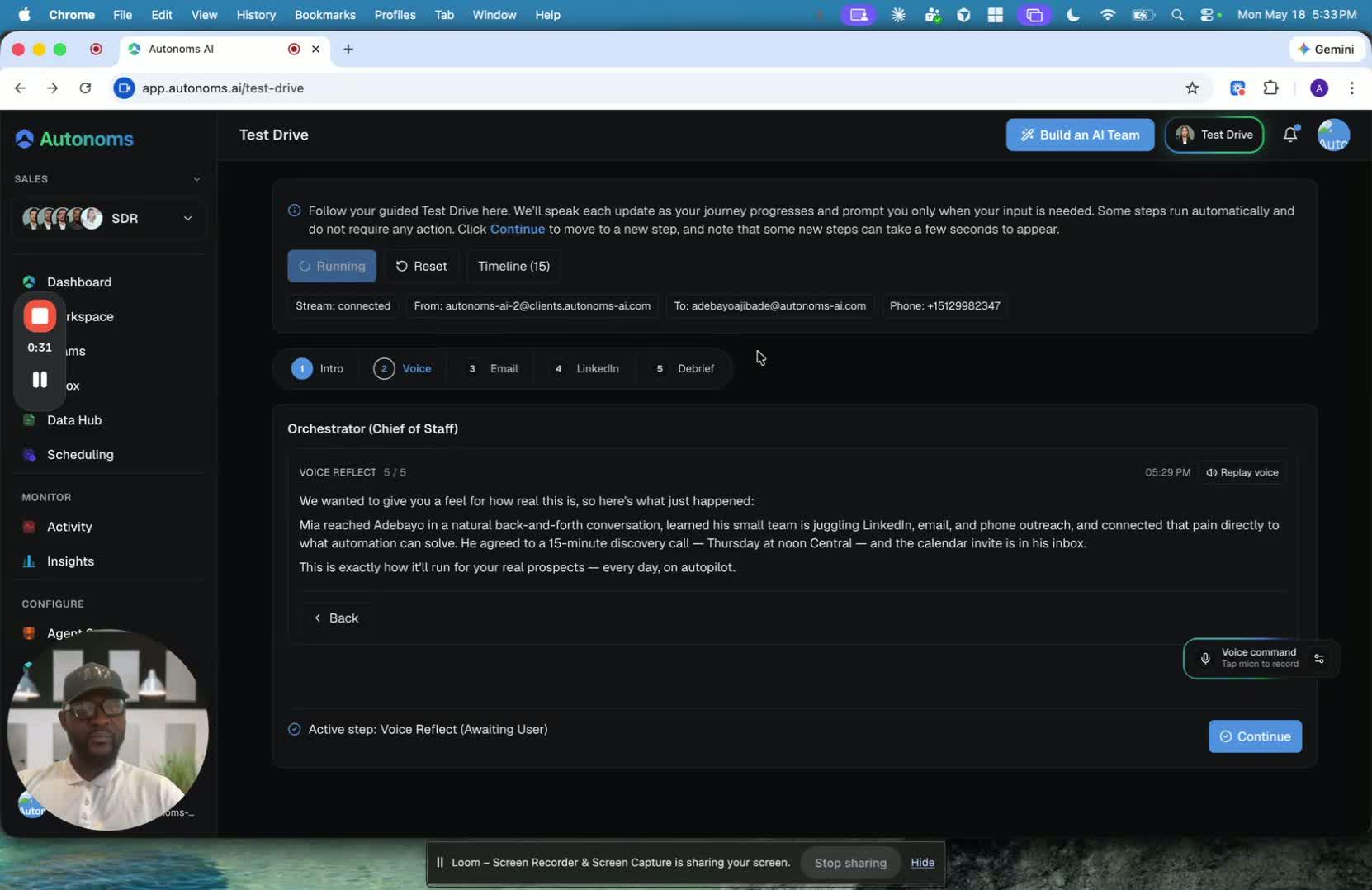
- The AI agent sends and receives messages through this provisioned email.
- It is used for:
- outbound sequences
- follow-ups
- customer nurturing
- back-and-forth replies with prospects
- Keeping this separate from personal or business email helps with:
- inbox isolation
- cleaner distribution management
- better deliverability and reachability
- The separation also makes it easier for the agent to read and manage replies.
4. Send a test email to verify delivery 1:36
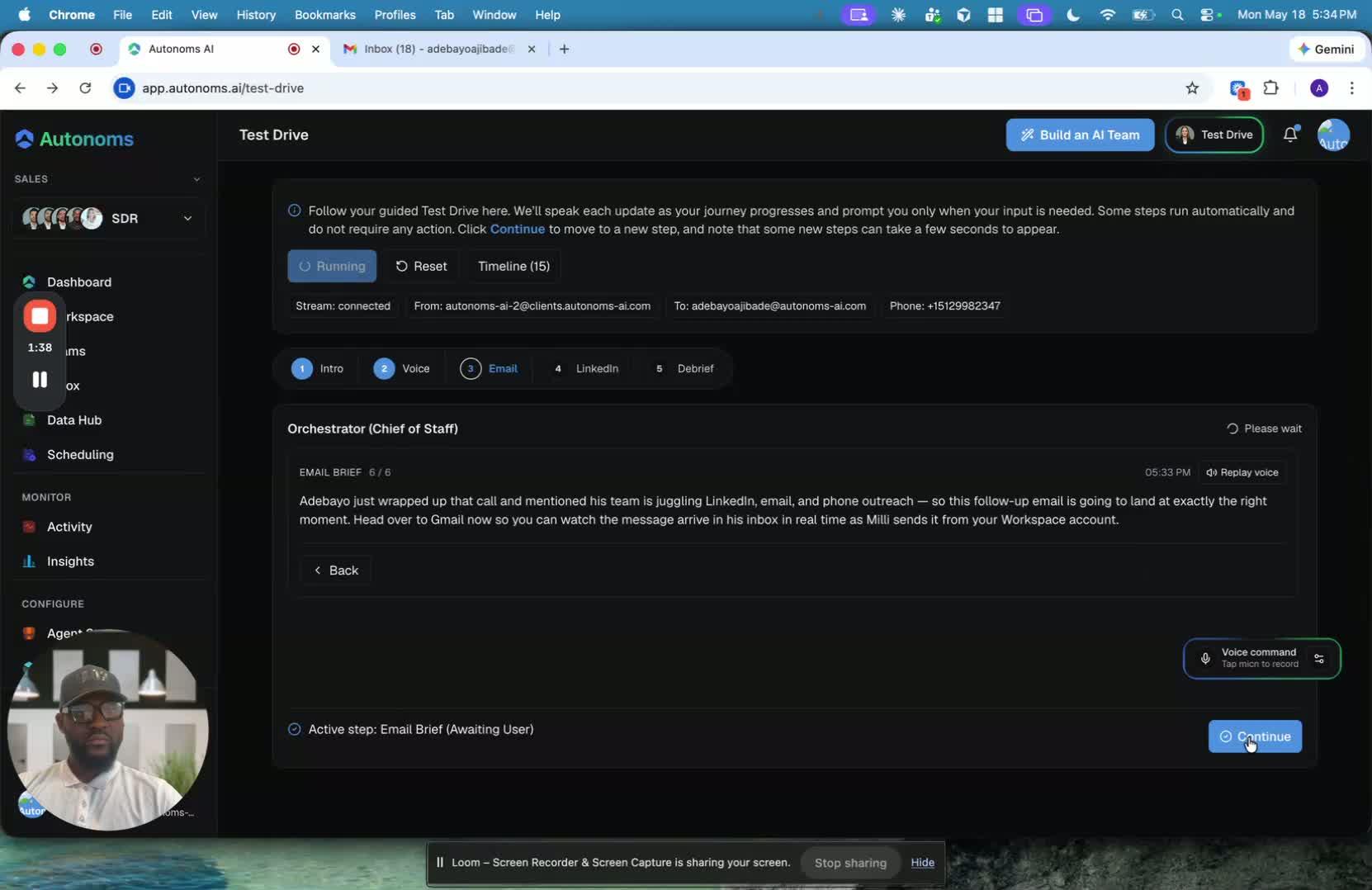
- The next step is to test email delivery.
- The speaker expects Mili to send an email to their Gmail account.
- This confirms that the agent can successfully send messages through the provisioned email setup.
5. Review what the email is meant to demonstrate 2:08
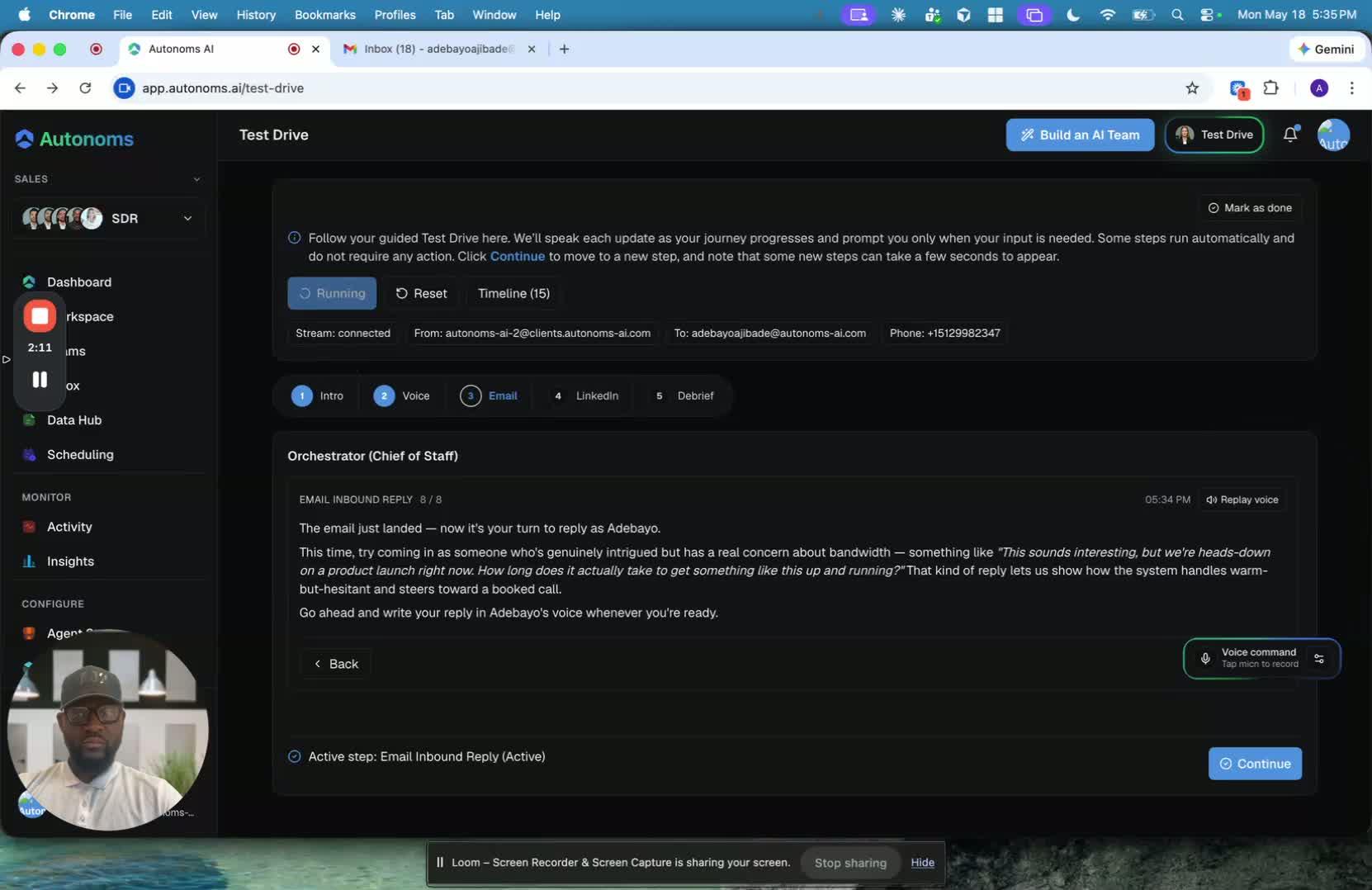
- The email should show how the AI agent personalizes messages for the target ICP.
- The system uses available information to make outreach more relevant.
- The agent can also read replies, which is why the dedicated inbox is important.
- This inbox is intended to handle only sales and growth communication, including:
- prospect replies
- meeting transcriptions
- AI-agent conversations with prospects
6. Check the calendar booking and meeting setup 2:56

- The speaker pauses to inspect the inbox and calendar.
- A meeting booked by Nia is already visible on the calendar.
- The booking includes:
- the correct scheduled time
- a calendar link
- a Google Meet link
- The meeting setup also supports:
- transcription
- a connected meeting assistant
- optional recording
7. Confirm the email arrived and note deliverability behavior 3:36
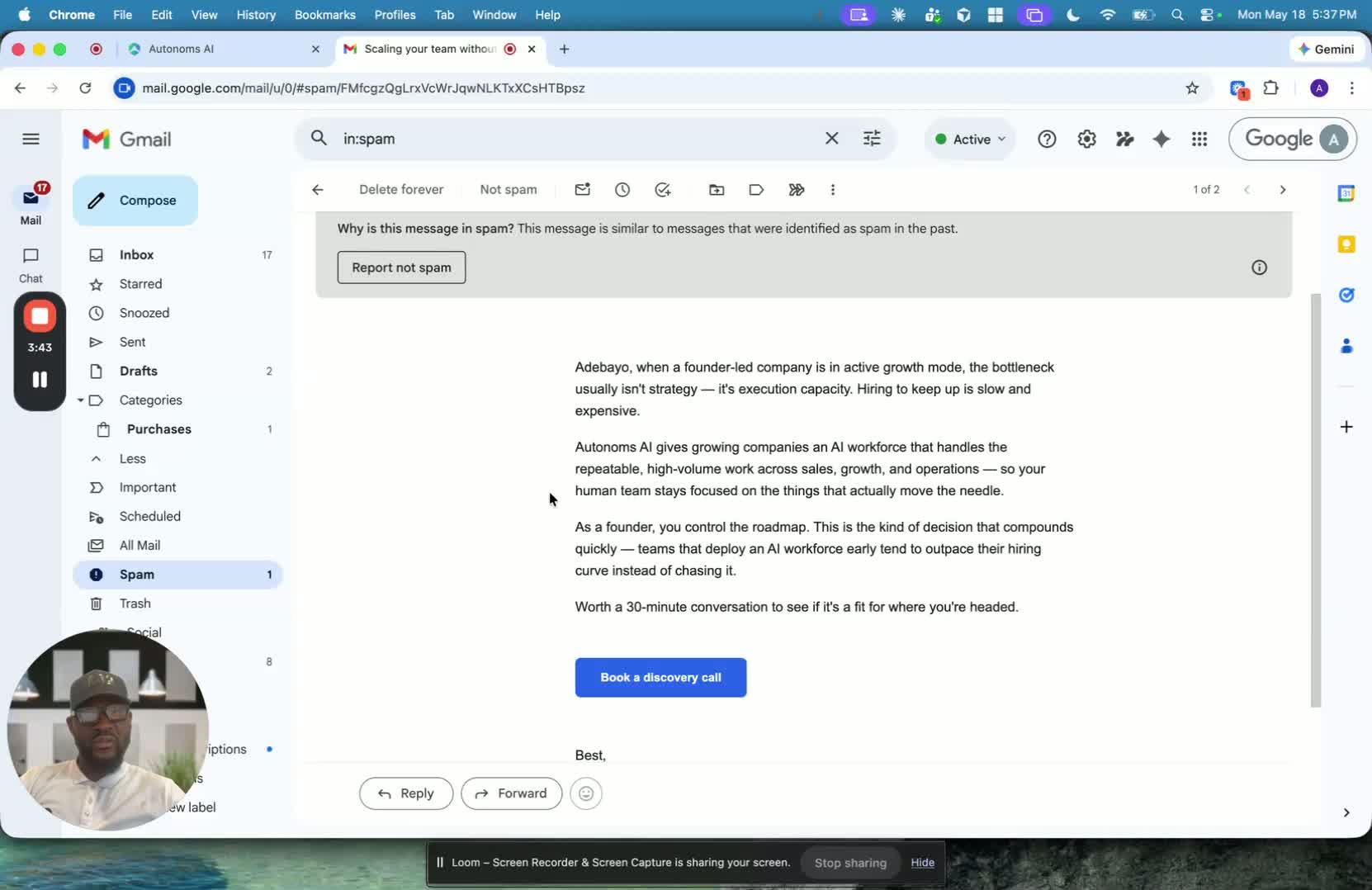
- The first test email landed in spam, which the speaker notes can happen initially.
- They mention that in most cases, the email lands in the inbox about 95% of the time.
- Email warmup improves deliverability over time.
- The point of the demo is to show that the capability works, even if the first message does not land in the inbox.
8. Move on to the next channel: LinkedIn 4:25
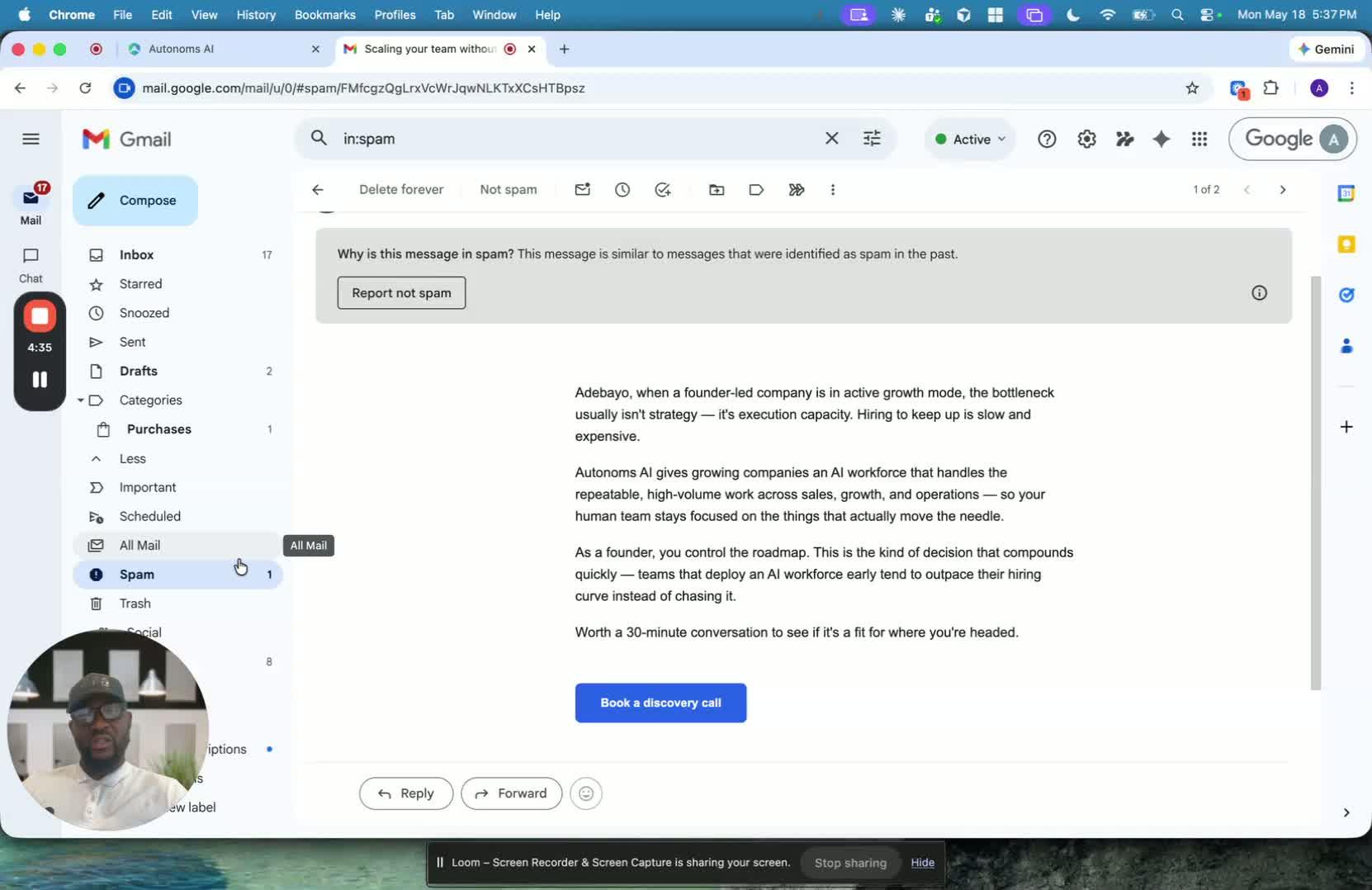
- After confirming the email, the speaker transitions to the next test: LinkedIn.
- LinkedIn outreach is handled differently from email.
- The workflow uses a Chrome plugin that the user downloads and connects to their system.
- The plugin uses the user’s system and accounts to perform outreach actions.