

SOP: Using the Voice Command Center for Voice-Enabled Platform Interactions
Key Steps
1. Understand the purpose of the Voice Command Center 0:00
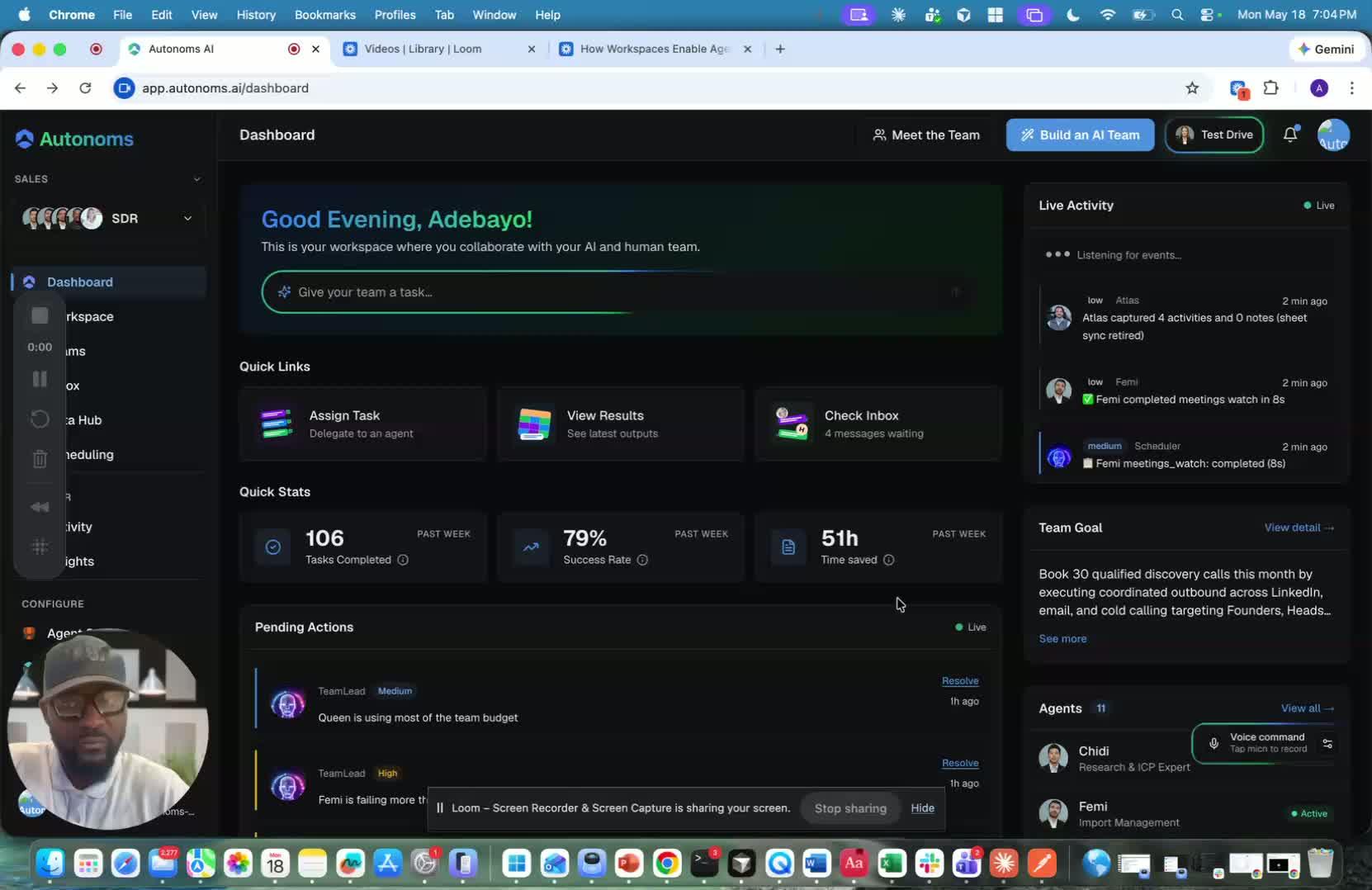
- The Voice Command Center is a voice-enabled way to interact with the platform.
- It allows users to communicate with the system using spoken prompts instead of only typing.
- Use it when you want a more natural, hands-free interaction experience.
2. Activate the voice-enabled talking-head interaction 0:09
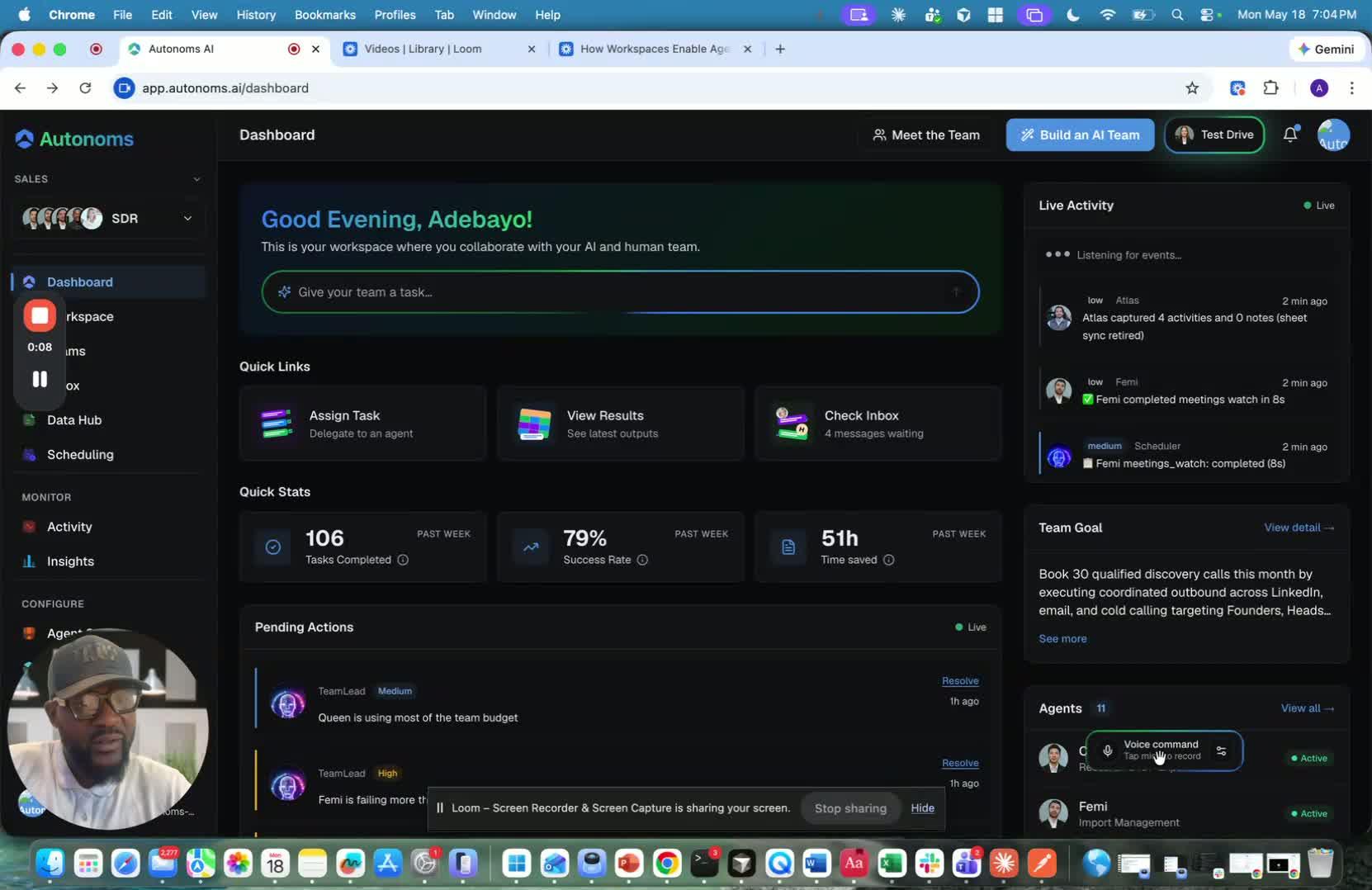
- Open the Voice Command Center and enable the voice interaction feature.
- Select the appropriate talking head or voice-enabled agent for the person or workflow you are interacting with.
- Confirm that the agent is ready to receive spoken queries, intents, or prompts.
3. Speak your request and wait for the response 0:23
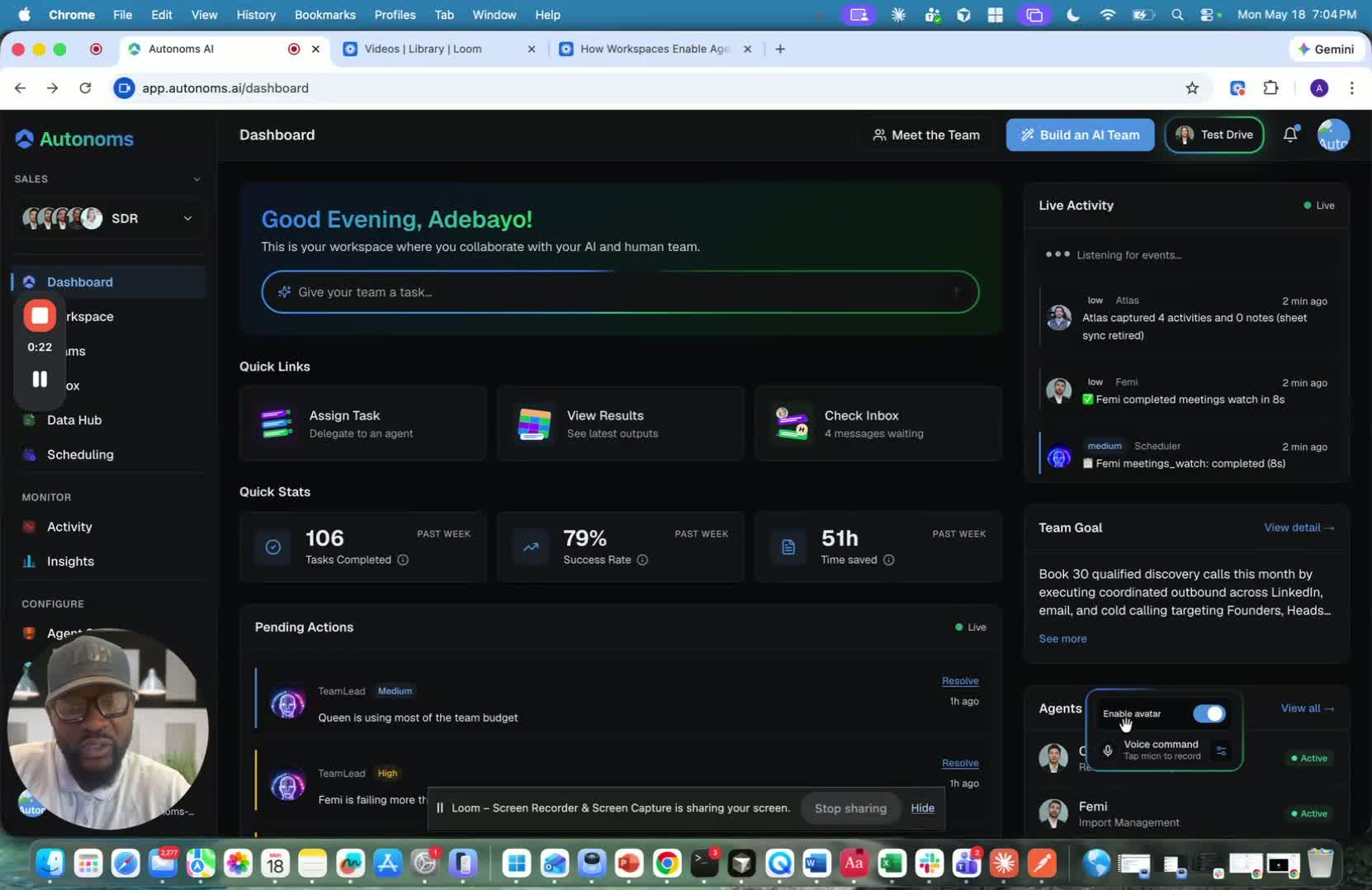
- Ask your question or give your prompt clearly.
- The system will stream the agent response in real time.
- Expect the response to appear and/or be spoken back as the agent processes your request.
4. Review the response and account for possible latency 0:32

- Listen to or read the response once it is returned.
- Be aware that there may be some latency while the system continues to improve.
- If the response is delayed, wait briefly before repeating the request.
5. Use voice as an optional workflow, not a requirement 0:44
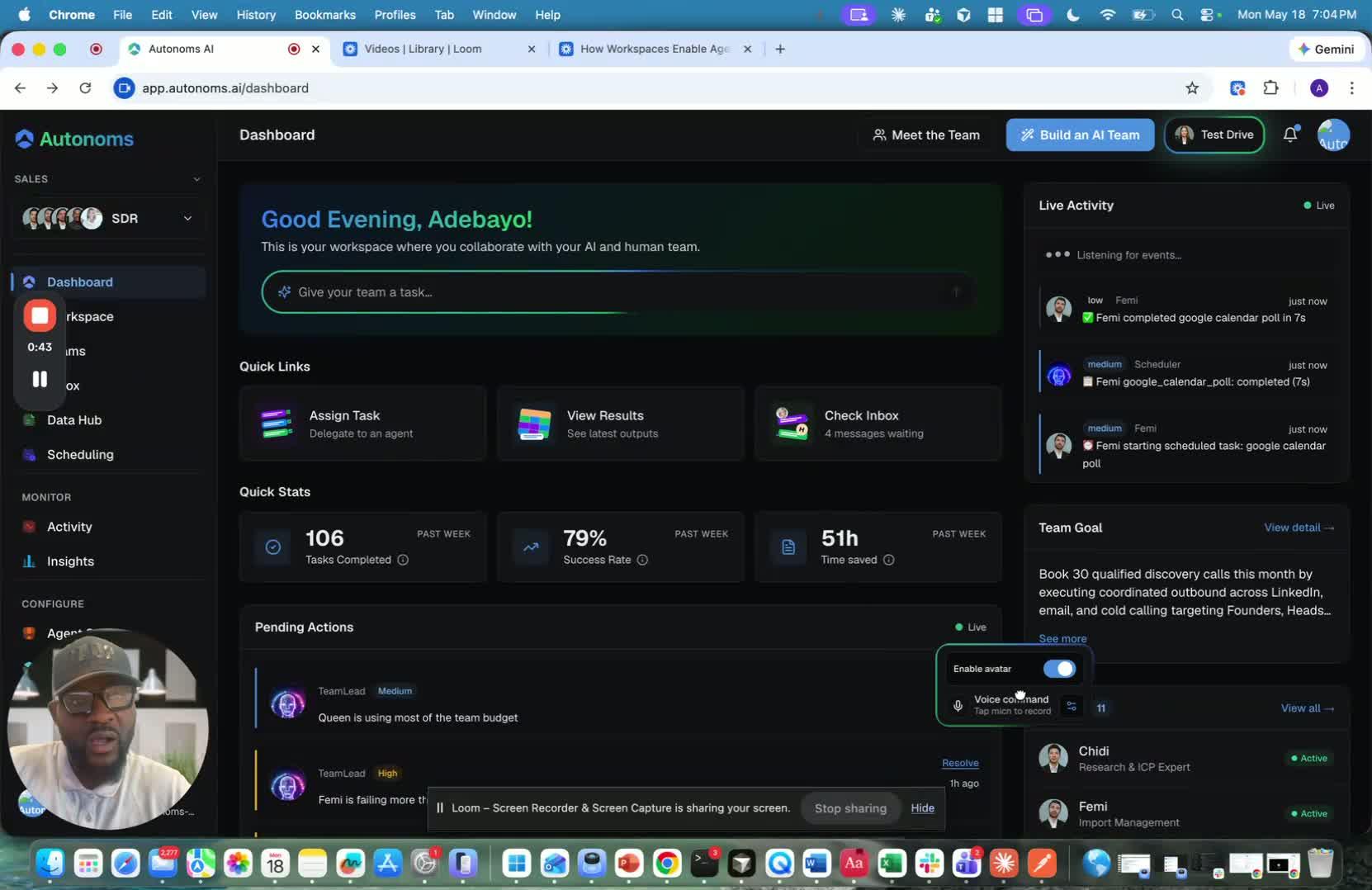
- Voice interaction is a convenience feature, not mandatory.
- If preferred, continue using chat or switch between chat and voice as needed.
- Choose the interaction method that best fits the task and your working style.
6. Reposition the voice interface if it blocks your workspace 0:51
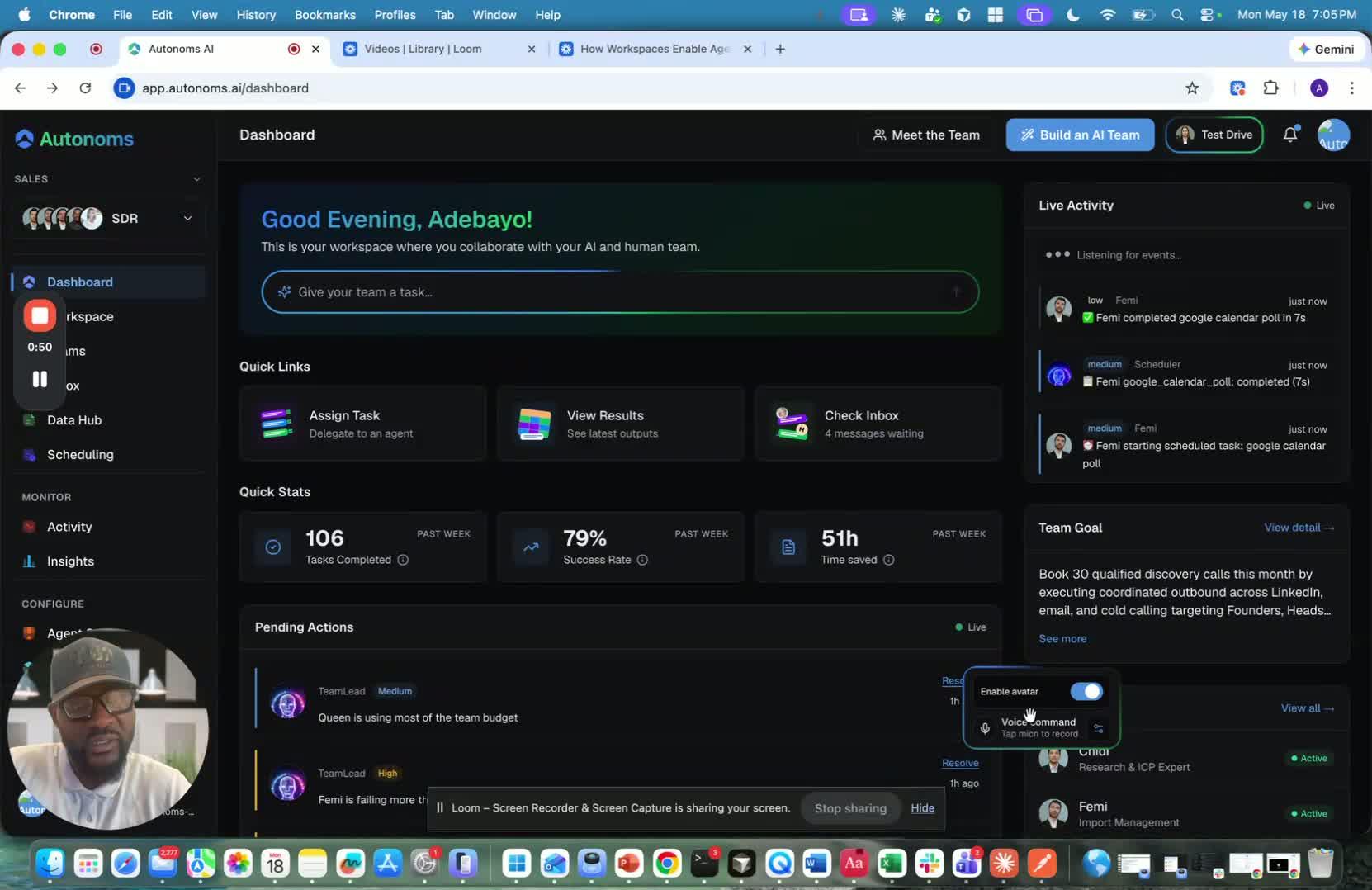
- If the talking-head window obstructs important content, move it to a different area of the screen.
- Keep the interface visible but out of the way so you can continue working efficiently.
- Adjust placement whenever it interferes with navigation or reading.
7. Ask natural-language questions to the assistant 1:00

- Use conversational prompts such as asking what company the assistant represents or what the company goals are.
- Speak clearly and include enough context for the assistant to understand your intent.
- Treat the interaction like a live conversation with a support agent.
8. Send the prompt and verify the returned output 1:36
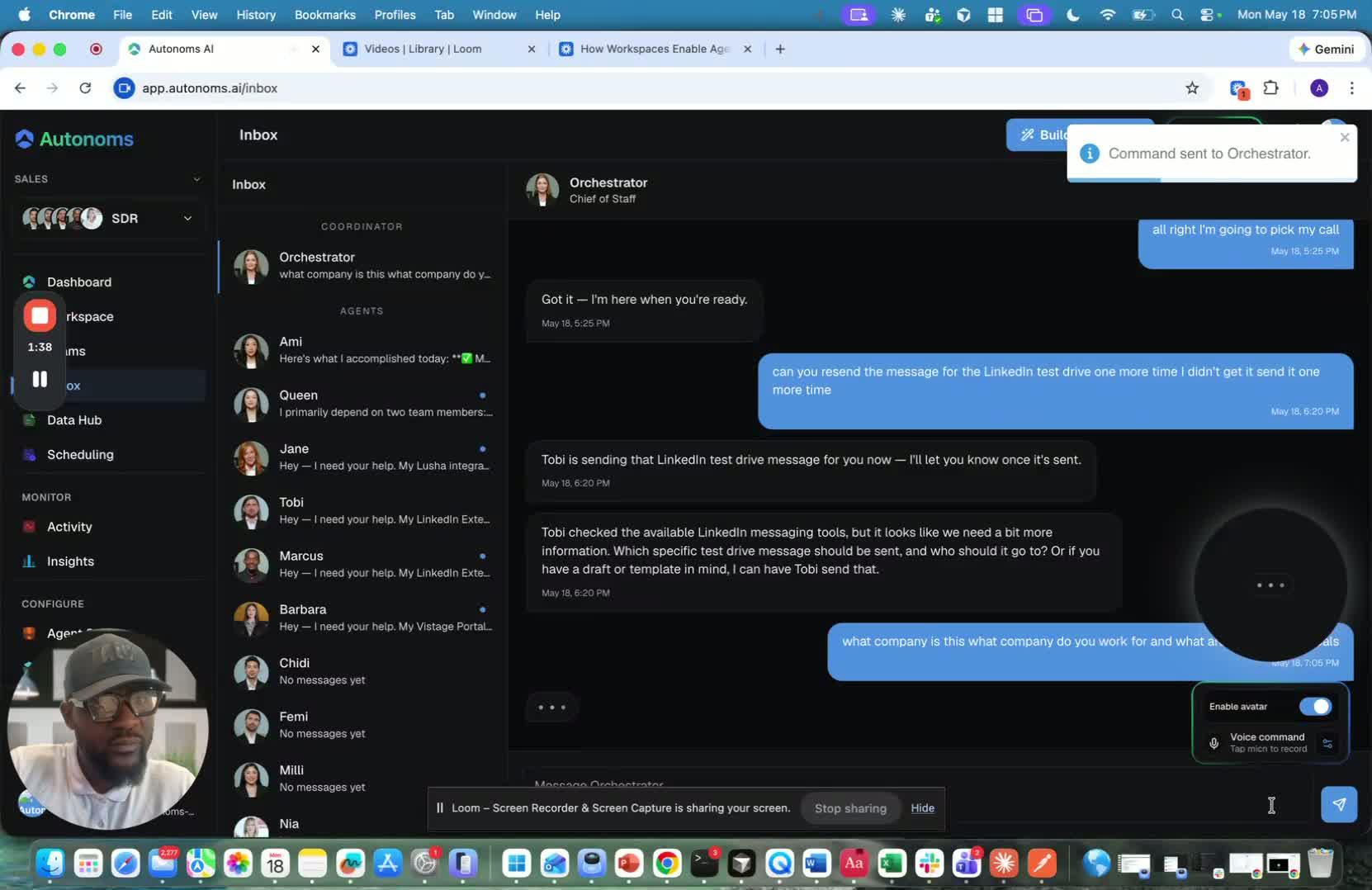
- After speaking, ensure the prompt is actually submitted to the system.
- Confirm that the platform returns a text reply or spoken response.
- If the first attempt does not send correctly, repeat the prompt and verify delivery.
9. Use the talking head for real-time, accessible support 2:14
generated-image-at-00:02:14
- Rely on the talking head when you want the system to answer back verbally.
- Use this feature for accessibility or when you are multitasking and cannot focus on typing.
- Take advantage of the more personalized, conversational experience it provides.
10. Continue using and improving the feature as the platform evolves 2:40
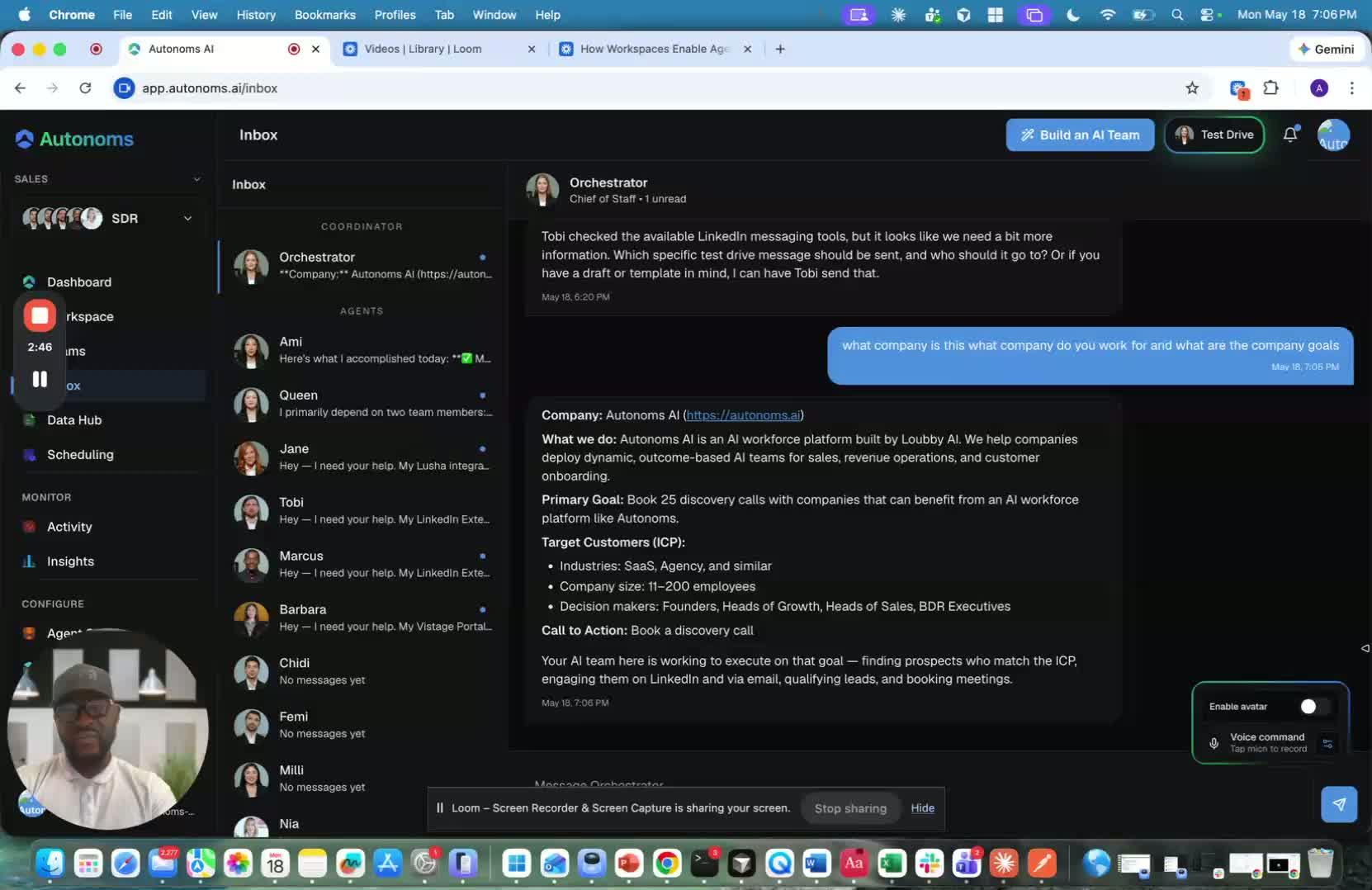
- Expect ongoing improvements to the voice experience, including reduced lag and better interaction quality.
- Monitor results and note any issues or successes during use.
- Share feedback so the team can continue refining the Voice Command Center.
Cautionary Notes
- Voice responses may experience latency; do not assume the system is unresponsive immediately.
- The talking-head interface is optional, so users should switch to chat if voice is inconvenient.
- If the interface blocks important content, move it rather than leaving it in place.
- Make sure prompts are actually sent; a spoken request alone may not trigger a response if submission fails.
Tips for Efficiency
- Use voice when multitasking to reduce typing and keep work moving.
- Keep the talking head positioned where it is visible but not disruptive.
- Ask clear, specific questions to get faster and more accurate responses.
- Switch between voice and chat depending on the task for the smoothest workflow.
- Reuse the feature for repetitive questions to save time and improve familiarity.